
Saving and Sharing Views as Favorites
Last updated on 2026-05-21
Overview
In the dimension bar of Consolidation & Financial Planning, you can save custom views of a ledger or schedules as favorites. This allows you to quickly access frequently used views without having to reconfigure the dimension bar.
You can also share your favorite views with other users.
This article contains the following sections:
Opening the Favorites Menu
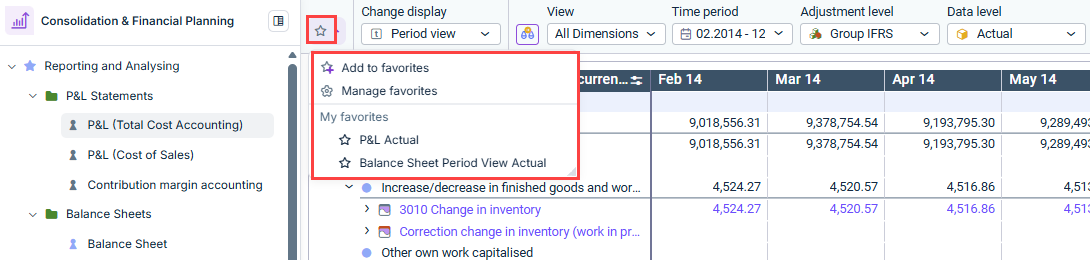
To open the Favorites menu, click the star icon in the dimension bar of a ledger or schedule. The Favorites menu appears as follows, for example:
Options in the Favorites Menu
The following options are available in the Favorites menu:
Add to favorites
Select the Add to favorites option to save the currently open view of the ledger or schedule as a favorite under a custom name. The favorite will then appear under My favorites in the Favorites menu.
Manage favorites
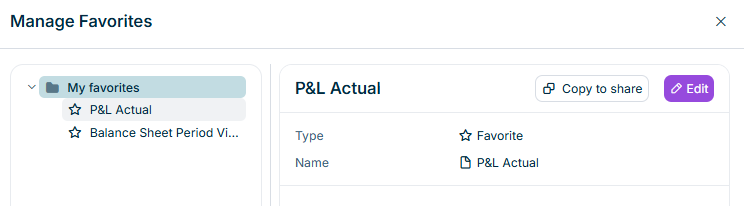
Using the Manage favorites option, you can rename, reorder, and copy existing favorites to share them with other users. The Manage favorites dialog appears as follows, for example:
 'Manage Favorites' dialog
The following options are available for managing favorites:
| Option | Description |
|---|---|
| Rename a favorite | Select a favorite and click Edit to change the name. |
| Copy a favorite to share | Select a favorite and click Copy to share to copy the favorite to the clipboard and send it to another user.
Note: In order for other users to open the view shared via the favorite, they must have the appropriate access permissions for the ledger or schedule in question. |
| Create a new favorite folder | Select the My favorites root folder and choose Create | Folder from the context menu to create a new folder in the Favorites menu. |
| Move a favorite | Select a favorite and choose Cut from the context menu. Then paste the favorite into the desired location in the Favorites menu. |
| Change the order of favorites | Select the My Favorites root folder and choose Change order from the context menu. In the Change order dialog, you can then sort the favorites alphabetically or drag them manually to the desired position. |
| Delete a favorite | Select a favorite and choose Delete from the context menu to delete it. |