
Working with Word References
Last updated on 2026-04-27
Overview
With Word references in Disclosure Management, you can reuse the content of a chapter from one report in a chapter of another report.
This article contains the following sections:
Creating Word references
You can create a Word reference in the Cockpit via the three-dot icon of an empty chapter.
To create a Word reference for a chapter:
Open the target document.
In the Cockpit, at the end of the row of an empty chapter, click the three-dot icon.
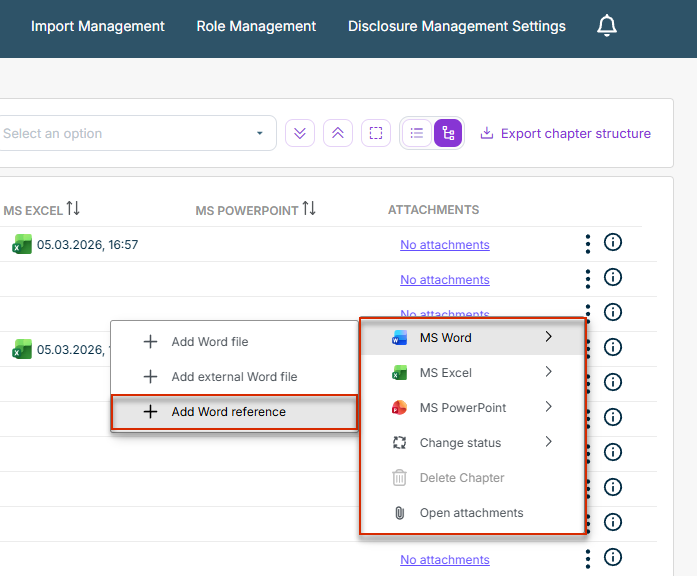
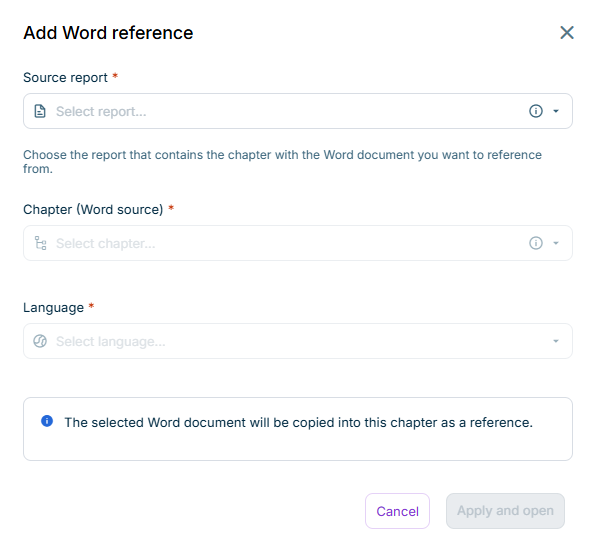
In the menu, choose MS Word | Add Word reference. The following dialog is displayed:
The Add Word reference command is not available in the following cases:
- You do not have editor permission for the chapter.
- There are no referenceable documents available.
- The chapter already contains a reference.
- The chapter already contains a chapter.
Configure the Word reference. The following information must be specified:
| Option | Description |
|---|---|
Source report |
Report that contains the chapter you want to reference |
Chapter |
Chapter you want to reference |
Language |
Drop-down list with all available languages |
Click Apply and open.
The following actions are performed:
- MS Word opens automatically with the source content in the selected language.
- After opening, a check-in is automatically performed in the background.
- The reference is created in the target chapter, and the source content is inserted as a chapter at the selected position.
- In the Cockpit, an additional icon for a reference is displayed in the MS Word column:
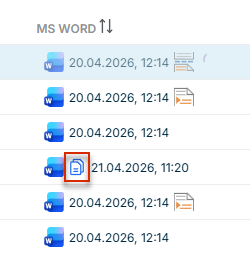
Changes you make in the Word reference are not transferred to the original chapter.
Updating a Word Reference in 'Track Changes' Mode
When the source chapter of a Word reference is updated, the Cockpit highlights the reference icon in the MS Word column. In addition, a tooltip on Status displays the Update available note:
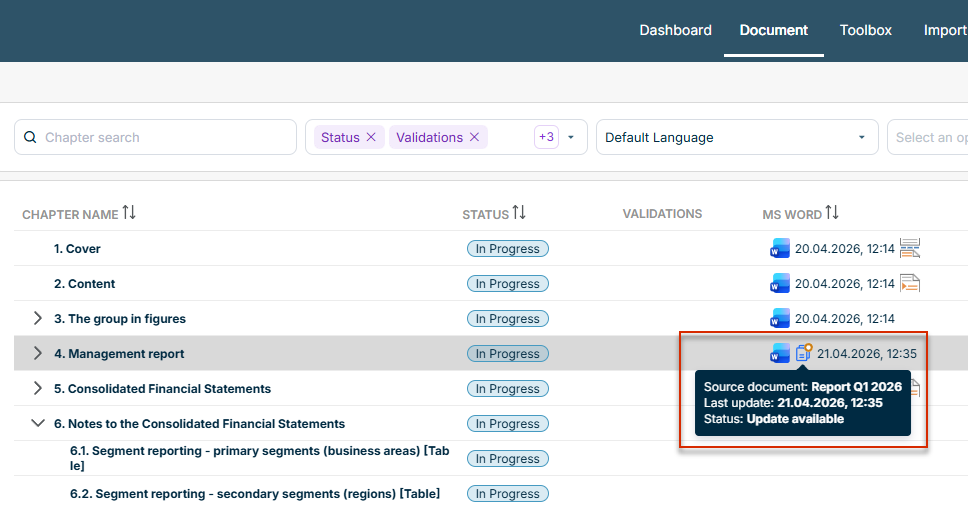
To check and apply updates of a Word reference:
Click the icon of the Word reference. The Word editor opens with Track Changes mode enabled. Changes from the source chapter are highlighted in the Word document.
Use the native Track Changes functions in MS Word to review the differences:
- Accept changes you want to apply.
- Reject changes you do not want to apply.
Click Check in to save the result. The following actions are then performed:
- The highlighting of the reference icon in the Cockpit is removed.
- The reference metadata is updated with the new check-in timestamp of the source chapter.
- A new entry is created in the chapter's history.
Discarding Manual Changes
You can discard changes you have made in a Word reference at any time.
Proceed as follows:
In the Cockpit, at the end of the row of an empty chapter, click the three-dot icon.
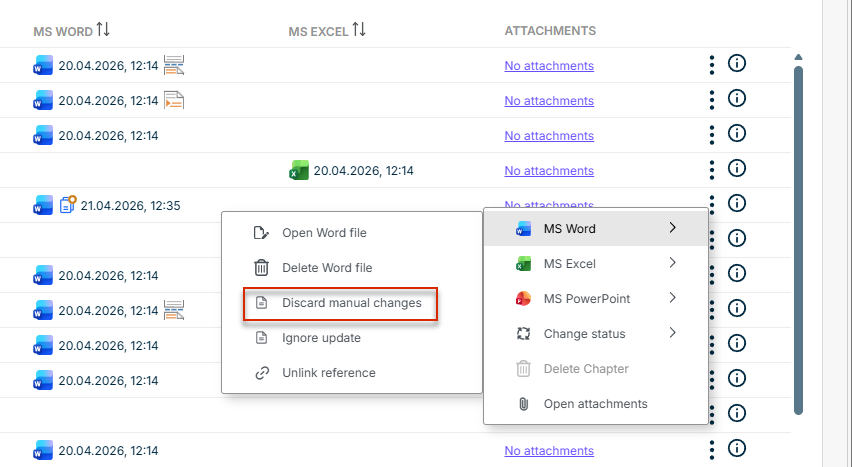
Under the menu item MS Word, choose the command Discard manual changes.
The document matches the state of the original chapter again.
Unlinking a Reference
You can unlink a Word reference from the original chapter at any time. Proceed as follows:
In the Cockpit, at the end of the row of an empty chapter, click the three-dot icon.
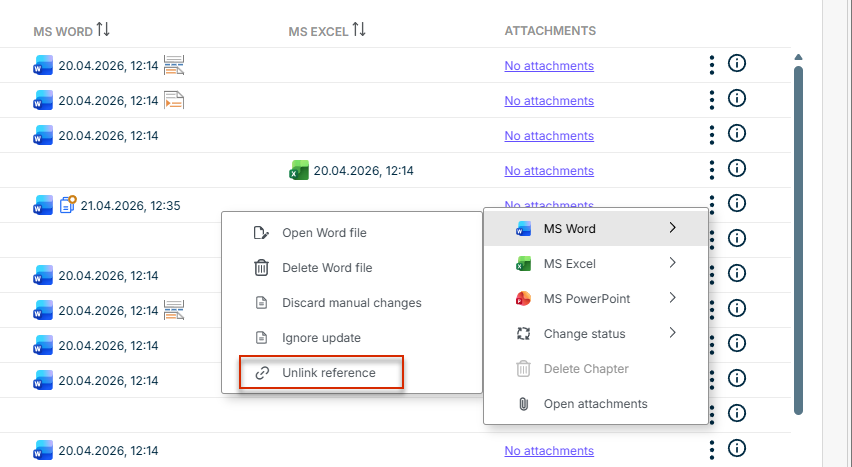
Under the menu item MS Word, choose the command Unlink reference.
The link to the original chapter is removed, and the current state of the Word reference is added as a chapter to the current document. The icon indicating a reference is removed.