
Data Transmission
Last updated on 2026-04-28
Overview
The Data transmission workspace is used for the electronic transfer of the tax return. In this workspace, you can perform a test run including transmission before the final transmission.
This article contains the following sections:
Navigation
The Data transmission workspace is opened under Company | Electronic Transmission | Data transmission. The Data transmission workspace is displayed, for example, as follows:
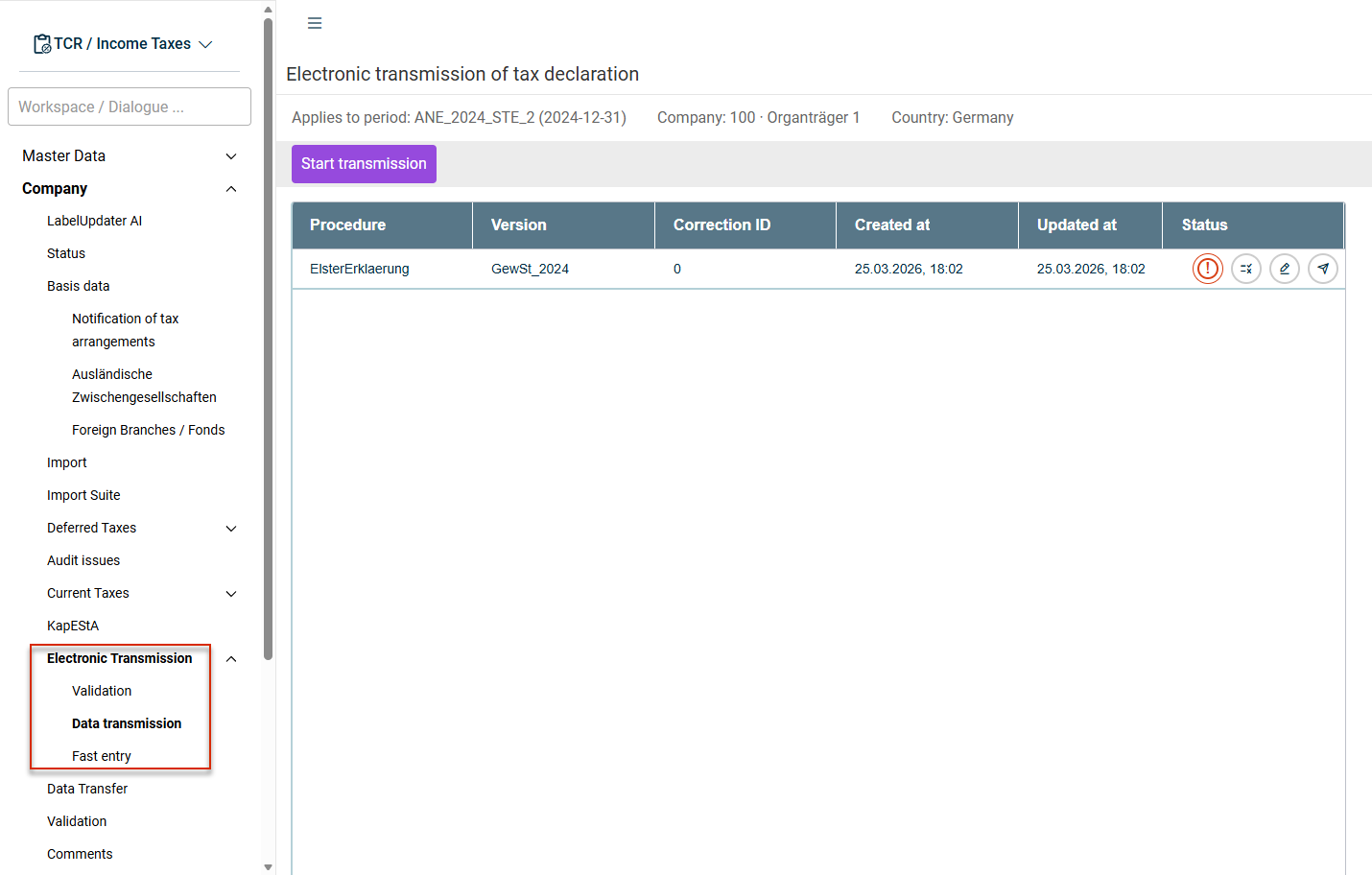
The table shows all transmission processes created for tax returns of the chosen period and their processing status.
Any live transmission that have been carried out can no longer be deleted from Income Taxes. They are permanently stored in the Electronic Transmission | Data transmission workspace.
Tax Return Transmission Process
To transmit a tax return, the following process must be completed:
In the Validation workspace, check the entries currently made in the workspaces (forms).
Click the Start transmission button. The Dialog Preparing for transmission – Step 1 is displayed:
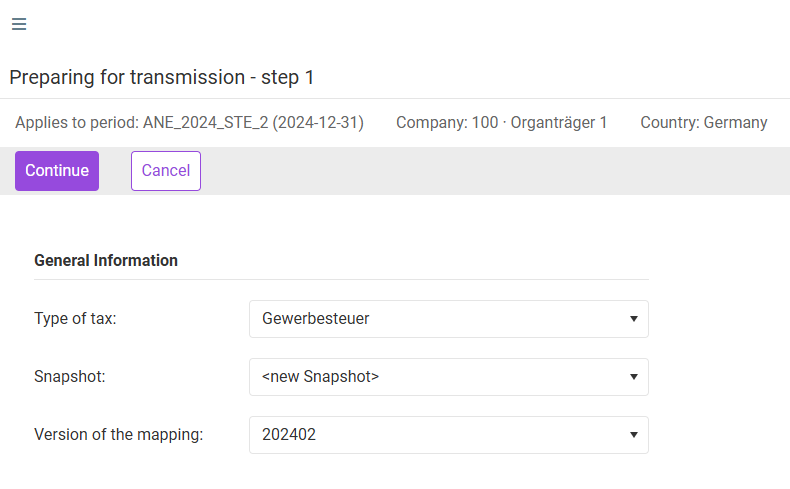
Choose one of the following options:
- Choose the tax type for which the transmission process is to be started from the Type of tax drop-down list.
- Choose the snapshot you want to use from the Snapshot drop-down list or specify whether a new snapshot is to be created.
- In the Version of the mapping drop-down list, select the mapping version. The latest mapping version is usually chosen here.
Snapshots in transmission
Data transmissions always use a snapshot. Therefore, subject the tax calculation to a validation process before creating the snapshot. At least one valid snapshot is required for the electronic test transmission and the live transmission.
Once all data have been entered, click the Continue button to execute the second process step.
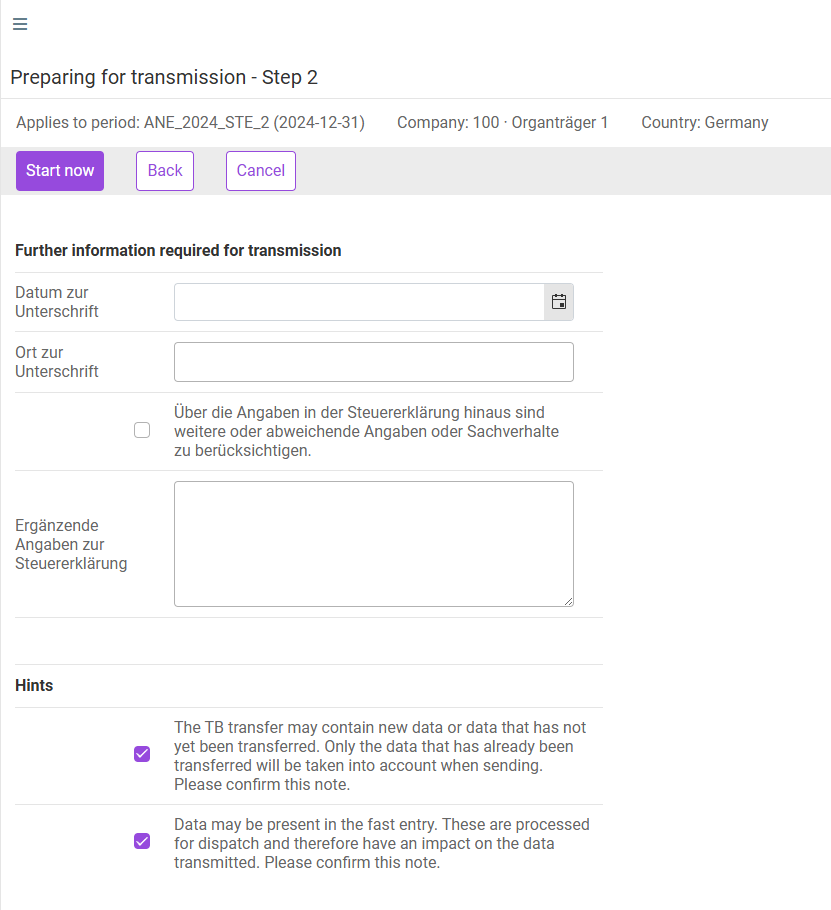
The following options are available in the Preparing for transmission – Step 2 dialog:
Option
Description
Datum zur Unterschrift (Signature date)
Enter the date
Ort zur Unterschrift (Place of signature)
Enter the place here
Über die Angaben in der Steuererklärung hinaus sind weitere oder abweichende Angaben oder Sachverhalte zu berücksichtigen (Any additional or deviating information or issues that go beyond the tax return are to be taken into account)
Activate the check box if you want to provide additional or deviating information beyond the tax return. The data entered in the Ergänzende Angaben zur Steuererklärung (Supplementary information for the tax return) free text field is transmitted to the tax office if this check box is activated.
Hints
The displayed notes must be confirmed with the check boxes to generate a snapshot.
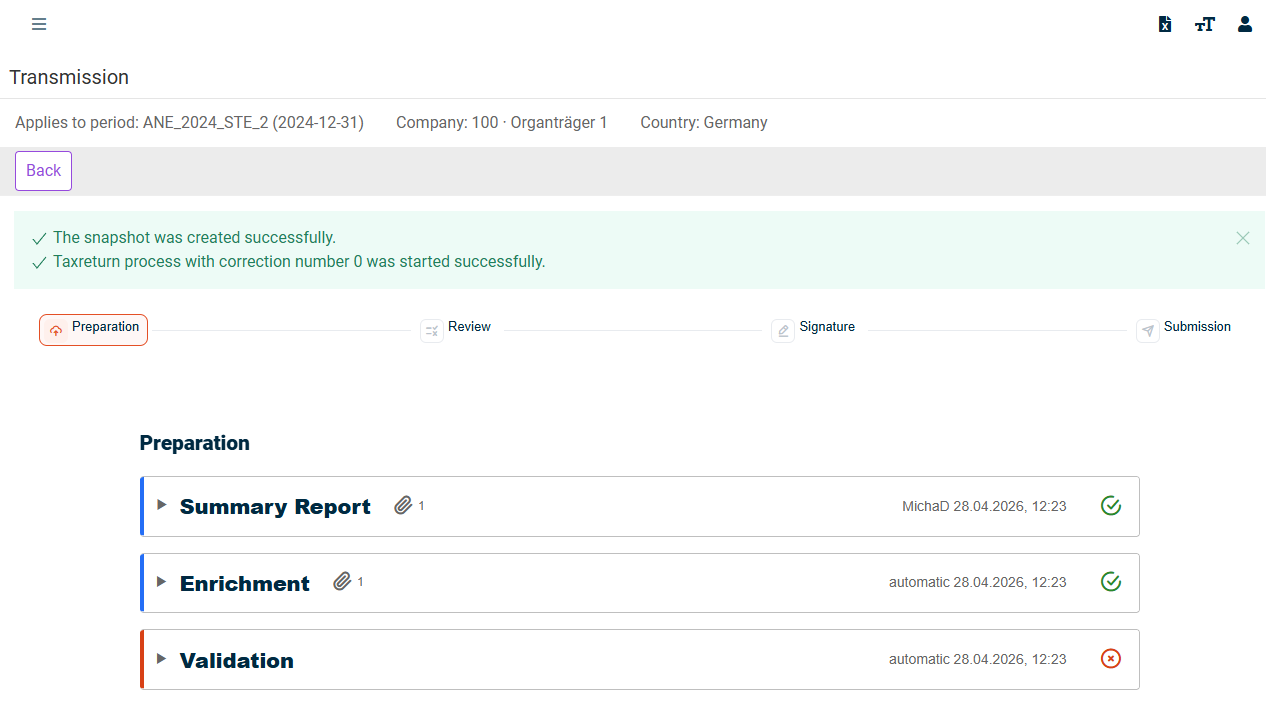
Click the Start now button to initiate the data transmission process. The transmission process is displayed, for example, as follows:
Preparation
The following information is displayed in the Preparation section:
- Zusammenfassungsbericht (Summary report): The data ready for transmission are displayed here in summarized form. No adjustments by the user are necessary. The forms to be transmitted in the next step are indicated by a green check mark.
- Anreicherung (Enrichment): A (technical) file (Steuerfall.xml) is generated during each transmission process. This is visible in the Enrichment step.
- Validation results:
- ERiC error messages from the tax authority that prevent transmission
- Confirmations of successful validations
- Test dispatch: If the validation was successful, the protocol is displayed here as a PDF file.
Review
The following information is displayed in the Review section:
- More actions: This function allows you to attach files to the Submission step. They are not transmitted and are used only to document your decision. Only PDF files are allowed.
- Reject: Clicking the Reject button opens a window with a free-text field. You can enter the reason for rejection and confirm the rejection here. The data transmission is stopped and the rejection is automatically documented in the workflow. To transmit the data successfully, start a new transmission process afterwards.
- Accept: Clicking the Accept button opens a window with a free-text field. Here you can enter a comment for the review and confirm the review. The data are then transmitted to the responsible authority.
Perform the next steps in the process
Once you have checked for any validation errors in the Transmission dialogue or carried out other actions, the corresponding next step will be activated. You can also start the individual process steps directly from the table by clicking on one of the icons in the Status column:
- Steps that have already been completed are highlighted in green and marked with a check mark.
- The next step due to be taken is outlined in green.
- Steps that cannot yet be executed are outlined in grey.

Sending Corrections
You can transmit corrections by re-running the transmission process. Proceed as follows:
Open the Company | Electronic Transmission | Data transmission workspace.
Click the Start transmission button and carry out the transmission process, as described before, in the same way as for the initial transmission of the tax return.
Income Taxes assigns correction ID 0 to the initial data transmission. Each additional successful live transmission increments the correction transmission counter by 1.
All transmissions can be viewed in the overview table under Company | Electronic Transmission | Data transmission workspace. You can track the number of corrections there in the Korrekturnummer (Correction number) column.
Fast Entry
Additional values for the purpose of the tax return can be entered in the Fast Entry workspace based on what are referred to as ERiC IDs. This ensures that all rows of the forms can be transmitted – including those that may not yet be available in Income Taxes.