
Import
Last updated on 2026-04-16
Overview
The Import workspace allows transaction data to be imported from source systems (e.g. SAP systems) into Income Taxes. Data can be imported into the balance sheet comparison and the tax forms.
The import routine is usually configured customer specifically and documented separately in the implementation project.
This article contains the following sections:
Navigation
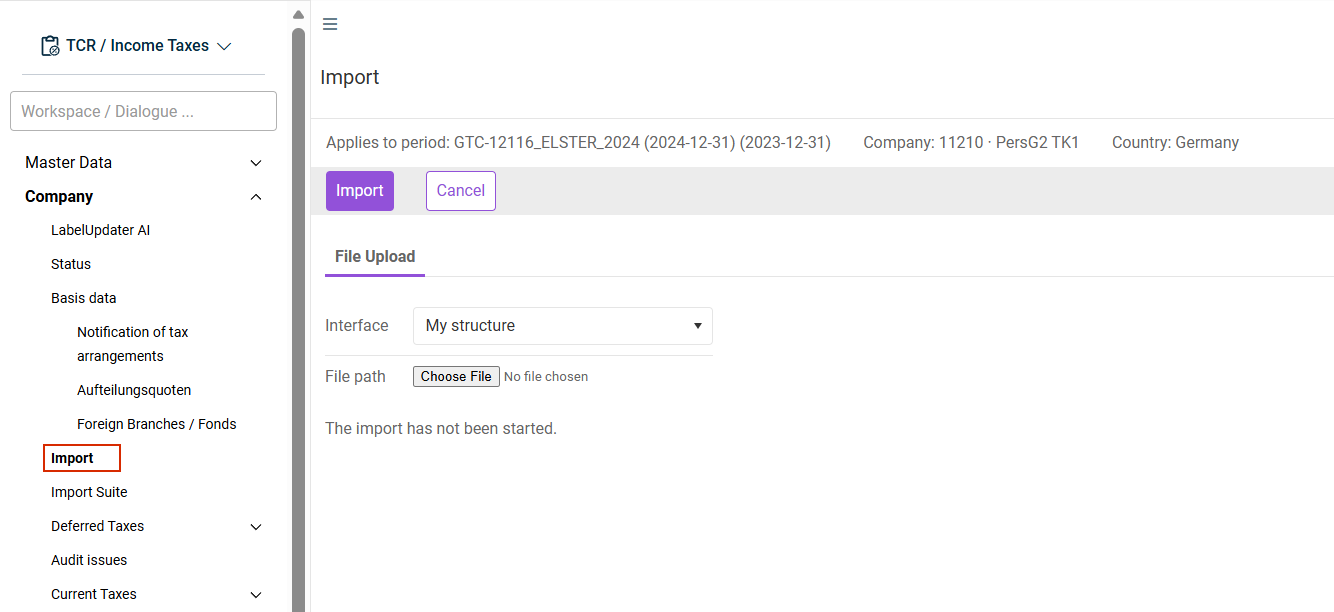
The Import workspace is opened under Company | Import.
The Import workspace is displayed, for example, as follows:
Options
The following options are available in the Import workspace:
Option
Description
Import
Starts the import.
Interface
Select the required Interface. The interfaces in the drop-down list correspond to the interfaces defined in the master data under Structure.
File path
Click Choose File to choose a file whose data should be imported.
For automatic interfaces, the file path is not displayed (e.g. REST import).
Saving the Import
After the import, the uploaded values are displayed row by row in the lower table area of the Import workspace.
A successful data import is indicated by a green check mark. An error message is displayed for each affected row if the import was not successful.
After a successful import, the Save and Import-Protocol buttons are displayed:
- To view comprehensive details, including information on positions that were not imported, click Import-Protocol.
- To apply the imported values in Income Taxes, click Save.
The import process must be completed by clicking Save. Otherwise, the imported values will not be applied in Income Taxes.