
Validation
Last updated on 2026-05-14
Overview
With flexible validation, Income Taxes gives you the option to independently define and compare validation items from both Income Taxes and an external system (e. g. SAP). Changes to the validation items do not require any programming on the part of Lucanet. They are made independently by you via the Income Taxes interface instead.
Please observe that this function is a paid additional function. If necessary, contact your Lucanet consultant.
This article contains the following sections:
Navigation
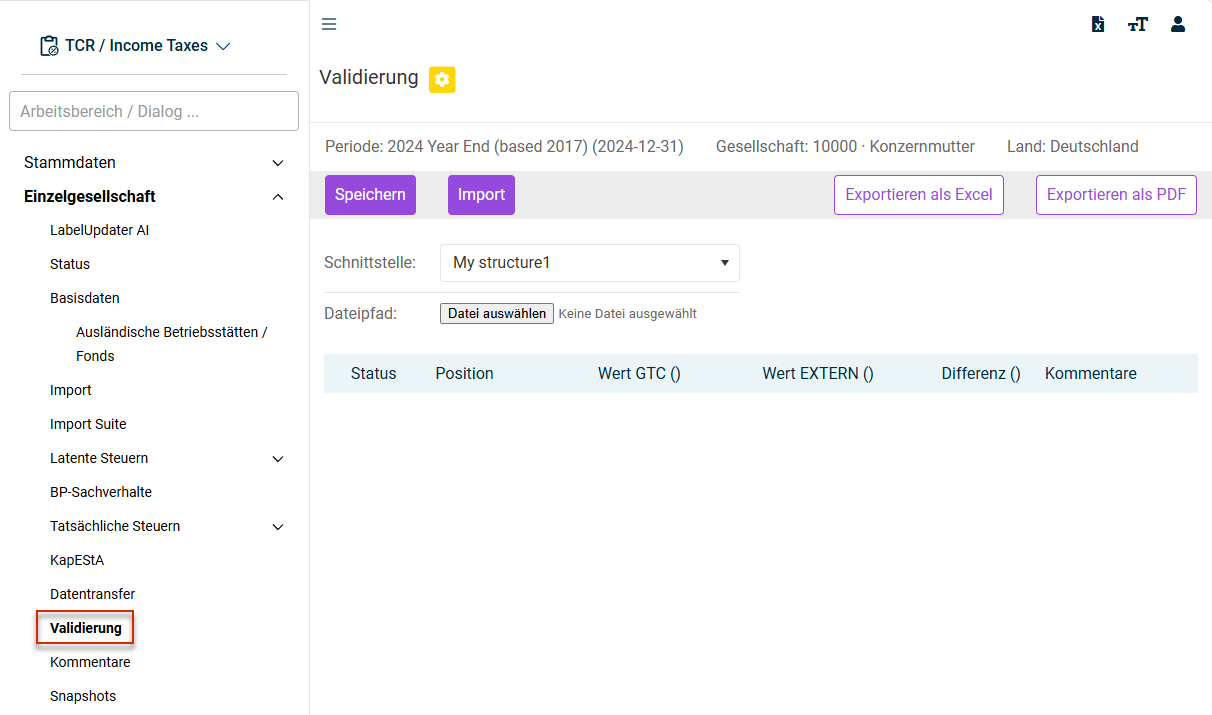
The Validation workspace can be found under Company | Validation.
The Validation workspace is displayed, for example, as follows:
Configuring Validation
If flexible validation is activated in Income Taxes, the following additional configurations must be performed.
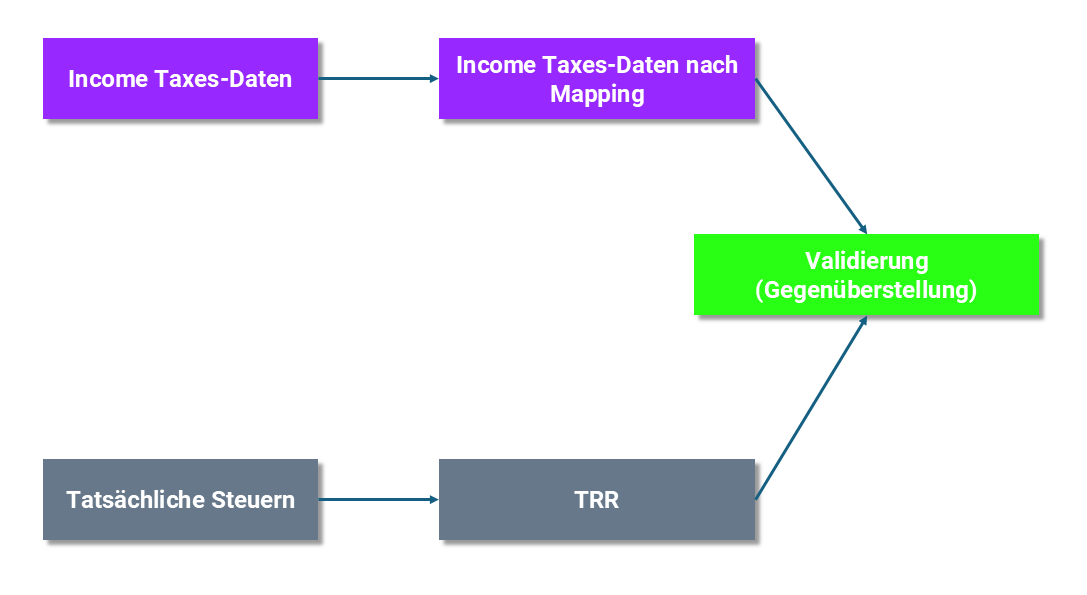
The validation is performed essentially with the following steps:
Defining the Interface
Click Create.
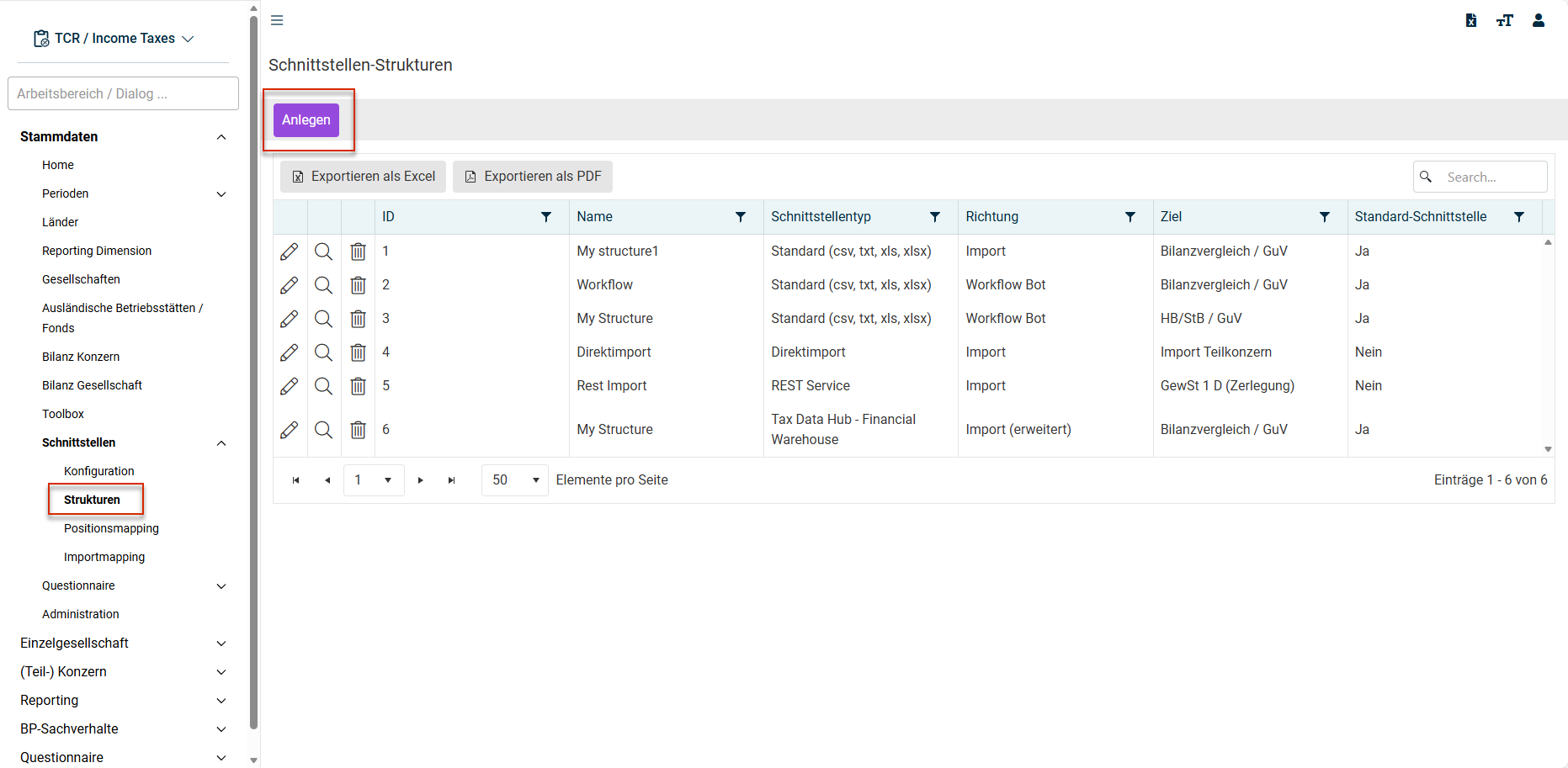
The dialog for creating a new interface is displayed. Enter a name for the interface under Name.
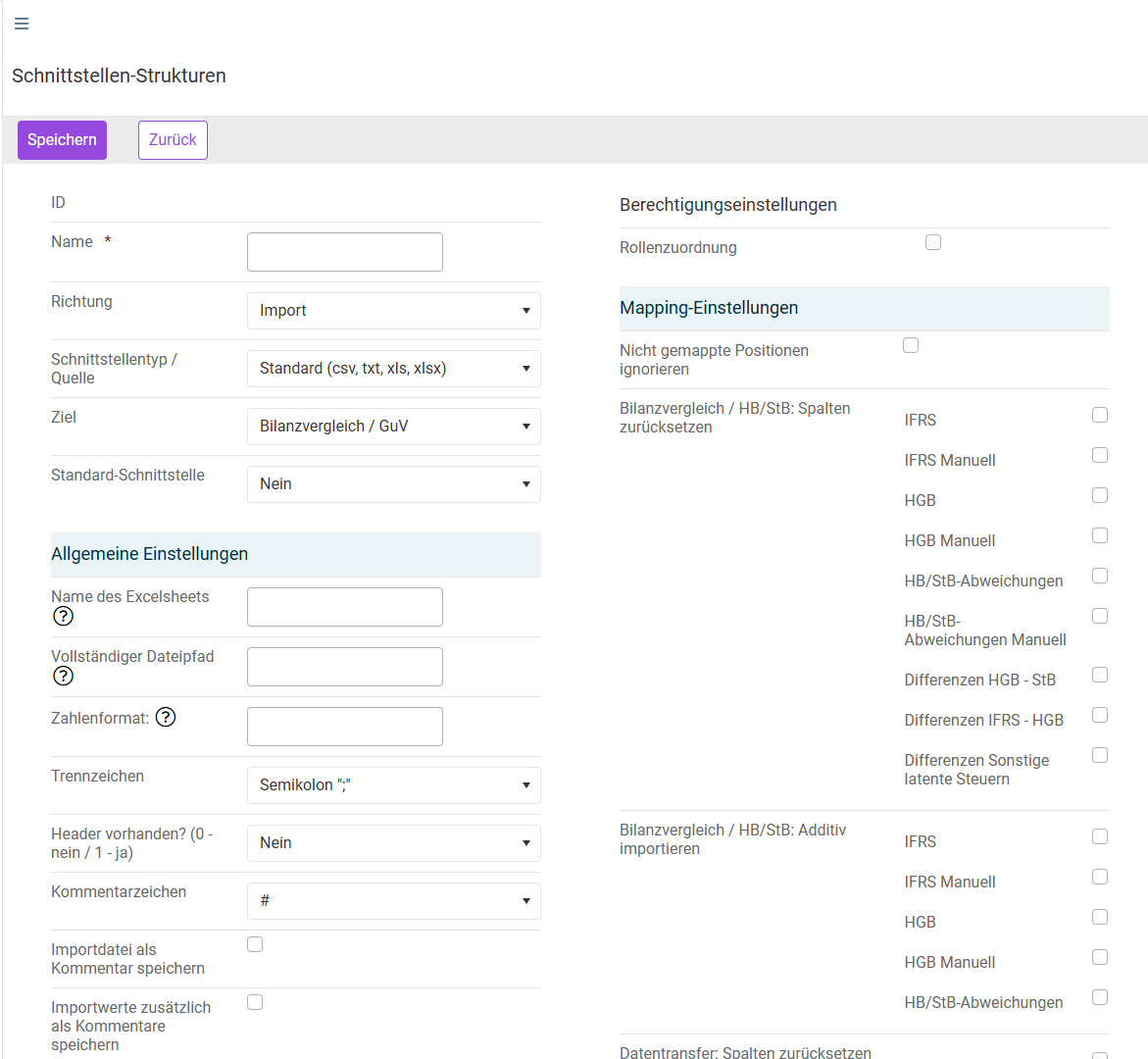
Choose the suitable file type for Interface Type / Source. Income Taxes supports both text files (.CSV, .TXT) and Excel files (.XLS, .XLSX).
With the appropriate customer-specific configuration, RFC connections to SAP systems can also be used to load data for the validation directly from SAP into Income Taxes (without downloading and uploading files).
Select Import for Direction and IFRS for Destination.
Choose the option Yes for Default Interface.
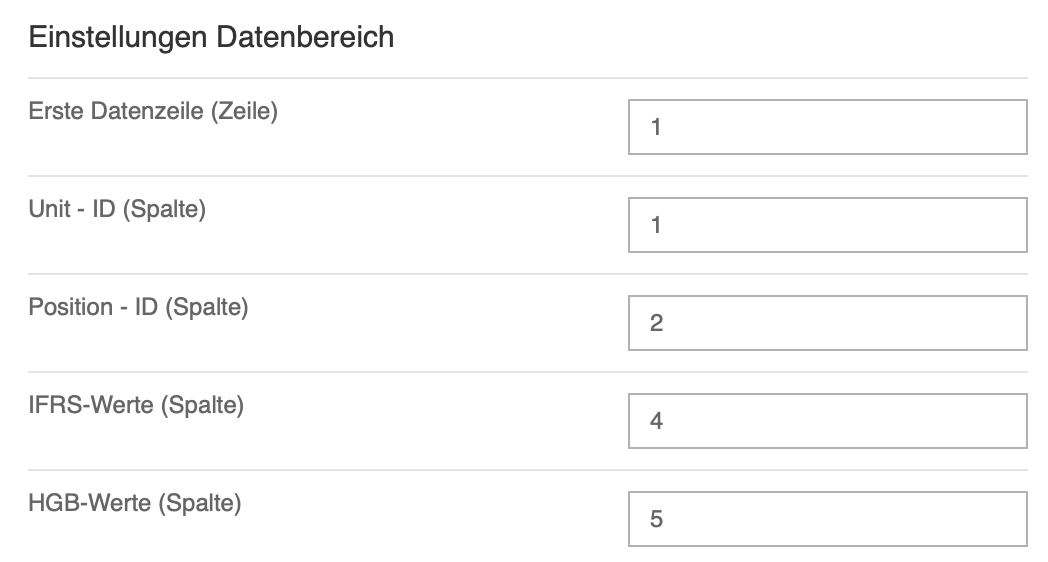
In the Data settings area, specify in which row of the file the relevant import data begin and in which columns the values to be imported are located.
Click Save.
Defining Mappings
The mapping is defined in corresponding files. The values visible in Income Taxes can generally be addressed by means of a unique ID.
A simple example is the mapping displayed in the following. With this mapping, the short-term deferred tax assets from the summary of an individual company and the profit before tax from the tax rate reconciliation are assigned to the comparison items Deferred tax assets – short-term or EBT.
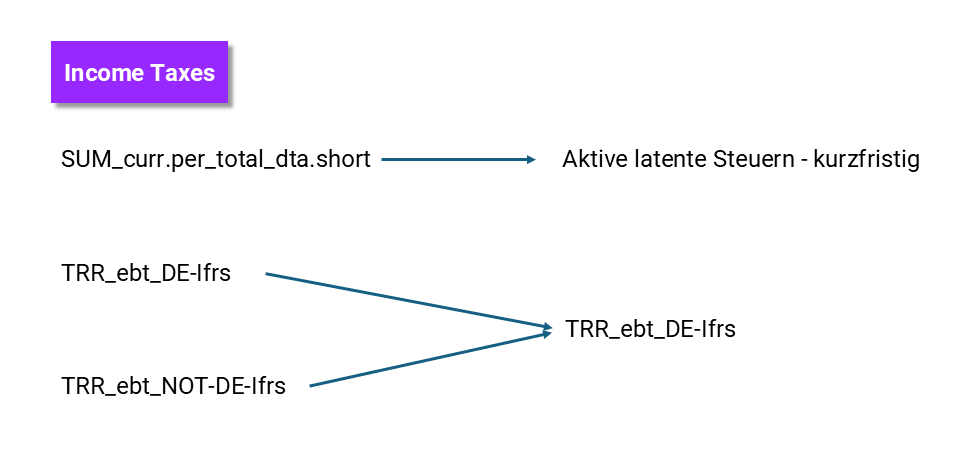
With EBT in the tax rate reconciliation, the Income Taxes IDs distinguish between domestic and foreign companies. This distinction is not desired in the validation. Therefore, both items are assigned to the same validation item.
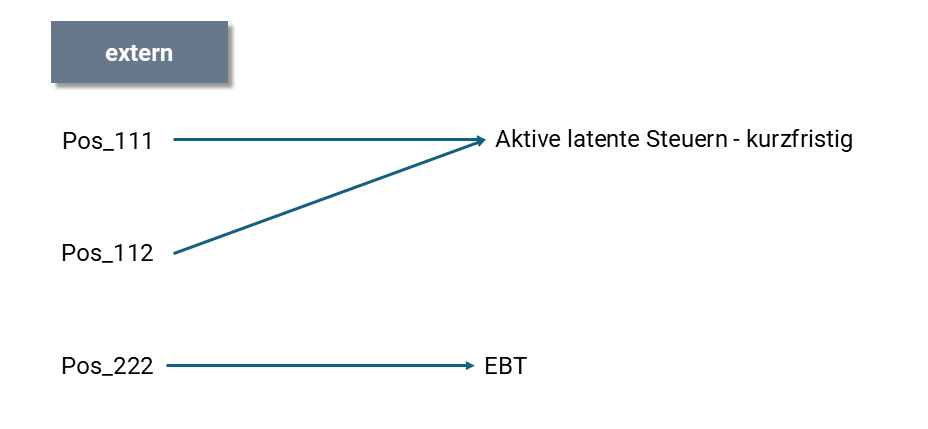
Analogously, the items of the external system are also mapped to the validation items. In the example, two external items are added to Deferred tax assets – short term, whereas the EBT can be derived from a single external item.
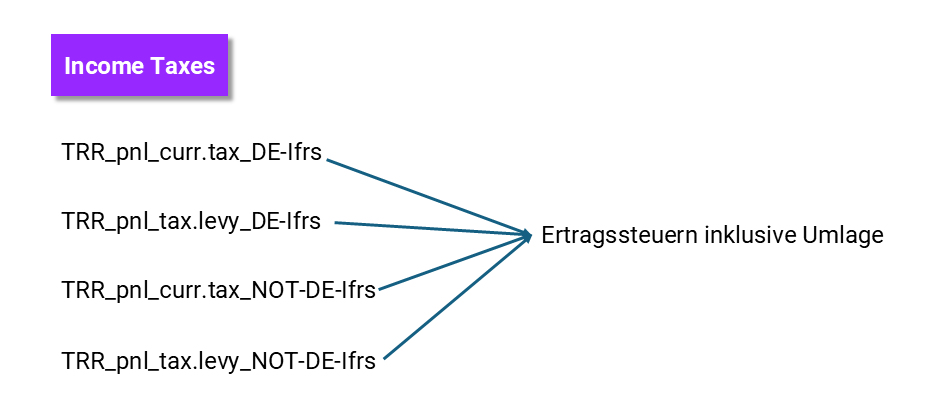
The validation is a comparison of the values of the validation items from both strands. Please note that more complex issues can also be represented in a straightforward way by using two mappings. In the following example, the current income taxes and the income tax allocation from the Income Taxes tax rate reconciliation (for both domestic and foreign companies) are added together to form a total item.
Creating Mappings
The following is an example of creating a mapping for the mapping type External => IFRS.
Mappings are created in the Master Data | Interfaces | Position Mapping workspace. Proceed as follows:
Open the Position Mapping workspace.
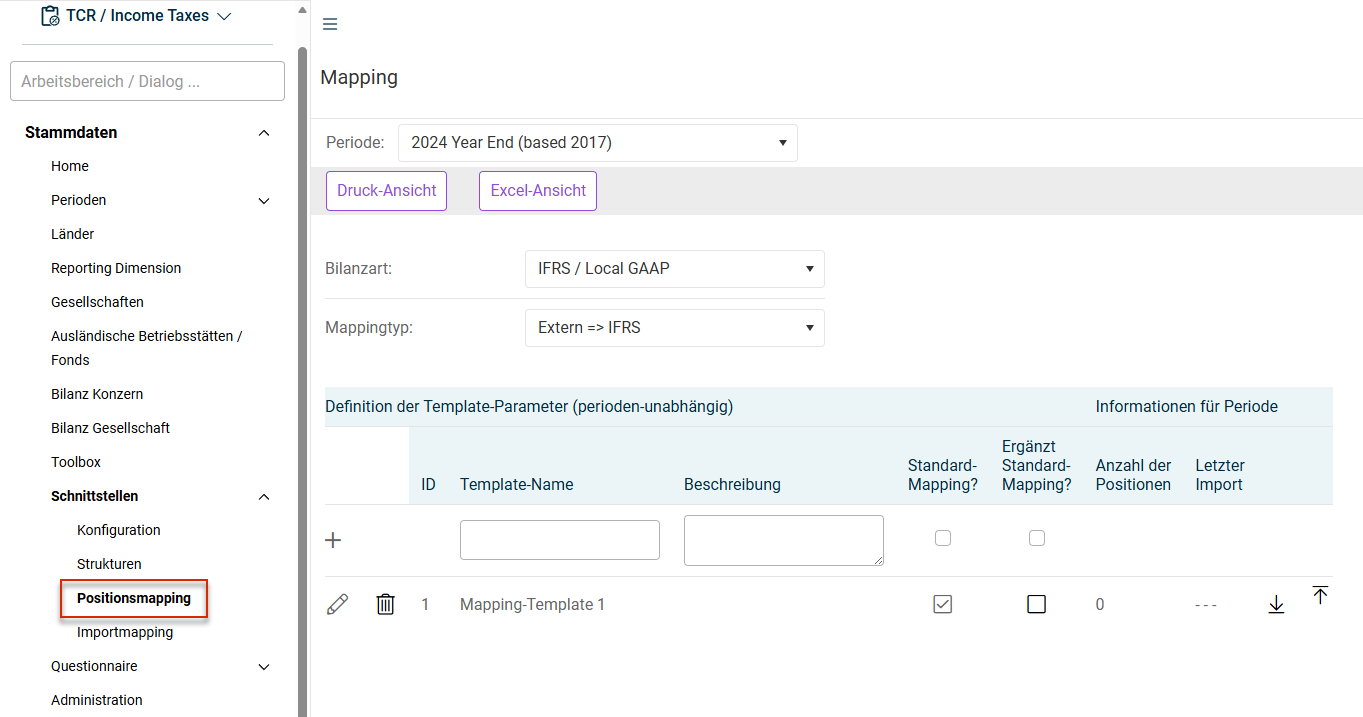
Choose the option IFRS / Local GAAP for Balance type.
Choose the option External => validation for Mapping type.
Click  to download the template, i. e. the Excel file.
Open the mapping file from your download directory and first enter the version number in row 5.
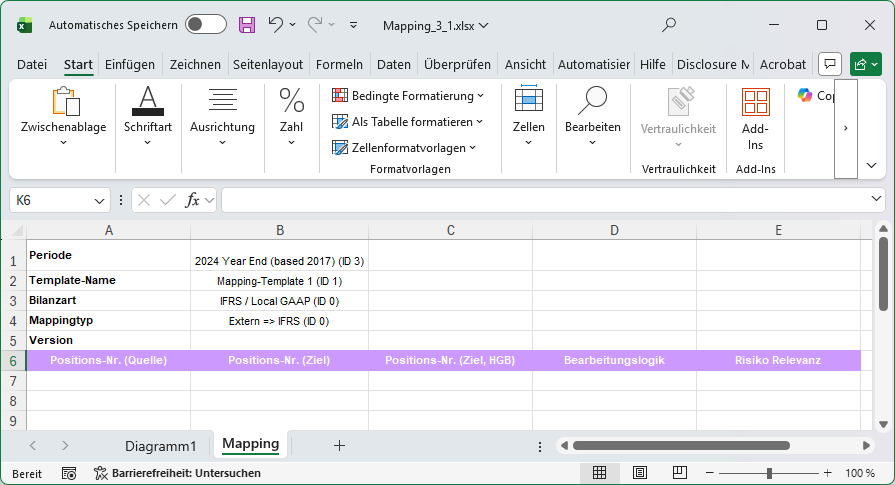
Enter the position details of the respective source system under Account ID (Source).
Under Positions-Nr. (Ziel) (Position No. (Destination)), enter the names exactly as they are to appear in the Position column of the validation result.
Click  to upload the edited template, i. e. the Excel file, again.
Enter the name and (optionally) a description for the mapping under Name of template.
Validation Process
- First, choose the interface.
- Next, choose the desired file – in the case of a CSV or Excel import. The format of the Excel import file corresponds to that of the mapping file.
- Click Import.
The data are imported and evaluated. The result shows all items for which a value was transferred from Income Taxes or the external system.
Evaluation of the Analysis (Milestone Process)
Deviations between values from Income Taxes and the external system are indicated by an icon in the Status column. The following validation levels exist:
- 'Tolerance' level (optional):
If the difference is less than VALIDATIONMAXTOLERANCE, the Okay state will be indicated by the green check mark icon. The validation can be completed. - 'Warning' level:
A warning sign is displayed if the difference is between VALIDATIONMAXTOLERANCE and VALIDATIONMAXDIFFERENCE. The validation can still be completed. - 'Error' level:
A prohibition sign is displayed as an icon if the difference is greater than or equal to VALIDATIONMAXDIFFERENCE. For the value of the validation milestone to change from in process to data ok, explanatory entries must be made and saved in the Comments column for all deviations with a prohibition sign. Only then does the milestone change to data ok and can be set to finished. - 'Blocking error' level (optional):
If the difference is greater than or equal to VALIDATIONMAXSHOWSTOPPER, a prohibition sign will be displayed as icon. To complete the validation (= set the milestone to finished), the differences must be resolved and the validation run again.
If there are no values from Income Taxes or external values, the corresponding table cell will remain empty. The behavior of the validation in such a case is controlled by the setting VALIDATIONIGNORENULLVALUES or VALIDATIONGTCNULLVALUESASZERO.
If necessary, a currency translation will be performed: The values of VALIDATIONMAXDIFFERENCE, VALIDATIONMAXTOLERANCE and VALIDATIONMAXSHOWSTOPPER always refer to the group currency. If the company uses a different currency, this value will first be converted to the group currency before the comparison takes place.
Additional Settings
If values from one of the source systems are to be included in the validation with sign reversal, you must prefix the mapping item with a minus sign.
If the items in the Validation dialog are to be displayed in a specific order, you can use prefixes in the display name. The sorting is performed in alphabetical order.
If the import is performed on a central file path, the file path will be composed as follows:
C:/PATH_FILESERVER/{YYYY}{MM}{DD}-100-{UNITID}-VALIDATION.csv
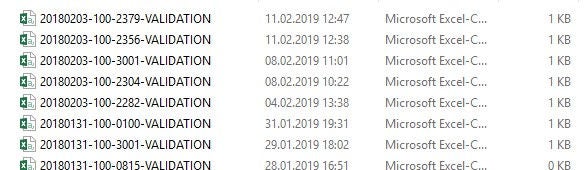
The file path can also be assigned a wildcard:
[0-9]{8}%100-{UNITID}-VALIDATION.csv
- {8} = Beginnt mit 8 Ziffern
- Ein beliebiges Zeichen (hier „-„)
- 100-
- Gesellschafts-ID
- VALIDATION.csv
In addition to the individual company-level validation described above, Income Taxes also supports the mass validation under (Sub-)Group – Validation. The setup is similar to the that of the individual company validation. Therefore, only the differences are described here.
You must first create an interface structure with the following properties:
- Direction: Import
- Destination: Validation Subgroup
The interface structure defines (as in section 2 of the individual company validation) the format of the input file. Note that in the mass validation, each row must also contain the company ID.
Regarding the other interface properties, the mass validation is performed analogously to the mass import at sub-group level.
The output provides you with both a condensed summary of the validation actions and a detailed results log.
Only the IFRS value is used by default for validations. With non-flexible RFC and direct import, other values can also be imported into the validation. If an HGB value or MVBS value is to be included in the validation, you can control this by means of the mapping file by appending the corresponding suffix to the source item.
For example, the Positions-Nr. (Quelle) (Position No. (Source)) column contains the entry Pos111#HGB or Pos111#MVBS. If a partner specification is also to be used in the mapping, the source takes the form Pos111~ABC#MVBS, for example.