
Snapshots
Last updated on 2026-04-16
Overview
At Pillar 2 | Calculation | Home, you can create a new snapshot, manage existing snapshots, and select a snapshot that will be presented in the other workspaces under Calculation. There are three snapshot types:
- Global
- Limited-country
- QDMTT
Note: Only users with the necessary authorization can create, view, or delete a snapshot.
This article contains the following sections:
Selecting a Snapshot
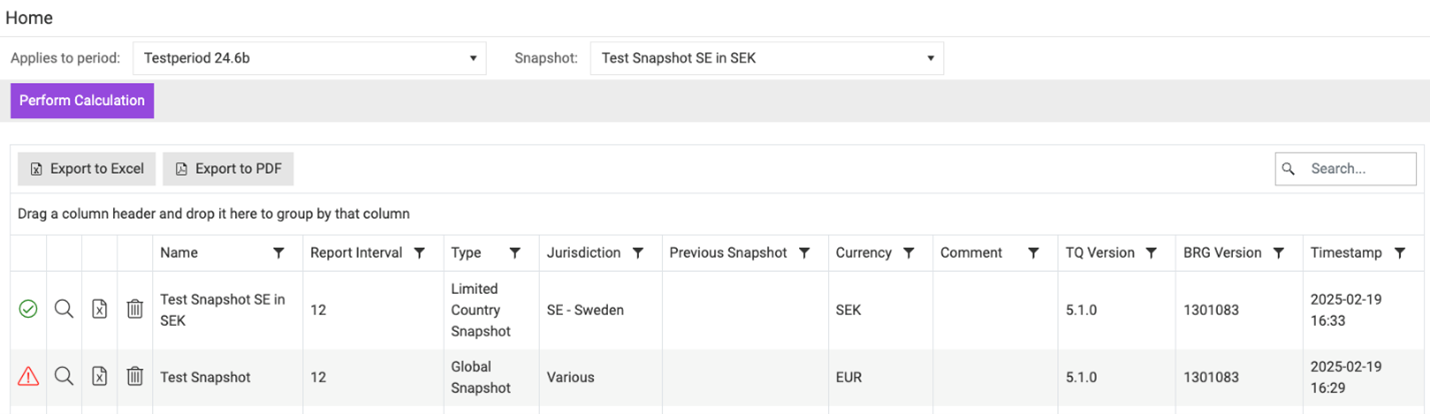
While newly created snapshots are selected automatically, you have to manually select a snapshot from the drop-down after logging into the Pillar 2 module. The module does not auto-select an existing snapshot.
To change between snapshots, open the Home workspace. Selecting a snapshot from Overview, Allocations, or C1 to C5 is not possible.
Managing Snapshots
The table at Pillar 2 | Calculation | Home shows all snapshots created for the selected period. Every row of this table represents a different snapshot. In this area, you can, for example, view a list of snapshots, review validations, or export the table as an Excel or pdf file.
Display Options
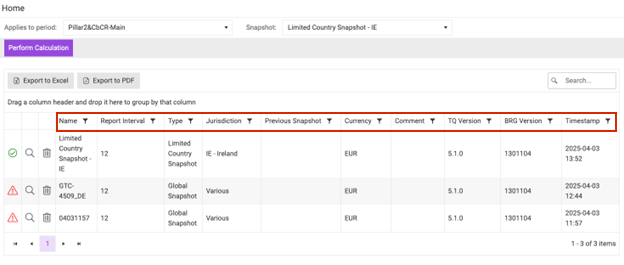
By default, the snapshots are sorted in reverse chronological order, that is, the most recent snapshot appears at the top of the table. However, in addition to using the timestamp, you can sort by name, reporting interval, type, jurisdiction, previous snapshot, currency, Transmitted, or Timestamp by clicking the symbol on the right side of the respective cell. To reverse the sorting order, for example, to sort chronologically, click the symbol again.
 Filter options for snapshots
Validations
As part of the calculation process, the Pillar 2 module automatically validates new snapshots. The leftmost column of a row shows the results of this validation: a green checkmark in a circle indicates a successful validation, whereas a red exclamation mark in a triangle indicates a failed validation.

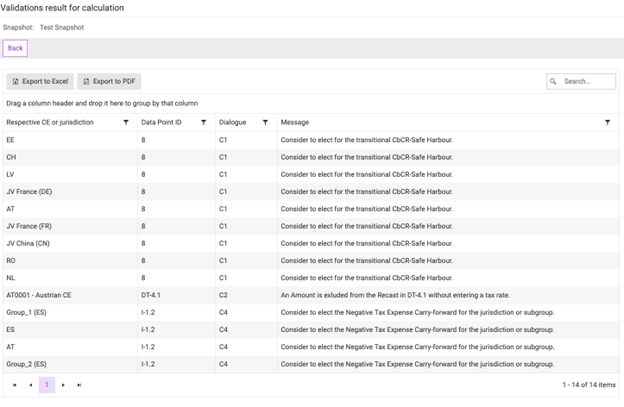
Clicking the magnifying glass in the second column shows the validation results in detail.
In case of a failed validation, there are two types of messages:
- An error message, caused by missing or incorrect data.
- A warning that indicates that an election was not exercised as expected.
Note: A warning means the following:
- Based on the data available in the Pillar 2 module, most users should change how they exercise the election in question.
- A warning might also indicate that data is missing that might impact the calculations.
The warning does not mean that the user must make changes to proceed or even that making the change is always the preferable option. In rare cases, no adjustments to the financial accounts might be necessary.
If in doubt, users should seek advice from a tax professional.
Additional Options
In the Home workspace, you can also do the following:
- Click Export to Excel to create an Excel report with the names and other information on the snapshots. To create an Excel report with the information from sections C1 to C5, open the Validation results page and click the Download Report button.
- Click the trash can symbol in the third column to delete a snapshot.
Note: Only QDMTT snapshots display the Submit button. Global and Limited-country snapshots do not provide this functionality.
Creating a Snapshot
You can create three different types of snapshots:
- Global snapshots that include all entities in all jurisdictions
- Limited-country snapshots that only include the entities in a single jurisdiction
- QDMTT snapshots that apply jurisdiction-specific parameters for qualified domestic minimum top-up tax calculations
To create a global snapshot:
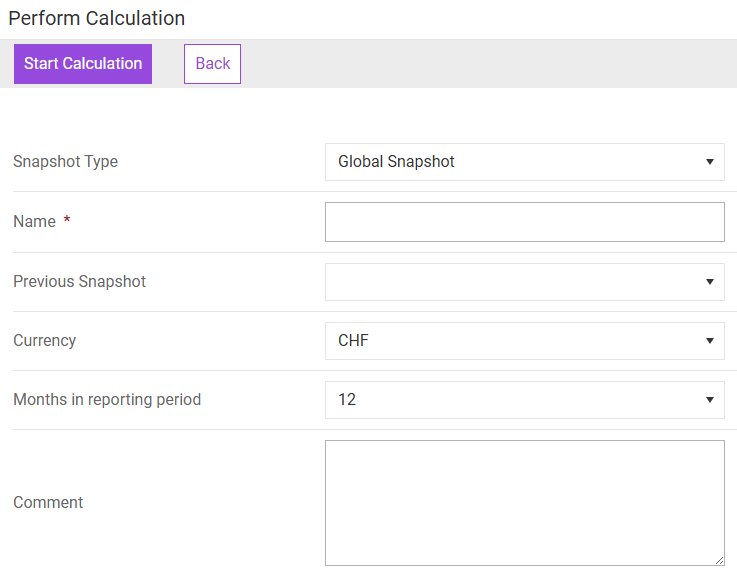
- In the Home workspace, click Perform Calculation.
- Enter a unique Name for the snapshot.
- Select the following:
- Global Snapshot from the Snapshot Type drop-down menu.
- Currency.
- Number of Months in reporting period.
- Click Start Calculation.
Notes:
- After creating a QDMTT snapshot, you can submit the snapshot to mark it as the relevant snapshot for inclusion in your Global Information Return (GIR) (see also following section).
- You can create multiple QDMTT snapshots for the same jurisdiction, for example to test different scenarios, but only one snapshot can be submitted for GIR inclusion at any time.
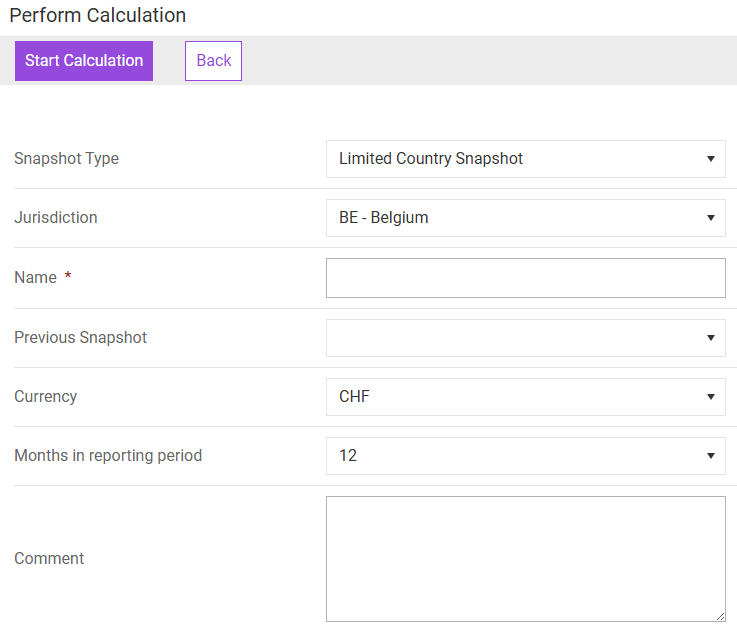
To create a limited-country snapshot:
- In the Home workspace, click Perform Calculation.
- Enter a unique Name for the snapshot.
- Select the following:
- Limited Country Snapshot from the Snapshot Type drop-down menu.
- Jurisdiction.
- Currency.
- Number of Months in reporting period.
- Click Start Calculation.
To create a QDMTT snapshot:
- In the Home workspace, click Perform Calculation.
- Enter a unique Name for the snapshot.
- Select the following:
- QDMTT Snapshot from the Snapshot Type drop-down menu.
- Jurisdiction.
- Currency.
- Number of Months in reporting period.
- Click Start Calculation.
Note: The Jurisdiction dropdown list only includes jurisdictions for which QDMTT information was added in the Jurisdictional Data Collection.
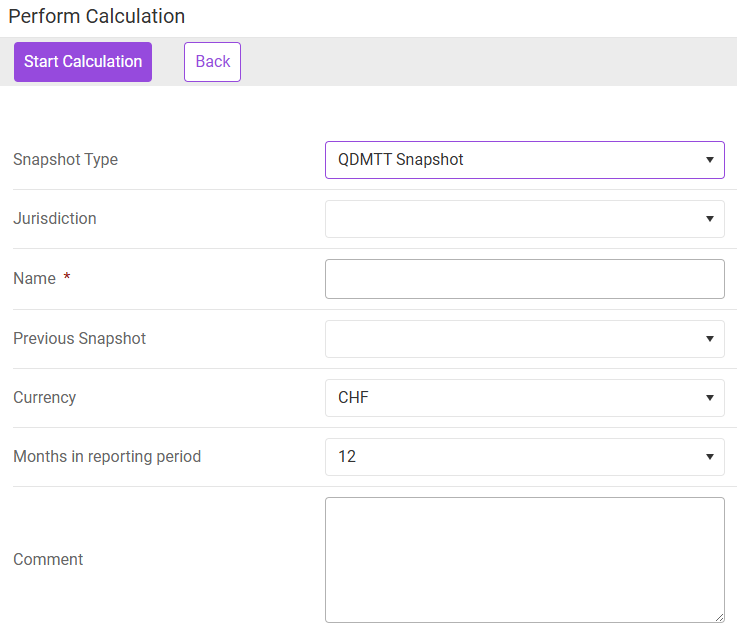 Creating a QDMTT snapshot
Submitting QDMTT Snapshots
For jurisdictions with a qualified domestic minimum top-up tax (QDMTT) regulation, you can specify which QDMTT snapshot should be used for inclusion in the Global Information Return (GIR). You can submit only one QDMTT snapshot per jurisdiction at any time.
To submit a QDMTT snapshot:
Click the magnifying glass symbol next to the QDMTT snapshot you want to submit.
Click Submit QDMTT.
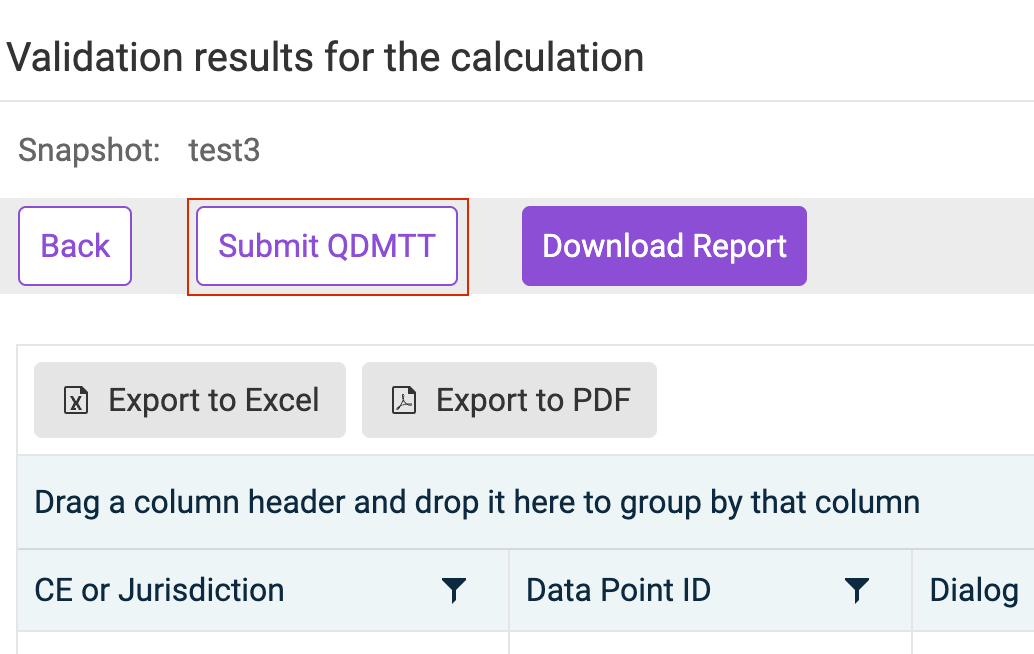 'Submit QDMTT' button
Depending on whether you have previously submitted a snaphot, proceed as follows:
- If this is the first submission for the jurisdiction, the snapshot is immediately marked as submitted.
- If you are changing from a previously submitted snapshot, click Confirm in the subsequently displayed dialog to proceed with the change.