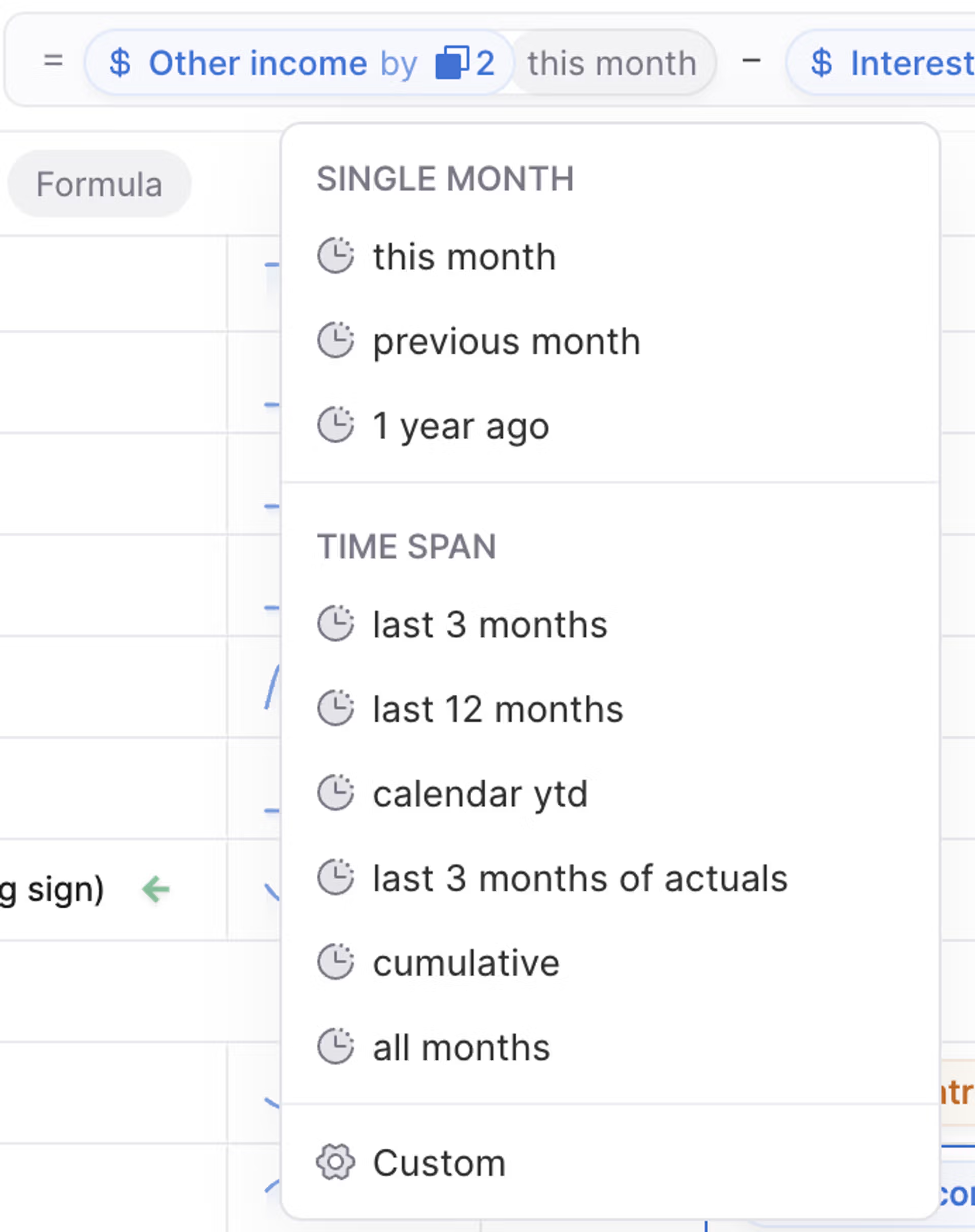
This 'month': returns the current value of that variable
Previous 'month': returns the previous value of that variable, relative to the time step in which the formula is being applied.
Example: In June, Customers[previous] corresponds to the value of Customers in May.
By default, when you reference another variable, xP&A will return the current value of that variable. When you reference the variable itself, xP&A will return the previous value of that variable.
Look-back and look-forward: returns the value of that variable x days/weeks/months/years in the past or future, from "t" (the current time step).
Example: if you want xP&A to return the value 12 months ago, your time modifier would be t-12. Conversely, if you wanted to return the value three months in the future, your time modifier would be t+3.
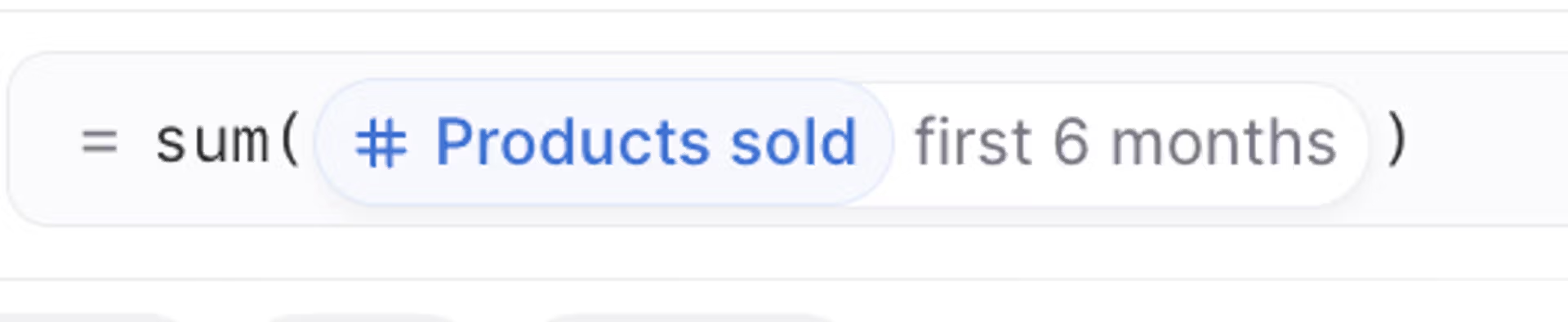
Looking back 6 month ago
In a look-back or look-forward, you may reference dates that are before the start, or after the end of a model's date range. These cells will evaluate to the empty value of the variable (ie., either 0, or the none value).
Absolute: returns the value of a single, particular timestep for that variable. e.g. 1 refers to the 2nd timestep of the model, 0 refers to the 1st timestep of the model etc. You can also just type in date(YYYY,MM) instead of the timestep index number.
Once you have linked dimensions together, you can then easily slice variables along different dimensions.
Example: We have an Employee dimension, which is linked to a Team dimension. By default, we've worked out Salaries by Employee, and now we're interested in seeing Salaries by Team.
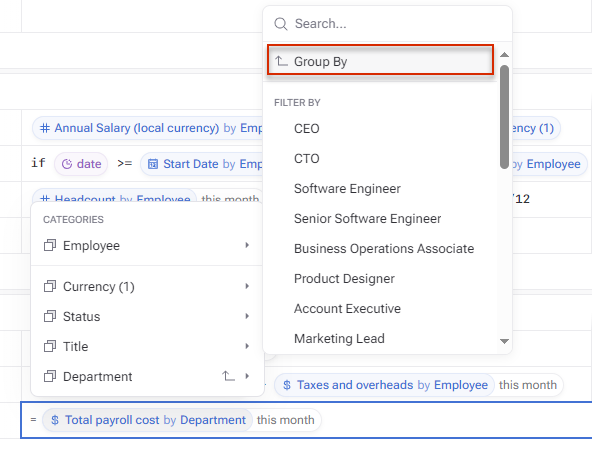
Click on the Dimension icon in the referenced variable in the formula, and then select the desired dimension and click Group by.
Using 'Group by'
If you want to "Group by" multiple dimensions at one time just hold down Shift and click each of the dimensions you want to select. e.g. if you want to group by Team and then Role. This displays as multiple layers of nesting.
Sometimes you'll want to select a single item from a dimension and use it in a formula.
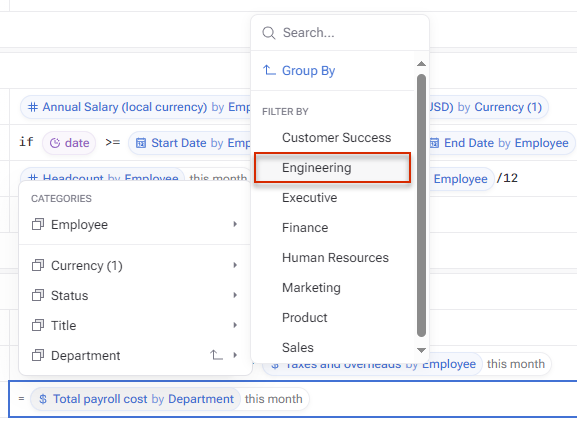
Click the Dimension icon in the referenced variable in the formula, select the desired dimension, and then click the individual item you want to filter by.
Example: If you want to do a calculation only based on the Engineering Team's salaries, you would select Engineering under Department.
Filtering by category item
If you want to filter for multiple dimension items, just hold down Shift and click each of the dimension items you want to select.
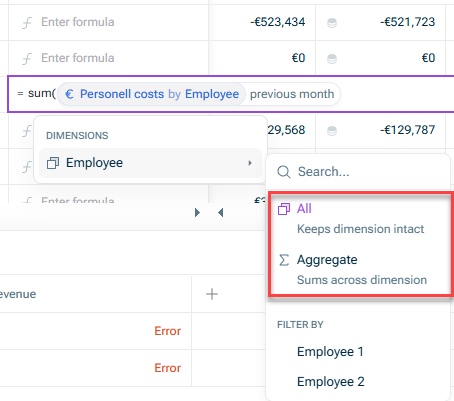
Sometimes you might want to aggregate away a dimension, if you no longer care to see that level of granularity.
Example: If you have filtered Salary by Employee for just the Engineering team, but no longer care to see the Employee breakdown, you can aggregate the Employee dimension.
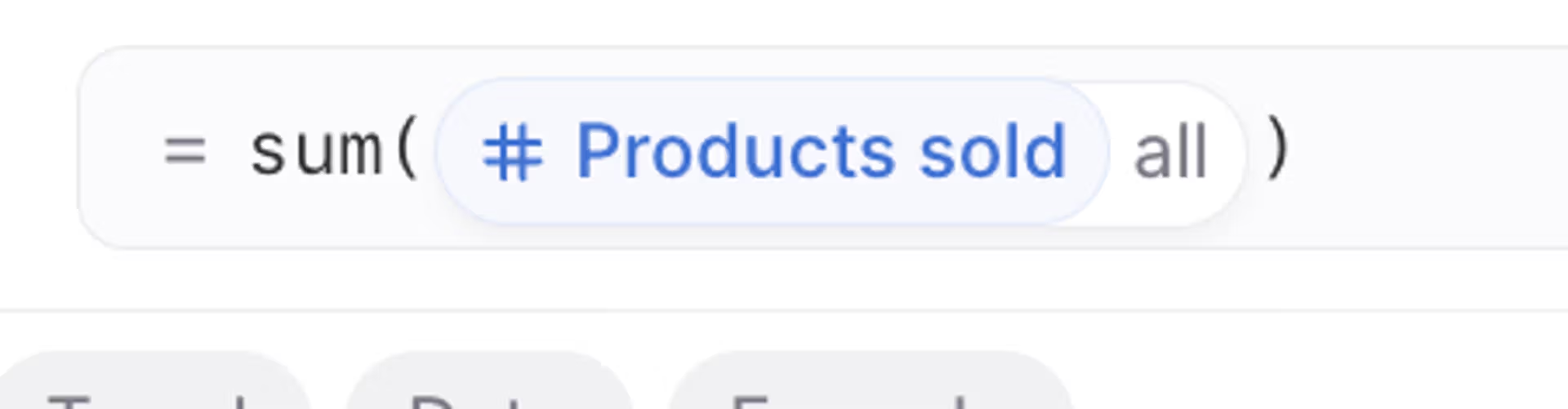
Use the two commands Aggregate(Sums across dimension) and All (Keep dimension intact) to remove or re-add the breakdown of a dimension. To do this, click on the variable in the top bar:
There are a few other ways that you can use or manipulate dimensions and dimension items within variables and formulas, that are not variable modifiers in formulas.
Sometimes you might want to change how a variable aggregates its dimension items. xP&A's default is to sum the dimension items, but see Dimension aggregation for more options.