
Home
Last updated on 2026-04-16
Overview
The Home workspace in Entity Data Collection provides an overview of milestone statuses for Pillar 2 entity data collection. In this workspace, you can:
- View the current milestone status of a selected entity
- See milestone statuses for all dependent entities or entities in the same subgroup
- Change milestone statuses
- Download files related to entity data collection
- Export milestone data to Excel
Use this workspace to monitor the progress of data collection across your entity structure and manage the workflow by updating milestone statuses as entities complete their data input.
This article contains the following sections:
Navigation
The Home workspace can be found under Pillar 2 | Entity Data Collection and is displayed as follows, for example:
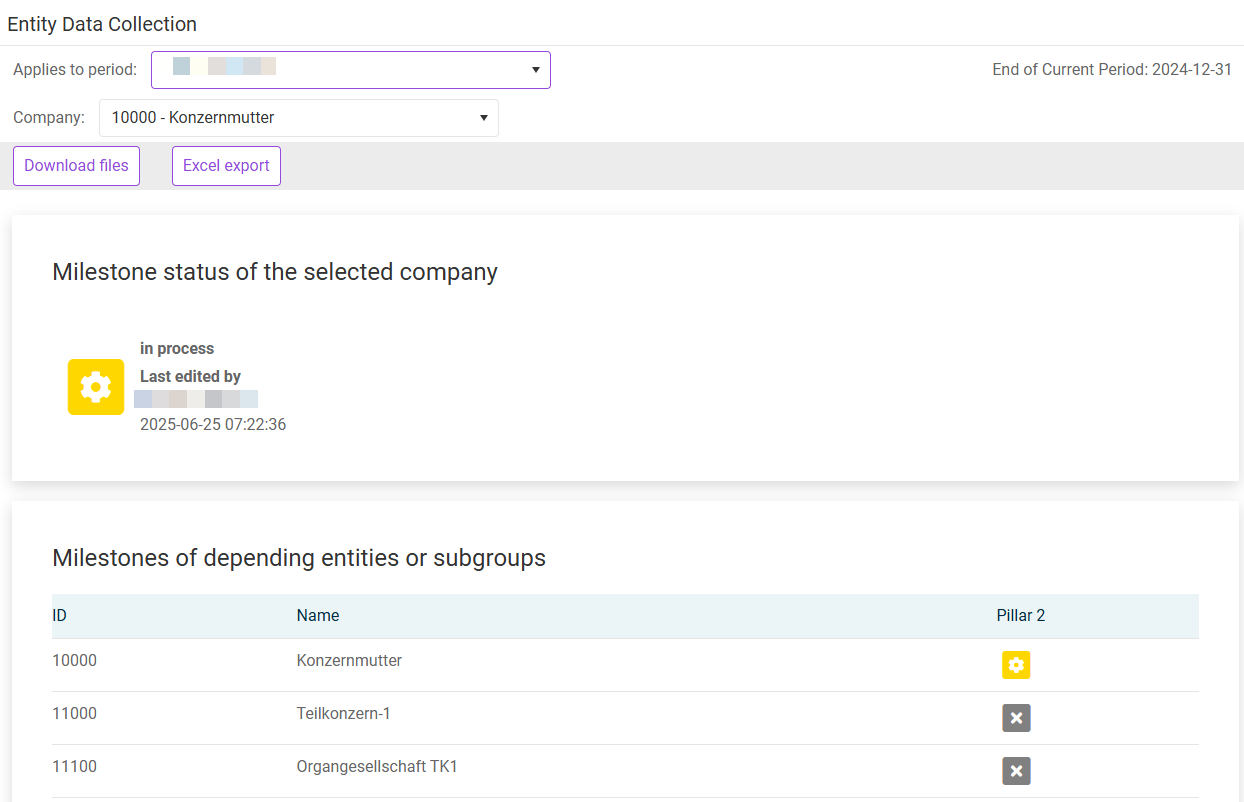 'Home' workspace in the 'Entity Data Collection' folder
Displaying Milestone Status of an Entity
The following milestone statuses are available:
- not started - data collection for this entity has not started yet
- in process - tax accountant collects data for this entity
- finish - tax accountant has finished data collection and marks data as ready for review
- checked - manager has reviewed the data and approves
To display the milestone status for your entity:
Choose the desired reporting period from the Applies to period dropdown list.
Choose the desired entity from the Company dropdown list.
The current milestone of your entity is displayed in the Milestone status of the selected company area. Milestone statuses of the entity's depending entities or subgroups are displayed in a table below, providing an overview of milestone statuses for all entities that are dependent on the selected entity or that belong to the same subgroup.
Changing Milestone Status
To change the milestone status of an entity, proceed as follows:
Make sure you have selected the correct reporting period and entity from the dropdown lists at the top of the page.
Click the milestone status icon, e.g. in process  .
.
In the subsequently displayed dialog, click OK.
Important:
- When changing the milestone status to finish, you confirm that the entity's data is complete and correct. After changing to finish, the data collector will no longer be able to edit the entity data. Make sure all data input is complete before marking the milestone as finished.
- After having set the status to finished, the data can be reviewed by a manager. If the manager finds any errors, they set the status back to in process. If the manager approves of the data, they set the status to checked to indicate that the data has been checked and can be submitted to the authorities.
Exporting or Downloading Data
You can export workspace data or download files for your chosen entity.
Exporting Workspace Data
The Excel Export functionality enables you to export the workspace data in regard to the selected jurisdiction as well as the selected period and company to an Excel file.
To export workspace data to MS Excel:
Click Excel export.
In the subsequently displayed dialog, click Report Generator.
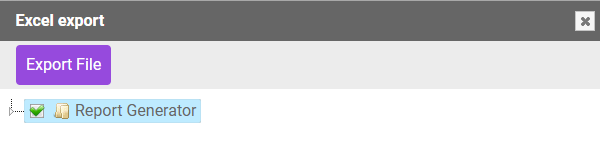 'Excel export' dialog
Click Export file. The file is automatically generated and downloaded to your computer.
Note: The exported Excel file contains all figures and associated data from the workspace for the current period and company. The file structure follows the Entity Data Collection data formatting standards.
Downloading Files
Click the Download files button in the top-left area of the workspace to download files related to the selected entity's data collection.