
Last updated on 2026-03-23
Creating and Configuring the Elimination of Intercompany Profit or Loss in Current Assets
Overview
- You can use the Elimination of Intercompany Profit or Loss in Current Assets app to eliminate intercompany profits and losses from sales and services between companies within a group.
- In this process, intercompany relationships are formed between the consolidation units within a consolidation group based on previously assigned partner information and the investment relationships within the company. The values that arise during interim elimination are posted to selected accounts.
- Optionally, the following functions can also be activated:
- Automatic reclassifications in the balance sheet and/or profit or loss statement
- Automatic posting of deferred taxes to the profit adjustment
This article contains the following sections:
Configuring the Elimination of Intercompany Profit or Loss in Current Assets
To configure the app for elimination of intercompany profit or loss in current assets, click the app in the structure view and click Edit in the displayed dialog.
Configure the steps as described below.
In the Settings step, specify general settings for consolidation.
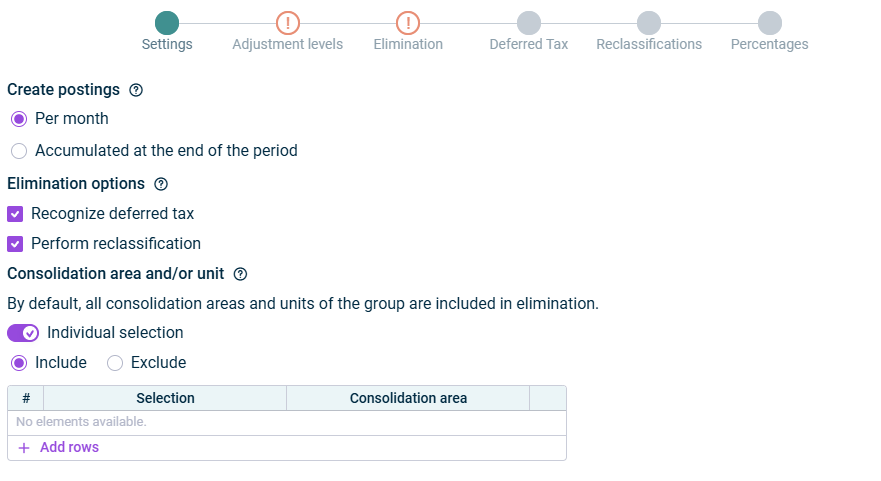
Option
Description
Create postings
Time of consolidation
Per month
The app eliminates the intercompany transactions in each month of the consolidation period and creates monthly consolidation postings.
Accumulated at the end of the period
The app eliminates the intercompany transactions accumulated in the last month of the consolidation period and creates a consolidation posting only in the last month of the consolidation period.
For each consolidation unit that is deconsolidated during the consolidation period, an accumulated consolidation posting is carried out in the last month of inclusion in the consolidation area.
Elimination options
Additional options for consolidation:
- Select the Recognize deferred tax option if deferred taxes arising from the elimination of intercompany profit or loss are to be recognized in current assets. The Deferred Tax step will then be displayed.
- Select the Perform reclassification option if account balances within the balance sheet and/or profit and loss statement are to be reclassified. The Reclassifications step will then be displayed.
Consolidation area and/or unit
Consolidation groups and/or units of the selected group for which the consolidation is to be performed
By default, all consolidation areas and units within the group are included in the consolidation.
If you only want to include certain consolidation groups and units in the consolidation, activate the Individual selection check box and select one of the following options:
- Individual
In the table, select individual consolidation areas and/or consolidation units to be considered in the consolidation. - Exclude
In the table, select the consolidation areas and/or consolidation units that are to be excluded from consolidation.
If you choose Individual or Exclude, the app will perform no eliminations for intercompany transactions of the excluded consolidation units.
In the Adjustment levels step, specify the adjustment levels for consolidation.
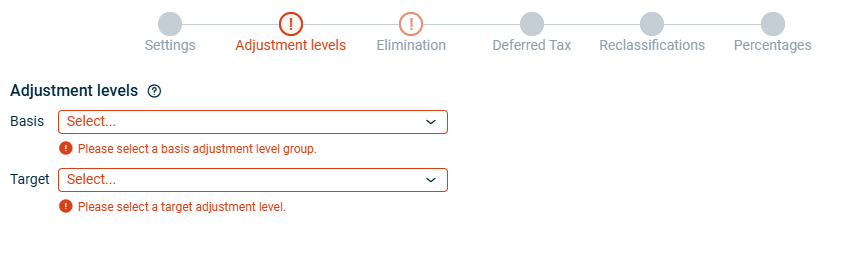
Option
Description
Basis
Adjustment level group containing all adjustment levels for data imports and adjustment postings which need to be considered during consolidation.
Please ensure that this adjustment level group contains the adjustment level for proportioning.
Target
Adjustment level for consolidation postings to be used for the postings.
In the Elimination step, specify the accounts and transaction types for the elimination of intercompany profit or loss.
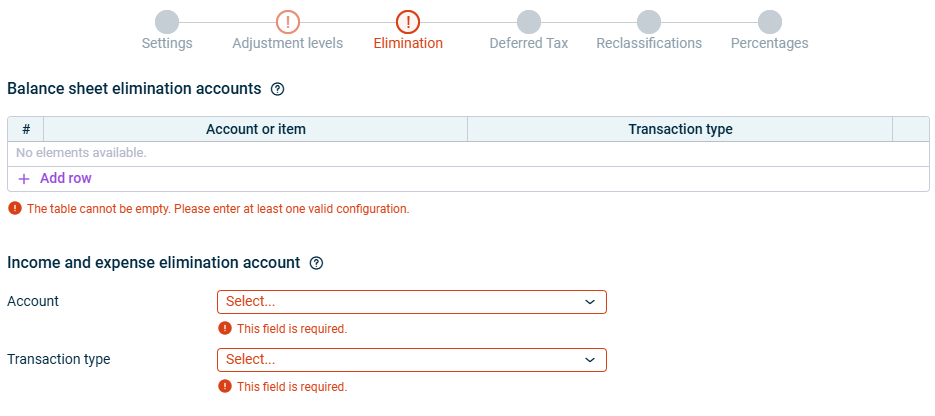
Option
Description
Balance sheet elimination accounts
- Click Add row and select the balance sheet items and/or accounts that contain the intercompany profit or loss in current assets (inventories) from the Account or item dropdown list. As part of the elimination process, these amounts are reversed from the selected inventory accounts and eliminated from the service provider’s P&L statement.
- Then, for each account or item, select the transaction type to be used for the elimination posting.
P&L elimination account
- Select the account in the P&L statement from which the intercompany profit or loss is to be eliminated. This account relates to changes in inventory.
- Then select the transaction type to be used for the elimination posting.
The Deferred tax step is displayed as soon as you have activated the Recognize deferred tax option in the Settings step.
In the Deferred tax step, specify the accounts to which any deferral taxes should be posted.
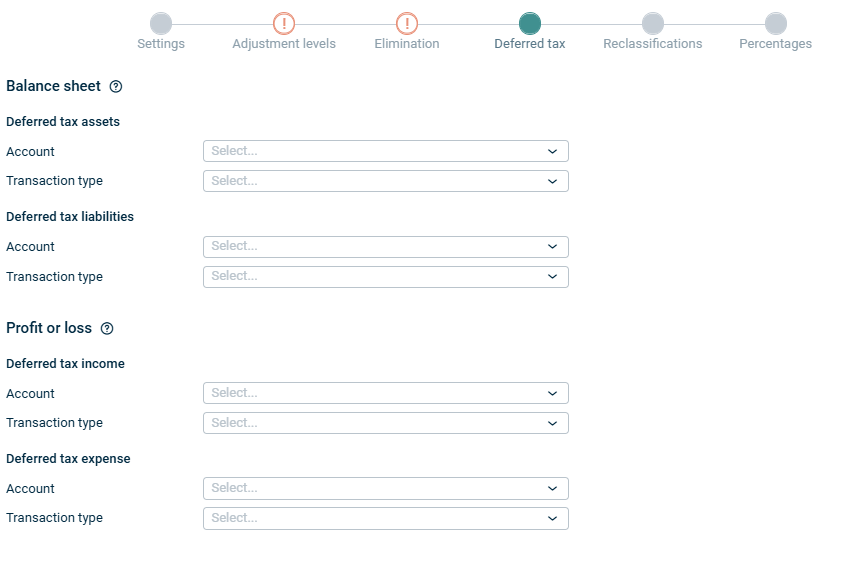
Option
Description
Balance sheet
Configure the accounts and transaction types for posting deferred tax assets and deferred tax liabilities arising from the elimination of intercompany profit or loss.
The app automatically determines whether to post deferred tax assets or liabilities based on the elimination direction (profit vs. loss).
- Deferred tax assets are recognized when the elimination creates a deductible temporary difference.
- Deferred tax liabilities are recognized when the elimination creates a taxable temporary difference.
Profit or loss
Configure the accounts and transaction types for posting deferred tax income and deferred tax expense in the statement of profit or loss.
These accounts serve as counter-postings to the deferred tax assets and liabilities in the balance sheet.
The app automatically determines whether to post deferred tax income or expense based on the elimination direction (profit vs. loss).
The Reclassifications step is displayed as soon as you have activated the Perform reclassification option in the Settings step.
In the Reclassifications step, specify the balance sheet and/or P&L accounts to which values should be reclassified and the transaction type to be used for the postings.
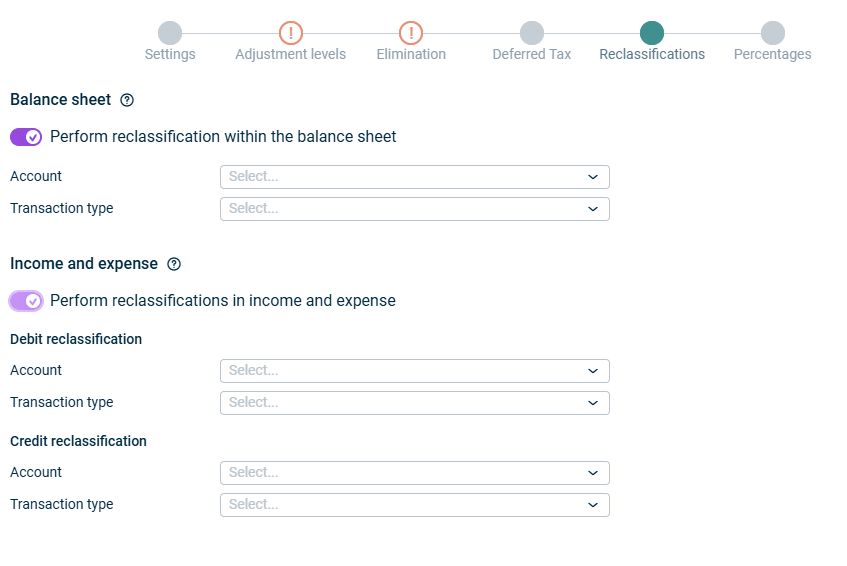 Schritt 'Umgliederungen'
Option
Description
Balance sheet
Activate the Perform reclassification within the balance sheet option to split intercompany inventory balances after elimination and select the account and the transaction type to be used for the recalassification in the balance sheet.
The app automatically reclassifies the base cost portion (100% - profit/loss rate) from the original inventory accounts to the target account you specify here.
Profit or loss
Activate the Perform reclassification within the P&L option to redistribute eliminated intercompany profit or loss amounts across different P&L accounts.
Then configure debit and credit accounts below to split the elimination impact into specific line items.
The reclassification percentage is configured independently in the Percentages step.
In the Percentages step, specify the percentages to be used when calculating values during the elimination of intercompany profit or loss. Optionally, you can specify different percentages for specific intercompany relationships.
You can configure this step manually or retrieve percentages from a statistical book.
Manual Configuration
If you want to configure the percentages manually, select the Manual configuration option. The step will then be displayed as follows:
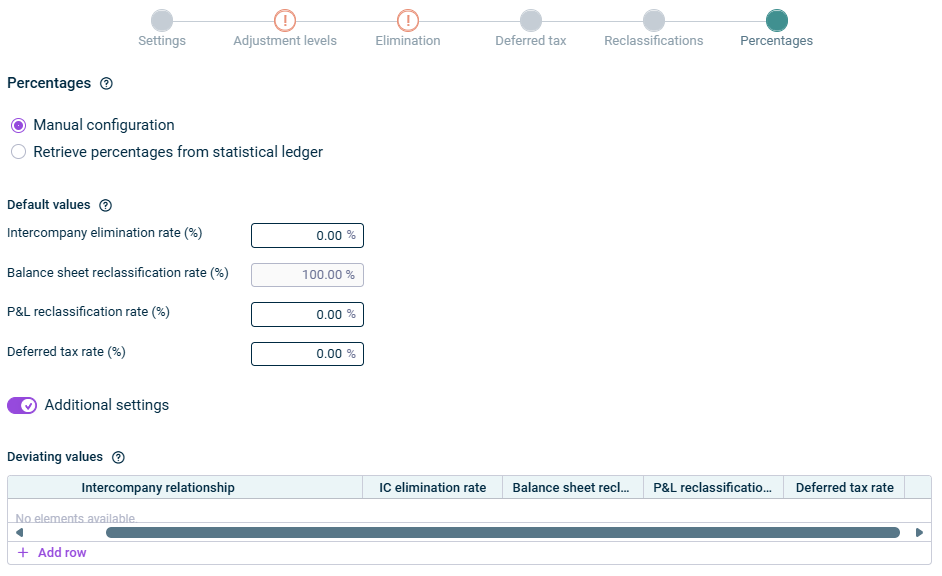 Schritt 'Prozentsätze' bei manueller Konfiguration
Then configure the following options:
Option
Description
Default values
Under Default values, specify the percentages for:
- The calculation of the IC elimination rate
- The balance sheet reclassification rate
- The P&L reclassification rate
- The calculation of the deferred tax rate
The field balance sheet reclassification rate or the P&L reclassification rate is only displayed if you have enabled Reclassifications within the balance Sheet or Reclassification wthin the P&L in the Reclasifications step.
Additional settings
Select the Additional settings option to specify percentages that differ from the default values for individual intercompany relationships.
Then configure the Deviating values table as follows:
- Click Add row to add a new row.
- In the Intercompany relationship column, first select the Seller and then the Buyer of the intercompany relationship for which you want to specify different percentages.
- In the following columns, configure the different values in the same way as the default values.
Retrieving percentages from a statistical ledger
If you want to retrieve percentages from a statistical ledger, select the Retrieve percentages from a statistical ledger option. The step will then be displayed as follows:
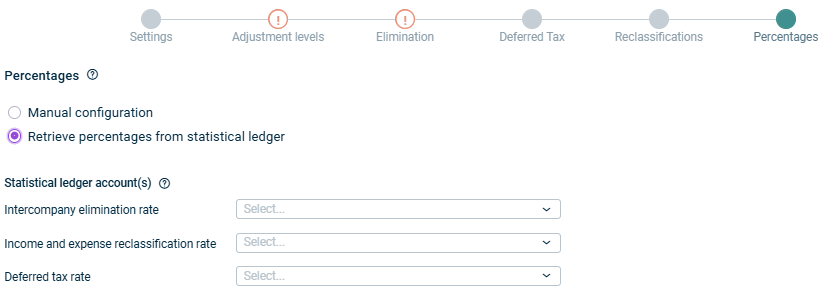 Schritt 'Prozentsätze' bei automatischer Ermittlung
Then select the statistical accounts that contain the percentages used to calculate the eliminations. Depending on the options you selected in the Settings and Reclassifications steps, the following statistical accounts are required:
- Intercompany elimination rate
- Balance sheet reclassifcation rate
- P&L reclassification Rate
- Deferred tax Rate
The app retrieves the values from these accounts during execution. The accounts must be of the Percentage type with carry over from previous periods.
- As long as a step has not been fully configured and/or configuration errors exist, it is displayed with a red exclamation mark
 .
. - Once a step is configured completely and without any errors, it is displayed with a green check mark
 .
. - You can close the configuration dialog by clicking the arrow icon
 at the top left.
 - To change the name of the app, select the app in the tree view and choose Properties from the context menu.
Executing the Elimination of Intercompany Profit or Loss in Current Assets
You can execute the app for elimination of intercompany profit or loss in current assets either separately, together with other apps in an executable folder or as part of consolidated financial statements.
How to proceed in each case is described under Execute consolidation.
Displaying and Deleting Created Elements
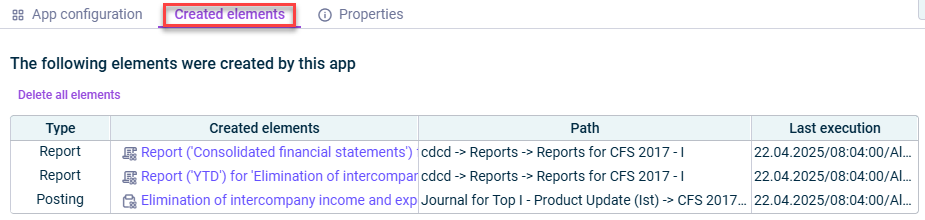
On the Created elements tab, the difference reports and postings that were created during the app execution are shown.
The table provides the following information:
- Type of the element
- Path under which the element was created When you click on the link, you are taken directly to the posting in the relevant journal or to the report.
- Date of the last execution that created the element
Displaying the App Properties
The App properties are displayed on the tab of the same name :
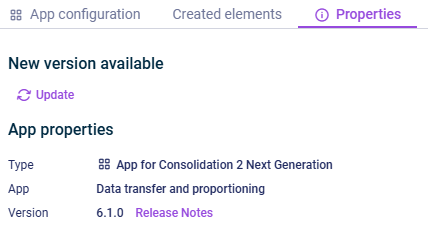
- Type of the element
- Function of the App
- Version of the element.
New available version
As soon as a new version of the app is available that contains changes to the app configuration and/or the calculation logic of the app, the Refresh command is displayed, allowing you to update the app to the latest version.
Information about the changes to each version can be found in the Release Notes, which can be accessed via the link of the same name.
We strongly recommend to update all apps to the new version as soon as possible because it cannot be guaranteed how long an app with an obsolete version can be executed.