
Creating and Configuring Adjustment Levels
Last updated on 2026-01-31
Overview
To reflect different levels of knowledge (such as tax return, annual financial statements, tax audit), tax deviations based on commercial law values can be assigned to adjustment levels. The level of transparency is increased by using adjustment levels.
In the Adjustment Levels workspace, you can create, name, and configure global adjustment levels.
The adjustments themselves are then entered at the individual company level on the adjustment levels created here (see Creating GAAP Reports).
It is possible to configure special adjustment levels that are used for only one company at the individual company level.
Changing the order only affects companies created subsequently. The order of adjustment levels for existing companies can only be changed at the individual company level.
This article contains the following sections:
Navigation
The Adjustment Levels workspace can be opened under Master Data | Adjustment Levels.
The workspace displays an overview of all global adjustment levels that have already been created in the master data and is displayed as follows, for example:
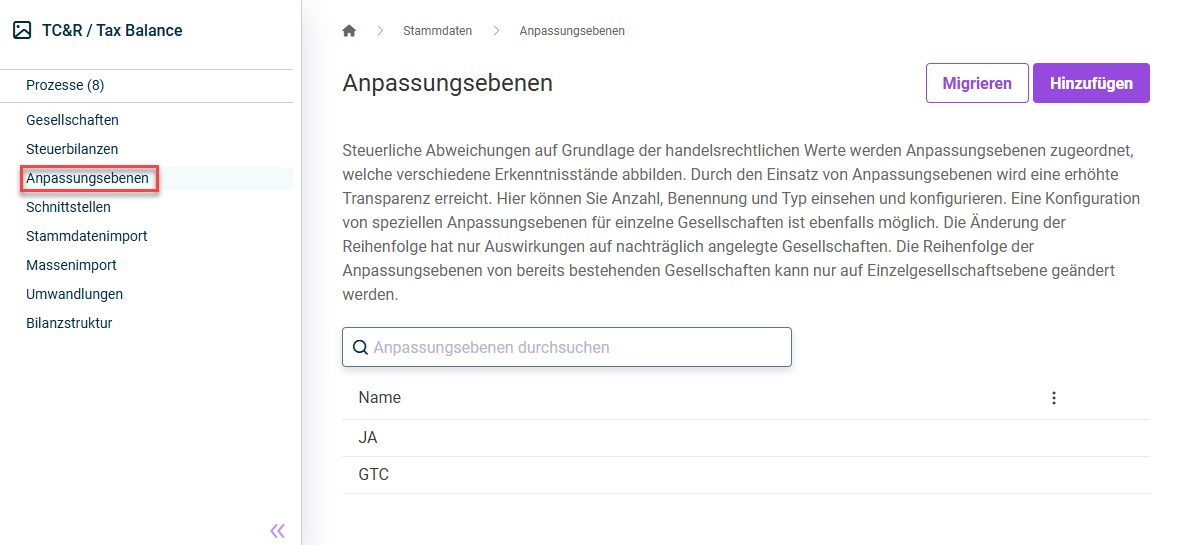
Creating an Adjustment Level
To create an adjustment level, click Add in the Adjustment Levels workspace, enter a name for the adjustment level, and save your entries.
When creating the adjustment level, a technical name is automatically assigned. The technical name is required if you want to import an Excel adjustment. To import into an adjustment level, the named area must be called "Level_TECHNICAL_NAME". This value is read-only and cannot be changed.
Migrating an Adjustment Level
You can use the Migrate function to migrate adjustment levels that were created at the individual company level to a global adjustment level.
This function is relevant only to existing customers who have already used Tax Balance prior to its release on the Lucanet CFO Solution Platform.