
Tax Reports
Last updated on 2026-03-10
Overview
In the Tax Reports workspace, numerous (predefined) evaluations can be accessed. Reports are output to an Excel file and can be individually configured in part with regard to certain parameters (e.g. Period to compare or currency).
This article contains the following sections:
Navigation
The Tax Reports workspace is opened via Reporting | Tax Reports.
The workspace Tax Reports is displayed, for example, as follows:
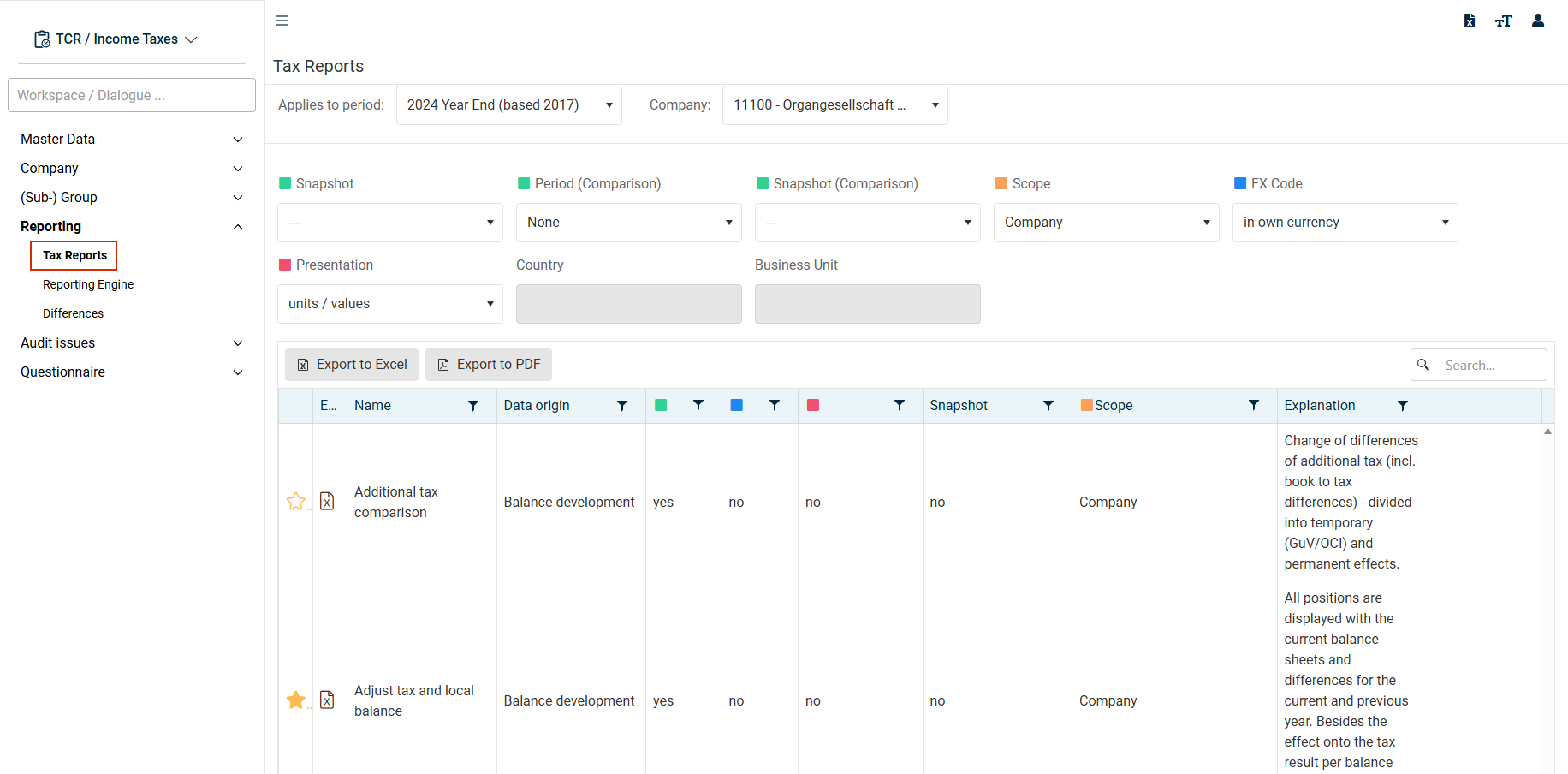
Configuring Tax Reports
Each report is based on the selected parameters. The individual settings are configured in the upper area of the Tax Reports workspace.
The following parameters are available:
Parameter
Description
Applies to period
The period must be specified and defines the reporting period under consideration.
Company
The company must be specified. Depending on the selected parameter Scope, the tax group or sub-group is evaluated based on this, for example.
The selected company is also relevant in connection with the FX Code parameter.
Period (Comparison)
The drop-down list Period (Comparison) contains all periods created in Income Taxes.
The prior period defined for the selected period is automatically suggested as period to compare. However, you can also select any other period.
The comparison period must be specified, among other things, for reports in the Balance sheet development category.
Snapshot/Snapshot (Comparison)
As soon as at least two snapshots have been created, they can be compared with each other in a report.
Scope
This parameter applies only to companies for which the user is authorized.
Company: Only the selected company is displayed in the report.
List: All companies recorded in the master data are displayed in the report. The list is based on the selected period. If a country or a reporting dimension is also selected, a further restriction of the generated report is made (depending on the scope of the individual report).
Group structure: All dependent companies are displayed. This option is available for companies that are defined as (sub-)group in the master data. Therefore, if you select this display option, you must select a company that is defined as (sub-)group.
Tax group structure: All tax group members are displayed. This option is available for companies that are defined as tax group parent in the master data. Therefore, if you select this display option, you must select a company that is defined as tax group parent.
FX Code
In own currency: Report uses the currency of the selected company.
In group currency: Report uses the currency of the company defined as group parent company (usually EUR) – regardless of the choice of company.
In local currency: Report uses the local currency of the individual company stored in the master data. No currency conversion is performed.
For all three options: If Group structure is selected as the scope parameter and a company from the USA that is defined as a sub-group is selected as the company, all dependent individual companies, e.g. also Canadian or South American, are displayed in USD.
Presentation
This parameter can be used to define the sorting of the generated Excel report. The companies (or values) can be displayed either in columns or rows.
Country
One country or multiple countries can be selected. The selection list is based on the master data workspace Countries of the period selected above.
Business Unit
One or multiple reporting dimensions can be selected. The selection list is based on the master data workspace Reporting Dimension of the period selected above.
Columns in the 'Tax Reports’ Workspace
The following columns are displayed in the Tax Reports workspace:
Parameter
Description
Favorites
The report list can be sorted by column (e.g. by favorites or data source). Frequently used reports can be marked as favorites by clicking on the  icon.
icon.
Data origin
The report list can be divided into the following areas:
- Balance sheet development (e.g. Local gaap - tax comparison)
- ERiC-Transfer (e.g. ERiC transfer status)
- Deferred Taxes (e.g. Rollforward deferred taxes)
- Other (e.g. Comments)
- Master data (e.g. Company master data)
- Current taxes (e.g. Dialog § 8b KStG)
- Technical details (e.g. Database table of current taxes)
- TRR (e.g., Reconciliation of P&L Local GAAP/ IFRS)
Parameter
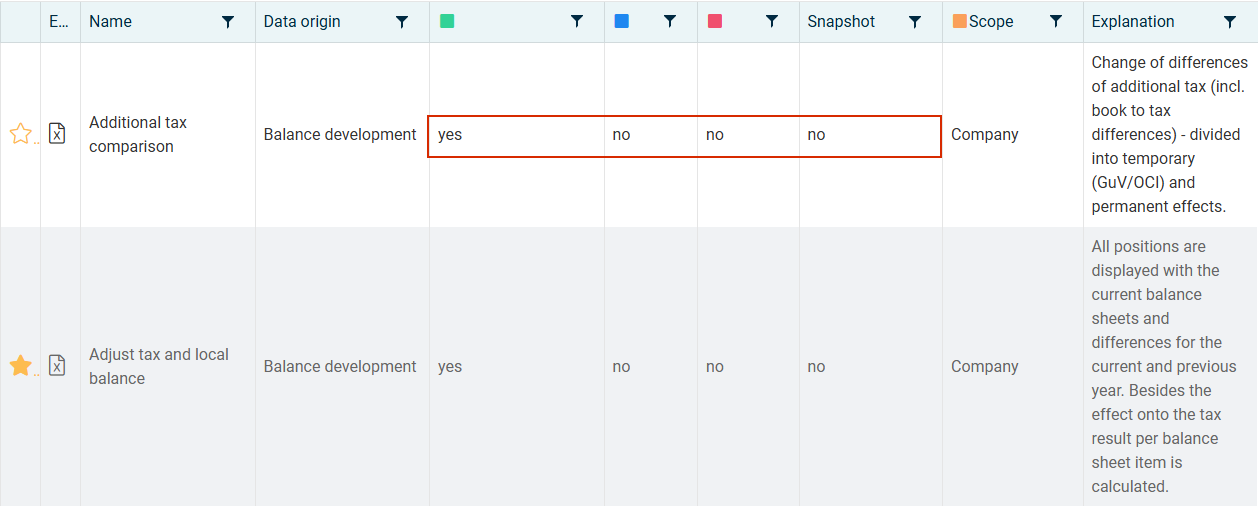
Depending on the data origin or report, certain parameters or attributes must be specified. The settings to be made are marked for each report. Parameters that must be specified are marked with Yes in the corresponding cell, irrelevant parameters with No.
For the Additional tax comparison report, for example, a comparison period must be specified (= Yes). The other parameters are irrelevant – the selection of a currency, for example, has no influence on the report:
Explanation
Brief description of the report.
Scope
Each report is based on a scope or focus point. The Scope column specifies the possible restrictions with regard to the companies to be included:
- Company: The report cannot be restricted with regard to the Scope parameter. Only data for the company selected in the Company field are displayed.
- (Sub-)Group: The report can be restricted by selecting a company defined as (sub-)group (when scope = Group structure).
- Tax group structure: The report can be restricted by selecting a company defined as tax group parent (when Scope = Tax group structure).
- Country: The report can be restricted by selecting one or more countries (when Scope = List).
- Reporting Dimension: The report can be restricted by selecting one or more reporting dimensions (when corresponding display = List).
Creating Report
To create a report:
- Click the
 icon in the Execute report column.
 - The report is written to an Excel file and saved in your download directory.