
Executing Multiple Elements Using a Workflow
Last updated on 2026-04-28
Overview
With workflows, you can map a saved sequence in Consolidation & Financial Planning in which executable elements such as scripts, data imports, or apps, are executed one after another in a defined order.
Workflows can be created directly in a directory structure, provided that the element type has been enabled for workflows, and you can:
- Add any executable elements or executable folders from Consolidation & Financial Planning
- Define the behavior in case of errors
- Execute the workflow as a coordinated process
Workflows thereby contribute to the standardization of recurring execution processes and reduce the manual setup effort for repeated runs.
This article contains the following sections:
Creating and Configuring a Workflow
A workflow can be created in any directory structure, provided that the element type Workflow has been enabled for this directory structure.
To create and configure a workflow, proceed as follows:
Navigate to the directory structure in which the workflow is to be created.
Select the root folder of the directory structure or, if applicable, a folder under which you want to create the workflow, and select Create | Workflow from the context menu.
The Create Workflow dialog is displayed as follows:
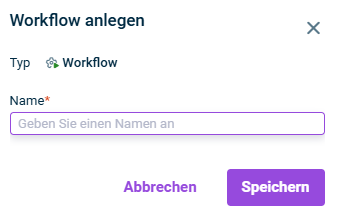
Enter a name for the workflow and click Save. The workflow is created in the structure view.
In the detail view of the workflow, click Edit.
The detail view is displayed as follows, for example:
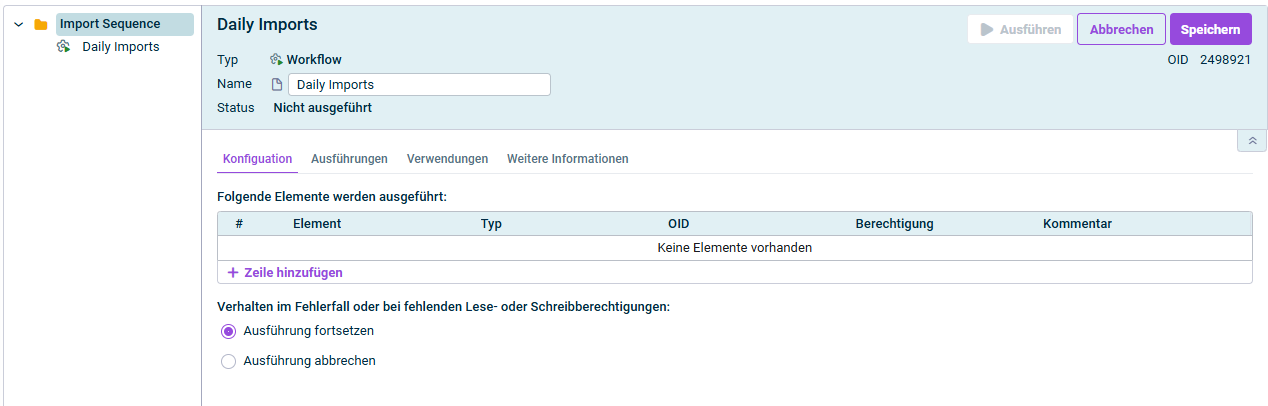
For each element that you want to execute within the workflow, click + Add row and then select the element or executable folder that you want to add to the workflow from the drop-down list in the Element column.
The elements and/or folders are subsequently executed in the order defined here.
Define the behavior in case of an error or missing read or write permissions:
- Continue execution if the workflow is to be continued even if an error has occurred during execution
- Cancel execution if the execution of the workflow is to be stopped when an error occurs while executing an element
Whether you have the permissions required for execution is displayed in the Permission column as soon as you have added the element.
Save the settings.
Executing Workflow
After you have configured a workflow, you can execute it by clicking Execute at the top right of the detail view.
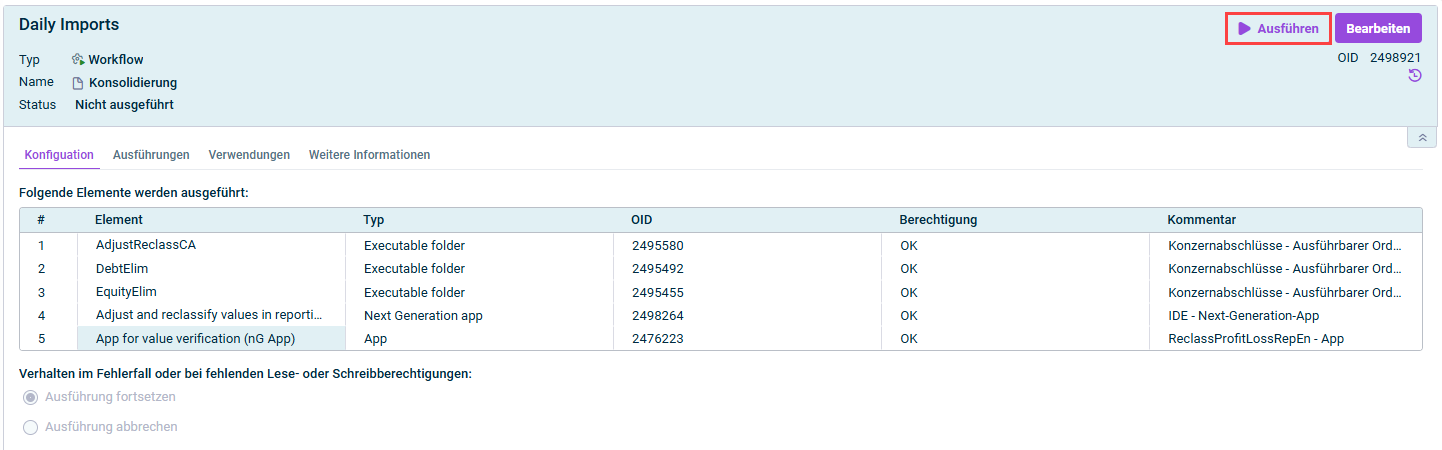
Once the workflow has been executed, the Executions tab displays the date and time and status of the execution as well as the user who executed the workflow.
Following statuses are possible:
- Not executed: The workflow has not been executed yet
- OK: The workflow was executed successfully.
- Error: An error occurred during execution.
- Canceled: Execution has been canceled manually by the user.
Data imports into reporting entities can only be executed within a workflow if it is an update of an existing import in which the configuration is kept unchanged. If the configuration of a data import is to be adjusted during execution, the data import must be executed as described under Creating and Executing the Data Import.