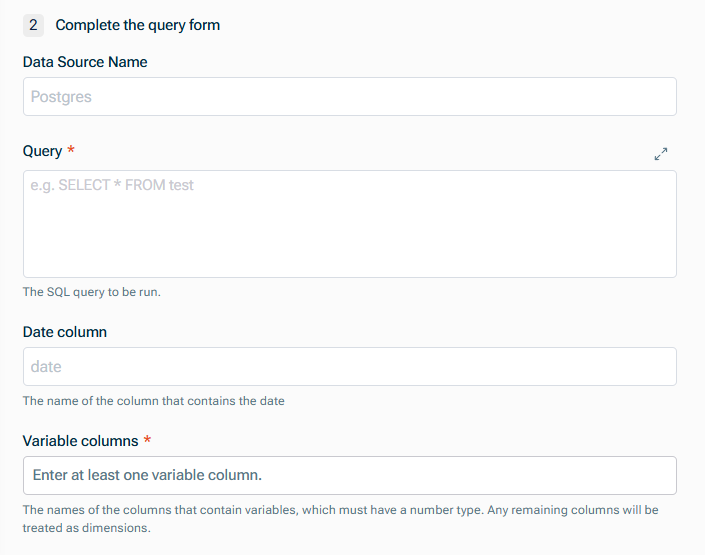
Configure the steps as described in the following section.
Connecting to Redshift
Last updated on 2025-12-10
Overview
You can establish a direct connection to Redshift to pull in data into xP&A. It is possible to use an SSH tunnel for the connection.
This article contains a description of the prerequisites and the individual steps of the set-up process.
The fields that are pulled in must be defined during the set-up process using a database query. For a detailed instruction on how to structure such a query, see Defining Database Queries.
This article contains the following sections:
Prerequisites for the Setup
To allow xP&A to connect to your Redshift database, you have to take the following actions upfront:
You have to whitelist the following static IP address before connecting Redshift with xP&A: 52.59.129.235
You need to make sure that your Redshift database is only accessible with a strong username and password combination when white listing these IP addresses. Proceed as follows:
Open the Properties of your Redshift Cluster.
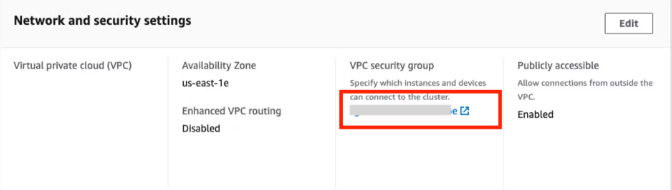
Under Network and security settings, click the VPC security group:
Open the Inbound rules tab and click Edit inbound rules:
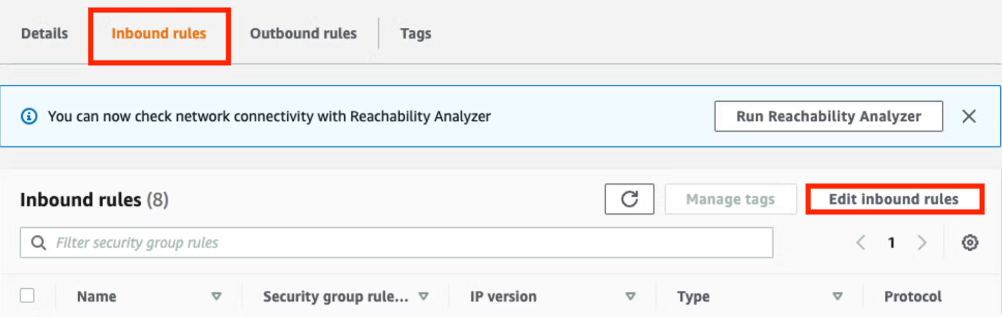
As Type, select Redshift, and enter your external IP address under CIDR blocks and click Save rules.
 Enter the IP address
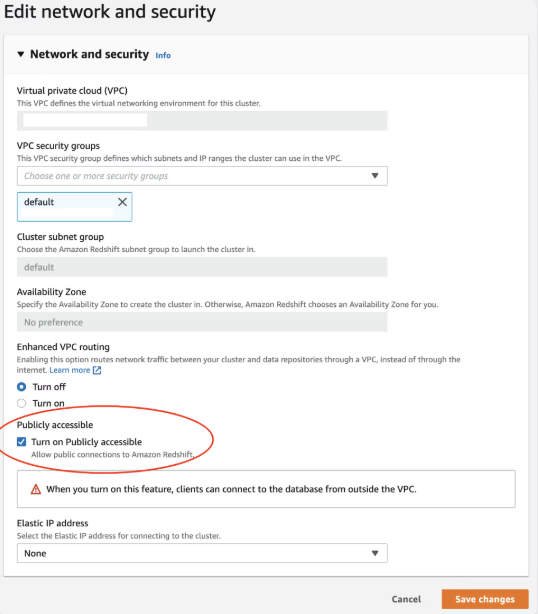
To allow xP&A to connect to your Redshift database, you need to make your database publicly accessible. Proceed as follows:
Open the Properties of your Redshift Cluster.
Under Network and security settings, make sure that the option Publicly accessible is activated.
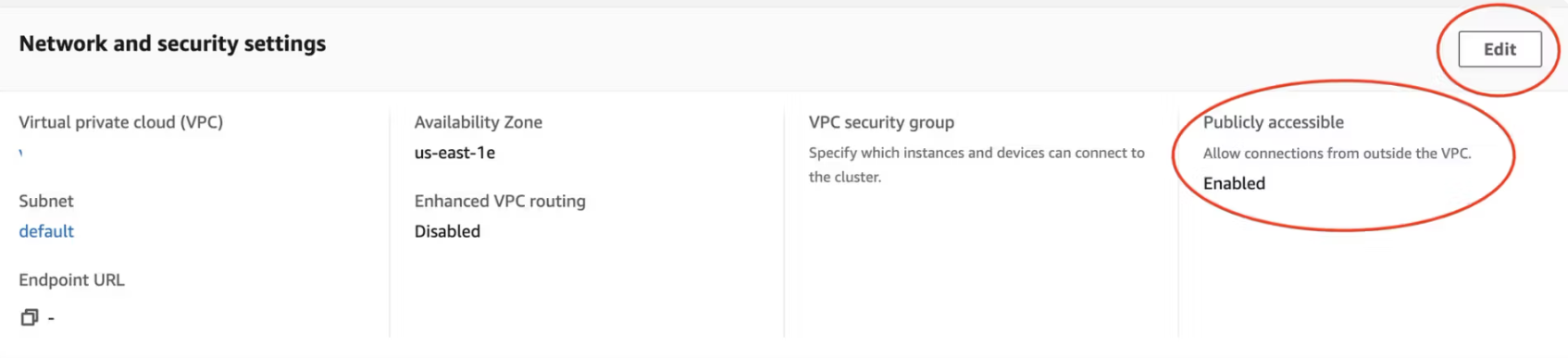
If it is not activated, click Edit and activate the option Turn on Publicy accessible
Connecting to Redshift
To connect to Redshift:
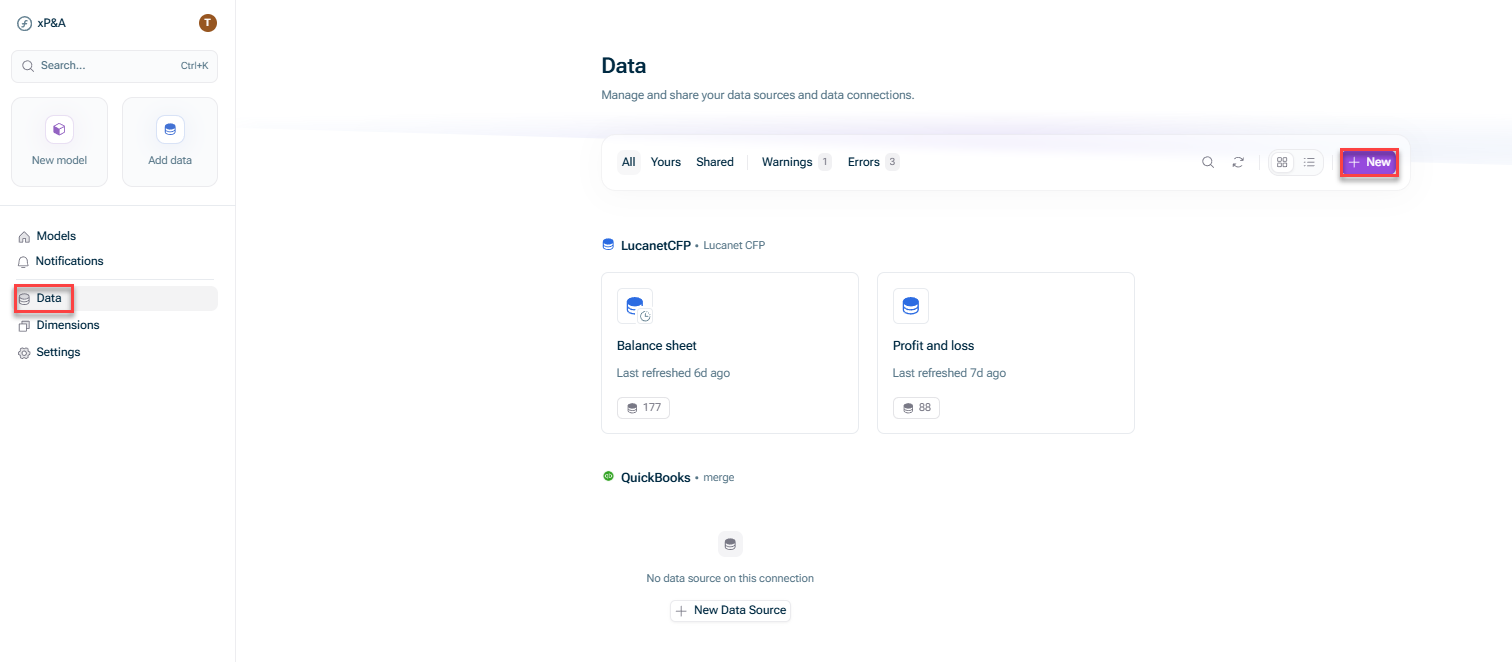
Choose one of the following options:
- Open the Data workspace from the overview on the start page and click + New.
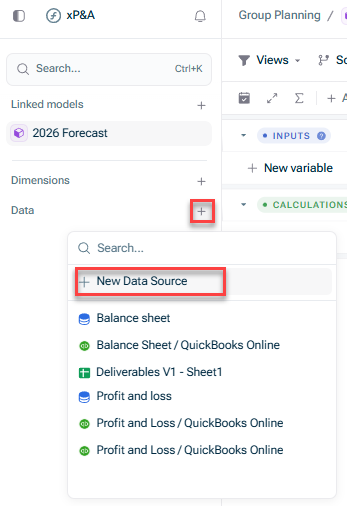
- Open the model into which you would like to integrate the data, click the + sign next to Data in the overview, and choose New data source:
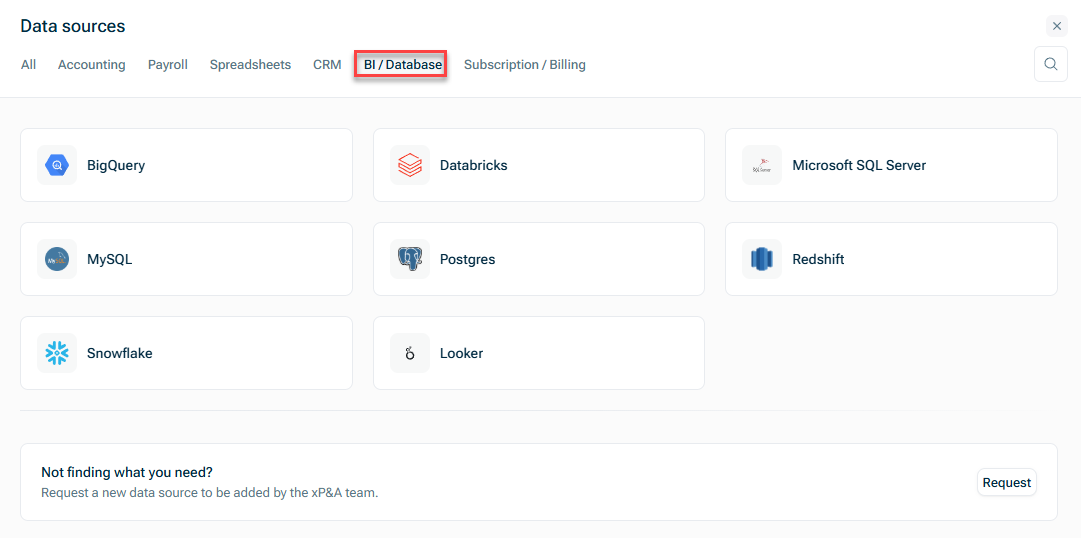
In the Data sources dialog, open the BI/Database tab and choose MySQL:
The New Data Source dialog is displayed as follows:
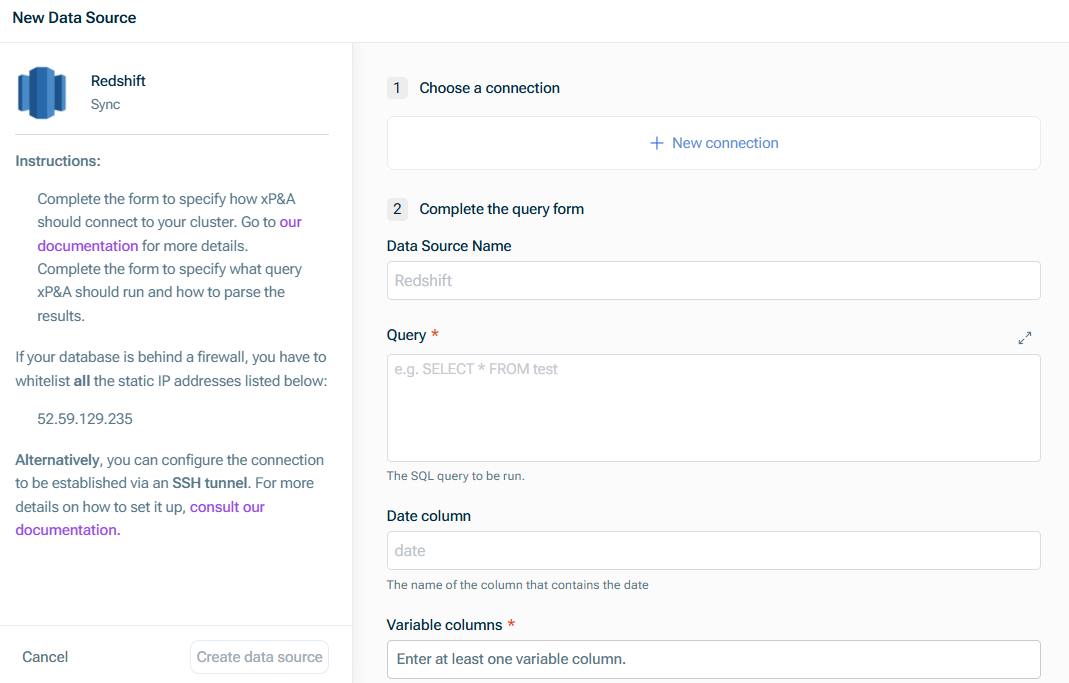
Click Create data source.
Set-up Steps
The following steps are required to set up the data source:
Step
Description
Choose a connection
Choose an existing connection, or, if you have not configured a connection yet, click New Connection and enter the following in the New Redshift connection dialog:
- Redshift Cluster endpoint host name without port and database
- Cluster endpoint port
- Name of the database to which you want to connect
- Database user name and password
The user credentials are specific to the Redshift cluster and not AWS services. For more information about creating and managing database users in Redshift cluster, see Redshift documentation

If you want to establish a connection via an SSH tunnel, additionally enter:
- Host name of the SSH server used to establish a tunnel connection to the database
- Port of the SSH server used to establish a tunnel connection to the database
If you configure access to your data warehouse via SSH:
- Make sure to fulfill the prerequisites for the setup.
- Remember to update the database hostname to be the database’s IP internal to your network.
- If you wish to update an existing connection to use SSH, please contact us.
Complete the query form
Enter the following:
- Data Source Name
- Query to define the fields which are to be pulled in. For more information, see Defining Database Queries.
- Name of the Date column, which must be one of Redshift's date formats
- Names of the columns that contain variables (which must have a numeric data type.)
Any remaining columns will be treated as dimensions, and must have a string data type.
An exception is the cohort dimension, which must be a date, with the column header explicitly labelled Cohort.