
Placeholder
Last updated on 2025-12-11
Overview
A placeholder is a variable that is replaced by actual values.
In tilde formulas, placeholders can be used as substitutes for data levels, adjustment levels, organization elements, partners, transaction currency, display currency, periods, and time intervals, or as parameters of functions or statements.
When creating a report, the placeholders can be configured individually, i.e., you can configure whether a value for this placeholder is fixed or can be selected as required. For additional information, see Generating Excel Reports.
This article contains the following sections:
Structure of the Tilde Formula for Placeholders
The tilde formula must be structured as follows:
~Placeholder
Example
In the Excel worksheet, a tilde formula with placeholders is defined for retrieving the organization element and adjustment level respectively:

Available Placeholders
The following placeholders can be used in a Tilde formula:
Placeholder
Description
Data level
Data level
Adjustment level
Adjustment level or Adjustment level group
Organization element/OE
- Organization group
- Reference to reporting entity
- Reference to cost center
- Reference to cost center group
- Reference to consolidation area
- Reference to consolidation unit
- Reference to consolidation unit group
Month/M
First month of the selected period
Quarter/Q
Quarter of the first month of the selected period
Year/J
Calendar year of the first month of the selected period
Display currency/
Currency/
DC
Display currency
Transaction currency/ TC
Transaction currency
Partner/P
Partner
Period
Period
Types of Placeholders
The following types of placeholders can be used in a tilde formula:
If a parameter in a tilde formula refers to one of the following dimensions, the keyword can be omitted and replaced by the corresponding placeholder:
- Period (can e.g. be replaced by the placeholder ~month)
- Organization element
- Data level
- Adjustment level
- Transaction currency
- Display currency
Tilde Formula Structure
The tilde formula must be structured as follows:
~Function/Statement(Parameter_1="Value";Placeholder_1;...;Placeholder_n)
Example
In the Excel worksheet, Year is used as the placeholder for each period:
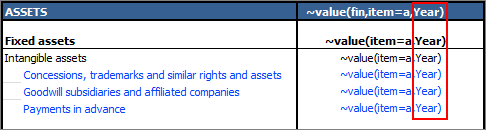 Example for placeholder 'Year'
When the report is generated, the placeholder in the tilde formula is replaced with the period configured in the detail view:
When you want to choose several elements of the same dimension in an Excel report (e.g. the data levels Plan and Forecast), you can expand the corresponding placeholder.
Add a full stop to the dimension followed by a description, e.g.:
- Data level.Plan
- Data level.Forecast
- Period.Comparison
Example
In the Excel worksheet, two different placeholders (data level.plan and data level.forecast) are used for the Data level dimension in the tilde formula:
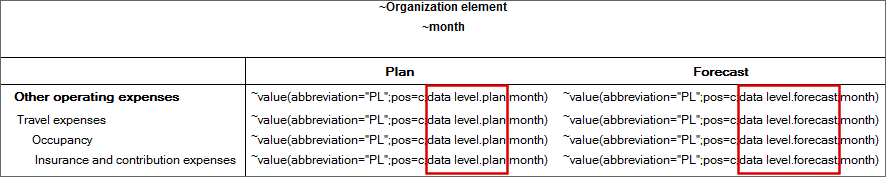 Placeholder for multiple elements
In a tilde formula you can use the placeholders Month, Quarter and Year for the Period parameter. All three placeholders can be defined so that further periods are calculated automatically. This makes it easy to represent time series in an Excel worksheet.
Example 1: Placeholders and additions
If the period Aug 2017 is selected before the report is generated, the following values are returned depending on the placeholder used:
- ~Month: Aug 2017
- ~Quarter: Q3.2017
- ~Year: 2017
- ~Month+1: Sep 2017
- ~Year+1..year +2: 2018-2019
Example 2: Forming a time series
In the tilde formula, the Month placeholder is added from column C:
 Placeholder for a time series
The following months are calculated based on the month selected during the creation of the report:
 Result of placeholders for time series in Excel
You can use the Time interval placeholder to generate reports that display comparisons rather than time series. The user can choose a time interval over a defined periodicity (year, quarter or month) covering any number of periods.
Example
The Excel worksheet contains two tilde formulas for entering revenue in two time intervals. Column D calculates the difference between the different revenue entries:
 Placeholder for time intervals
When generating the report, the time periods to be compared can be selected in the detail view.