
Enter a name for the proposal.
Proposing and Approving Changes to a Model
Last updated on 2026-02-04
Overview
The Propose changes feature enables collaborative model updates through a structured review workflow.
Data Collectors can suggest changes without directly modifying live data, while Editors maintain control by reviewing, approving, or rejecting proposed updates before they are applied — ensuring control, traceability, and teamwork.
Change proposals can be made in the spreadsheet or the dashboard of a model and can contain one or several proposal items, i.e. individual cell changes.
An overview of all proposals relevant for a user (either as a Data collerctor or Editor) can be accessed in the Proposals workspace.
In order to be able to participate in the change proposal process, a user must have a certain user role and access to the respective model.
This article contains the following sections:
- The 'Proposals' Workspace
- User Roles and Permissions
- Assigning User Roles and Granting Model Permissions
- Statuses of Proposals and Proposal Items
- Creating and Submitting a Proposal
- Opening a Proposal and Proposal Items
- Approving or Rejecting a Proposal
- Applying Changes of a Proposal
- FAQ on Change Proposals
The 'Proposals' Workspace
An overview of all proposals relevant for a user can be accessed in the Proposals workspace. Here you can see all proposals you created as a Data Collector or for which you are an Editor.
In addtion, you can:
- Open a proposal in the model view
- Track the status and progress of a proposal
- Filter proposals by model, creator, or status
The workspace is displayed as follows, for example:
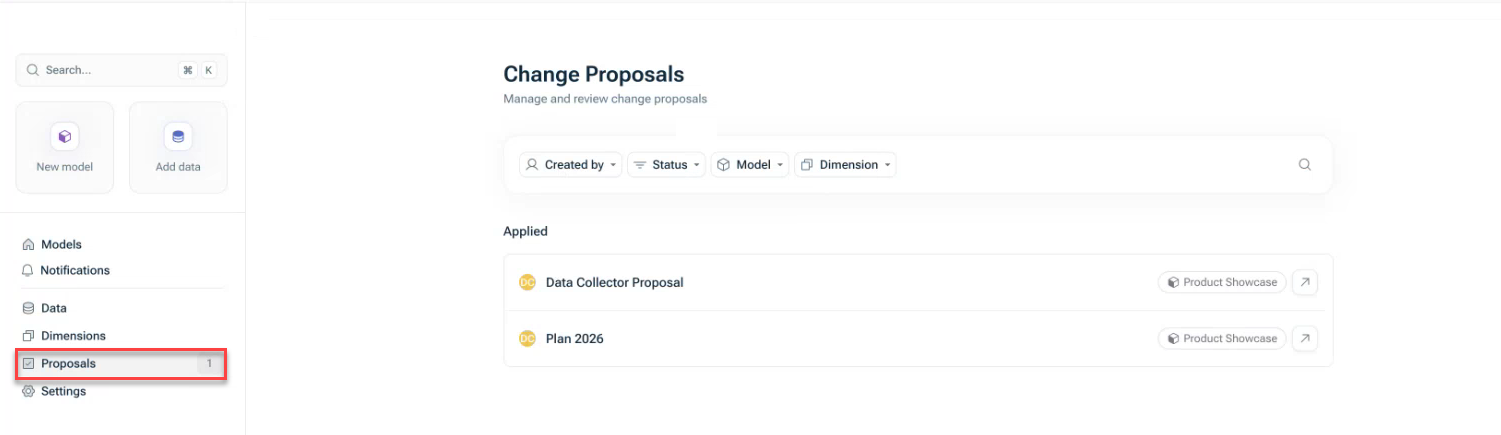 'Proposals' workspace
User Roles and Permissions
The user roles involved in the process of change proposals are Data collectors and Editors. They have the following permissions:
Data Collectors can contribute changes through the proposal workflow. They cannot edit models directly. Instead they:
- Can create and submit proposals in which they:
- Can propose value changes
- Can add, rename, or delete dimension items
- Can link dimensions
- Cannot add or edit formulas
- Cannot add or delete variables
- Cannot rename variables
- Cannot add data sources
- Can add proposal items to their own proposals as long as the status of the proposal is not Applied or Closed.
- Can delete their own proposals in the Draft, Submitted, or Closed status (but not after they have been Applied).
- Receive notifications when their proposals have been reviewed.
Editors have full control over models and proposals. They:
- Edit models directly
- Create proposals for collaborative editing
- Review, approve, or reject proposals from any user
- Apply approved proposals to models
- Delete proposals in Submitted or Closed status
Assigning User Roles and Granting Model Permissions
In order to be able to participate in the change proposal process, a user must have a certain user role and access to the respective model. The following steps are necessary:
- The user role Editor or Data Collector must be assigned in the Administration of the Lucanet CFO Solution Platform. For more information, see User Management.
- To be able to access a model with certain permissions, the model or a view of the model needs to be shared with a user granting the necessary level of access. For more information, see Sharing a model.
Data collectors
- If a user shall be able to propose changes as a Data collector, they must be assigned the user role Data collector in the Administration of the CFO Solution Platfrom.
- In addition, the model or a view of the model must be shared with them granting the level of access Can create change proposals or Can create change proposals from the dashboard.
Editors
- If a user shall have Editor permissions and the permission to review and approve changes in a model, they must be assigned the user role Editor in the Administration of the CFO Solution Platfrom.
- In addition, the model or a view of the model must be shared with them granting the level of access Can edit.
Statuses of Proposals and Proposal Items
Change proposals can consist of one or more proposal items (i.e. individual cell edits) which can have the following statuses during the approval process.
Proposals can have the following status:
- Draft: The proposal is being created before submission. Only visible to the creator.
- Submitted: The proposal has been sent for review. Editors are notified and can begin reviewing the proposal items contained in the proposal.
- Applied: The proposal has been approved and merged. Approved changes now appear in the model.
- Closed: The proposal has been closed without applying any changes.
The current status of a proposal is shown next to the proposal in the proposal mode at the right-hand side of the spreadsheet or dashboard view:
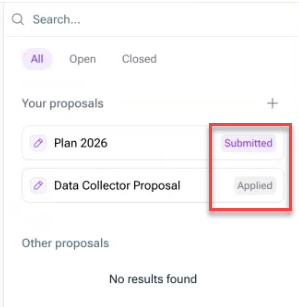
Proposal items can have the following status:
- Pending (purple color): The proposal item is awaiting review by an editor.
- Approved (green color): The proposal item has been approved by an editor — and will be applied to the model once the editor applies the proposal.
- Rejected (red color): The proposals item has been rejected by an editor — and will not be applied.
The current status of a proposal item is shown:
- At the top right corner of the proposal item
- In the respective comment of the proposal item
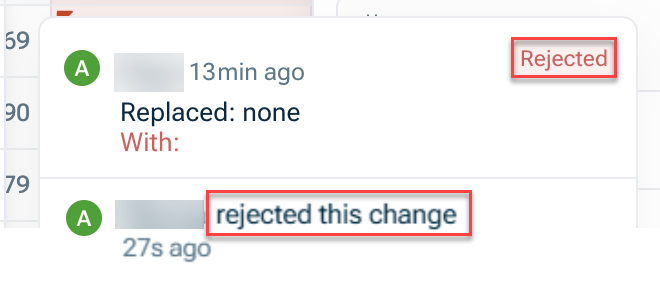
Creating and Submitting a Proposal
They way you can create a proposal depends on whether you are a Data collector or an Editor.
As a Data Collector
Data Collectors cannot edit models directly, but they can propose changes within a model or a view. To create a proposal as an editor:
Edit the content of a cell in a model or view.
The following dialog is displayed:
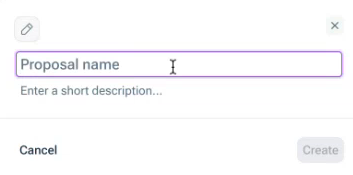 Creating a new proposal
Click Create.
The proposal mode is opened and you can see the name of the proposal on top of the model and the proposal details on the right-hand side:
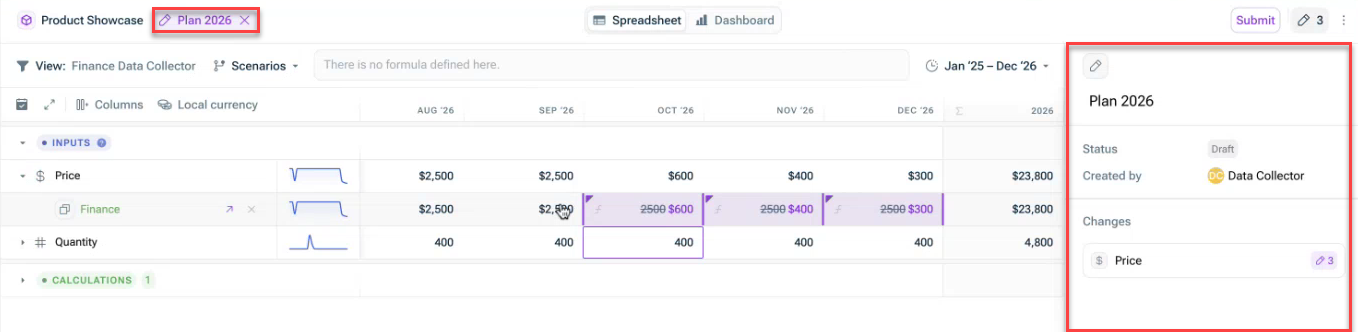
Continue making changes.
Each change is automatically tracked as a proposal item under the proposal you just created.
Once all changes are entered, click Submit on the top right to submit the proposal to be reviewed by an editor.
The proposal is displayed in the Proposals workspace and in the model view and all editors with access to the respective model will be notified of the submitted proposal.
As an Editor
Editors can both edit models directly (without approval by any other users) or use a proposal to have their changes approved by another editor. To create a proposal as an editor:
Go to the model you would like to propose changes for.
Open the three-dot menu on the top right and choose Propose changes.
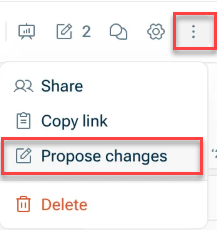
Enter a name for the proposal and click Create.
The proposal mode is opened and you can see the name of the proposal on top of the model and the proposal details on the right-hand side:
Continue making changes.
Each change is automatically tracked as a proposal item under the proposal you just created.
Once all changes are entered, click Submit on the top right to submit the proposal to be reviewed by an editor.
The proposal is displayed in the Proposals workspace and in the model view and all editors with access to the respective model will be notified of the submitted proposal.
- You can create multiple proposals for the same model.
- Once you have submitted a proposal, you can start a new proposal for additional changes.
- As long as in Draft and Submitted state, a proposal item can be deleted by its creator by hovering over the proposal details and using the Delete button (
 ).
). - As an Editor, you can technically create and apply your own proposal. In practice, when using the change approval flow, you are likely to have your proposals approved by another editor.
- Proposals in Draft and Submitted status are live when made by an Editor. This means that if you make changes as an editor, they are directly applied and can be traced in the change log in the proposal details when hovering over the cell.
Opening a Proposal and Proposal Items
You can open a proposal from:
- The Proposals workspace
- The model view, by clicking on the proposals icon
 in the top-right.
 - The notification, in case you are an editor and have been notified of a submitted proposal.
The proposal details are displayed in the side bar as follows, for example:
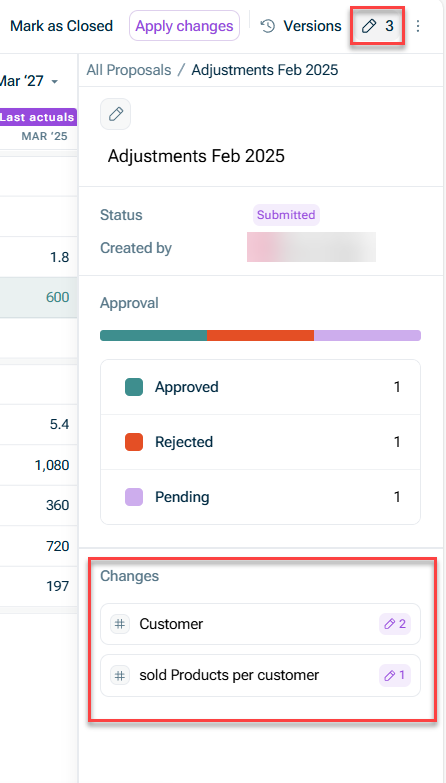
You can see the details of the proposal items for each specific variable or dimension by clicking the variable or dimension in the Changes section of the proposal details. The proposal item details are displayed as follows, for example:
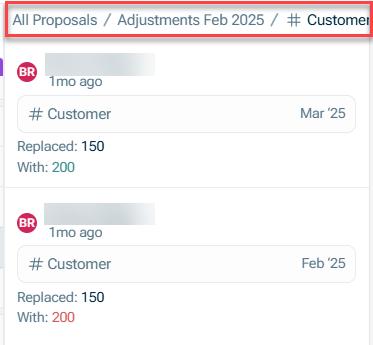
You can navigate back to the proposal using the breadcrumbs at the top.
Approving or Rejecting a Proposal
To review and apply or reject proposals, editors have the following options:
At Cell Level
Once you opened a proposal, you can see which cells have been edited. Hover over a cell to open the details of the change:
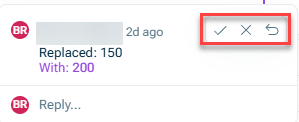
You can then choose to approve or reject the proposed change using the arrow or X. If needed, you can enter a reply to the Data collector to explain your decision or ask a question.
At Row Level
You can also approve or reject a proposal on the entire row level by hovering on the row and making the selection on the left hand.
At Model Level
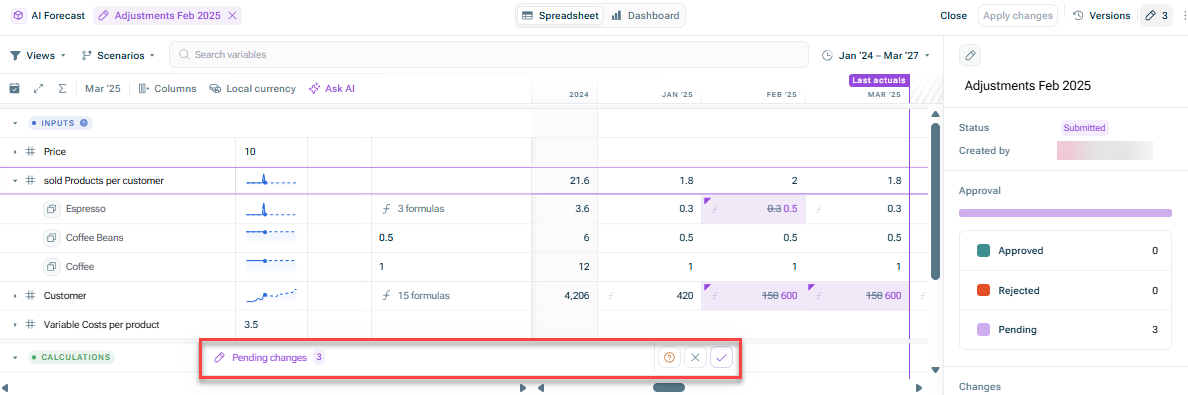
Another option is to approve or reject all changes of the proposal in the model at once. To do so, click the respective buttons in the Pending changes section at the bottom of the model view.
If you want to reset the approvals or rejections you already made, you can use the Reset button ( ) to bring all proposal items back to the Pending state.
Applying Changes of a Proposal
Once an editor has reviewed all proposal items of a proposal, the approved changes can be applied to a model.
To do so, just click Apply on the top right.
Data collectors will see the updated status and any comments left by Editors.
FAQ on Change Proposals
- Data Collectors can delete their own proposals in Draft, Submitted, or Closed status (but not after it has been Applied).
- Editors can delete any proposal in Submitted or Closed status.
Yes. The creator can continue adding new items or editing existing ones until the proposal is Applied or Closed.
Limitations:
- Porposal items that have already been approved or rejected cannot be edited.
- Editors reviewing a proposal cannot edit it; they can only approve, reject, or comment.
This depends on the status of the proposal.
- Draft: Proposals are only visible to the creator of the proposal (either an Editor or Data Collector)
- Submitted: Proposals are visible to all Editors of that model
Editors can see the number of proposals associated with a model in the top-right corner
Yes.
- Multiple Editors can review and comment on a proposal
- Only one Editor can apply an proposal to the model
- All review activity is tracked in the proposal log
Yes, you can still see applied or closed proposals and view the following details:
- Approved proposal items in green
- Rejected proposal items in red
- Proposed values (pending) in purple
- Closed proposals can be re-opened by an Editor (the proposal reverts to its last status).
- Applied proposals cannot be re-opened.
- The proposal remains in the Submitted state.
- It will not auto-close.
- We recommend that Editors manually close such proposals.