
Using the Calculation View
Last updated on 2026-03-06
Overview
XBRL calculation linkbases define mathematical relationships between financial statement elements (e.g. total assets = current assets + non-current assets). These relationships must be correct for the report to pass regulatory validation (e.g. ESEF).
XBRL Tagger provides a dedicated side panel, the calculation view, to:
- Display and edit calculations
- Display details
- Add and remove summands
This article contains the following sections:
Opening the Calculation View
Open the calculation view by clicking the  icon in the sidebar:
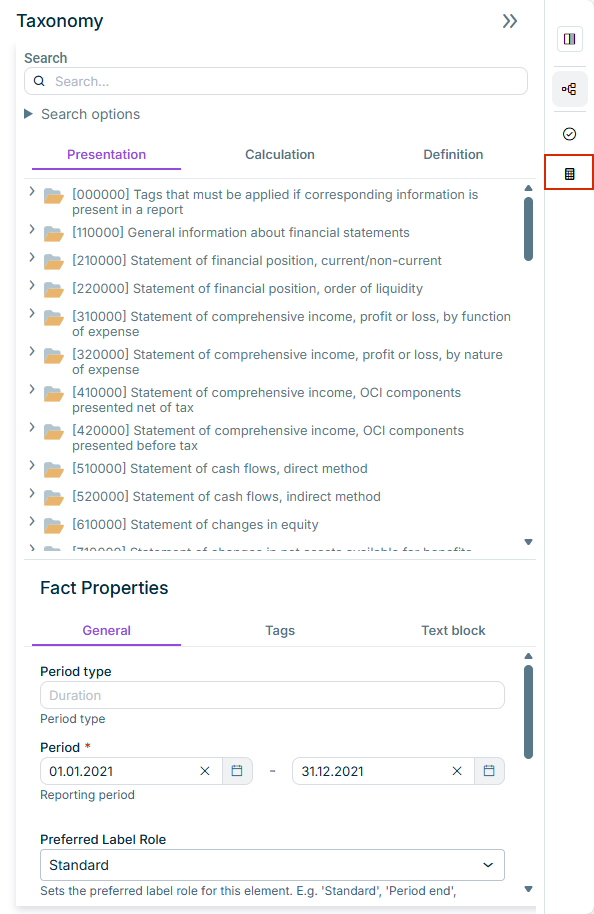
The calculation view is displayed as follows:
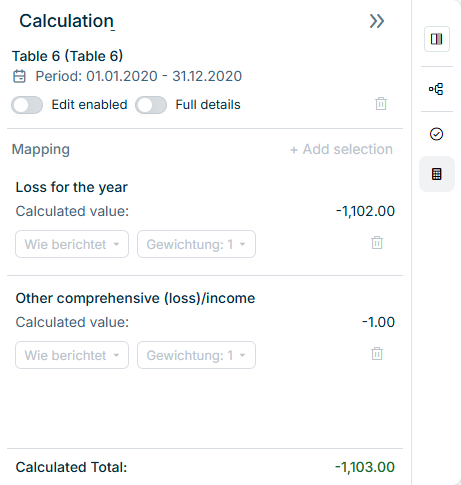
The calculation view only contains values after you have selected a cell with a calculated value in a table in the current document.
If the calculation view does not display any values, select a calculated value first.
Editing Calculations
To edit calculations:
Activate the Edit enabled option.
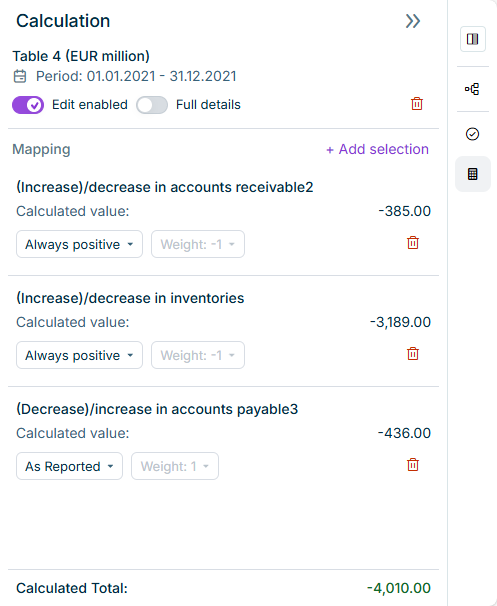
If necessary, use the drop-down list under Calculated value to change the sign (e.g. whether a summand is added to or subtracted from the total). The following options are available in the drop-down list:
| Option | Description |
|---|---|
| None | Value has no sign |
| As Reported | Sign remains as reported |
| Reverse | Value has the opposite sign |
| Always positive | Value always has a positive sign |
| Always negative | Value always has a negative sign |
If necessary, change the Weight option. Weight can be set to 1 or -1 and is an additional option to change the sign.
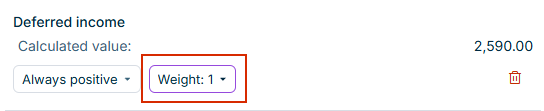
The Weight option is only available when either the element or the total element has the balance type Unknown.
For debit values, Weight is always -1; for credit values it is 1. Because Unknown can be either, you can set the balance type yourself.
Displaying Details
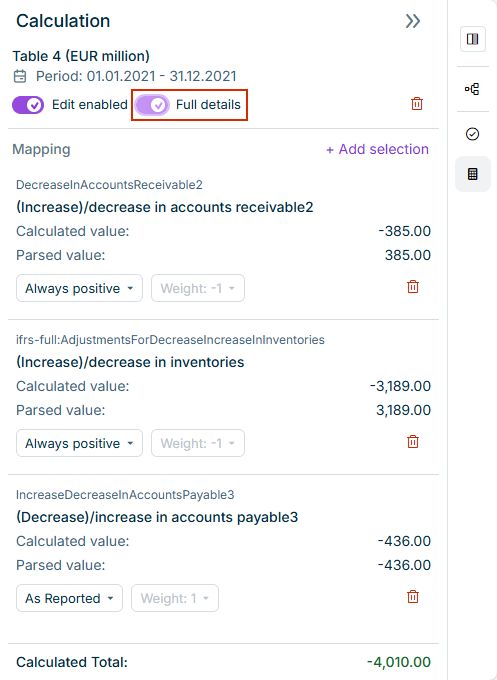
In the calculation view, you can activate Full details to display additional technical information for each summand.
Full details help you check that values were parsed correctly and the correct taxonomy elements were applied, for example when taxonomy labels are ambiguous. The following additional information is displayed:
- The parsed value read from the source document, without applying weight or sign logic.
- The technical name (the XBRL taxonomy element identifier).
Adding Values to a Calculation
You can add more values from tables to a calculation. To do this:
Select the value or values in the table that the calculation belongs to.
In the calculation view, click Add selection.
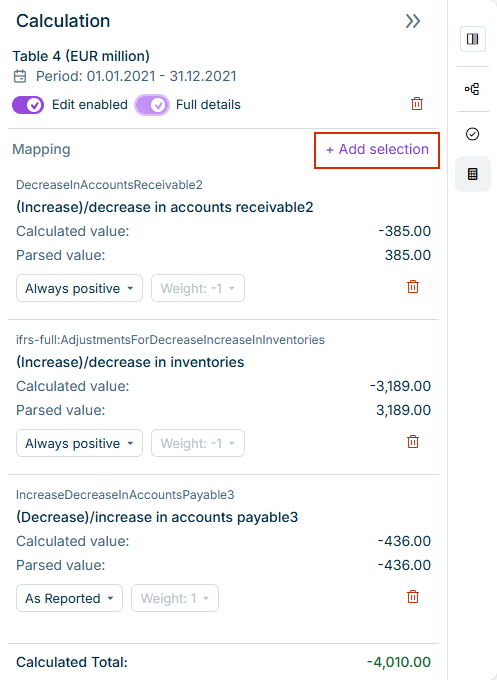
The values selected in the table are added to the calculation.
Deleting a Calculation or Value
You can remove individual values from a calculation or delete the entire calculation by clicking the  icon.
icon.