
Exporting Data
Last updated on 2026-05-20
Overview
You can use the export function to export a CSV file with the following data:
- Balance sheet and account data from the tax balance sheet
- Four calculated special positions for tax groups:
- Pre-tax group remittance surplus (key: tax-balance-special-position-pre-tax-group-remittance-surplus)
- Pre-tax group remittance shortfall (key: tax-balance-special-position-pre-tax-group-remittance-shortfall)
- Tax group remittance surplus (key: tax-balance-special-position-tax-group-remittance-surplus)
- Tax group remittance shortfall (key: tax-balance-special-position-tax-group-remittance-shortfall)
This file can then be imported into the Income Taxes module.
It is also possible to initiate the import of Tax Balance data directly into the Income Taxes module of the Tax Compliance & Reporting solution. How to proceed is described in Import Suite.
This article contains the following sections:
Navigation
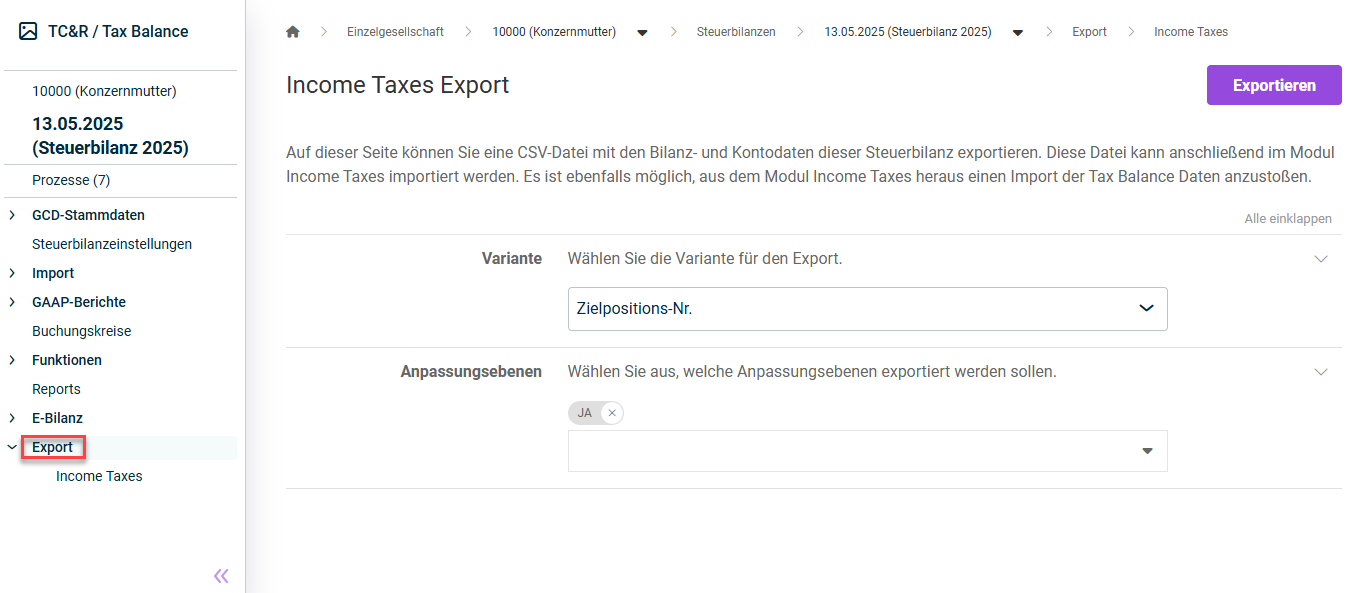
The Export workspace is displayed in the tree view as soon as you open a tax balance sheet under Company:
Exporting Data
To Create a CSV Export:
- Navigate to the Export | Income Taxes workspace.
- Choose how the exported values are to be broken down. The following options are available for selection:
- By balance sheet item
- By target item no.
- Choose the adjustment levels you want to export from the drop-down list or remove the adjustment levels that are not to be transferred by clicking the x.
- Click Export to generate the export file.
Downloading Generated Files
After you have created the export, you can download the generated file.
To do this, click the bell icon to open the job monitor. The status of the export task is then displayed below the task:
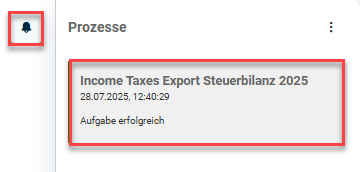
The export file is downloaded and saved in your download directory by clicking the corresponding task.