Creating and Configuring Reporting Packages
Last updated on 2026-04-21
Overview
A Reporting Package is a virtual container that bundles together the elements required for a data collection process:
- Form templates with completion instructions
- Reporting entities with assigned collectors and approvers
- Intercompany validation rules (if enabled)
Once a reporting package is fully configured, an Administrator can start data collection processes for it.
This article contains the following sections:
Creating Reporting Packages
To create a reporting package:
Navigate to Data Collection | Reporting packages.
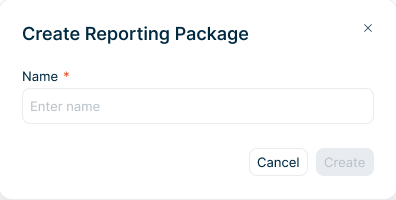
Click + Create reporting package in the top right. The Create Reporting Package dialog is displayed:
'Create Reporting Package' dialog
In the Create Reporting Package dialog, enter a unique name for the reporting package and click Create.
You can now configure the newly created reporting package (see the following section).
Configuring Reporting Packages
The following options are available for configuring reporting packages:
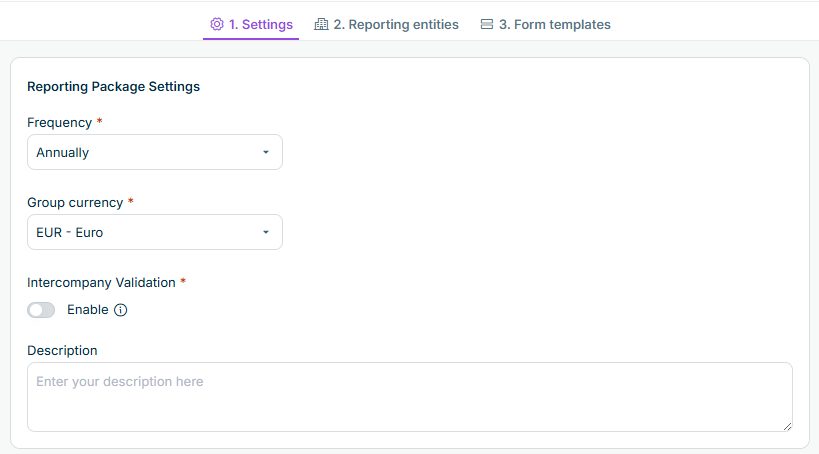
The following options can be configured in this step:
'Settings' step
Option
Description
Frequency
Frequency for data collection.
Options include:
- Monthly
- Quarterly
- Semi-Annually
- Annually
Group currency
Currency used at group level, selectable from a list of ISO currencies
Intercompany validation
Option to enable or disable intercompany validation for this package
Description
Optional description explaining the purpose of the reporting package
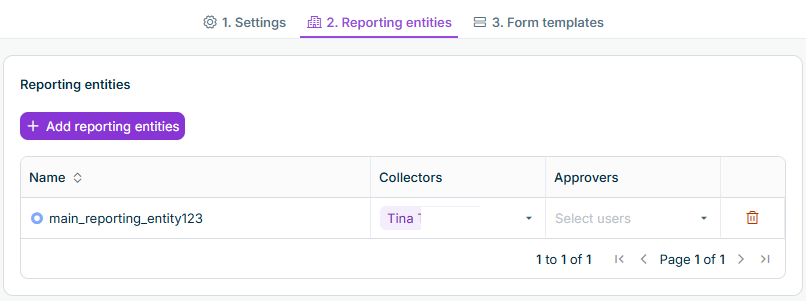
The following options can be configured in this step:
'Reporting entities' step
Option
Description
Add reporting entities
Opens a dialog to select one or more reporting entities to include in the package
Collectors and Approvers
After adding reporting entities, you can configure user assignments. Assignments are copied by default from the Reporting Entities workspace, but you can overwrite them for this specific package.
At least one Collector and one Approver must be assigned to each reporting entity. The same user can be assigned as both Collector and Approver.
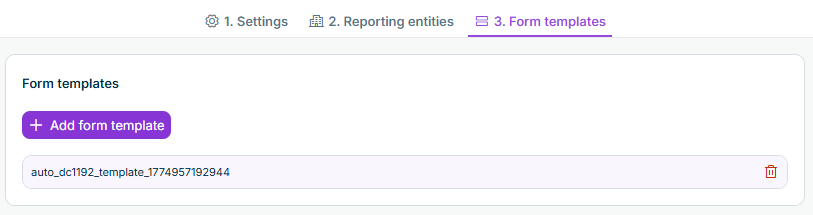
The following options can be configured in this step:
'Form templates' step
Option
Description
Add form template
Opens a dialog to select one or more form templates in state Published to include in the reporting package
Managing Reporting Packages
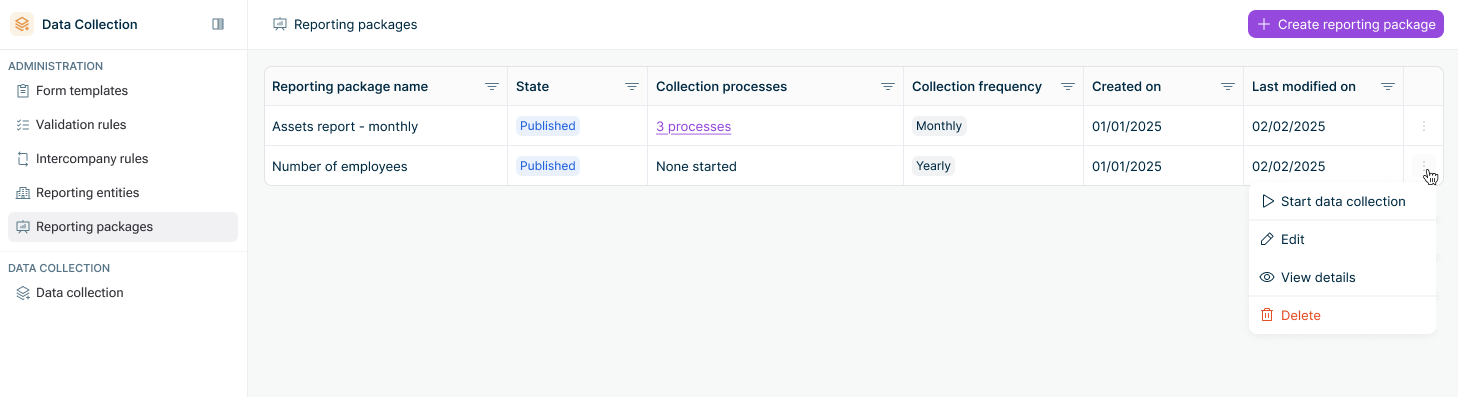
The reporting packages list displays all configured reporting packages with the following information:
Reporting packages list
Column
Description
Reporting package name
Name of the reporting package
State
Current state of the reporting package:
- Draft
- Published
Collection process
Number of data collection processes started for this reporting package
Collection frequency
Configured collection frequency (monthly, quarterly, etc.)
Created on
Creation date
Last modified on
Date of the most recent modification
Context menu
Three-dot menu at the end of each reporting package row.
Available actions:
- Start data collection - starts a data collection process for the selected reporting package
- Edit
- Delete
Editing a Reporting Package
To edit an existing reporting package, click the three-dot menu at the end of the reporting package row and select Edit.
Publishing a Reporting Package
When first created, a reporting package is automatically in Draft state. While in this state, it can undergo any number of modifications. Once its configuration is finalized, the reporting package must be Published before it can be used to start data collection processes.
To publish a reporting package, click Publish in the top right of the reporting package detail view.
A published reporting package can only be modified if it is not linked to ongoing data collection processes. Editing a published reporting package automatically brings it back to Draft state.
Deleting a Reporting Package
To delete a reporting package, click the three-dot menu at the end of the reporting package row and select Delete. In the confirmation dialog, click Yes, delete.
Only unused reporting packages can be deleted. Reporting packages linked to past or ongoing data collection processes cannot be deleted.