Form templates with completion instructions Reporting entities with assigned collectors and approvers Intercompany validation rules (if enabled)
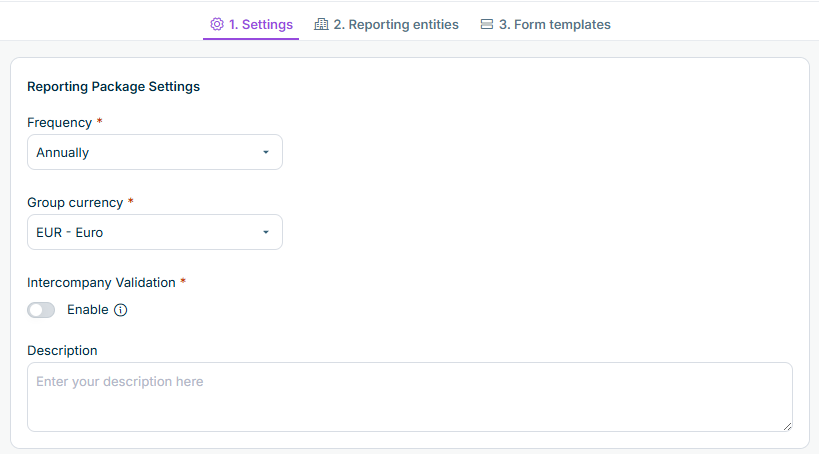
Options include: • • • • | |
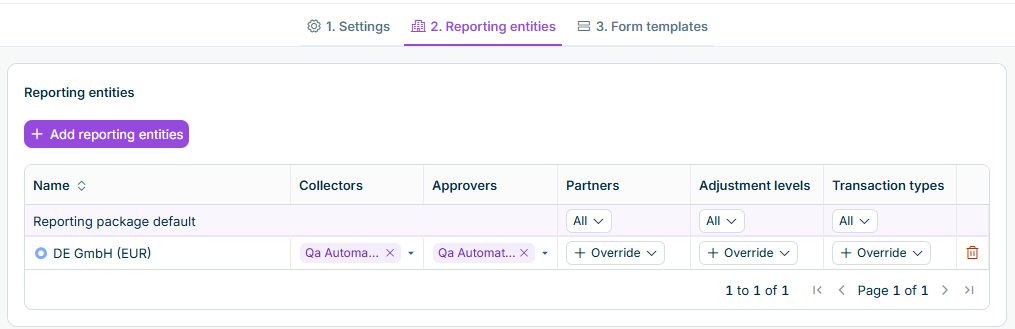
Collectors only see the selected elements in a drill down. Excluded elements are not displayed and cannot be selected. During Excel and Lucanet.Financial Warehouse imports, rows that contain an element outside the selection are rejected. The import result identifies the rejected rows. If all elements remain selected, the behavior is unchanged and all elements of the dimension are available. Elements added in Consolidation & Financial Planning after the selection was configured are included automatically unless you deselect them. You can remove a reporting entity's override at any time; for new data collection processes, the reporting entity then uses the selection from the Reporting package default Changes apply only to new data collection processes. Processes already in progress are not affected.
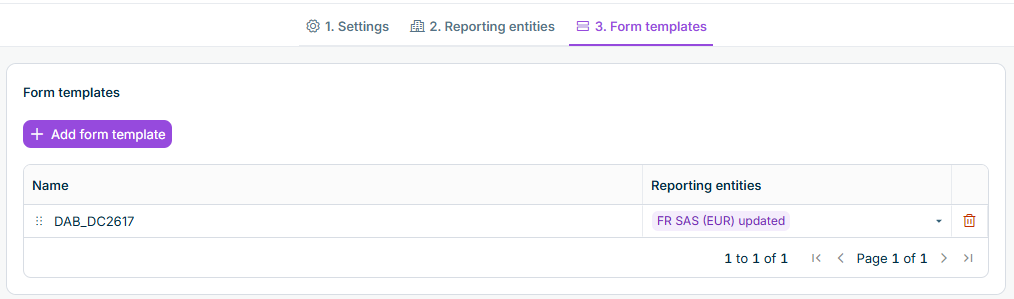
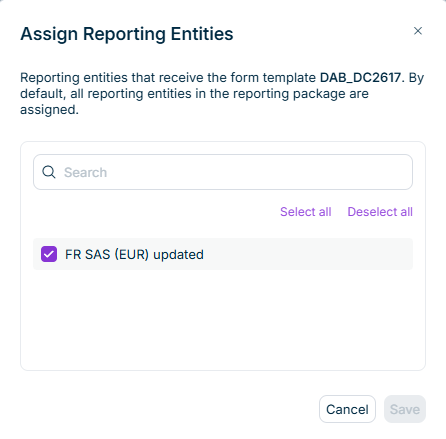
The assignment is stored in the reporting package. The same form template can carry a different assignment in every reporting package, and the assignment does not change the form template itself. A reporting entity added to the reporting package is added automatically to the assignment of every form template in the package. A reporting entity removed from the reporting package is removed automatically from every assignment. A form template removed from the reporting package loses its assignment. When a data collection process is started, forms are created for each reporting entity only from the form templates assigned to it. Collectors only see the forms created for their reporting entity, and a reporting entity is complete when all of these forms have been submitted. For details, see Starting Data Collection Processes Regular validation rules are executed for a reporting entity only when every form template referenced by the rule is assigned to that reporting entity. For details, see Validation Rules and Reporting Package Scope You can save an incomplete assignment at any time. The configuration is checked when you publish the reporting package. For details, see Publishing a Reporting Package Changes apply only to new data collection processes. Processes already in progress are not affected.
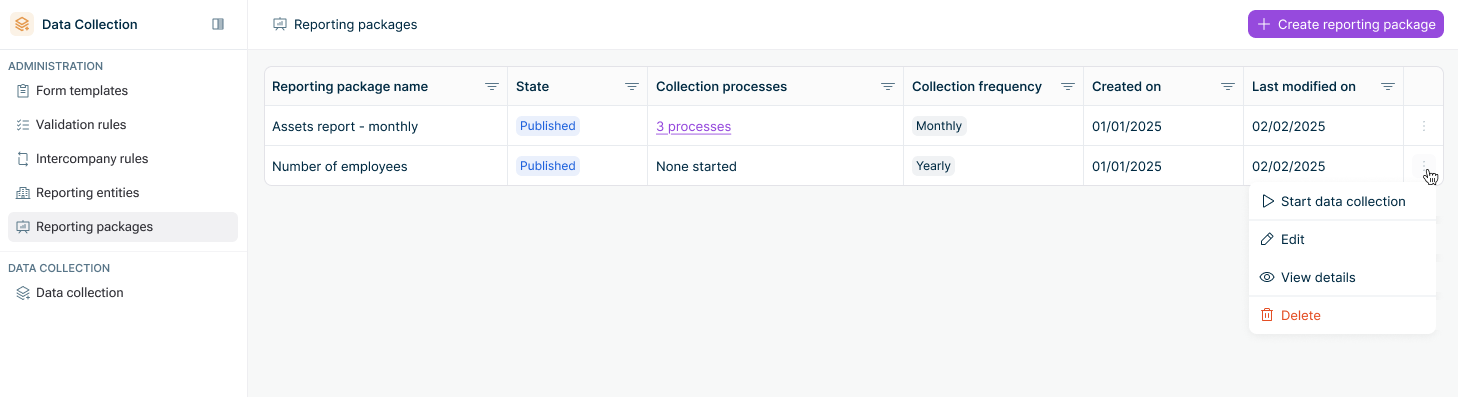
• • • | |
Available actions: • • • |
No reporting entity or no form template is included in the reporting package. A reporting entity has no collector or no approver assigned. A reporting entity has no form template assigned to it. A form template has no reporting entity assigned to it. A form template contains a formula that references another form template, and the referenced form template is not assigned to the same reporting entities as the referencing form template.
This content was generated using AI and reviewed by Lucanet subject matter experts before publication.
Last updated on Oct 7, 2026