
Importing Data from Consolidation & Financial Planning into Income Taxes
Last updated on 2026-04-29
Overview
To import balance sheet data and P&L values from Lucanet Consolidation & Financial Planning (CFP) into Income Taxes, an interface must be created and configured. The steps required to do this are described here.
This article contains the following sections:
Configuration in Lucanet Consolidation & Financial Planning
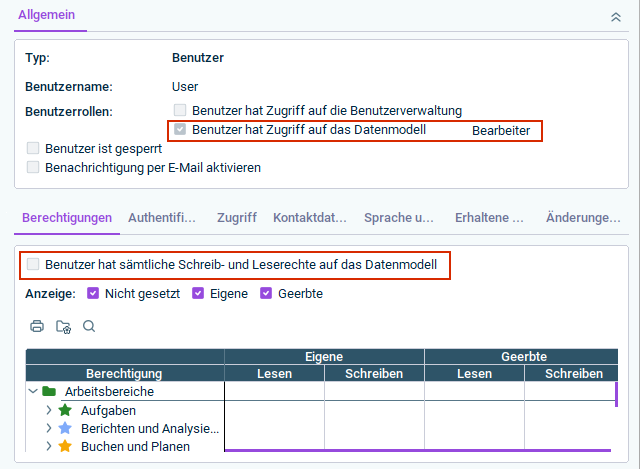
To import data from Consolidation & Financial Planning into Income Taxes, the user must have the following permissions in Lucanet.Financial Client:
- The User has access to the data model option is activated and Editor is selected.
- The User has full write and read permissions for the data model option is activated.
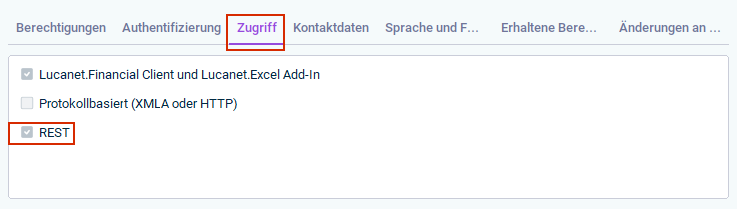
- In Lucanet.Financial Client, the REST check box is activated for the user on the Access tab.
Configuring Tax Data Hub
In Tax Data Hub, the connection parameters to Lucanet database must be configured. To create a new interface connection:
Open Tax Data Hub.
Navigate to the Datasources workspace and click Create. The following parameters are displayed:
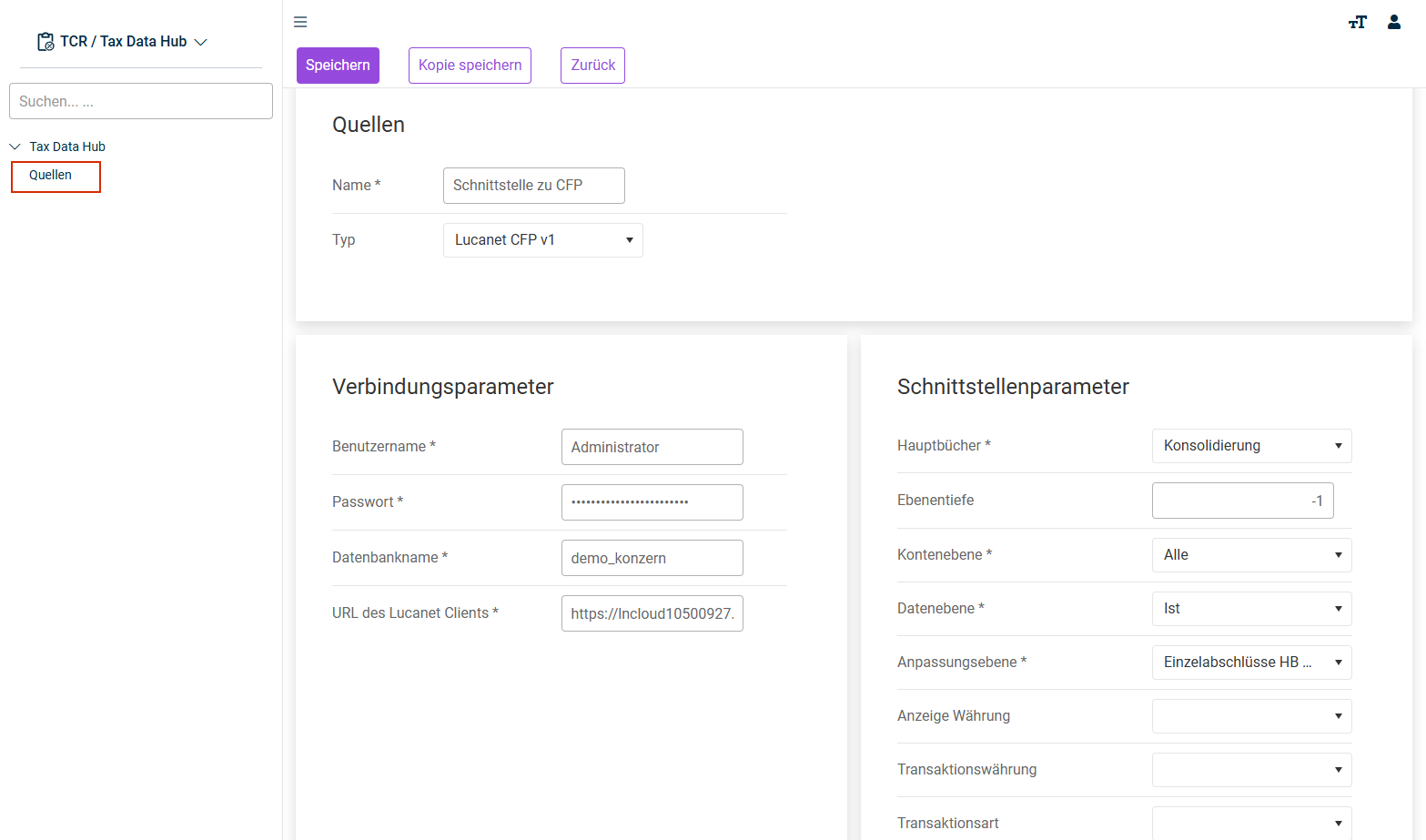
Configure the parameters as follows:
Parameter
Description
Username
User name in Lucanet database
Password
Password of the database user
Database name
Database name
Lucanet client URL
URL of the server, e.g. https://lncloud1c3.lucanet.cloud
Click Next.
The system checks whether the connection to Lucanet Consolidation & Financial Planning can be established. If successful, a second column will appear with additional input fields for the configuration of the interface:
Parameter
Description
Ledgers
Selection of the general ledger
Level depth
The depth to which data are to be loaded from the source tree structure. The default value -1 means that the entire tree should be extracted.
Account level
The type of balance sheet objects to be imported. Available options are: All, Items, and Accounts.
Data level
Selection of the data level
Adjustment level
Selection of the adjustment level
Configuring Income Taxes
Creating Structures
You must then configure the interface in Income Taxes. This includes maintaining the interface settings in the master data. Proceed as follows:
Navigate to master data and Interfaces | Structure.
Click Create. The following dialog is displayed:
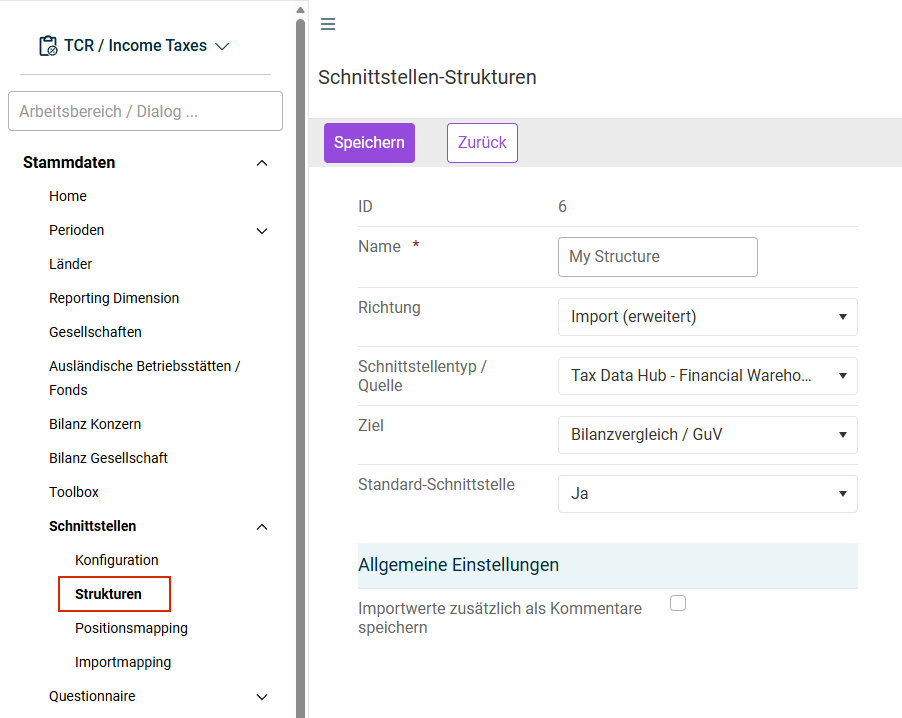
Configure the new structure. The following parameters must be configured:
Parameter
Configuration
Name
Name of the interface; displayed in the Import Suite workspace as the configuration interface
Direction
Import (enhanced)
Interface Type/Source
Select either Tax Data Hub - REST or Tax Data Hub - Financial Warehouse.
Destination
IFRS
Default Interface
Yes: The interface is displayed always in the Import Suite workspace.
No: The interface is displayed only if it is assigned to the company in the master data.
Configuring Import Mapping
Item (or account) IDs often vary between different IT systems. It is therefore necessary to create an assignment for these item IDs (mapping) before the import process. The mapping is configured in an Excel file. Proceed as follows:
Open the Import Mapping workspace and select the created interface structure.
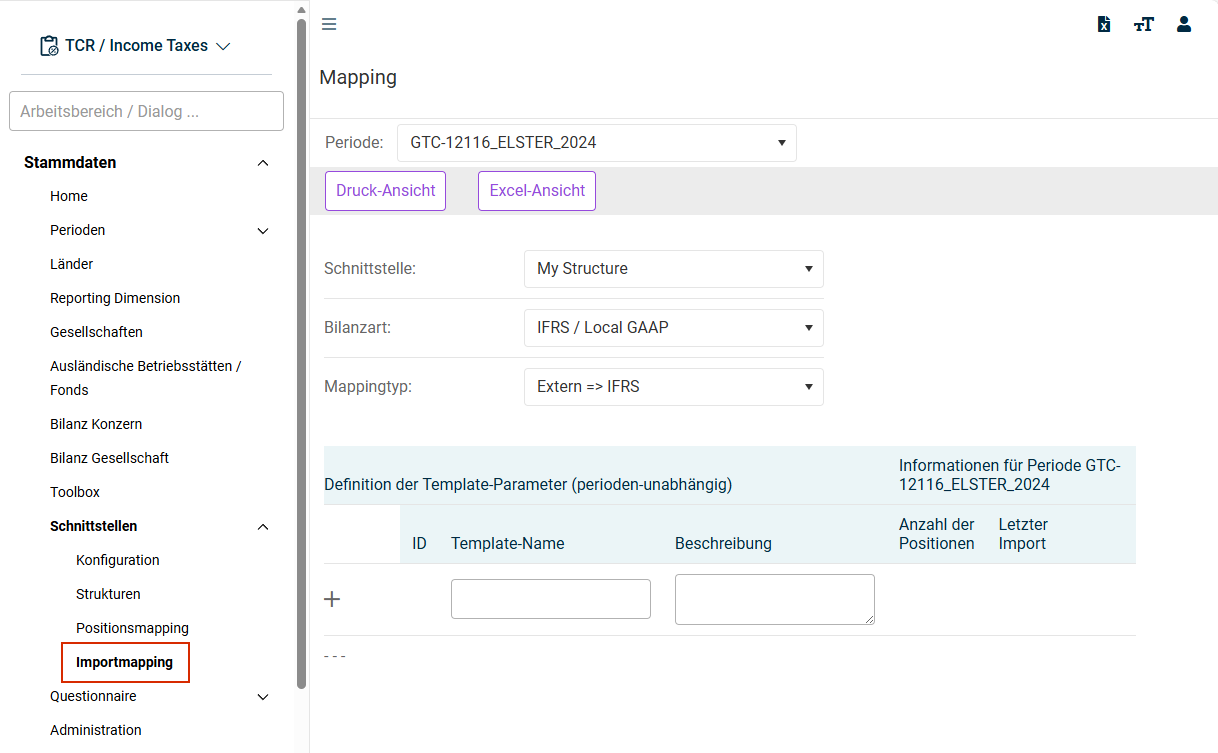
If the Import Mapping workspace is not visible, please contact your Lucanet consultant.
Click + and enter a template name and, if required, a description. Then click + again. The template will then be displayed, for example, as follows:
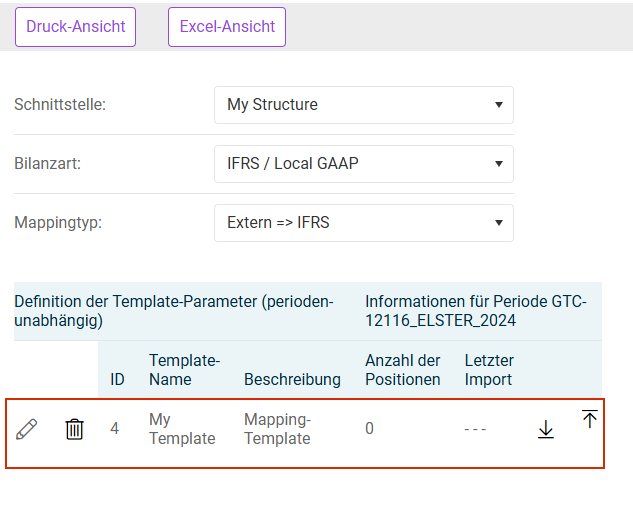
Click  to download the template, i.e. the Excel file.
Edit the template and configure the Excel file as follows:
Field
Description
Schnittstelle
Enter the interface defined under Master Data | Interfaces | | Structure.
Bilance type
IFRS/Local GAAP
Mapping type
External => IFRS
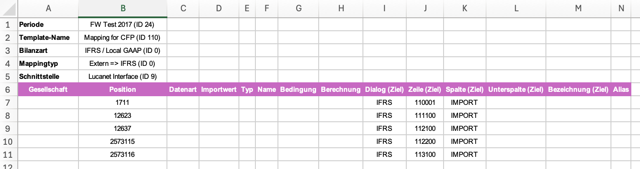
Click  to upload the edited template, i.e. the Excel file, again.
The created Excel file can be used only with the structure for which it was defined.
Specifying the Company OID
The IDs for reporting units vary between Lucanet CFP and Income Taxes. Income Taxes uses a Unit ID, while Lucanet CFP uses the Object ID (OID) property. To execute the import interface, Income Taxes must know the correct OID for the corresponding reporting unit (= reporting entity) in Lucanet CFP.
To specify the OID from Lucanet in Income Taxes:
In Income Taxes, navigate to Master Data and select Companies.
On the Company data tab, enter the OID of the desired reporting entity in the Company assignment LN-Client field.
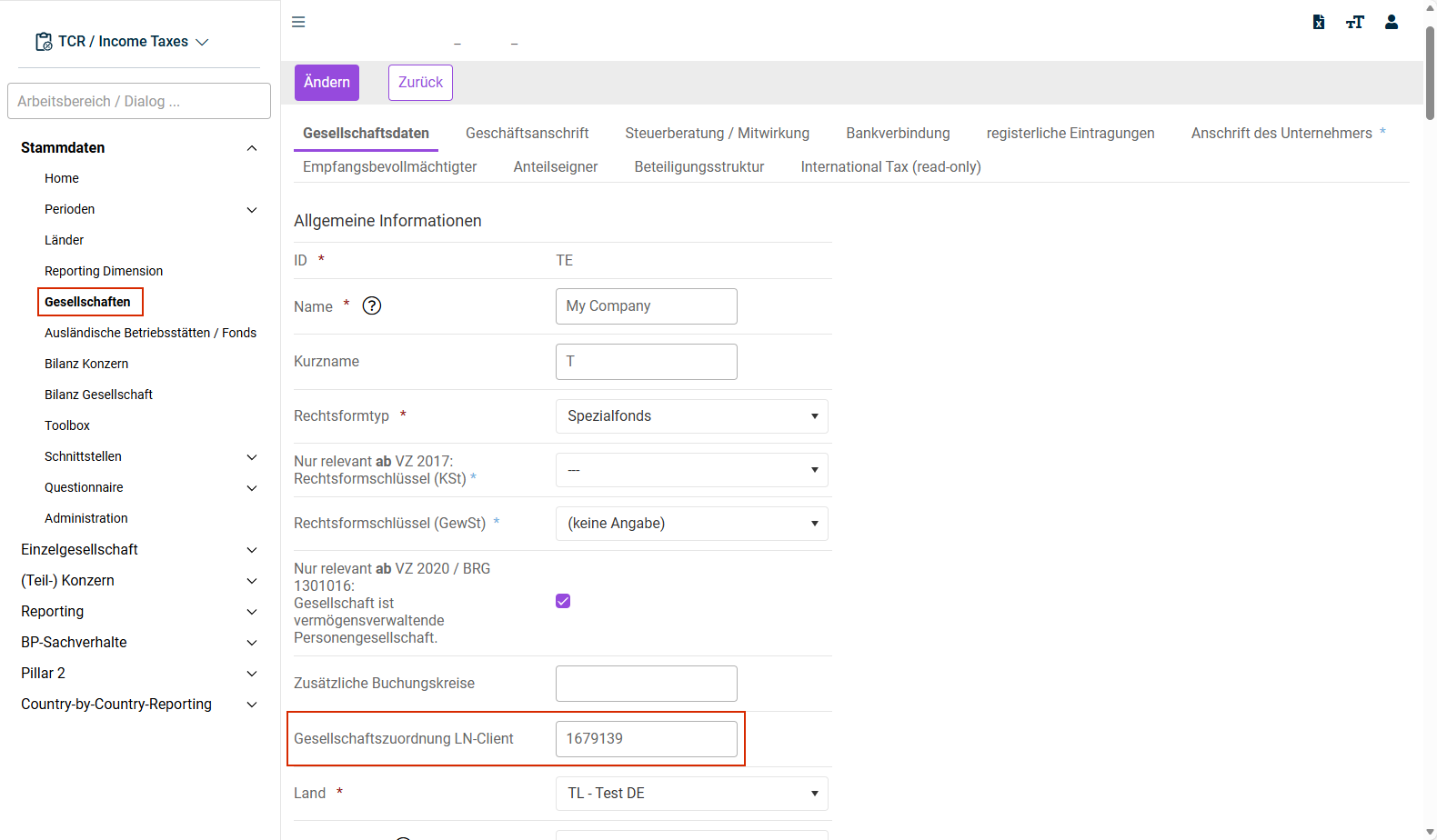
Click Update to save your entries.
Executing the Interface
The interface is now set up and ready to use. Proceed as follows:
Go to the Company | Import Suite workspace.
Select the configured interface.
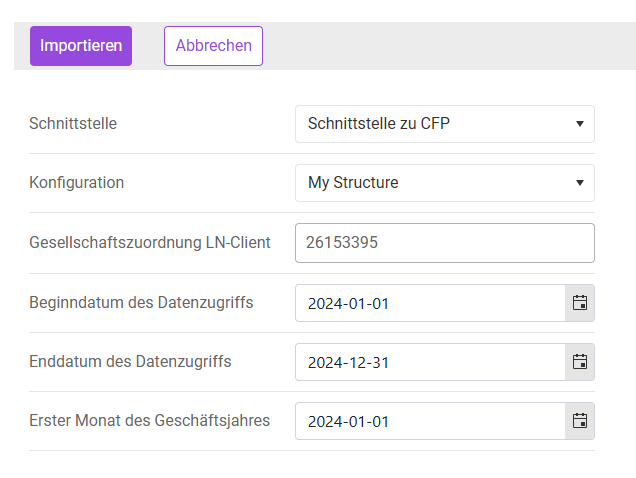
Adjust the start and end dates if required. The suggested end date corresponds to the last day of the selected period, while the start date is generally January 1 of the relevant calendar year.
Click Import to start the process. After a few moments, the result is displayed as an import log:
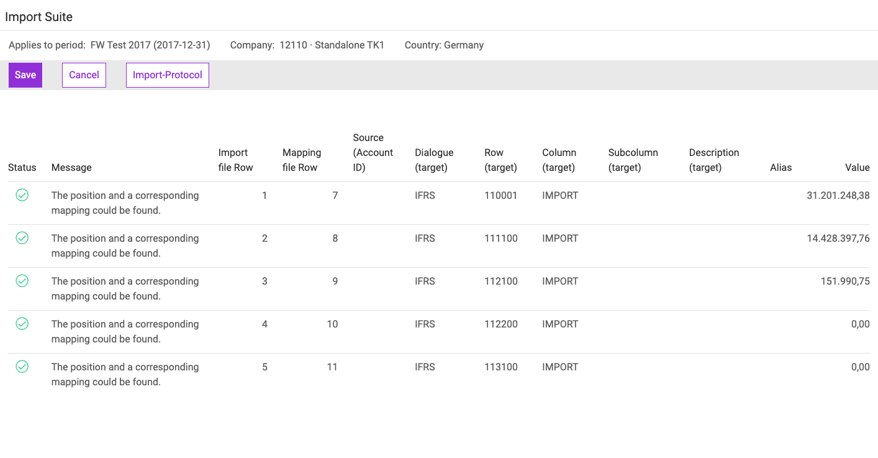
This view of the log shows a condensed list of all successfully imported items. To view comprehensive details, including information on items that were not imported, click Import protocol.
Click Save to complete and save the import in the tax calculation.