
Toolbox
Last updated on 2025-07-16
Overview
In the master data workspace Toolbox, current tax calculations can be configured for each country created in the Countries workspace. Tax calculation is carried out in the Current Taxes workspace in the Company area.
This article contains the following sections:
Navigation
The master data workspace Toolbox can be opened under Master Data | Toolbox.
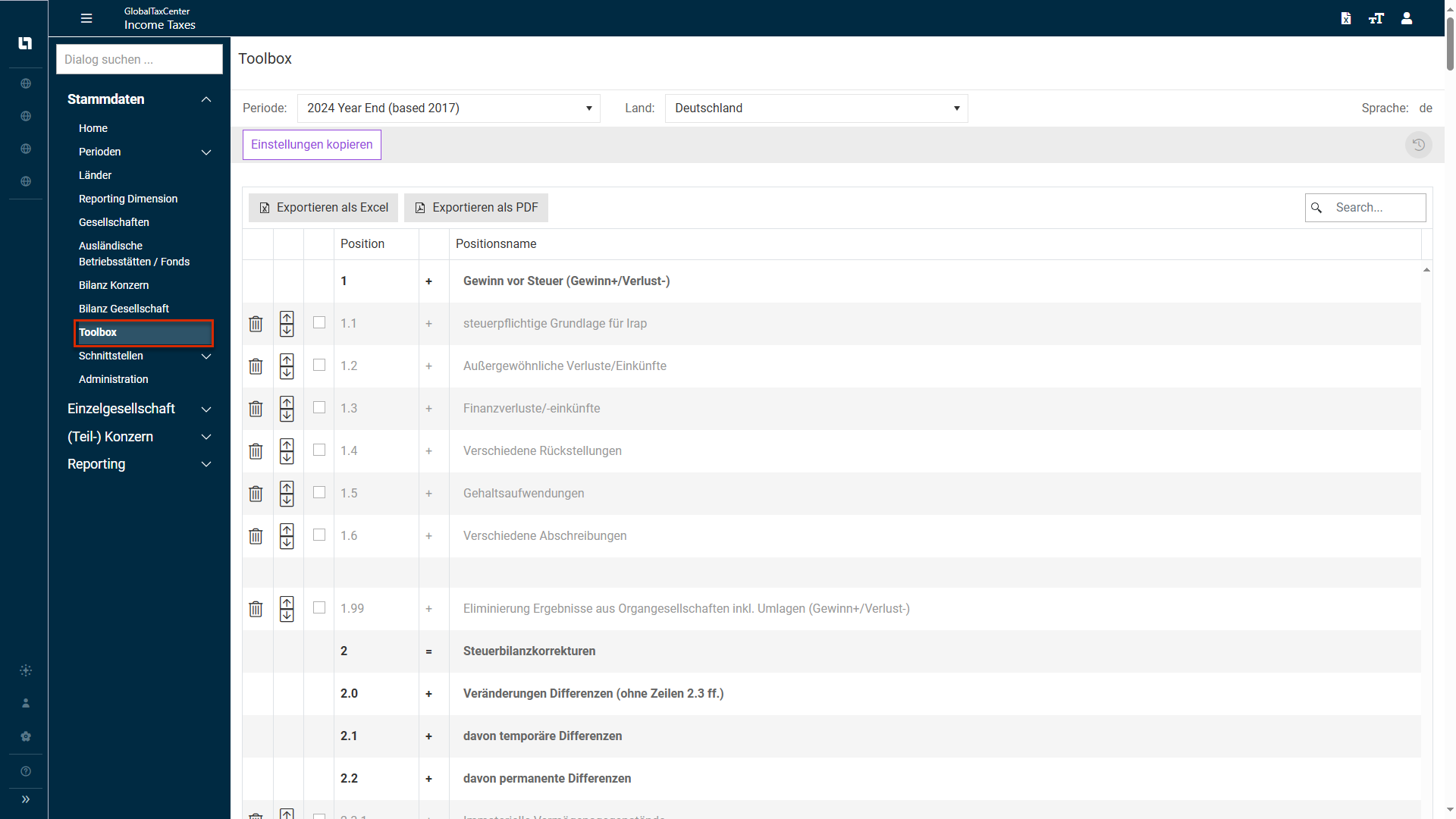
The Toolbox workspace is displayed as follows, for example:
Recommended Procedure for Configuring Toolbox
For a targeted initial configuration of Toolbox (containing as few rows as possible for all occurring country-specific issues), a detailed preliminary analysis is essential. Therefore, it is advisable to configure Toolbox in collaboration with the local tax departments and/or tax advisors of the affected units.
Configuring Toolbox
To configure Toolbox, proceed as follows:
- In the drop-down list Period, select the country and period for which a specific tax calculation is to be compiled. The configuration can be set differently for each country and period.
- Activate or deactivate the optional rows (gray text/white background) by clicking the respective check box. Some rows are fixed and cannot be changed (gray background).
Based on the configuration, the Current Taxes workspace in the Company area is displayed on a country-specific basis.
Notes:
- The configuration of the actual tax calculation can only be performed for countries that have previously been created in the Countries workspace.
- For countries with the stored tax template Germany and Switzerland, it is not possible to configure Toolbox. These countries already have an individual method of tax calculation in Income Taxes.
Copy Settings
The Copy settings function offers further possibilities for the configuration of Toolbox. There are four different options for copying the current settings.
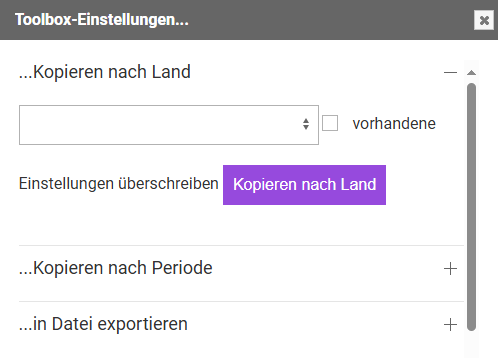
The following options are available:
[Toolbox Settings] …Copy to Country
This option allows you to apply the Toolbox settings of the selected country to additional countries. The drop-down list contains all the countries pertaining to the selected period. One or more countries can be selected.
Additionally, select the Overwrite existing settings check box if you want to overwrite the Toolbox settings of the country to which the copy is to be applied.
If the check box remains unchecked, any existing settings will be retained and only supplemented with the Toolbox configuration to be copied. By default, the check box is deactivated.
[Toolbox Settings] … Copy to Period
Select this option if you want to copy the configuration of the selected period and country to another period. The period must be selected from the drop-down list. In principle, you have the option to copy to one or more periods here, as well. However, copying is limited to the selected country.
Additionally, select the Overwrite existing settings check box if you want to overwrite the Toolbox settings of the country to which the copy is to be applied.
If the check box remains unchecked, any existing settings will be retained and only supplemented with the Toolbox configuration to be copied. By default, the check box is deactivated.
[Toolbox Settings] Export to File
You can export previously created Toolbox configurations (in addition to the regular Excel view) as an Excel CSV file.
Select the export all countries check box if you want to export all countries to a CSV file.
[Toolbox Settings] Import from File
You can also import Excel CSV files. When this entry option is selected, Toolbox does not need to be configured manually. Income Taxes reports the status of the import upon its completion.
Technical Notes on Toolbox
The entry of the calculation of actual taxes in Income Taxes is primarily required for the generation of a tax reconciliation statement [TRR]. For German companies, there is a data entry option that complies with the applicable country-specific tax requirements. It can be found in both the tax details [Revenue, KSt 1A, etc.] and the summary workspace Actual Taxes.
This level of detail in tax data collection is not available to companies that are not assigned to the country “Germany”. An exception to this is the country Switzerland. To nevertheless enable the most comprehensive coverage possible of country-specific tax calculations, using Toolbox is recommended.
Toolbox supports the correct handling of country-specific tax calculations. For users of Income Taxes, using it significantly reduces the number of questions that arise regarding the correct row for each respective tax issue. At the same time, it improves the data quality of the information entered in Income Taxes and helps ensure the informative value of TRRs.
More than 200 rows are available by default for the configuration of tax calculations. It is also possible to further extend the row options available in Income Taxes. Only the sum fields [highlighted in gray in the Toolbox workspace] are firmly linked to tax rate reconciliation in the TRR workspace.
Specially Calculated Toolbox Rows
In Toolbox, there are a number of rows where, when activated, a specific calculation is automatically assigned.
6.98 – Deductible business tax
If business tax is defined as deductible in the company master data, the calculated business tax from row 17 will be transferred to this row in the corporate income tax column.
11.0 – Automatic transfer of taxable revenue
For fiscal units, this row is used to automatically transfer the full income from row 10 to the parent company.
11.1 – Automatic transfer of taxable income, including losses – only relevant for members of a tax group
For fiscal units, this row is used to automatically transfer the full income from row 10 to the parent company. In contrast to row 11.0, the export loss relief from row 12 are also included here.
20.1 – Corporate/local taxes
Depending on the type of company and the settings at hand, the taxes from row 17 are displayed here.
20.2 – Tax assessments – corporate/local taxes
Depending on the type of company and the settings at hand, the taxes from row 17 are displayed here.
20.2.97 – Tax assessments on row 11.0 (automatic)
If row 11.0 is activated and the result has been submitted, the corresponding assessments will be displayed here.
32.99 - Non-period current taxes from tax losses carried back
If a loss carried back has been entered in row 12.99, the corresponding tax effect will be displayed here.