
Data Transfer
Last updated on 2026-05-15
Overview
The Data Transfer workspace is used to store, display, and adjust imported values that are required for reports, posting documents, and validation, but do not flow directly into the balance sheet comparison. Typical cases of use are account information and account balances from source systems that are supplied with the import and are to be used in calculations or exports at a later point of time.
Entries in the Data Transfer workspace cannot be created manually. They are created exclusively by means of the import (e.g. by file import, RFC, or REST service – at both the individual company and mass import level). However, existing entries can be corrected manually in the Manual adjustment column.
This article contains the following sections:
- A prerequisite for displaying the Data Transfer workspace is the corresponding permission (see Permissions).
- The workspace is not available in planning periods and periods for which the tax calculation is deactivated.
Navigation
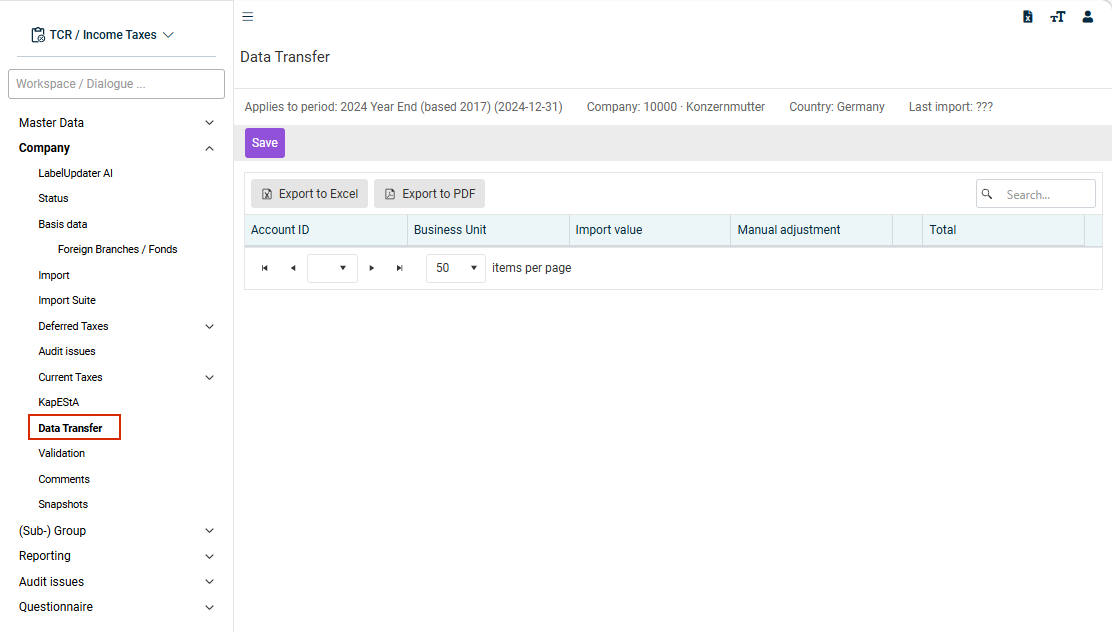
The Data Transfer workspace is opened under Company | Data Transfer. The Data Transfer workspace is displayed, for example, as follows:
Workspace Structure
The Data Transfer workspace consists of a table with the following columns:
Column
Description
Account ID
The technical identifier (key) of the imported position
Business Unit
The identifier of the corresponding reporting entity
Import value
The value imported from the source system. This field cannot be edited manually.
Manual adjustment
A correction value that you can enter manually (positive or negative)
Info
A tooltip icon that shows when and by whom the manual adjustment was last changed
Total
The automatically calculated total of Import value and Manual adjustment
The date and name of the last import are displayed below the company and period selection.
The table can be exported as an Excel or PDF file using the integrated export function. In addition, the values can be used by means of technical IDs in reports and validations (see Technical Export).
Adjusting Values Manually
You can enter or change the values in the Manual adjustment column manually, provided the period is not closed and you have the Edit permission. To adjust a value manually:
To transfer data transfer values by means of the transaction data copy:
Navigate to the Data Transfer workspace.
Enter the desired correction value in the Manual adjustment column. Positive and negative values are permitted.
The Total column is automatically calculated and updated from Import value and Manual adjustment.
Click Save.
Each change to the manual adjustment is logged with the date, time, and name of the user. This information is available via the tooltip icon in the Info column.
Importing into the 'Data Transfer' Workspace
Values are imported into the Data Transfer workspace by the import (e.g. by file import, RFC, or REST service – at both the individual company and mass import level). Import into the data transfer is supported by both mapping variants:
- Default mapping: In the mapping table, TAX.TIMPORT.<item ID> is entered as the target item. Each mapping row maps a source item to exactly one item ID in the data transfer.
- Extended mapping: The TIMPORT target dialog is used with a freely definable item identifier (Target Line) as mapping target. It can also be composed dynamically from several source columns.
Behavior with Existing Data
By default, existing entries are not automatically removed by the import. If a key already exists, the imported value is overwritten by the newly imported value. Any keys that are not included in the current import remain unchanged. An import with the value 0.00 does not delete the entry, but sets the import value to 0.00.
This default behavior can be adjusted in the interface configuration. The Importwert zurücksetzen (Reset import value) and Manuelle Anpassung zurücksetzen (Reset manual adjustment) settings can be used to control whether the existing imported values and/or manual adjustments are to be reset before the import. If both options are activated, all existing entries for the company and period are deleted completely before the import – after the import, the data transfer contains only the newly imported entries.
Behavior with Closed Milestones
The Data Transfer workspace itself is not linked to a milestone. The editability of the dialog depends solely on whether the period is closed.
There is one special aspect for the import: even when milestones such as Current taxes or Deferred taxes are closed, values can still be imported into the Data Transfer workspace. In this case, only the data transfer values are imported. Values for other workspaces/dialogs such as the B/S Comparison are not imported.
Technical Export
The values from the Data Transfer workspace can be exported by means of technical IDs. This allows the values to be used in validations and standard reports.
The following technical IDs are available for the export:
| Technical ID | Description |
|---|---|
DataTransfer_ERP_<Key>[_<BuId>] |
Import value |
DataTransfer_CORR_<Key>[_<BuId>] |
Manual adjustment |
DataTransfer_SUM_<Key>[_<BuId>] |
Total of import value and manual adjustment |
The <Key> placeholder corresponds to the item no. and <BuId> to the optional business unit identifier. The business unit identifier is omitted if only one standard reporting entity exists.
The data transfer values are available by means of the technical IDs in all areas that use the central export mechanism. They include, among others, standard reports, posting documents, flexible validation (validation type = 4), and the value transfer to the Pillar 2 and CbCR modules.
Period Copy and Transaction Data Copy
Period Copy
When you create a new period with a transaction data copy, the contents of the Data Transfer workspace are automatically transferred to the new period. No data transfer values are copied in summary periods.
Transaction Data Copy
To transfer data transfer values using the transaction data copy:
Open the Company | Status workspace.
Open the Copy transaction data dialog.
Activate the Data Transfer check box.
Start the copy process.
The copied values appear at the same place in the target period as in the source period.
- Entries that exist in both the source period and target period (same key) are completely overwritten – including the import value, manual adjustment, total value, and adjustment date and user.
- Entries that exist only in the source period are added to the target period.
- Entries that exist only in the target period remain unchanged.
Since the manual adjustments from the source period are also transferred when keys match, any existing manual adjustments in the target period may be lost.
Period Transfer (Import/Export)
In the period transfer (import and export of a period), the values of the Data Transfer workspace are also transferred.
Permissions
The Data Transfer workspace has its own DataTransfer permission object with the following configurations:
| Configuration | Description |
|---|---|
| Read | Displays the Data Transfer workspace. The values are visible but cannot be changed. This permission is a prerequisite for accessing the workspace. |
| Edit | Edits the manual adjustments in the Data Transfer workspace. This permission requires Read permission – the Edit permission alone is not sufficient to open the workspace. |
The Data Transfer workspace cannot be accessed without Read permission. For full use (viewing and editing), both permissions are required.
Write Protection
The Data Transfer workspace is write-protected when one of the following conditions applies:
- The period is closed.
- You only have the Read permission.
In write-protected mode, all input fields in the Manual adjustment column are deactivated. The values can still be viewed, but not changed.
Permissions can be granted and changed by authorized users in the Tax Administration module.