
OBD
Last updated on 2026-04-16
Overview
The Outside Basis Differences workspace (abbreviated OBD) is used to enter, import, and administrate investment book values for consolidated investments in the context of deferred taxes. The temporary differences between the tax book value of an investment and the proportionate equity (referred to as Outside Basis Differences) are entered and the deferred tax assets and liabilities incurred are calculated in the OBD workspace.
In addition to manual entry, the workspace also enables the import of OBD issues using an import template. Investments can be created manually, imported, and deleted. The values entered in the OBD workspace are automatically included in the calculation of the deferred tax results and the tax rate reconciliation (TRR).
This article contains the following sections:
- Activation
- Navigation
- Availability of the OBD Workspace
- Structure of the Workspace
- Functions
- Overview Table
- Edit Dialog for an Investment
- Editing Investments
- Import into the 'Outside Basis Differences' Workspace
- Deferred Taxes (Result Calculation)
- Technical Export
- Period Transfer (Import/Export)
- Permissions
- Write Protection
Activation
The OBD workspace is not activated by default and can be optionally activated by Lucanet. Contact your consultant if you need the workspace. The workspace is activated across all of Income Taxes. Deactivation per period is not intended.
Navigation
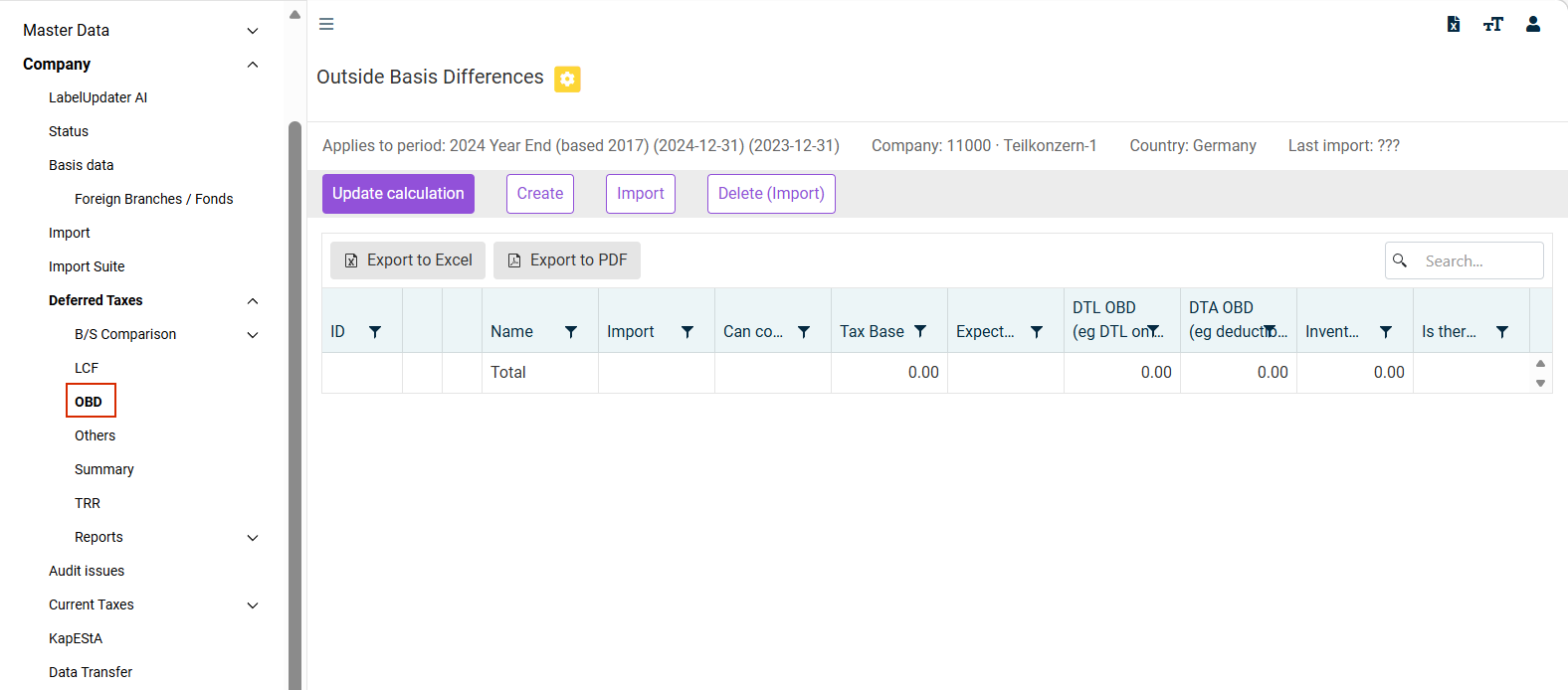
The OBD workspace is opened under Company | Deferred taxes | OBD. The OBD workspace is displayed, for example, as follows:
Availability of the OBD Workspace
| Condition | Value |
|---|---|
| Period type | In actual periods only (no planning periods, no monthly periods). The workspace is read-only in summary periods. |
| Permission | Read permission is required for the Deferred taxes transaction data permission object (see Permissions). |
Structure of the Workspace
The OBD workspace consists of functions and an overview table in which the individual investments are displayed in rows. Detailed editing of an investment is done in a separate edit dialog (see Editing Investments).
Functions
| Function | Value |
|---|---|
| Update calculation | Updates the calculation for all OBD issues |
| Create | Creates a new investment (opens the edit dialog) |
| Import | Starts the import of OBD issues using an import template |
| Delete (Import) | Deletes all OBD records previously imported |
Overview Table
The individual investments are displayed in rows of the overview table with the following columns:
| Column | Description | Editable |
|---|---|---|
| ID | The technical identifier (partner ID) of the investment | No |
| Edit | Link to the detailed editing of the investment | Yes (write permission required) |
| Delete | Button for deleting the investment | Yes (write permission required) |
| Name | Name of the investment company | No |
| Import | Indication of whether the entry was imported | No |
| Can control be exercised? | Specifies whether control exists | No |
| Tax Base | Sum of the tax investment book value and APO value | Calculated |
| Expected reason of the reversal of the temp. diff. | The expected reason for the reversal of the temporary difference | No |
| DTL OBD (eg DTL on planned dividend) | Deferred tax liabilities for OBD | No |
| DTA OBD (eg deductible value part of depreciation) | Deferred tax assets on OBD | No |
| Inventory deferred taxes outside basis differences | Deferred taxes for inventories from OBD | No |
| Is there a plan for reversing the difference? | Specifies whether a plan exists for the reversal of the difference | No |
Edit Dialog for an Investment
You can go to the edit dialog for an individual investment from the Edit column of the overview table or with the Create button. The following fields are available:
| Field | Description | Editable |
|---|---|---|
| ID | The technical identifier (partner ID) of the investment | No (for new identifier: Yes) |
| Name | Name of the investment company | Yes |
| Can control be exercised? | Specifies whether control exists | Yes |
| Local GAAP | The investment value according to Commercial Law (HGB share value) | Yes |
| Tax Adjustment (Import) | Automatically calculated tax deviation | Calculated |
| Tax Adjustment | Manual correction value for tax deviations | Yes |
| Tax Base | Sum of the tax investment book value and APO value | Calculated |
| Tax rate applicable on reversal of outside basis differences by dividend or capital gain | Tax rate to be applied for the reversal due to dividends or capital gains | Yes |
| Tax rate applicable on reversal of outside basis differences on capital loss/other | Tax rate to be applied for the reversal due to sales losses or other causes | Yes |
| Expected reason of the reversal of the temp. diff. | Expected reason for the reversal of the temporary difference (e. g. Dividend Income) | Yes |
| Taxable temp. diff. on cons. participations with DTL (base) | Taxable temporary difference for consolidated investments to which deferred tax liabilities were posted | Yes |
| Deductible temp. diff. on cons. participations with DTA | Tax-deductible temporary difference for consolidated investments to which deferred tax assets were posted | Yes |
| DTL OBD (eg DTL on planned dividend) | Deferred tax liabilities for OBD | Calculated |
| DTA OBD (eg deductible value part of depreciation) | Deferred tax assets on OBD | Calculated |
| Inventory deferred taxes outside basis differences | Deferred taxes for inventories from OBD | Calculated |
| Is there a plan for reversing the difference? | Specifies whether a plan exists for the reversal of the difference | Yes |
Editing Investments
Import into the 'Outside Basis Differences' Workspace
OBD issues can be imported using an import template or with the standard import (balance sheet comparison import):
Import Template
You can go to the OBD - Import dialog by clicking on Import in the overview table. This dialog contains the following elements:
- Back: Returns to the overview table.
- Import: Starts the import of the selected file.
- Import template OBD: Downloads the Excel import template in which you enter the OBD items.
- Delete existing OBD imports?: If this check box is activated, all previously imported issues will be deleted before the new issues are imported.
- File path: File selection for the completed import template.
Importing OBD Issues
To import OBD issues:
Navigate to the OBD workspace.
Click Import template OBD to download the Excel template and save the file locally.
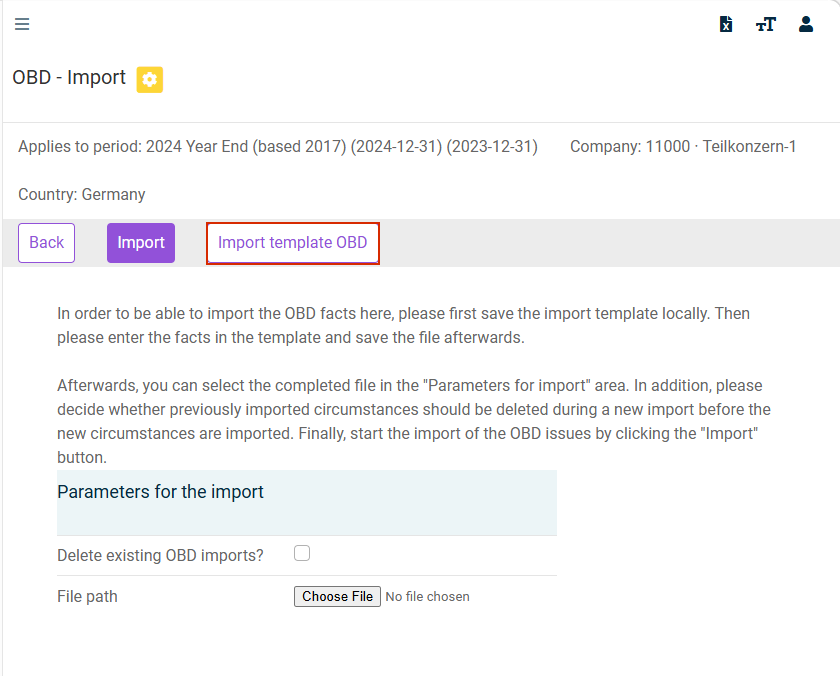
Click Import template OBD to download the Excel template and save the file locally.
Enter the OBD items in the template and save the file.
Use Select file in the Import parameters section to select the edited file.
If required, activate the Delete existing OBD imports? check box, if previously imported items are to be removed before the import.
Click Import to apply the OBD issues.
Standard Import (Balance Sheet Comparison Import)
OBD values can be supplied by the standard import (file import, RFC, REST service) as part of the balance sheet comparison import.
For the imported items to be recognized as OBD issues, the source items in the mapping template must be mapped to the target identifier TAX.TOBD. Items that do not point to TAX.TOBD are not processed as OBD records.
Field Assignment in the OBD Workspace
A separate OBD record is created for each unique partner (Subposition/Partner interface field). The values are transferred to the OBD workspace as follows:
| Interface field | OBD dialog column |
|---|---|
| GAAP value (HGB values column) | Local GAAP |
| GAAP corrections to tax balance sheet values | Tax Adjustment (Import) |
If the import file contains several rows for the same combination of unit ID and partner ID, their values will be added up.
Behavior with Existing Data
When importing with the import template, you can decide whether existing imported issues are to be deleted before the import.
In the standard import, existing entries are identified and overwritten by means of the key (period ID, unit ID, partner ID). Any keys not included in the current import remain unchanged.
Deferred Taxes (Result Calculation)
The OBD values are included in the calculation of the deferred tax results:
- The sum of deferred tax assets and liabilities from OBD is calculated as the difference between the deferred tax assets and liabilities.
- The calculated OBD values are included in the total sum of deferred taxes.
- When allocating to corporate income tax (CIT) and trade tax, the OBD shares are cleaned from the respective tax types.
Result Report (TRR)
Two additional items are displayed in the result report, showing the effects of OBD values on the deferred taxes in the result report.
| Item | Description |
|---|---|
| 23a | Effect of deferred taxes on planned dividends and OBD |
| 23b | Reversal of deferred taxes for distributed dividends |
Notes (Disclosures)
The deferred taxes calculated in the OBD dialog appear in the Report LS (Deferred Taxes – Company) in the Deferred tax assets and liabilities (OBD) row. The value of this row is included in the long-term gross items of deferred tax assets and liabilities and is disclosed separately there.
Technical Export
The values from the OBD workspace can be exported by means of technical IDs. The export is activated if the technical ID prefix OBD is used.
Technical Export IDs
The following table describes the technical IDs:
| Technical ID | Description |
|---|---|
OBD_SHAREHGB#<PartnerId> |
Local GAAP |
OBD_CORRAUTO#<PartnerId> |
Tax Adjustment (Import) |
OBD_CORRMANU#<PartnerId> |
Tax Adjustment |
OBD_SHAREANDAPO#<PartnerId> |
Tax Base |
OBD_TAXRATETEMPDIFFREV#<PartnerId> |
Tax rate applicable on reversal of outside basis differences by dividend or capital gain |
OBD_TAXRATECAPITALLOSS#<PartnerId> |
Tax rate applicable on reversal of outside basis differences on capital loss/other |
OBD_TEMPDIFFCONSDTL#<PartnerId> |
Taxable temp. diff. on cons. participations with DTL (base) |
OBD_TEMPDIFFCONSDTA#<PartnerId> |
Deductible temp. diff. on cons. participations with DTA |
OBD_DTLOBD#<PartnerId> |
Deferred tax liabilities for OBD |
OBD_DTAOBD#<PartnerId> |
Deferred tax assets on OBDAktive latente Steuern auf OBD |
OBD_DEFTAXINVENTORY#<PartnerId> |
Deferred taxes on OBD inventories |
The placeholder <PartnerId> corresponds to the partner ID of the respective investment. For each technical ID, an additional totals variant is available with #TOTAL instead of <PartnerId>, which provides the sum across all investments.
In addition, the values OBD-dtl-st and OBD-dtl-lt are exported from the notes data into the balance sheet DT export logic.
The OBD values are available by means of the technical IDs in all areas that use the central export mechanism. They include standard reports, posting documents, flexible validation, and the transfer of values to the Pillar 2 and CbCR modules.
Period Copy and Transaction Data Copy
Period Copy
When you create a new period with a transaction data copy, the contents of the OBD workspace are automatically transferred to the new period.
Transaction Data Copy
A separate OBD check box is available in the Copy transaction data dialog. To transfer OBD values with the transaction data copy:
Open the Company | Status workspace.
Open the Copy transaction data dialog. The dialog is displayed as follows:
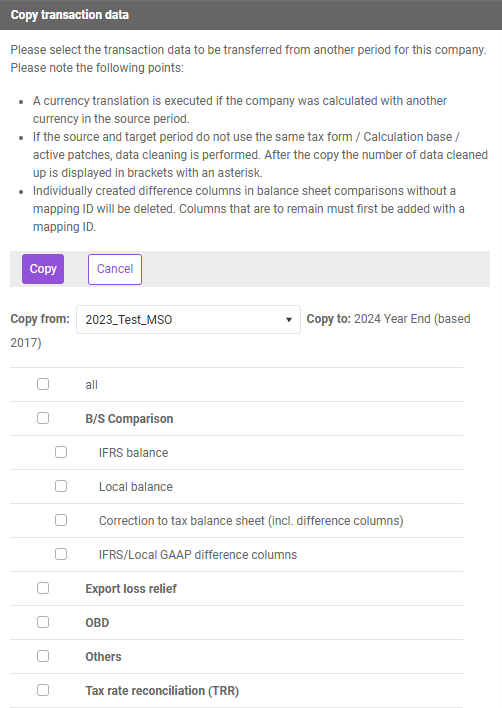
Activate the OBD check box.
Start the copy process.
The copied values are transferred to the target period.
Period Transfer (Import/Export)
In the period transfer (import and export of a period), the values of the OBD workspace are also transferred.
Permissions
The OBD workspace uses the Deferred Taxes Transaction Data permission object (TRANSACTION_DATA_DT). This is the same permission object used for the other dialogs in the Deferred Taxes area (e.g. balance sheet comparison, losses carried forward, disclosures, TRR).
| Configuration | Description |
|---|---|
| Read | Display of the OBD workspace. The values are visible but cannot be changed. This permission is a prerequisite for accessing the dialog. |
| Edit | Editing of OBD issues (creating, modifying, deleting, importing). |
The read permission is checked when the dialog is opened. The edit permission is additionally checked in the edit and save dialogs, and during the import. Without read permission for the Deferred Taxes Transaction Data permission object, the OBD workspace is not visible in the navigation.
Write Protection
The OBD workspace is read-only or inaccessible if one of the following conditions applies:
| Condition | Effect |
|---|---|
| Status of the Deferred Taxes milestone is Not started | Dialog is not accessible |
| Status of the Deferred Taxes milestone is Finished or Checked | Write protection |
| Period is closed | Write protection |
| Summary Period | Write protection |
| Only Read permission, no Edit permission | Write protection |
In read-only mode, the Update calculation, Create, Import and Delete (Import) buttons are hidden. The Edit and Delete columns in the table are not displayed. Values can still be viewed but not changed.