
User Interface of Data Collection
Last updated on 2026-04-21
Overview
On this page, you will find information on the structure of the user interface and the main elements in Data Collection. From this page, you can navigate to detailed descriptions of the individual workspaces.
This article contains the following sections:
Structure of the User Interface
After opening Data Collection from the main menu, the application window is displayed. The user interface is divided into two main areas: the overview on the left and the workspace area on the right.
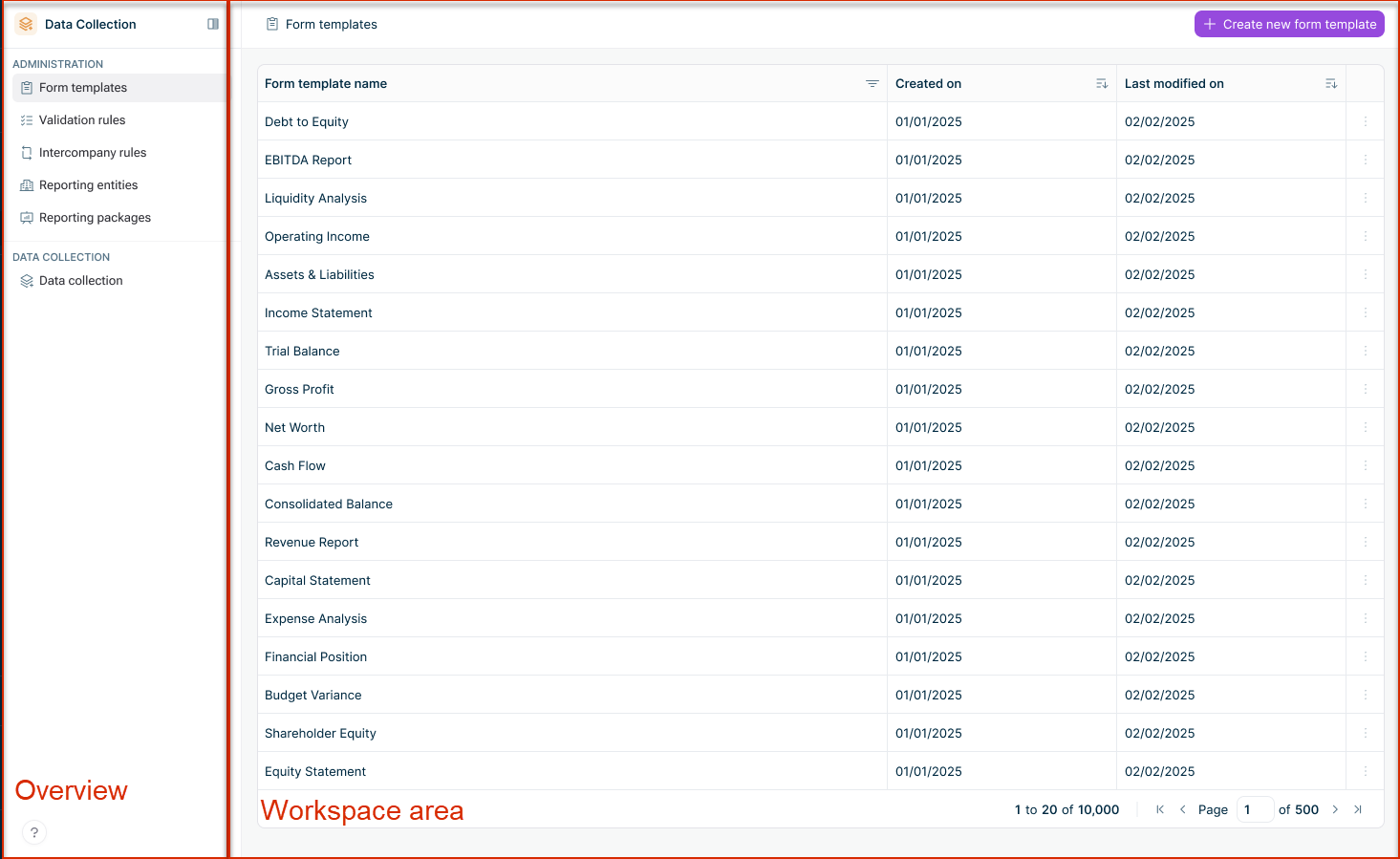 Data Collection user interface
Overview
The overview on the left side of the screen provides access to all workspaces in Data Collection. The workspaces are organized into two sections:
Administration
Workspace
Description
Creating and configuring form templates that define the structure of data to be collected
Defining rules to validate data quality and consistency within and across forms
Importing and managing reporting entities from Consolidation & Financial Planning, and assigning users for data collection
Bundling form templates, validation rules, and reporting entities into reusable reporting packages
Data Collection
Workspace
Description
Starting and managing data collection processes, viewing forms, and monitoring progress
Workspace Area
The workspace area displays the content of the selected workspace. It consists of two views — a list view and a detail view — which are described below:
List view
The list view displays all elements in a workspace (e.g., form templates, validation rules, reporting packages) with options to filter, sort, and search. Each list includes an action button to create new elements. The list view is available in all workspaces and is displayed as follows, for example:
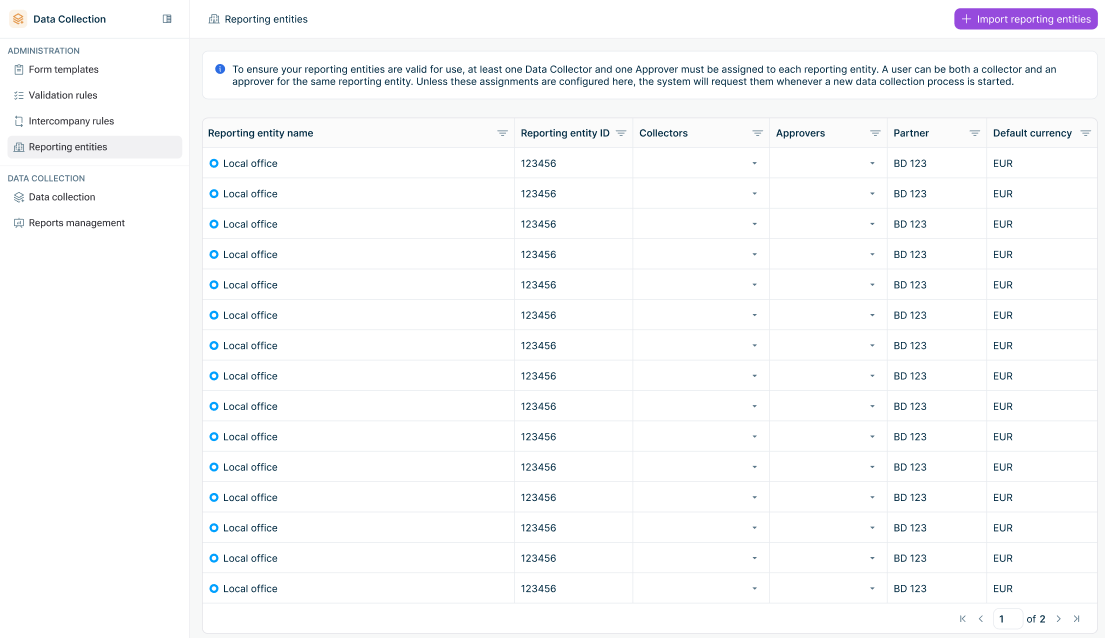 List view example
The following elements are typically available in list view:
Element
Description
Element list
Displays all created elements with key information in columns (e.g., name, status, last modified date).
Sorting
By clicking on a column header, the list gets sorted by that column.
Filtering
Each column header includes a filter icon ( ). The filter type depends on the column data type:
- Text filter for text columns (Contains, Does not contain, Equals, Does not equal, Begins with, Ends with, Blank, Not blank)
- Date filter for date columns (Equals, Does not equal, Before, After, Between, Blank, Not blank with date picker)
- Selection filter for columns with predefined values (multi-select checkboxes with Select All option)
Pagination
Pagination controls for navigating through large lists
Row actions
Context-specific actions available for each element (e.g., Edit, Delete, Duplicate)
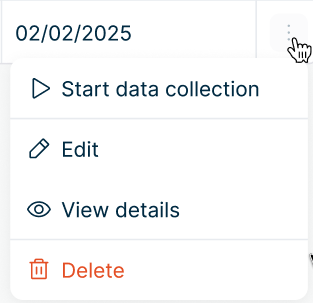 Row actions
Detail view
When you select an element from a workspace list, a detail view is displayed where you can configure or edit its content. The form template detail view, shown below as an example, is divided into three main parts:
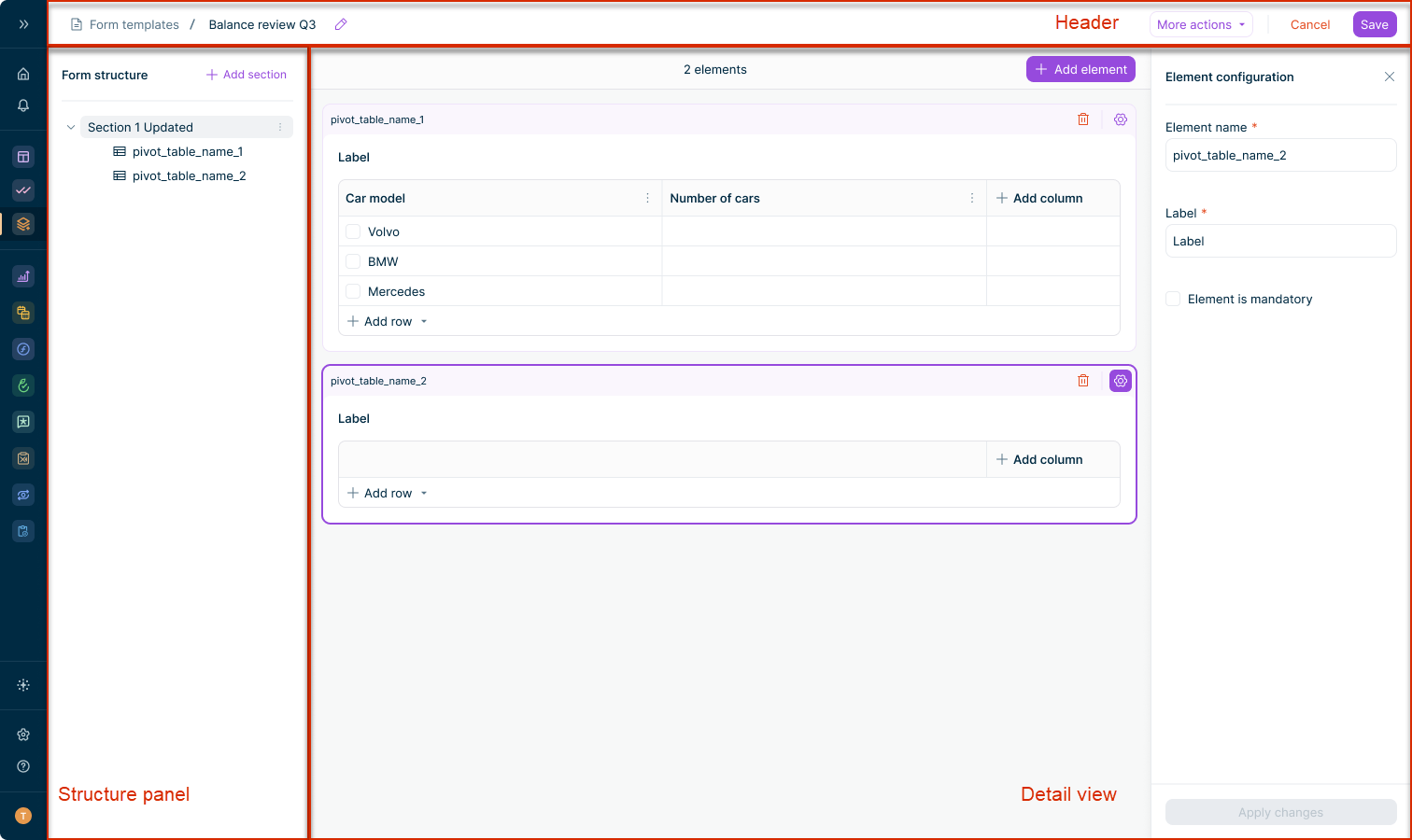 Detail view example
The following elements are typically available in detail view:
Element
Description
Header
Displays key information about the element and contains action buttons. For forms, the header shows the data collection process name, form name, status, reporting entity, currency, reporting period, and due date.
Structure panel
Available in form templates and forms in data collection processes. Shows the hierarchical structure of sections and elements. Click an element to display the corresponding content in the detail view.
Element detail view
Displays the content of the selected element. Depending on the element type, you can edit form template elements, adjust validation rule or reporting package configurations, or enter data into forms. Elements can be edited as long as their status allows it.
Common UI Elements
The following elements are available across workspaces:
Element
Description
Breadcrumb navigation
Shows the current location within the application. Click on any part of the breadcrumb to navigate back.
 Example of breadcrumb navigation

Empty state
Displayed when a workspace contains no elements. Includes a call-to-action button to create the first element.
 Example of an empty state
Status indicator
Shows the current status of an element. Elements such as form templates, validation rules, and reporting packages use the statuses Draft and Published.
Forms in the Data Collection workspace use workflow statuses such as New, In Progress, Submitted, and Approved.
 Example of a status indicator