User Interface and General Functions
Last updated on 2026-01-31
Overview
Various general functions that are used, for example, to increase the clarity of tables or quickly switch between sections are available to you in Tax Balance.
This article describes these functions.
This article contains the following sections:
User Interface
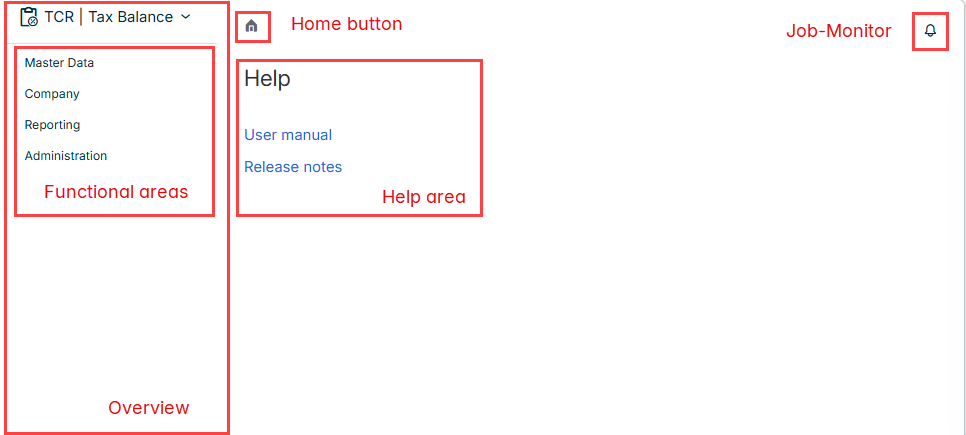
The start page is displayed, for example, as follows after opening the Tax Balance solution. The following elements are available on the start page:
Element
Description
Home button and navigation path
You can use the Home button to go back to the start page from anywhere in Tax Balance.
The navigation path to the workspace you are currently on is also displayed here.

Overview
Contains the functional areas in which the tax balance sheet is configured, entered, reported, and transmitted in what are referred to as workspaces. The following functional areas are available:
- Master data
- Company
- Reporting
- Administration
Help Area
Contains links to the user documentation and release notes
Job Monitor
Displays the state and result of the processes carried out by the system (e. g. imports, exports, generation of reports).
In addition, the generated files can be downloaded here.
Processes that are currently being executed can be stopped separately or collectively using the three-dot menu at the top right.
General Functions
The following general functions are available:
Element
Description

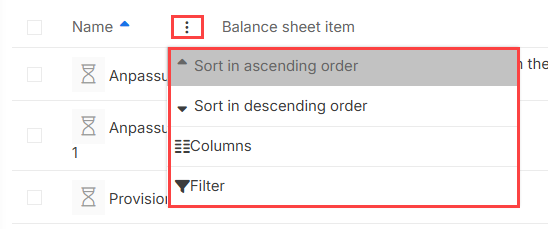
You can use the three-dot menu in the header row of a table, depending on the area you are in to, for example:
- Sort column content
- Show and hide columns
- Filter columns by specific criteria
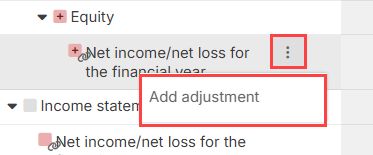
Additional functions are available for cells using the three-dot menu, which is displayed for certain cells when you hover the mouse pointer over the respective cell:
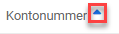
You can use the blue arrows displayed in certain table headers to sort the column content in ascending or descending order.


When you hover the mouse pointer over a certain row, the icon for deleting the respective row appears.

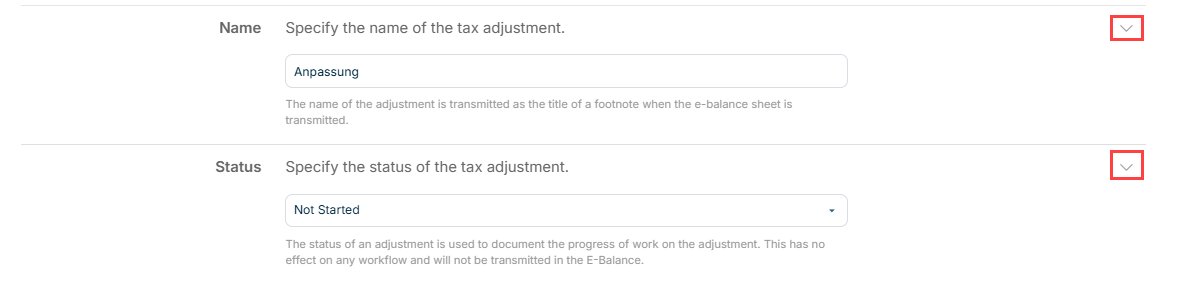
You can use the arrows displayed in input dialogs to show or hide the fields to be edited and, if present, detailed information on the required entries.