
Exporting Periods
Last updated on 2025-07-16
Overview
The period export function provides the option to export either all or part of a period’s data.
This article contains the following sections:
Prerequisites
To be able to initiate a period export, you need the authorization Master Data: Period export – Execute. You will then find the corresponding workspace under Master Data | Periods | Period Export.
Exporting Periods
Periods can be exported in the Period Export workspace. Proceed as follows:
- Click Start export.
- Configure the Export parameters area (see the following table).
- Click Start export.
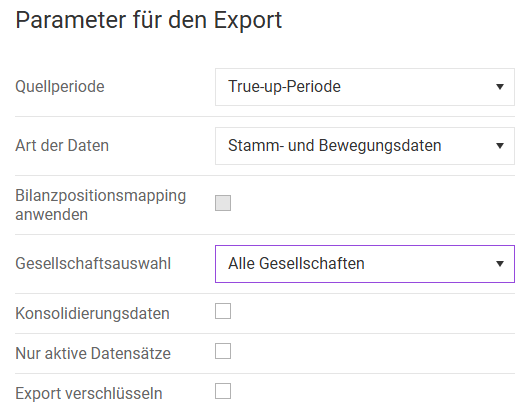
The following options are available:
Option
Description
Source period
Periods to be exported
Type of data
- Master data only: data from the Master data functional area
- Master data and transaction data:
data from the functional areas Master data and Company
Please note:
At present, the functional area (Sub-)Group cannot be exported completely. There is currently only the option to export information on consolidations.
The B/S comparison is part of the master data. It is exported along with the values it contains. Whether these are taken into account or not is further specified in the corresponding period import.
Apply position mapping
Activated whenever an export mapping for (balance sheet) positions is stored. This mapping is applied during the period export.
Export mapping
The export mapping for (balance sheet) positions is stored in the Position mapping workspace. Ensure that the balance type IFRS / Local GAAP and the mapping type IFRS => External are stored in the workspace.
Company selection
Selection of the companies to be be exported:
- All units
- Selected companies: Displays another selection field, Single companies, which supports multiple selection.
- By reporting dimension: Displays another selection field, Reporting dimensions, which supports multiple selection.
- By tax group: Displays another selection field, Tax groups, which supports multiple selection.
Shareholding structure
Activate if allocation information regarding the unit superiors, type of tax payer, and tax payer of the group should be exported.
Consolidation data
Activate if information regarding consolidations from the functional area (Sub-)Group should be exported.
This parameter is only displayed if you have selected the Company selection option All units.
Active records only
Activate if only active data sets should be exported. Otherwise, active and archived data sets will be exported.
Notes:
- This parameter is only displayed if you have selected the Company selection option All units.
- In this context, data sets include all master data that distinguishes between the statuses Active and Archived. The following data sets can currently be archived: countries, companies, reporting dimensions, CoA Company.
Encrypt export
Activate if the export package should be encrypted. In the Password input field displayed, enter a password to secure the export file. The password must comply with the configured password policy.
Notes
- Under certain circumstances, an export may take a longer time. Log information is written to the PERIODENTRANSFER log file throughout the process. However, an additional log file that is readable for the user is also generated.
- Once the export is finished, the result is displayed in a short summary.
- You can continue working in other periods in Income Taxes or log out during an export. The export will continue in the background. You can log in again at a later point in time and, depending on the export progress, the current status bar or the results page will be displayed.
Additional Actions
After an export, you have the following options:
- You can download the exported data as a "*.gpt" file and the detailed log information as a "*.txt" file
- You can open the log file (e.g. in Excel)
- You can perform a new export by clicking the Restart export button. The current status of the executed export will be deleted.
Locking Mechanisms
To ensure that the data in export files reflects a consistent state, an export can only be initiated if the following conditions are met at that time:
- No user is accessing the data of the source period: As soon as a user opens a workspace, a lock entry is created in the system. When a period export is initiated, the system checks whether a lock entry exists for this period.
- No additional period export or import is being executed in parallel: To ensure the second condition is met, a lock is placed on the period currently in use during the period transfer. In the case of a period export, this is the source period. On the one hand, this lock entry prevents any further period export or import from being carried out. On the other, users are not able to make any changes during a period that is locked due to the transfer.
After the period transfer is completed, the lock entry for the period is automatically reset, regardless of whether the export was successful or an error occurred.