
Click Next.
Importing Data from MS Excel
Last updated on 2026-04-24
Overview
You can import financial data from Excel files directly into Data Collection forms. After uploading a file, you map Excel data to form rows and columns interactively. The system saves your mappings so that recurring imports are faster — upload an updated file and your previous configuration is restored automatically.
This article contains the following sections:
Prerequisites
Before starting an Excel import:
- The form must have status In Progress.
- You must be assigned as a Collector for the reporting entity, or you must be an Administrator.
- The form must contain at least one pivot table with at least one Numeric or Currency column.
Starting an Excel Import
To start an Excel import:
Navigate to Data Collection | Data collection.
Open the form you want to import data into.
Click More actions | Import Data in the top right. The Import Data dialog is displayed:
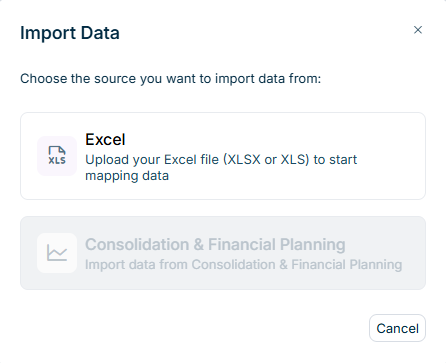 'Import Data' dialog
Select Excel. The Import Data from MS Excel dialog opens.
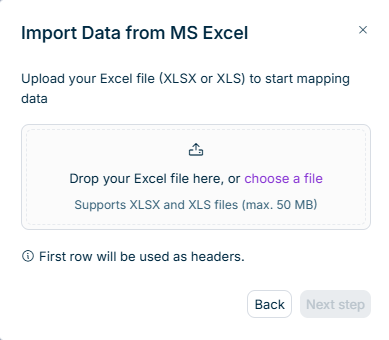 'Import Data from Excel' dialog
The first row of your Excel file will be used as column header.
Upload your Excel file by dragging it into the upload area, or click choose a file to browse.
Supported formats and limits:
- File formats: .xlsx, .xls
- Maximum file size: 50 MB
After a successful upload, an Imported accounts panel appears on the right with all accounts from the uploaded file, organized by sheet. Each row and column in the form shows a + Map link.
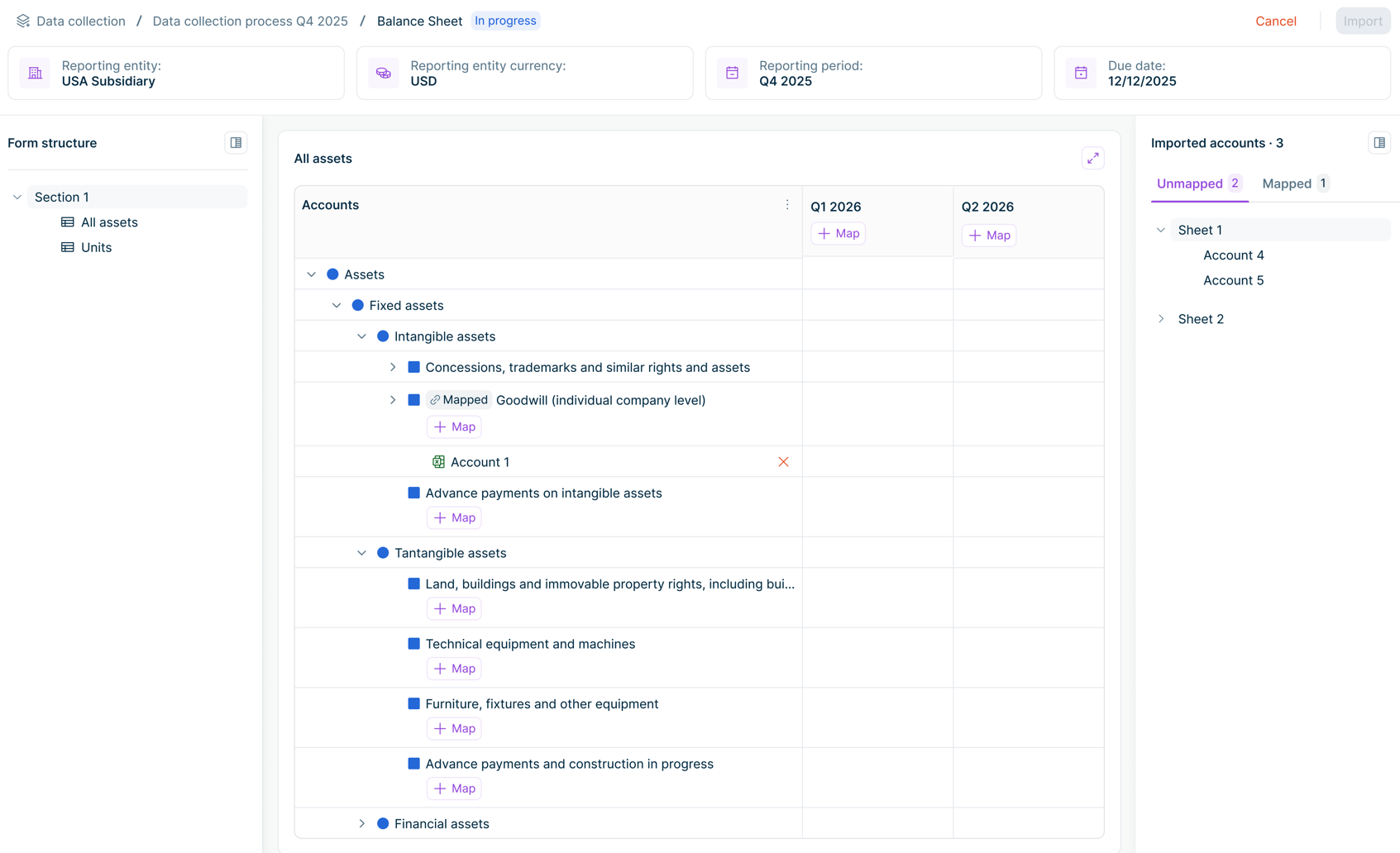 Form detail view with an 'Imported accounts' panel on the right
Mapping Rows and Columns
To configure the import, you link Excel accounts to form rows, and Excel columns to form columns. You must configure at least one row mapping and one column mapping before you can execute the import.
Mapping Rows
Row mappings link a form row to one or more accounts in your Excel file. When the import runs, values from all mapped accounts are summed and written to the target row.
To map an account to a row:
Click + Map next to a leaf-level row. The Map Accounts dialog opens, showing all accounts organized by sheet.
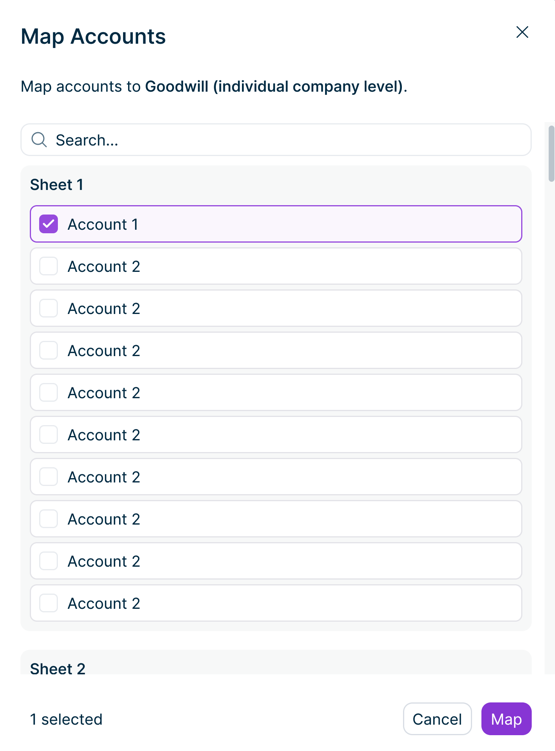 The Map Column dialog for selecting an Excel column
Select one or more accounts to map to this row. You can select accounts from multiple sheets. Use the search field to filter by account name.
Click Map. The row now shows a link icon and the mapped accounts appear as subordinate entries beneath it.
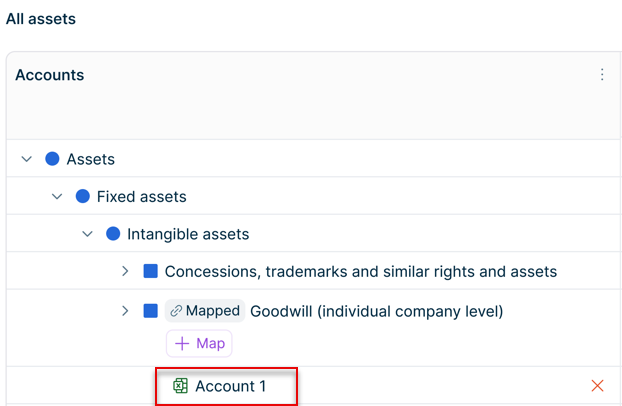 A mapped row with the linked account shown as a subordinate entry
Only lowest-level rows can be mapped. Superordinate rows and total rows do not have a + Map link — their values are calculated automatically.
Each Excel account can only be mapped to one form row. Accounts that are already mapped to another row do not appear in the Map Accounts dialog.
Removing a mapped account
To remove a mapped account, click the delete icon on the subordinate entry beneath the row. The account becomes available again for mapping to a different row.
Mapping Columns
Column mappings link a form column to a column in your Excel file.
To map a column:
Click + Map in a Numeric or Currency column header. The Map Column dialog opens, showing all columns organized by sheet.
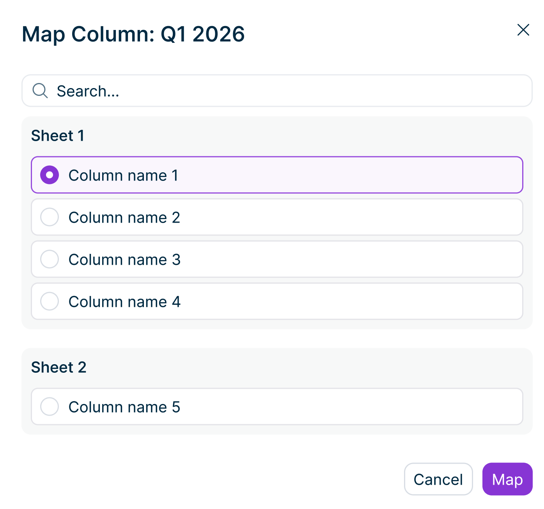 The Map Column dialog for selecting an Excel column
Select the Excel column that contains the values for this form column. You can use the search field to filter by column name.
Click Map. The column header now shows a link icon to confirm the mapping.
 A column header with a link icon after mapping
The same Excel column can be mapped to multiple form columns. Total columns do not have a + Map link — they are calculated automatically.
Executing the Import
Once at least one row and one column are mapped, the Import button becomes available.
To start the import:
Click Import in the top right.
If the form already contains collected data, a Confirm Import dialog appears. Click Confirm to overwrite existing values, or Cancel to return to the mapping view.
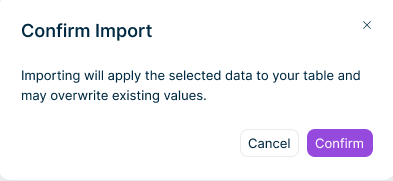 'Confirm Import' dialog
Additional notes:
- Manual editing and additional imports are disabled for all users while the import is in progress.
- After a successful import, the form is displayed in editing mode. The form now includes the imported data as well. Superordinate rows and total columns are recalculated automatically.
- Imported values cannot be automatically undone. To restore previous data or correct imported values, edit the affected cells manually after the import.
Recurring Imports
The next time you import data for the same form and reporting entity, the system automatically restores your previous row and column mappings. Upload the new Excel file and the mappings are applied immediately — you only need to adjust them if your file structure has changed.
If the new file is missing accounts that were previously mapped, a red warning icon is displayed on the superordinate row and the missing account name is shown with strikethrough text. The data can still be imported — missing accounts are skipped and their target rows receive no value from that account. To clean up, click the delete icon on the missing account entry to remove the orphaned mapping.
Importing into Drill Down Cells
Excel import supports tables with a single level of drill down configured to the Local Account dimension. For these cells, the import creates individual drill down entries — one per mapped account — rather than updating the cell value directly.
Excel import is not supported for tables with:
- Two levels of drill down
- Drill down configured to a dimension other than Local Account (for example, Cost Center or Partner)