
Click Start to start configuring the data collection process (see the following section).
Starting Data Collection Processes
Last updated on 2026-04-22
Overview
Data collection is the process of gathering financial and statistical information from multiple reporting entities within an organization. In Data Collection, an Administrator starts data collection processes to gather financial and statistical information from reporting entities. The process is based on pre-configured reporting packages, and once started, the system creates individual forms for each reporting entity and form template combination.
This article contains the following sections:
Starting a Data Collection Process
You can start a data collection process in two ways:
- From Data Collection | Data collection using + Start data collection (described below)
- Directly from Data Collection | Reporting packages by clicking the three-dot context menu at the end of the respective reporting package row and selecting Start data collection
To start a data collection process from the Data Collection workspace:
Navigate to Data Collection | Data collection.
Click + Start data collection in the top right. The Start Data Collection Process dialog is displayed:
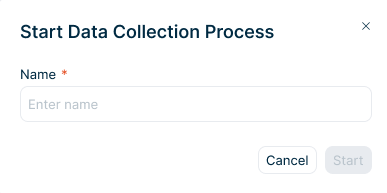 'Start Data Collection Process' dialog
Enter a unique Name for the data collection process.
Configuring Data Collection Process
The following options are available for configuring the data collection process:
The following options can be configured in this step:
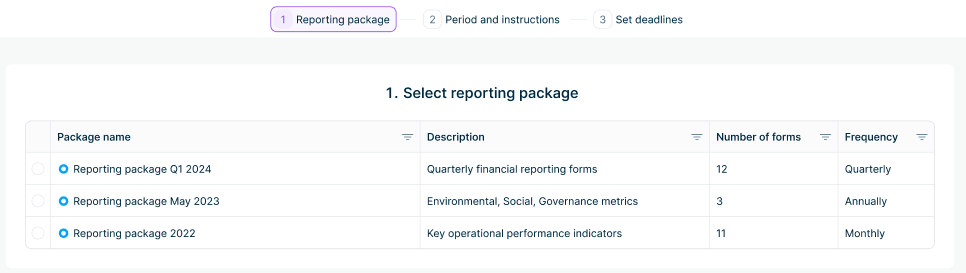 'Reporting package' step
Option
Description
Reporting package
List of available reporting packages showing package name, description, number of forms, and frequency
The following options can be configured in this step:
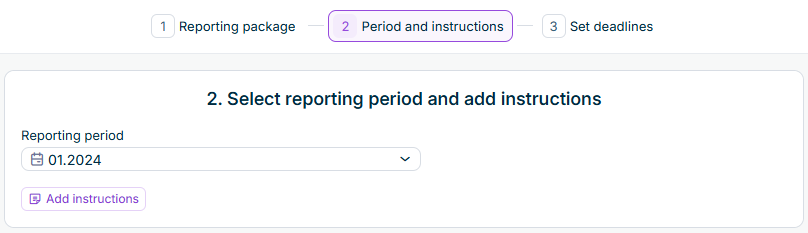 'Period and instructions' step
Option
Description
Reporting period
Specific time interval (month, quarter, semester, or year) for this data collection process. Available periods depend on the frequency defined in the reporting package.
Add instructions
Optional instructions or completion notes visible to all participating reporting entities. These instructions are also included in the e-mail and in-app notifications sent when the data collection process is started.
In this step, you configure deadlines for each form template in your reporting package. The following options are available in this step:
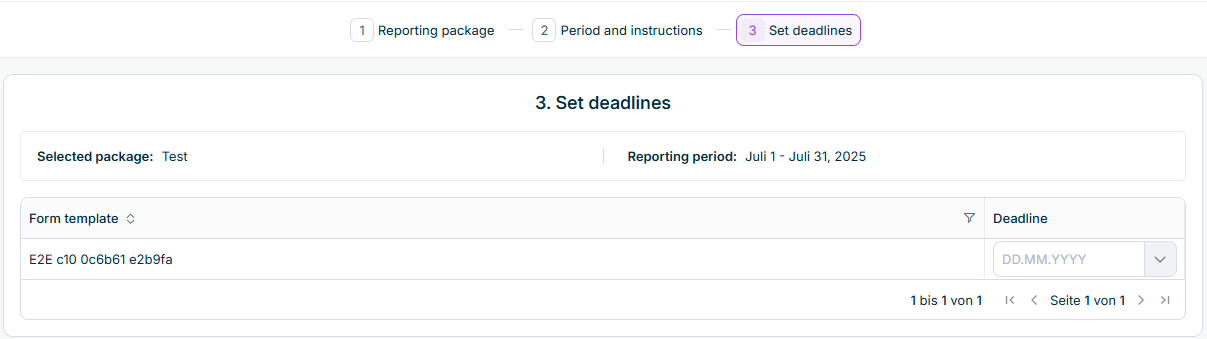 'Set deadlines' step
Option
Description
Form template
Name of each form template included in the reporting package
Deadline
Due date for each form template. Use the date picker or type a date manually.
Deadlines must be set to today or a future date. Past dates are not allowed and will display a validation error.
Starting the Data Collection Process
After completing all steps, click Start data collection process in the top right. A confirmation dialog is displayed:
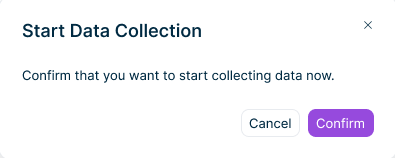 'Start Data Collection' confirmation dialog
- Click Confirm to start the data collection process.
- Click Cancel to return to the configuration and make changes.
After the process starts:
- A success notification appears: Data Collection started successfully. Redirecting to Data Collection list.
- The system automatically navigates to the Data Collection list.
- The data collection process is created with status New at the top of the list and is briefly highlighted.
- Individual forms are created for each reporting entity and form template combination with status New.
- Notifications are sent to assigned users with links to their forms.
If an error occurs during process creation, an error notification is displayed. You can click Start data collection process to retry, Back to return to the previous configuration step, or Cancel to close the wizard. All your entered data is preserved.
Once the process is started, Collectors can begin working on their forms. For detailed information on entering data, running validation, and approving forms, see Entering, Validating, and Approving Data.