Handling Errors in a Model Using AI

Overview

When a variable contains a calculation error, xP&A displays the error directly in the variable's warning panel — accessible, for example, via the indicator shown on the variable in the spreadsheet. To help you understand and resolve errors quickly, xP&A provides two AI-assisted features alongside the standard error message:

  • Explain with AI helps you interpret what went wrong.
  • Fix with AI (where available) suggests a correction you can apply directly.


These AI features are designed to assist you — not to replace your judgment. You should always review AI-generated explanations and, in particular, any formula suggestion before accepting it.

This article contains the following sections:

Explaining Errors With AI

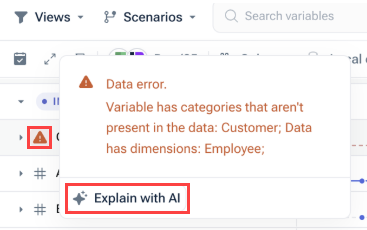
xP&A's AI feature Explain with AI generates a plain-language breakdown of the error for the variable you are viewing. To show the error explanation, simply hover over the warning triangle indicating an error and click Explain with AI. The explanation typically contains the following information:

  • A short summary of the issue

  • Why this happened — context behind the error

  • Impact — how the error affects the variable or downstream results

  • Common fixes (when applicable) — practical steps or patterns that often resolve this type of error


Shows an error explanation provided by AI. Highlighted is the warning triangle in front of the variable with the error and the command 'Explain with AI'
A data error explained with AI
  • If the analysis is not complete, try to run the Explain with AI function again. In some cases, the AI can reuse a recent result without running a full new analysis.
  • You can provide feedback using the Was this helpful? function so we can improve the AI results over time.
Fixing Errors With AI

xP&A's AI feature Fix with AI goes one step further than explaining an error — it proposes a concrete correction, typically an updated formula or expression, based on the error type and your model's context. You can review the suggestion and decide whether to apply it or continue editing manually.

To use Fix with AI:

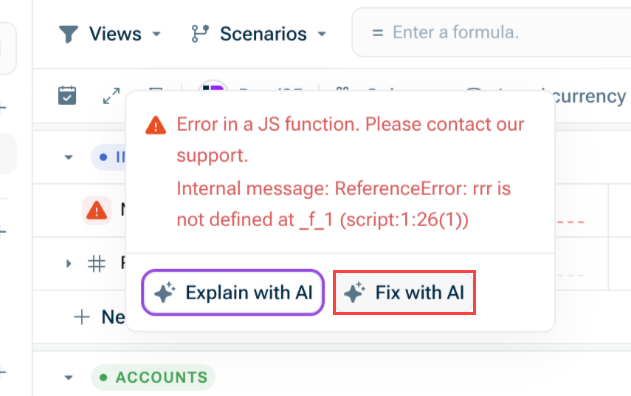
Hover over the warning triangle indicating an error and click Fix with AI.

Shows the dialog that appears when oyu hovwer over an error in a model. Highlighted in red is the Option 'Fix with AI' Fix with AI

Wait for the AI suggestion to load, which is then displayed as follows, for example:

Shows a dialog that appears with the AI's explanation of the error fixing. The section highlighted in purple is the suggested correction in the model itself. Corrections suggested by AI

Review the formula and the comparison between the original value and the proposed fix displayed in the error dialog.

Choose one of the following options:

  • Click Accept to apply the proposed change to your model.
  • Click Dismiss to discard the proposed change and continue editing your model manually.


  • Fix with AI proposes a change based on technical error context — it cannot verify whether the formula reflects your intended calculation. Therefore, always review the AI suggestions before accepting. Only accept a suggestion if you are confident it matches your business logic.
  • Fix with AI may be unavailable if another change workflow is already active (for example, if you are in proposal mode for model changes). Finish or exit that workflow first, then try again.
  • Sometimes you receive guidance text instead of a formula proposal. This is still useful — read it alongside the output from Explain with AI, or use it as a starting point for manual editing.
Contact Us