
Creating Reporting Templates
Last updated on 2025-12-11
Overview
In Lucanet, Excel reports are always generated based on a reporting template.
Reporting templates are Excel files that contain tilde formula(s) with functions, statements, and parameters that define the content of the Excel report queried from Lucanet.
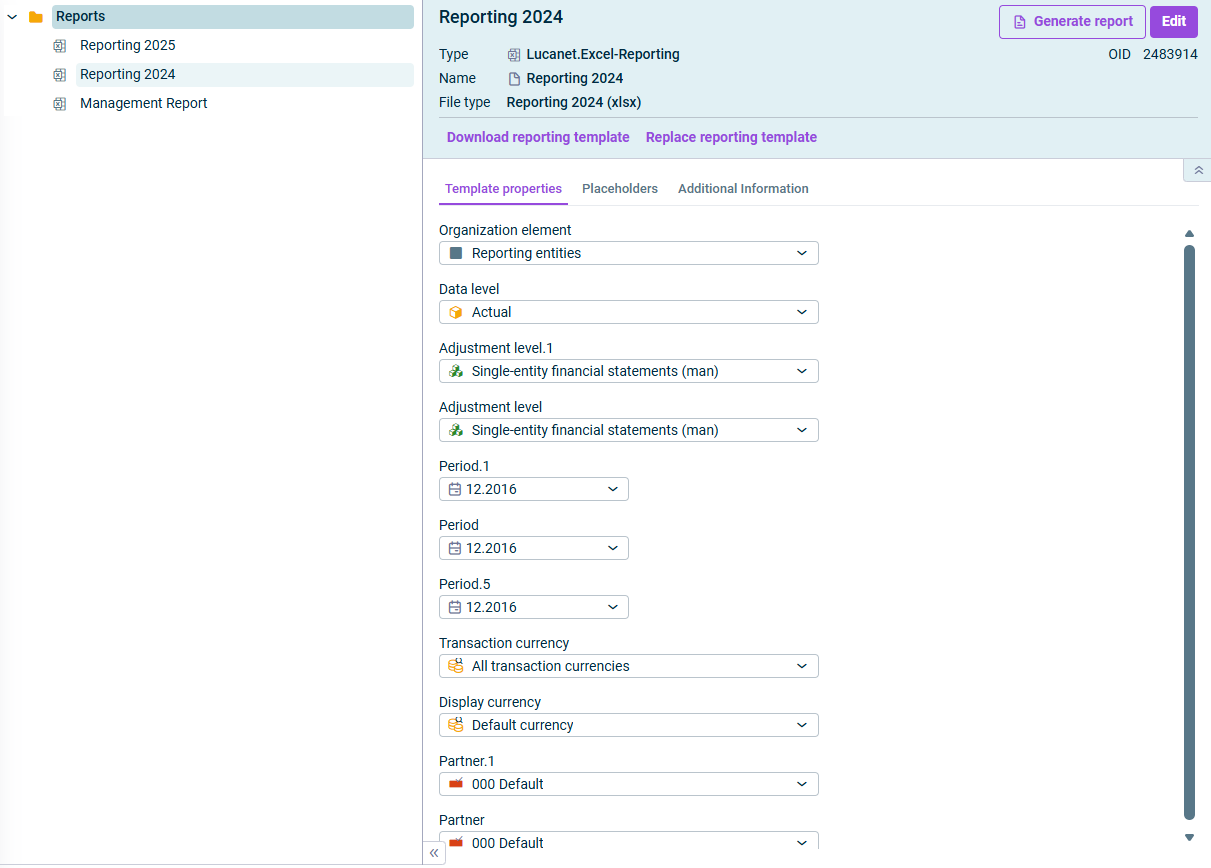
Each dimension that is queried using a tilde formula in an Excel reporting template is displayed in the detail view of the reporting template in Lucanet and can be selected there for report generation.
In this chapter you will learn how to create, replace, or download a reporting template.
To learn how to use tilde formulas within reporting templates, see Working with Tilde Formulas.
Changes to the reporting template directly in Lucanet are currently not possible. This means the reporting template that you create for the report must already contain the required tilde formulas.
If you want to update a reporting template that has already been created in Lucanet, you must replace the file.
This article contains the following sections:
Supported Excel Versions
XLS, XLSX, and XLSM files from the following Excel versions can be used as reporting templates:
- MS Excel 2016 to 2021 for Windows
- MS Excel 365 for Windows
- MS Excel 2021 for macOS
- MS Excel 365 for macOS
Creating Reporting Templates
To create a reporting template:
Open the workspace in which you want to generate Excel reports.
Choose Create | Lucanet.Excel-Reporting from the context menu. The Create Excel Reporting dialog is displayed:
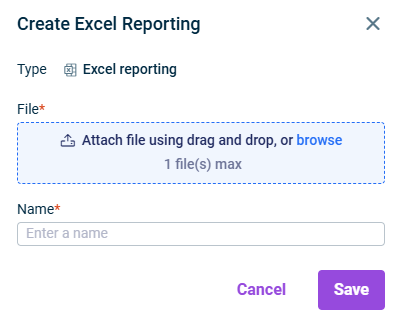
Insert the desired Excel file via Drag & Drop or browse your file directory and upload the file.
If necessary, change the name of the reporting template.
Click Save.
After creation, the Template properties and Placeholders tabs of the reporting template are populated with fields and information from the tilde formulas contained in the Excel file.
Downloading Reporting Template
You can download a reporting template from Lucanet to, for example:
- Modify the content of the file, i.e., the tilde formulas it contains
- Use the file as a template for a new reporting template
- Send the file to someone
To do this, select the desired reporting template and click Download reporting template in the detail view. The file will be saved in your download directory.
Replacing Reporting Template
To make a modified reporting template available as the basis for an Excel report, it must be updated in Lucanet, i.e., the outdated version of the file must be replaced.
To do this, select the desired reporting template and click Replace Reporting Template in the detail view. Then add the updated Excel file via drag and drop or browse your file directory and click Save.