Formulas are one of the most important concepts in Lucanet xP&A (Extended Planning & Analysis). Formulas let you work with numbers and other variables.

Here are some simple examples:

  • 25: constant value of 25
  • if VariableA > 10 then 1 else 0: Write 1 if variableA is greater than 10, otherwise write 0. You can link multiple conditions with and and/or or. See if statements for more!
  • sample(3, 5): either the value 3 or the value 5 (discrete distribution)

To create or edit a formula in Lucanet xP&A:

1

Make sure that the formula column is displayed. If necessary, click Formula in the toolbar.

2

Do one of the following:

  • Double-click in the desired cell in the formula column.
  • Select the desired cell and press F2.
3

Enter the formula (see Elements in Formulas).

4

Press Enter to save the formula.

If you are getting an error with a variable, you can hover over the formula error or the variable and xP&A will try to explain the cause of the error.

The following elements can be used in formulas in Lucanet xP&A:

ElementDescription
Basic operationsThe syntax for basic operations is the same as MS Excel: + - \ / ^ > < =*.
Not equal to<> or !=
Reference variablesYou can reference variables in formulas by typing the variable name and selecting it from the autocomplete drop-down list. You can also reference variables in other models if they're linked.
Variable modifiersWhen you reference a variable in a formula, there are two key ways to modify it - using Dimensions(if applicable), and Time.

For more information, see Variable Modifiers.
FunctionsFunctions that can be used in formulas.

For more information, see Functions.
Helper variablesThe following helper variables are available for formulas:
• lastActualDate: a helper variable that returns the timestep of the Last Actual Date setting, if it is toggled on (see Helper Variables)
• blank: Blank values are treated like 0s in most formulas (e.g. blank + 7 = 0 + 7 = 7), except in instances involving a set of numbers (e.g. avg, min/max/median, count etc) where blanks will be excluded (e.g. avg(5,10,blank) = avg(5,10) = 7.5).

For more information, see Helper Variables.
If-statementsIf you want a variable to have different values or formulas based on a condition, you can use if-statements. They always have to follow the structure if condition then X else Y.

For more information, see IF Statements.

You can preview the formula in the top bar:

Shows the formula preview bar in Lucanet xP&A displaying the formula "= sum( Revenue this month )" for the "P&L with Multiple Entities and FX (Cloned)" row.
Preview a formula

You can use Fill Down in Lucanet xP&A to copy a formula to other variable rows below it. When doing so, references to the source variable automatically adjust to each destination variable. References to any other variable remain unchanged.

Unlike Fill Right, which copies across time periods, Fill Down copies between variable rows.

To copy a formula to other rows in Lucanet xP&A:

1

Locate the source variable's cell in the formula column.

2

Move the mouse pointer to the bottom edge of the formula cell. Lucanet xP&A displays a purple handle with the tooltip Drag down to fill rows below.

3

Drag the handle down across the destination rows and release the mouse button to copy the formula.

Shows a formula being copied to the variable rows below it by dragging the purple Fill Down handle in Lucanet xP&A.
Copying a formula to other variable rows with Fill Down

You can undo the changes with Ctrl+Z.

Eligible Rows and Availability

The following conditions apply to Fill Down in Lucanet xP&A:

  • The Fill Down handle is available when you can edit the source formula and at least one eligible variable row exists below it.
  • Fill Down works across regular formula-variable rows, including top-level variables that have dimension breakdowns.
  • Fill Down skips the following rows:
    • Group and section headers
    • Dimension-item sub-rows
    • Dividers
    • Variables from linked models
    • Non-formula variable types
  • Fill Down is unavailable in change proposals, in read-only spreadsheets, or where you cannot edit formula cells.
  • Fill Down does not copy directly from one individual dimension item to another, and it does not automatically shift references to other variables as relative cell references in MS Excel do.

Fill Down in Lucanet xP&A changes references to the source variable so that each copied formula refers to its own destination variable. Time modifiers, such as previous month, are retained. References to other variables keep pointing to those variables; they do not shift to neighboring rows as relative cell references do in MS Excel.

The following examples show formulas copied from Revenue to Profit in Lucanet xP&A:

ExampleFormula in RevenueCopied formula in Profit
Self-reference: 5% monthly growthRevenue previous month * 1.05Profit previous month * 1.05
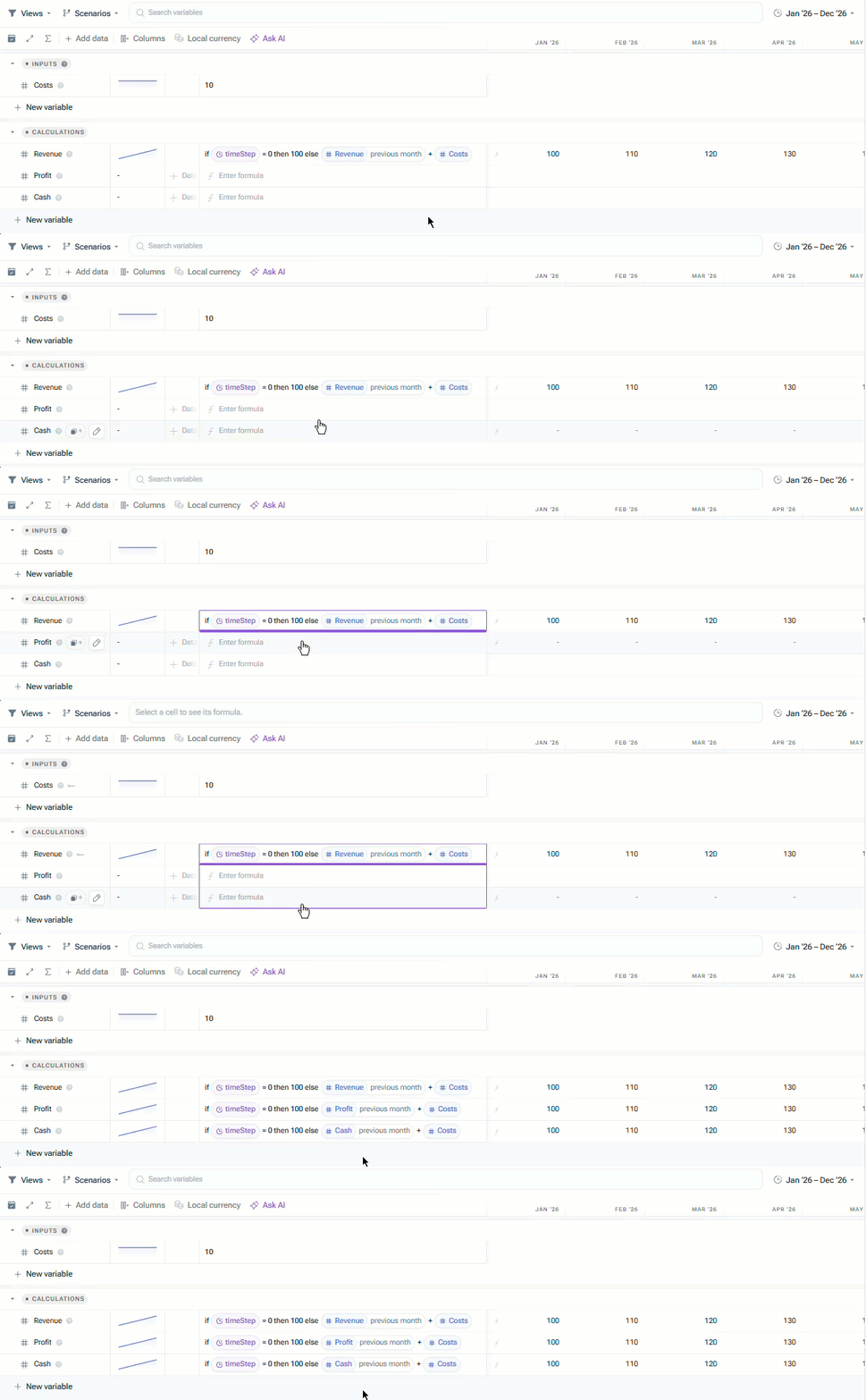
Self-reference and another variableif timeStep = 0 then 100 else Revenue previous month + Costsif timeStep = 0 then 100 else Profit previous month + Costs

You can add comments to your formulas in Lucanet xP&A with a double slash (//). Everything between the double slash and the end of the line will be ignored by xP&A when calculating.

When a variable is broken down by dimensions, you can use splashing to distribute a numerical value entered at the total or branch level to the underlying dimension items.

Choose one of four splashing types:

  • Equal split
  • Pro-Rata
  • Repeat all leaves
  • Repeat

The separate Skip empty cells check box lets you choose whether empty cells are included in the distribution. It is activated by default and can be used with any splashing type.

To apply splashing to a formula in Lucanet xP&A:

1

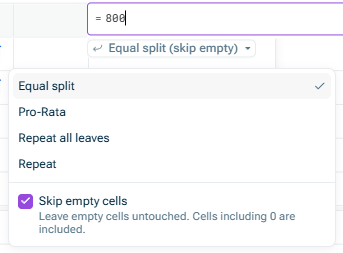
Enter a numerical value at the total or branch level and open the splashing drop-down list in the formula editor.

Shows the formula editor in Lucanet xP&A with '= 800' entered and the splashing drop-down list open. The list contains the splashing types 'Equal split', 'Pro-Rata', 'Repeat all leaves' and 'Repeat', followed by the activated 'Skip empty cells' check box with the description 'Leave empty cells untouched. Cells including 0 are included.' The button above the list displays 'Equal split (skip empty)'.
Splashing options
2

Select Equal split, Pro-Rata, Repeat all leaves, or Repeat.

3

Leave Skip empty cells activated to distribute the value only to underlying items that already have a numerical value. Deactivate the check box to include empty cells.

4

Press Enter to apply the distribution.

When Skip empty cells is activated, the selected splashing type is displayed with (skip empty), for example Equal split (skip empty).

  • Splashing overwrites the existing values of the underlying cells included in the distribution.
  • With Skip empty cells activated, empty cells remain unchanged. Cells containing 0 are included.
  • Your selected splashing type and Skip empty cells preference are remembered for subsequent entries in the same browser.

Skip empty cells controls which underlying cells are included in splashing, independently of the selected splashing type.

  • When activated, only cells with an existing numerical value are included. Empty cells remain unchanged.
  • When deactivated, empty cells can also receive values according to the selected splashing type.
0 is a value, not an empty cell. Values calculated by formulas, including values inherited from a higher level, also count as existing values.

In hierarchies, branches whose underlying lowest-level items are all empty are excluded when Skip empty cells is activated. The selected splashing type then operates on the remaining items.

If all underlying items are empty, Lucanet xP&A cancels the distribution and displays the following message: "There are no non-empty items to distribute the value to". Deactivate Skip empty cells to distribute into those empty items.

Skip empty cells controls only the distribution to underlying items. You can still enter a value directly into an individual empty lowest-level cell.

Example: For a flat dimension with four items containing 0, 8, empty, and empty, entering 800 produces:

Splashing typeSkip empty cells activatedSkip empty cells deactivated
Equal split400, 400, empty, empty200, 200, 200, 200
Pro-Rata0, 800, empty, empty0, 800, 0, 0
Repeat all leaves800, 800, empty, empty800, 800, 800, 800
Repeat800, 800, empty, empty800, 800, 800, 800

With Pro-Rata, if all included values are zero, the amount is split equally at each level among the included items. Empty items remain excluded when Skip empty cells is activated.

To get the behavior of the former Pro-Rata (only non-empty) option, select Pro-Rata and activate Skip empty cells.

The following splashing types are available in Lucanet xP&A.

You can use the Equal split splashing type to evenly distribute a value to each level.

The total amount will be equal to the entered number. If you have multiple levels, the value will first be distributed between the higher levels and then evenly between the included child items at each subsequent level.

Example:

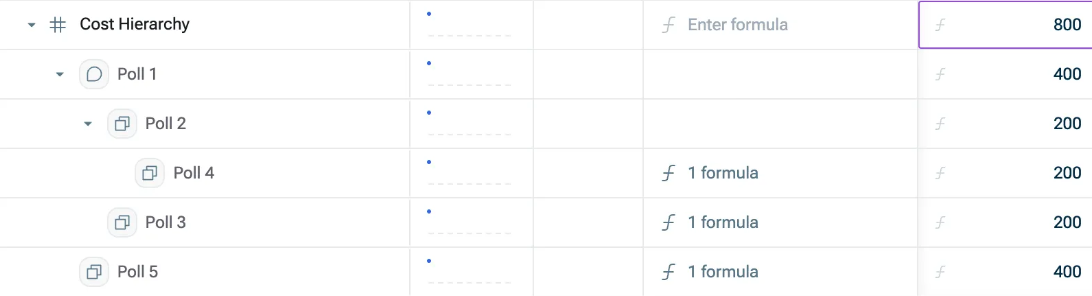
The following example shows the result after you enter 800 at the total level. The example applies to underlying items that already contain values, or to empty items with Skip empty cells deactivated:

Shows the "Cost Hierarchy" dimension breakdown in Lucanet xP&A after entering 800 on the total level with 'Equal split' splashing applied: 'Poll 1' 400, 'Poll 2' 200, 'Poll 4' 200, 'Poll 3' 200, and 'Poll 5' 400. Highlighted in purple is the total-level cell where 800 was entered.
Example for 'Equal split'

You can use the Pro-Rata splashing type to distribute values across each level proportionally to their current value.

Example:

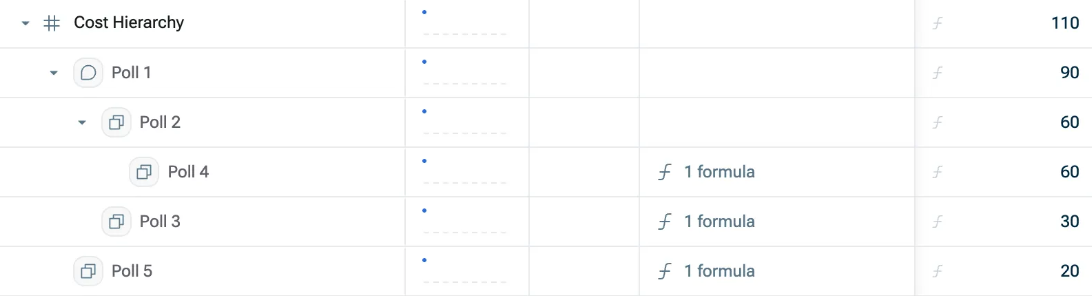
The following example shows dimension items that already have values:

Shows the "Cost Hierarchy" dimension breakdown in Lucanet xP&A before 'Pro-Rata' splashing is applied, with existing values: 'Cost Hierarchy' 110, 'Poll 1' 90, 'Poll 2' 60, 'Poll 4' 60, 'Poll 3' 30, and 'Poll 5' 20.
Example before 'Pro-Rata' is applied

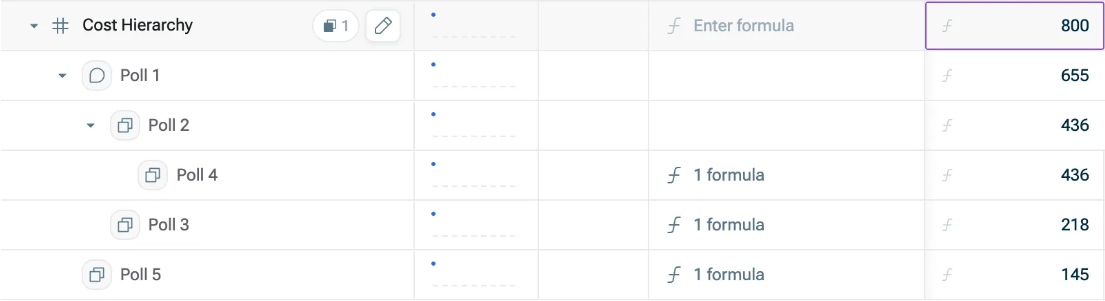
After entering 800 on the total level and applying Pro-Rata splashing, the values are distributed as follows:

Shows the "Cost Hierarchy" dimension breakdown in Lucanet xP&A after entering 800 on the total level and applying 'Pro-Rata' splashing: 'Poll 1' 655, 'Poll 2' 436, 'Poll 4' 436, 'Poll 3' 218, and 'Poll 5' 145. Highlighted in purple is the total-level cell where 800 was entered.
Example after 'Pro-Rata' is applied

You can use the Repeat all leaves splashing type to repeat the entered value on each included lowest-level item. Repeat all leaves is the default setting for value distribution.

Example:

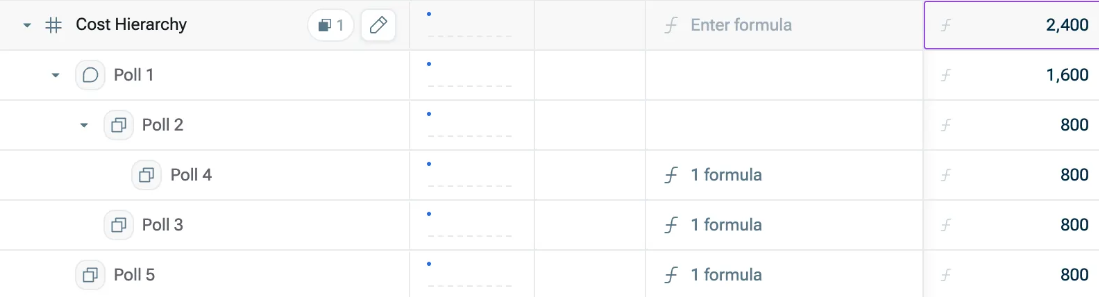
The following example shows the result after you enter 800 at the total level. The example applies to underlying items that already contain values, or to empty items with Skip empty cells deactivated:

Shows the "Cost Hierarchy" dimension breakdown in Lucanet xP&A after entering 800 on the total level with 'Repeat all leaves' splashing applied: 'Poll 1' 1,600, 'Poll 2' 800, 'Poll 4' 800, 'Poll 3' 800, and 'Poll 5' 800. Highlighted in purple is the total-level cell where 800 was entered.
Example for 'Repeat all leaves'

You can use the Repeat splashing type to repeat the entered value on each included first-level item, then split that value evenly at each subsequent level.

Example:

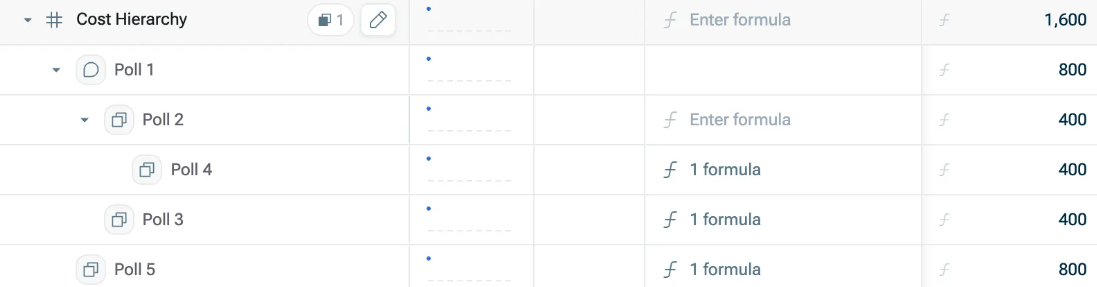
The following example shows the result after you enter 800 at the total level. The example applies to underlying items that already contain values, or to empty items with Skip empty cells deactivated:

Shows the "Cost Hierarchy" dimension breakdown in Lucanet xP&A after entering 800 on the total level with 'Repeat' splashing applied: 'Poll 1' 800, 'Poll 2' 400, 'Poll 4' 400, 'Poll 3' 400, and 'Poll 5' 800. Highlighted in purple is the total-level cell where 800 was entered.
Example for 'Repeat'

To distribute a value in a filtered view in Lucanet xP&A, check which dimension items the view includes. A view filter changes the available items and can change the total displayed in the view. The view filter does not remove the excluded items from the model.

Editing in a filtered view in Lucanet xP&A requires the appropriate editing or proposal permissions and an available splashing method. The following table describes how dimension filters and display settings in Lucanet xP&A affect editing:

Filter or display settingItems available in the viewEffect on editing
includes branch for a parent itemThe selected parent and its descendants, together with its ancestorsYou can distribute a value within an included branch. Items outside that branch are not changed by the branch edit.
is one of selected leaf itemsThe selected lowest-level itemsYou can distribute a value across the included items using the filtered total. Excluded items retain their values and formulas.
is one of a parent item aloneThe parent, without its childrenThe parent input is read-only because the view excludes its underlying items.
A parent and only some of its children are includedThe parent and a subset of its underlying itemsThe parent total is read-only. Lucanet xP&A does not distribute the value only to the accessible children.
A hierarchy is collapsedThe underlying items remain available; their rows are folded awayCollapsing rows alone does not prevent editing the parent or using splashing.

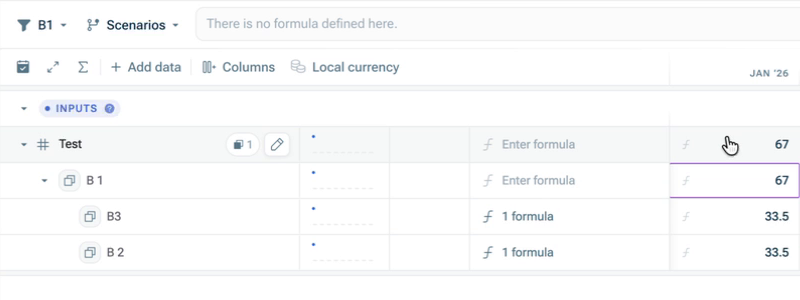
For example, a dimension in Lucanet xP&A contains parent B 1 with children B 2 and B3, and a separate item B4. A view that includes the branch for B 1 lets you distribute 67 to B 2 and B3 using Equal split, assigning 33.5 to each. B4 retains its existing value or formula. The filtered total covers the included branch and can differ from the total across all items in the model.

Shows the 'B1' view in Lucanet xP&A with 'B 1' expanded to 'B3' and 'B 2'. In 'JAN ‘26', the parent and filtered total are 67 and each child is 33.5. Highlighted in purple is the selected 'B 1' parent cell.
Equal split within the included branch

If additional view filters exclude items from the selected branch, check the resulting view before editing. Selecting includes branch for does not override other view filters or permissions. For more information about configuring filters, see Using Views.

In Lucanet xP&A, a parent row can remain visible when a view filter excludes its children. The row may look like a lowest-level item, but it still represents underlying items in the model. To edit a parent total, your current view must give you the required access to all underlying items. If any of those items are excluded, the parent total is read-only.

For example, if a view uses is one of to select B 1 alone, its children B 2 and B3 are excluded and the B 1 input is read-only. If you include the full B 1 branch instead or only collapse its child rows, the B 1 input remains editable.

The same restriction applies if B 1 and B 2 are accessible but B3 is excluded. You still cannot edit the B 1 total. Lucanet xP&A does not silently distribute the value only to B 2.

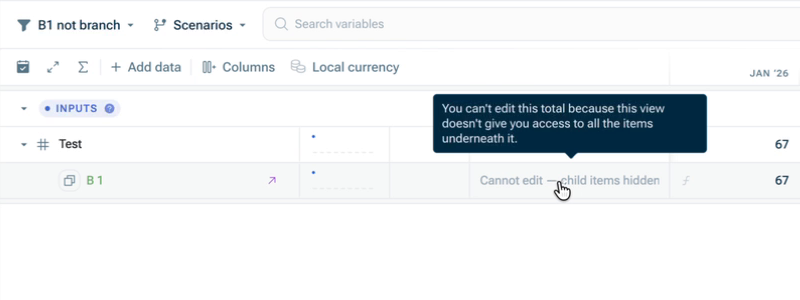
In the user interface, the blocked formula input can display Cannot edit — child items hidden. The total-cell tooltip explains: You can't edit this total because this view doesn't give you access to all the items underneath it.

Shows the 'B1 not branch' view in Lucanet xP&A with only the 'B 1' parent item visible and a value of 67 in 'JAN ‘26'. The formula cell displays 'Cannot edit — child items hidden', and its tooltip says 'You can't edit this total because this view doesn't give you access to all the items underneath it.'
Parent input is blocked when the view excludes its children

If you cannot edit a parent total in Lucanet xP&A, edit an available individual item or an included branch instead. If your permissions allow it, use a view that includes the required branch and its underlying items. Seeing a parent row does not grant access to its children.

This content was generated using AI and reviewed by Lucanet subject matter experts before publication.