
Reclassification of Profit or Loss from Previous Periods in Reporting Entities
Last updated on 2026-04-28
Overview
You can use the Reclassification of profit or loss from previous periods in reporting entities app to automatically reclassify the period result from the previous year to carry it forward. The following functional topics are covered:
- Reclassification of the period result from the previous year to carry it forward in local currency
- Fixation of the historical exchange rate at foreign currency companies (in different display currencies)
For reclassification purposes, the following can be configured for the reporting entities:
- Data level
- Adjustment level
- Transaction type
- Cost center (optional)
This article contains the following sections:
- Creating an App for Reclassification of Profit or Loss from Previous Periods in Reporting Entities
- Configuring an App for Reclassification of Profit or Loss from Previous Periods in Reporting Entities
- Executing an App for Reclassification of Profit or Loss from Previous Periods in Reporting Entities
- Displaying and Deleting Created Elements
- Displaying the Properties of the App
Creating an App for Reclassification of Profit or Loss from Previous Periods in Reporting Entities
The app for Reclassification of profit or loss from previous periods in reporting entities can be created in any directory structure, provided that the element type Next Generation App has been enabled for this directory structure.
To create the app, proceed as follows:
Ensure that the object type App has been enabled in the workspace configuration for the directory structure under which you want to create the app.
Navigate to the directory structure under which you want to create the app.
Select the root folder of the directory structure or, if applicable, a folder under which you want to create the app, and select Create | App from the context menu.
The Create Next Generation App dialog appears:
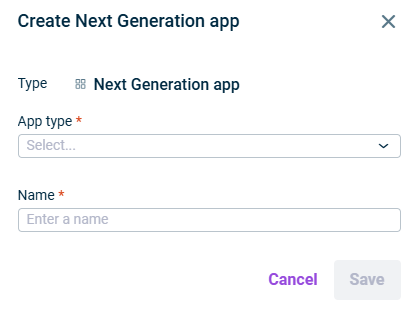
From the App type dropdown list, select the app for Reclassification of profit or loss from previous periods in reporting entities.
Change the name of the app if necessary.
Click Save to create the app and configure it as described below.
Configuring an App for Reclassification of Profit or Loss from Previous Periods in Reporting Entities
To configure an app for Reclassification of profit or loss from previous periods in reporting entities, click the app in the structure view and click Edit in the displayed dialog.
Configure the steps as described below.
In the Settings step, specify the posting details and the relevant reporting entities.
Option
Description
Postings
Data level
Data level at which the reclassification is to be performed.
Closed or archived data levels cannot be selected.
Period under consideration
The period under consideration for which the transaction figures are to be read out as the basis for the reclassification.
Posting month
Month in which the app transfers the profit or loss from the previous period to the carryforward account.
- For planning data levels, the app also takes actual values into account if these fall within the period under consideration.
- The app automatically selects the month following the period under consideration as the month for performing the reclassification. If the last month of the period under consideration is also the last month of the data level, the reclassification is performed in the last month of the data level.
Reporting entities
Reporting entities for which the reclassification is to be performed.
In the Adjustment levels step, specify the adjustment level(s) for the reclassification of the values.
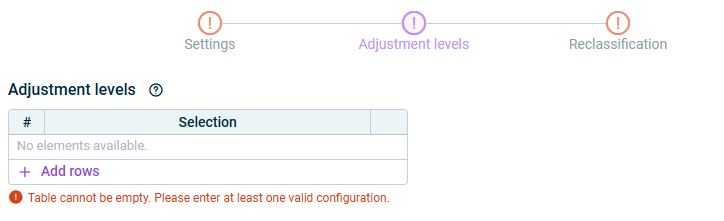
The app also carries out postings at adjustment levels that are locked for other postings.
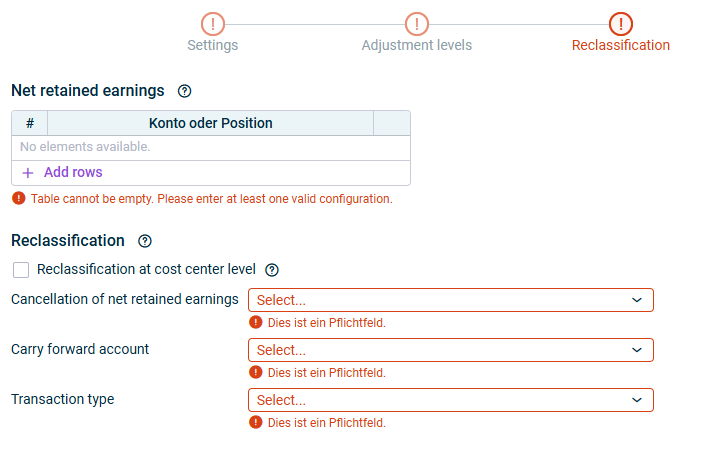
In the Reclassification step, specify the details for the reclassification.
Option
Description
Net retained earnings
Account and/or the item(s) containing the transfer accounts of the period result.
The transaction figure of the selected account or item for the Net retained earnings is used as the base value for the reclassification within the app.
Reclassification
Reclassification at cost center level
Activate this option to perform the reclassification at cost center level.
If this option is activated, the reclassification is performed separately for each cost center.
Cancellation of net retained earnings
The account for the cancellation of the result for the period under consideration.
With the exception of transfer accounts, all elements of type User-defined account with the period type Balance with carry forward from previous period can be selected.
Carry forward account
The carry forward account to which the result for the period under consideration is to be reclassified.
With the exception of transfer accounts, all elements of type User-defined account with the period type Balance with carry forward from previous period can be selected.
Transaction type
The transaction type that the reclassification is to be performed in.
- As long as a step has not been fully configured and/or configuration errors exist, it is displayed with a red exclamation mark
 .
. - Once a step is configured completely and without any errors, it is displayed with a green check mark
 .
. - You can close the configuration dialog by clicking the arrow icon
 at the top left.
 - To change the name of the app, select the app in the tree view and choose Properties from the context menu.
Executing an App for Reclassification of Profit or Loss from Previous Periods in Reporting Entities
You can execute the app for Reclassification of profit or loss from previous periods in reporting entities either separately or together with other apps in an executable folder.
To execute the app separately, click Execute at the top right of the app's editing dialog:

For better organization, you can create as many folders as you like in a directory structure.
You can group multiple apps together in folders and execute them together. Proceed as follows:
- Ensure that the object type Folder has been enabled for the directory structure in the workspace configuration.
- In the tree view, select the element under which you want to create the executable folder and choose Create | Folder from the context menu.
- Enter a Name in the Create folder dialog and select a desired Behavior if there should be an error during execution of the folder:
- Continue execution
- Cancel execution
- Save the executable folder.
- Paste the apps to be summarized into the folder. Do one of the following:
- Add existing elements using the menu commands Cut and Paste.
- Create new apps in the folder using the Create context menu command.
- Execute the folder and all elements contained in it by clicking Execute all subordinate elements in the detail view of the folder.
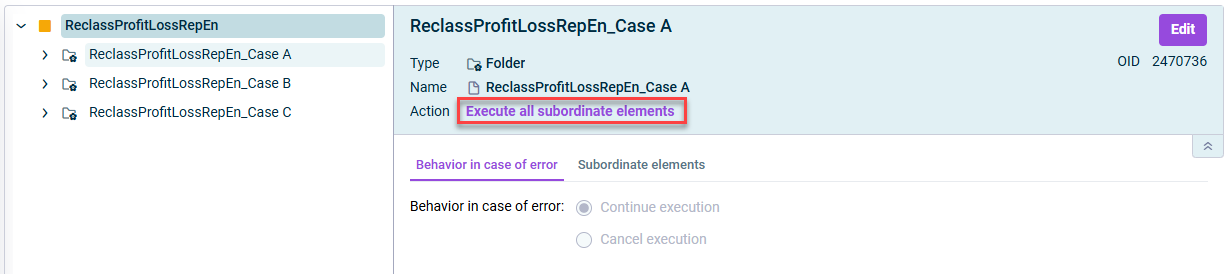 Executing apps together in a folder
Displaying and Deleting Created Elements
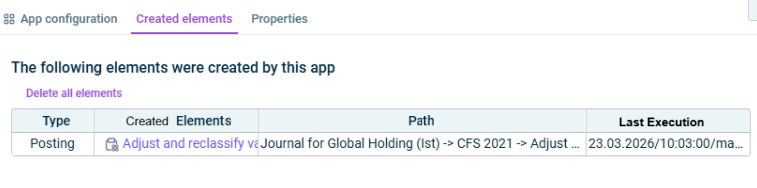
On the Created elements tab, the postings that were created during the app execution are shown.
The table provides the following information:
- Type of the element
- Path under which the element was created When you click on the link, you are taken directly to the posting in the relevant journal or to the report.
- Date of the last execution that created the element
Note: Once all elements have been deleted, the state of the wizard is Not executed again.
Displaying the Properties of the App
The App properties are displayed on the tab of the same name :
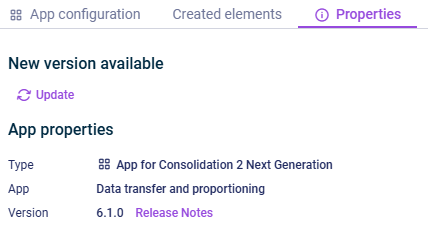
- Type of the element
- Function of the App
- Version of the element.
New available version
As soon as a new version of the app is available that contains changes to the app configuration and/or the calculation logic of the app, the Refresh command is displayed, allowing you to update the app to the latest version.
Information about the changes to each version can be found in the Release Notes, which can be accessed via the link of the same name.
We strongly recommend to update all apps to the new version as soon as possible because it cannot be guaranteed how long an app with an obsolete version can be executed.