
Functions
Last updated on 2026-03-06
Overview
With functions in tilde formulas, you can query information and data from Lucanet and output them in an Excel report.
A function specifies what type of information is retrieved (e.g., numerical values, currencies, exchange rates).
This article contains the following sections:
Tilde Formula Structure
For functions, the tilde formula must be structured as follows:
~Function(Parameter 1="Value";...;Parameter n="Value")
Rules for Functions in Tilde Formulas
The following rules apply for functions in tilde formulas:
- One, several or no parameters can be added to the function name.
- The parameters of a function are enclosed in round brackets ( ).
- Several parameters are separated using a semicolon ( ; ).
- The parameters for a function are described with a keyword or a placeholder.
- A keyword has a value that follows an equals sign ( = ) and is enclosed in quotation marks.
- It is also possible to use cell references as values. Quotation marks must not be used for cell references.
'Value' Function
The Value function can be used to export any value from an account or an item in the Lucanet database.
Tilde Formula Structure for the 'Value' Function
The tilde formula must be structured as follows:
~Value(Item="Name or URL of item/account";Keyword_1/Placeholder_1;...;Keyword_n/Placeholder_n)
Rules for the 'Value' Function
- The basic parameter item/account must be specified.
- All other basic parameters are optional.
- For optional parameters, you can use either a placeholder or a keyword.
- A value following an equal sign ( = ) is assigned to a parameter.
- The value of a parameter must be in quotation marks ( " ).
Basic Parameters for the 'Value' Function
In the Value function, you can use the following basic parameters, which match the dimensions in Lucanet:
- Item/account
- Period
- Organization element
- Data level
- Adjustment level/group
- Transaction currency
- Display currency
- Partner
Optional Parameters for the 'Value' Function
In addition to the basic parameters, the following optional parameters can be used in the Value function.
The Abbreviation parameter is optional and specifies the ledger or schedule to be searched for an item or account. By specifying the ledger or schedule to be searched, you can avoid error messages if the item or account you are searching for exists several times.
If the parameter is omitted, all ledgers and schedules are searched.
Note: In schedules, you can only search for items.
Tilde Formula Structure
The tilde formula must be structured as follows:
~value(Abbreviation="Abbreviation of ledger";Pos="Item/Account")
By default, values from an account or an item are read into MS Excel in the defined default currency of the reporting entity, consolidation area, or consolidation unit that the specified organization element references. To read in values in other currencies to MS Excel, the parameters Transaction currency and Display currency can be used.
Tilde Formula Structure
The tilde formula must be structured as follows:
~value(pos="item/account";transaction currency="transaction currency";display currency="display currency")
Keywords
The currencies defined in Lucanet in the Currency translation workspace can be used as values for transaction currency and display currency.
Variants
The result of a query depends on the keywords used in the Tilde formula. The following variants are available:
- Without keyword
The sum of all specified values (in all transaction currencies) converted into the default currency of the organization element - Display currency only
The sum of all specified values (in all transaction currencies) converted into the specified display currency - Transaction currency only
The sum of all values specified in the specified transaction currency converted into the default currency of the organization element - Transaction currency and display currency
The sum of all values specified in the specified transaction currency converted into the specified display currency
To record the values of all transaction currencies, you can use Transaction currency="All", if you retain the default name of the element for the value query of all transaction currencies (All transaction currencies).
Once you have renamed the element, the tilde formula must also be changed accordingly. In the tilde formula, enter at least the first three letters of the element name as the parameter instead of All.
Example
In the Excel worksheet, all options for querying the item Fixed assets are used. The Value in column displays the currency resulting from the tilde formula if the default currency of the selected organization element is EUR:
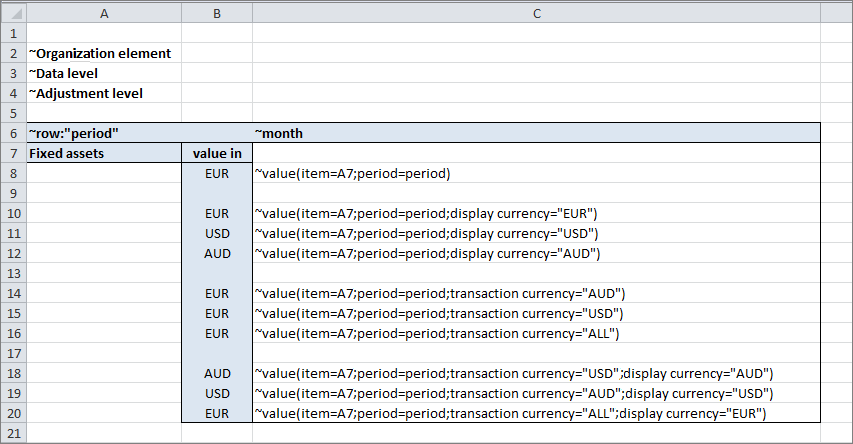
The Transaction type parameter is optional and imports either the values of an account or the values of a transaction type (or transaction type group from the fixed asset schedule) into MS Excel.
Tilde Formula Structure
The tilde formula must be structured as follows:
~Value(Item=”Item/Account”;Transaction type="Keyword")
Keywords
The following keywords are available:
- Start
Returns the start value of the account on a given date - Transaction figures/TF
Returns the change to the account on a given date - Saldo
Returns the balance of the account on a given date
Keywords for transaction types or transaction type groups
When determining the value for a transaction type or for a transaction type group, the ID of the transaction type, the abbreviation of the transaction type group, or a link to a cell must be specified with the corresponding entry:
- Name of a transaction type (e.g. 110 Addition)
Returns the value 110 Addition - Cost.Start or Accumulated depreciation and amortization.Start
Returns the start value in the transaction type group Historical cost or Accumulated depreciation and amortization. - Cost.TF or Accumulated depreciation and amortization.TF
Returns the change in the transaction type group Historical cost or Accumulated depreciation and amortization. - Cost.Balance or Accumulated depreciation and amortization.End of period
Returns the balance in the transaction type group Historical cost or Accumulated depreciation and amortization.
The naming of the keywords depends on how naming is entered in the Dimensions under Transaction Types.
Example
In the function, the Transaction type parameter is used with the keyword tt and a cell link (d11):
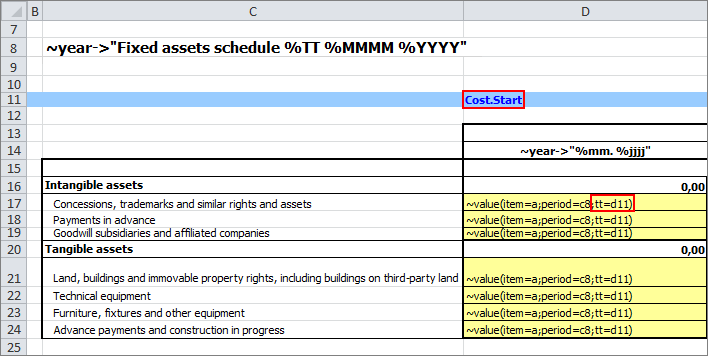
The No error parameter is optional and specifies that the system should suppress error messages if the system cannot find the item or account it searched for.
In this case, the return value of the Value function is 0.
Tilde Formula Structure
The tilde formula must be structured as follows:
~Value(Item=”Item/Account”;no error)
The YTD parameter can be used to query the value of an account or an item for the Year-To-Date period up to the current period.
Tilde Formula Structure
The tilde formula must be structured as follows:
~Value(Item="Item/Account";YTD="Year to date"
Example
In the following example, the values for the Wages and salaries item are queried for the period between July 2017 (= "YTD 07") and the period currently specified for the report (e.g. November 2017).

Keywords for the 'Value' Function
For the parameters of the Value function, the following keywords are available:
- Item/account: Item, Account, ACC
- Period: Period
- Organization element: Organization element, OE
- Data level: Data level, DL
- Adjustment level: Adjustment level, BE
- Transaction currency: Transaction currency, TC
- Display currency: Display currency, Currency, DC
- Partner: Partner, P
The following table shows examples of keywords with assigned values:
Example
Description
Item="Turnover"
Value in quotation marks
The system searches for the Sales item.
Data level=A3
Absolute cell reference
The system searches for the data level whose abbreviation can be found in cell A3.
Organization element=8
Reference to row
The system searches for the organization element with its abbreviation in row 8 of the same column.
Item=A
Reference to column
The system searches for the item whose name is located in column A of the same row.
Item=A:C
Reference to a cell range
The system searches for the item whose name is in the first non-empty column in the same row in columns A to C.
Period=Period.Comparison
Reference to placeholder
The period represented by the Period.Comparison placeholder is used.
Ledger=heading
Reference to a named cell
An adjustment level is being searched whose abbreviation is in the row which was named Row: Heading by means of the row statement (see Naming Rows/Columns).
Example for the 'Value' Function
In the Excel worksheet, the Value function has parameters for item (item), period (period), and transaction type (tt).
In the tilde formula, references to a cell area (item=b:c), a cell (c12) and to a row (15) are used:
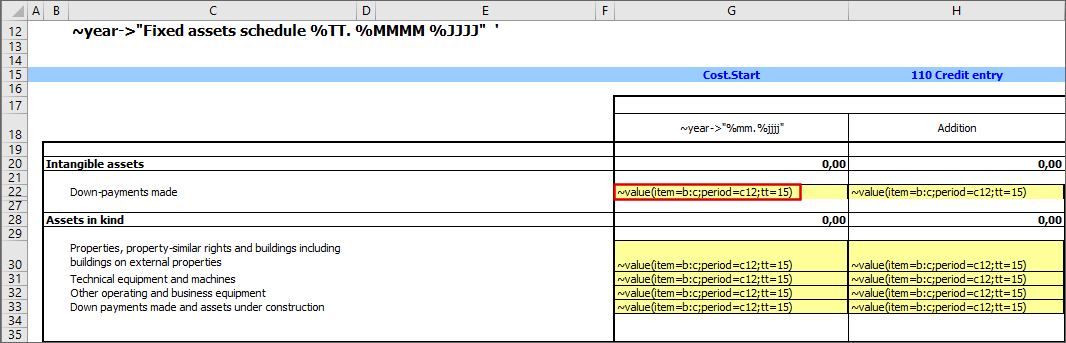 'Value' function
Additional Functions
The following functions can be used in a tilde formula:
The Currency function enables the default currency of elements from the Reporting entities or Organization elements workspace to be read in to MS Excel.
Tilde Formula Structure
The tilde formula must be structured as follows:
~Currency(Organization element="Name of the element")
The following elements can be specified as organization element:
- Reference to reporting entity
- Reference to cost center
- Reference to cost center group
- Reference to consolidation area
- Reference to consolidation unit
- Reference to consolidation unit group
- Organization group
The specification of an element is optional. If no element is specified, the user has to choose an element when creating the report.
Example
In the Excel worksheet, the Organization element parameter of the Currency function is specified with a reference to cell B2:
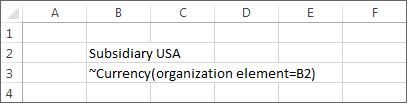 'Currency' function
The rate function can be used to read in the average exchange rate, the closing exchange rate, or the YTD exchange rate at which a transaction currency is converted into a display currency, to MS Excel.
Tilde Formula Structure
The tilde formula must be structured as follows:
~rate(table="name of exchange rate table";data level;exchange rate type;period)
Keywords
The following keywords are available for the parameter Exchange rate type:
- Closing exchange rate: Returns the closing exchange rate for a month
- Average exchange rate: Returns the average exchange rate for a month
- YTD exchange rate: Returns the YTD rate of a month
Only one of the available keywords can be specified at a time.
Example
In the Excel worksheet, the closing exchange rate and the average exchange rate for the table USD -> EUR are read in in the Actual data level on a monthly basis (~month) to MS Excel. In the tilde formula, data level (B2), closing exchange rate (B) and period (4) are used by means of cell references:
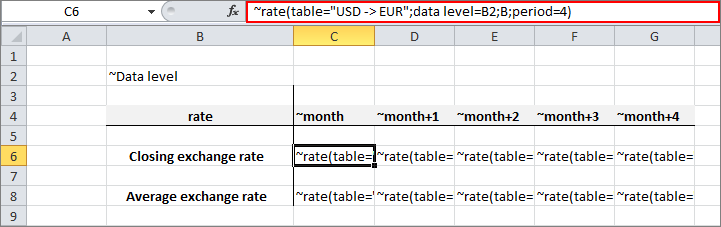
The generated report appears as follows:
 Result for function 'rate'
You can use the Attribute function to query attribute values. The Attribute function can also be combined with the tilde formulas ~Fill rows and ~Fill columns to import the names of elements into MS Excel in addition to their OIDs.
Tilde Formula Structure
The tilde formula must be structured as follows:
~Attribute(attribute;element)
Parameters of the Attribute Function
The following placeholders must be specified:
- Attribute: Key for the attribute whose value is to be read in to MS Excel
- Element: The name or URL of the element whose attribute value is to be read in to MS Excel
Example
In the Excel worksheet, the Attribute function is used to query the English (Attribute=name) and the German name (Attribute=name_ger) of items and accounts. In column C, a cell reference (b) is used in row 3 and the URL of the account is used directly in row 4:
 'Attribute' function
The generated report appears as follows:
 Result for function 'attribute'
You can use the Document function to access the description for elements.
Tilde Formula Structure
The tilde formula must be structured as follows:
~Document(Element)
The Element parameter represents the element whose description you want to copy to MS Excel.
Example
The tilde formula returns the description of the data level with the URL ln:goto/LNFC/demo?oid=12907.
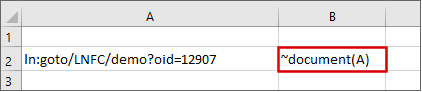
Currently, descriptions cannot be added to elements in the CFO Solution Platform. Therefore, the Document function can only be used to access descriptions that have been added to elements in Lucanet.Financial Client.
The Comment function can be used to read in comments on items and accounts in MS Excel.
Tilde Formula Structure
The tilde formula must be structured as follows:
~Comment(Item/Account/Acc="Item/Account";Period="Period";Data level="Data level";Adjustment level="Adjustment level";Organization element="Organization element")
Specifying a data level, adjustment level, and reporting entity is optional. If no element is specified, the user has to choose one of these elements when creating the report.
Example
The tilde formula supplies the comment on the item Technical equipment and machines in November 2017:
 'Comment' function
Currently, comments cannot be added for items or accounts in the CFO Solution Platform. Therefore, the Comment function can only be used to retrieve comments that have been added for items or accounts in Lucanet.Financial Client.