
Statements
Last updated on 2026-03-06
Overview
Using statements in a tilde formula, you can dynamically insert or name rows and columns in an Excel report with Lucanet.Excel-Reporting.
This article contains the following sections:
Tilde Formula Structure for Statements
For statements, the tilde formula must be structured as follows:
~statement:"Parameter_1";"Parameter_2"
Rules for Statements in Tilde Formulas
The following rules apply for statements in tilde formulas:
- Statements always end with a colon ( : ) followed by the parameters of the statement.
- The parameters for a statement must be within inverted commas ( " ).
- Several parameters are separated using semicolons ( ; ).
Available Statements
The following statements can be used in a tilde formula:
Naming Rows/Columns
You can use the Row and Column statements to name the corresponding row or column so that they can be accessed in functions using the name, as well as the row or column number.
The advantage of accessing by name is that functions will retain the correct cell link even after rows and columns are inserted (which can change the numbering of existing rows and columns).
Structure of the Tilde Formula for Naming Rows and Columns
The tilde formula must be structured as follows:
~Row/Column:"Name"
Note: The name of the row or column cannot match a placeholder name.
Example
In the following reporting template, row 5 is named Period. In the Value function, the name Period is used to access the row with the period headings:
 Statement for naming a row
The generated report is displayed as follows:
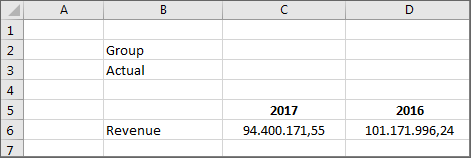 Result of the ‘row’ statement
Inserting Rows/Columns
The Fill rows and Fill columns statements can be used to insert further rows or columns dynamically, based on the respective row in an Excel report.
Structure of the Tilde Formula for Inserting Rows and Columns
The tilde formula must be structured as follows:
~Fill rows/Fill columns:Keyword=Item/Organization element/Partner/Transaction type/Adjustment level/Data level;[Abbreviation];[Name/OID];[No zero values];[Level]
The Abbreviation, Name/OID, No zero values, and Level parameters can be used optionally depending on the parameter.
Keywords for Items and Organization Elements
Items, accounts or organization elements can be inserted in the rows or columns of an Excel worksheet. The following keywords are available:
- Item="Assets” or Pos="assets"
All items or accounts directly subordinate to the Assets item - Item=B7 or Pos=B7
All items or accounts directly subordinate to the item in cell B7 - Organization element="Group” or OE="Group"
All organization elements directly subordinate to the organization element Group - Organization element=B or OE=B
All organization elements directly subordinate to the organization element in column B
Keywords for Dimension Elements
Elements from the Partner, Data levels, Adjustment levels, and Transaction types workspaces can be added to the rows or columns of an Excel worksheet. This means that the partners, data levels, adjustment levels, or transaction types that are attached under folders can be added. For partners, it is also possible to add elements that lie under partner groups.
The following keywords are available:
- Partner="U.S. subsidiary” or P="U.S. subsidiary"
All partners directly subordinate to the U.S. subsidiary partner group - Data level=lucanet://db=database&oid=123456 or DL=lucanet://db=database&oid=123456
All data levels directly subordinate to the folder with the OID 123456 - Adjustment level=lucanet://db=database&oid=234567 or BE=lucanet://db=database&oid=234567
All adjustment levels directly subordinate to the folder with the OID 234567 - Transaction type=lucanet://db=database&oid=345678 or TT=lucanet://db=database&oid=345678
All transaction types directly subordinate to the 345678 folder
- Folders for data levels, adjustment levels, and transaction types cannot be queried by their names. They must be targeted by their OID.
- Since Lucanet 11 LTS, links to Lucanet elements are created in format ln:goto/LNFC/databasename?oid=XXXXX. The previous format lucanet://db=databasename&oid=XXXXX remains valid, however, and can still be used. This is why the format lucanet://db=databasename&oid=XXXXX is used in some examples for Lucanet.Excel-Reporting.
Example
The Excel worksheet contains a tilde formula with the Fill rows statement. The formula uses the URL of the item Other operating expenses:
 'Fill rows' statement
The report created displays all the items contained in Other operating expenses. Row 19 displays the overall total of all items:
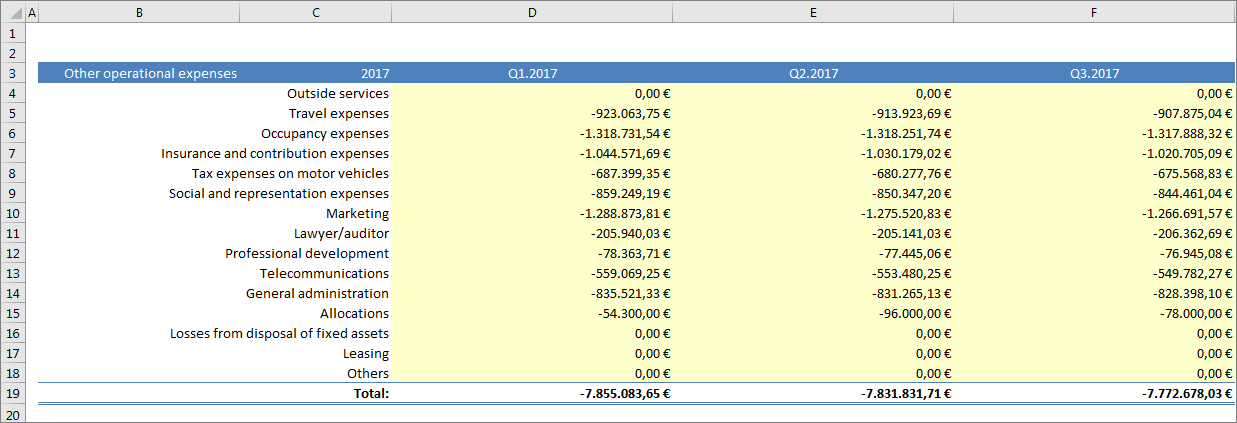 Result of a 'Fill rows' statement
Optional Parameters
Depending on the parameter, the following optional parameters can be used for the Fill rows and Fill columns statements:
- With the Item parameter: Abbreviation, Level, No zero values, Name/OID
- With the Organization element parameter: Abbreviation, Level, No zero values, Name/OID
- With the Partner parameter: Level, No zero values, Name/OID
- With the Data level parameter: No zero values, Name/OID
- With the Adjustment level parameter: No zero values, Name/OID
- With the Transaction type parameter: No zero values, Name/OID
Abbreviation parameter is optional and specifies the ledger or schedule from which items or accounts are to be inserted. The Abbreviation parameter is used if an item or account occurs in several ledgers or schedules.
Note: In schedules, you can only search for items.
Tilde Formula Structure for 'Abbreviation'
The tilde formula must be structured as follows:
~Fill rows/Fill columns:Abbreviation="Abbreviation";Item="Item"/Organization element="Organization element"
Keywords
The keyword defines from where the data to be read in are derived. The following keywords are allowed:
- Abbreviation of a general ledger, abbreviation of a general ledger including subledgers or abbreviation of an schedule
Reading in values from ledgers or schedules with the specified abbreviation - fin
The keyword fin can still be used to read values from the ledgers to which the balance sheet and P&L from previous versions have been transferred. - stat
The keyword stat can still be used to read values from a statistical ledger to which the values from previous versions have been transferred.
Example for 'Abbreviation'
The statement Fill rows imports all items below Assets from the general ledger for the balance sheet with the abbreviation B to MS Excel:

The Level parameter is optional and specifies which level under the selected item, account, organization element, or partner group is to be read in to MS Excel. If the parameter is not specified, only the subsequent level is inserted.
Tilde Formula Structure for 'Level'
The tilde formula must be structured as follows:
~Fill rows/Fill columns:Keyword=Item/Account/Organization element/Partner group\Level=x
Values for 'Level'
The following level values are possible:
- Number, e.g. 2
Inserts the level defined with the number under the specified item, account, organization element, or partner group. When a level lower than the first level is inserted, the system does not insert all the elements from the intermediate levels but just the elements that are located on the level entered. - Account
Inserts all accounts under the specified account in alphabetical order - Item
Inserts all lowest-level items under the specified item that have no subordinate elements in alphabetical order
Note: For partner groups, only the entering of a number (e.g. Level=2) is permitted for Level. The account and item parameters are not allowed.
Example for 'Level'
The statement specifies that the second level below the item with the URL lucanet://db=demo&oid=2408240 (= Other operating expenses) is to be read in to MS Excel:
 'Fill rows' statement with parameter 'Level'
In Lucanet, there are two levels under the Other operating expenses item:
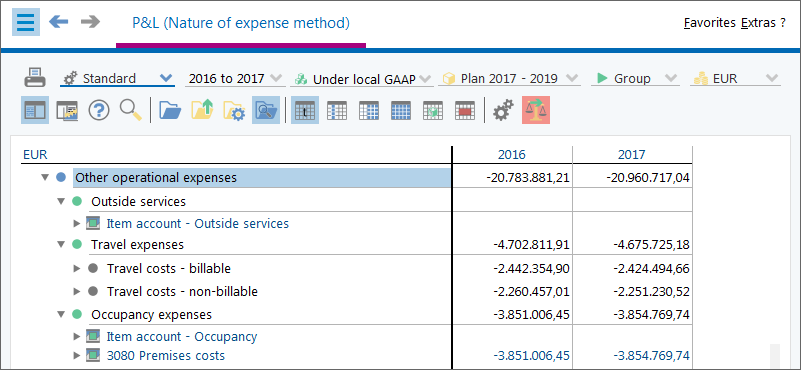 Item with multiple levels
The items and values of the second level are displayed in the report:
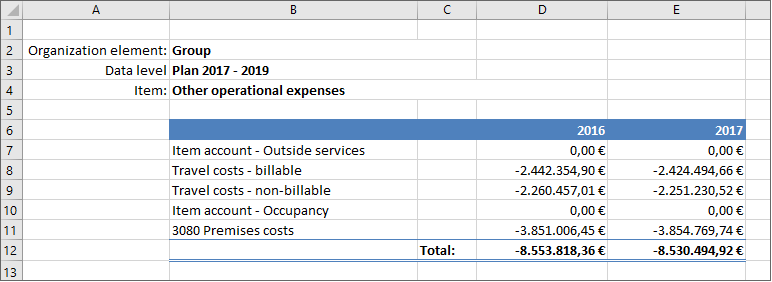 Result for parameter 'Level'
The No zero values parameter is optional and specifies that rows and columns that contain no values in Lucanet are not to be displayed in MS Excel.
Tilde Formula Structure for 'No zero values'
The tilde formula must be structured as follows:
~Fill rows/Fill columns:Keyword=Item/Account/Organization element/Partner/Data level/Adjustment level/Transaction type;No zero values
The Name/OID parameter is optional and specifies whether the queried elements are to be imported into MS Excel with their name or URL.
Tilde Formula Structure for 'Name/OID'
The tilde formula must be structured as follows:
~Fill rows/Fill columns:name/OID;Keyword=Item/Organization element/Partner/Data level/Adjustment level/Transaction type
Keywords
The keyword defines whether the elements to be read in are to be imported into MS Excel with the name or OID. The following keywords are allowed:
- Name
The names of the elements are imported into MS Excel. - OID
The URL of the elements is imported into MS Excel.
Example
In ~Fill rows it is specified that the OIDs of the elements below the item with the URI ln:goto/LNFC/demo_group?oid=12907 are to be read into MS Excel:

- If the Name/OID parameter is not used, the names of the queried elements are created in MS Excel.
- If the OID parameter is used, the Attribute function can be used to additionally import the names of the queried elements into MS Excel (see section 'Attribute' Function).