A model in Lucanet xP&A (Extended Planning & Analysis) refers to a structured representation of data and calculations, similar to a tab in a spreadsheet.

You can define a model as your "base" model representing the default scenario. To compare different scenarios, you can create variants of your "base" model in which some variables (or cells of a variable) have different values or formulas.

The structure of the model — the variables, groups, and sections — doesn't change across scenarios.

In Lucanet xP&A, a new model can be created:

  • Manually
  • Generated using AI
  • Using a wizard

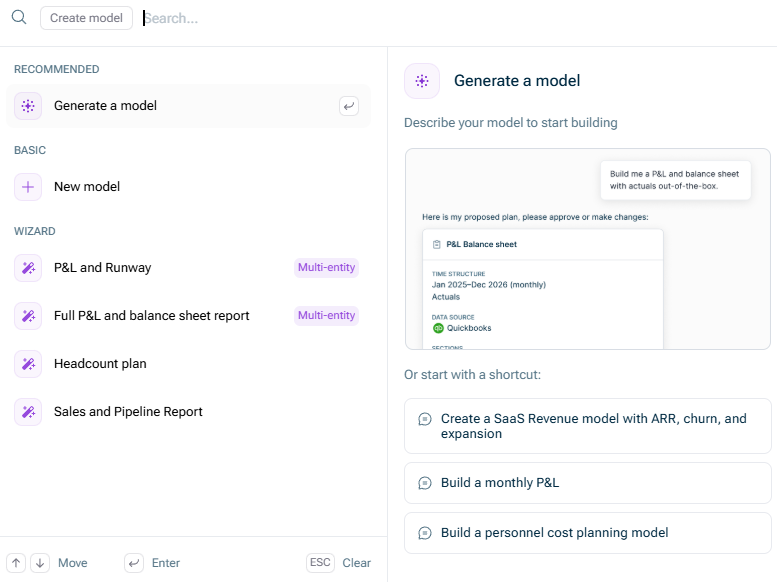
If you want to create a new model in Lucanet xP&A, click New model directly on the start page or in the overview on the start page. The Create Model dialog is displayed as follows:

Shows the 'Create model' dialog in Lucanet xP&A, with the RECOMMENDED, BASIC, and WIZARD options listed on the left ('Generate a model'; 'New model'; 'P&L and Runway', 'Full P&L and balance sheet report', 'Headcount plan', 'Sales and Pipeline Report') and the 'Generate a model' detail panel open on the right.
The 'Create Model' dialog

The following table describes the options for creating a model in Lucanet xP&A:

OptionDescription
RecommendedYou can use the Generate a model option to build a new model with the help of our AI-supported Modeler Agent, based on a plain-language description. Using the agent, you can avoid repetitive structural setup steps at the start of a project and build a best-practice xP&A structure without writing formulas yourself.

For more information on how to use the agent, see the following section Creating a New Model with the Modeler Agent in Lucanet xP&A.
BasicYou can use the New model option to create a new model manually from scratch.
WizardIn the wizard area, specific types of models can be created using a wizard guiding through the setup process and using your data during the setup. The following model types are available:
• P&L and Runway
• Full P&L and balance sheet report
• Headcount plan
• Sales and Pipeline Report
  • If you hover over the model type name, a description of the model type is displayed on the right side of the dialog.
  • Once the model is created, you can start editing it and filling it with your data as described in Modeling your Data.

The Modeler Agent is an AI agent built into Lucanet xP&A that builds a planning model from a plain-language description. Instead of scaffolding sections, variable groups, variables, timesteps, aggregations, and formulas by hand, you describe the model you want and the agent generates it for you using the xP&A formula language.

To use the Modeler Agent in Lucanet xP&A:

1

On the xP&A start page, click New model.

2

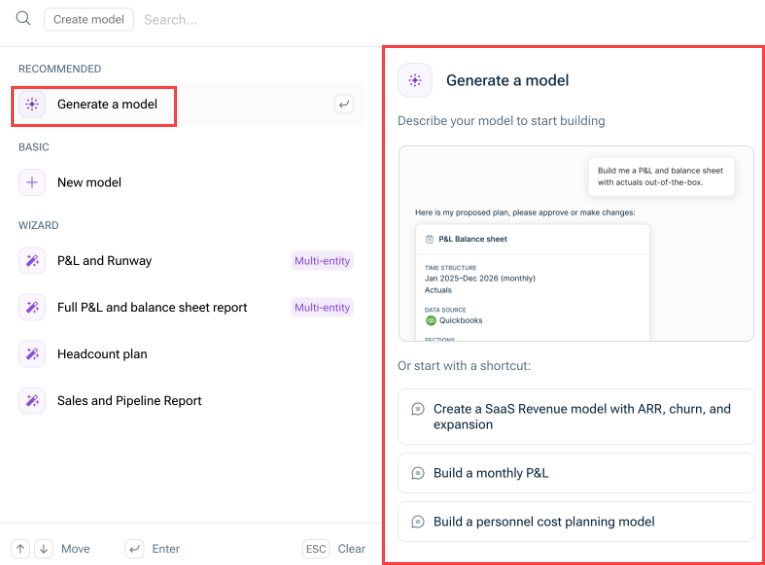
In the Create model dialog, select the option Generate a model. The prompt section of the Modeler Agent is displayed on the right side of the dialog as follows:

Shows the 'Create model' dialog in Lucanet xP&A. Highlighted in red are the 'Generate a model' option in the RECOMMENDED section on the left and the Modeler Agent panel on the right, which reads 'Generate a model — Describe your model to start building' with example shortcuts including 'Create a SaaS Revenue model with ARR, churn, and expansion.'
Generating a new model with the Modeler Agent
3

In the prompt section, describe the model you want to build, e.g. "Create a SaaS revenue model with ARR, churn, and expansion"

4

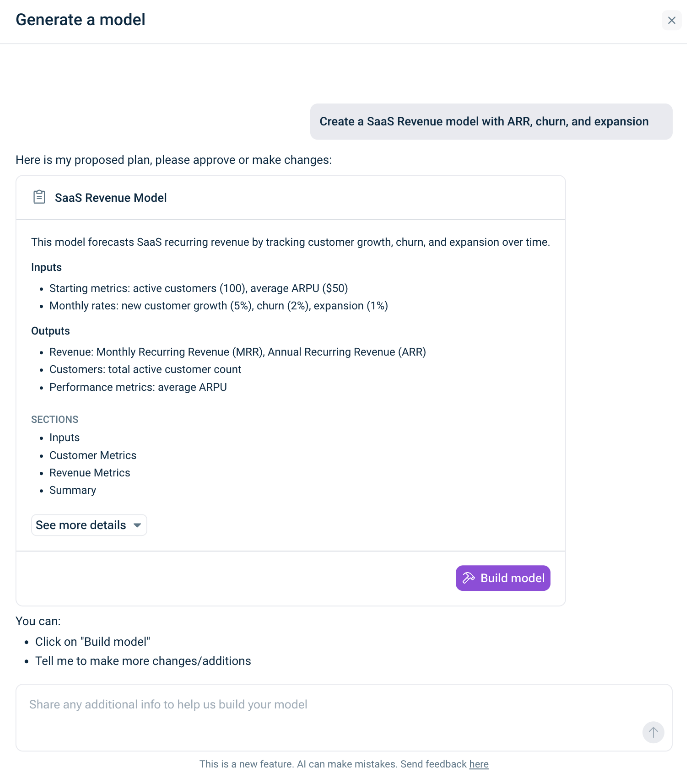
The Modeler Agent generates a plan for building the model as follows, for example:

Shows the Modeler Agent's proposed plan in Lucanet xP&A for the prompt "Create a SaaS Revenue model with ARR, churn, and expansion." The plan card is titled 'SaaS Revenue Model' and lists Inputs (starting metrics: active customers (100), average ARPU ($50); monthly rates: new customer growth (5%), churn (2%), expansion (1%)), Outputs (MRR, ARR, total active customer count, average ARPU), and Sections (Inputs, Customer Metrics, Revenue Metrics, Summary), with a 'Build model' button below.
Example for a proposal of the Modeler Agent
5

Review the proposed plan, and, if needed, you can ask the agent questions about the plan or ask to modify the suggestion.

6

Once the plan meets your expectation, click Build model.

The model is created based on the suggested plan and you can edit every section, cell, formula, or variable as in any other model.

Current restrictions

At the moment, the following restrictions apply for the Modeler Agent:

  • Reports from Consolidation & Financial Planning cannot be included
  • Data source cannot be added

The following video shows you how to use the Modeler Agent:

Video — https://player.vimeo.com/video/1213830783?muted=false&autoplay=false&loop=false&playsinline=true&controls=true&portrait=false&byline=false&title=false

This content was generated using AI and reviewed by Lucanet subject matter experts before publication.