
Click the + button in the Attachments area.
Task Center
Last updated on 2026-04-10
Overview
The Task Center provides a unified interface for managing tasks across the Lucanet CFO Solution Platform and is accessible directly from the main menu.
Each task is assigned a unique task identifier (for example, T1234) for easy reference and tracking.
This article contains the following sections:
Navigation
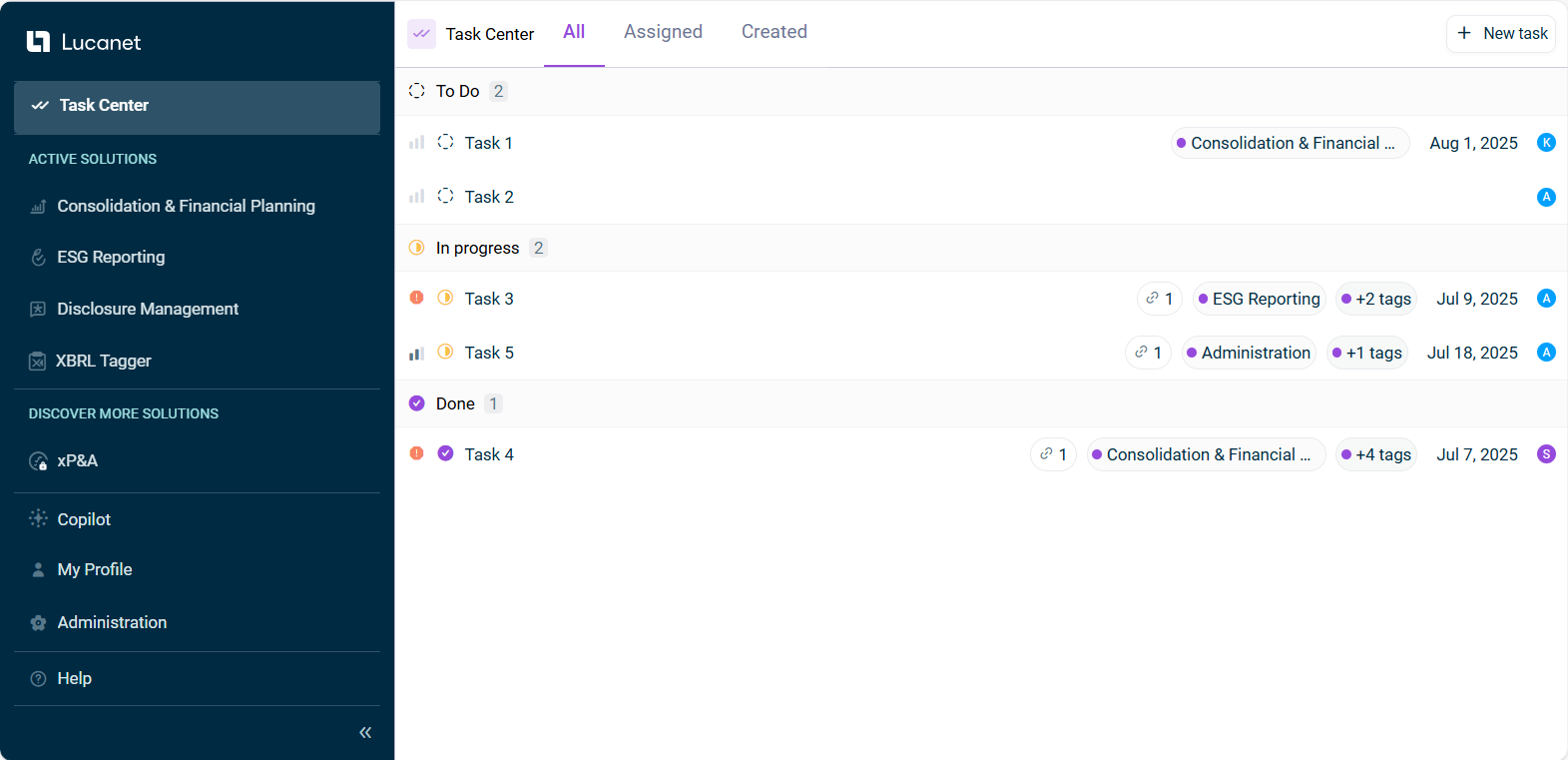
The Task Center can be found in the main menu of the Lucanet CFO Solution Platform and is displayed as follows, for example:
Viewing Tasks
In the Task Center, tasks are organized into two workspaces:
Workspace
Description
Active tasks
Displays all tasks with status To do or In progress.
Closed tasks
Displays all tasks with status Done or Canceled.
For each task, the following information is displayed:

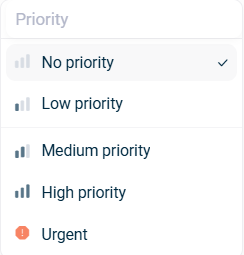
- Priority: Labelled with the respective priority icon (see Creating a Task for details)
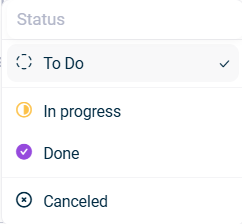
- Status: Labelled with the respective status icon (see Creating a Task for details)
- Title: The title of the task
- Link: Displayed if a link is attached to the task
- Tags: Displayed if tags have been added to the task
- Due date: The due date for the task
- Assignee: Displayed as an icon. When you hover over the icon, the user’s name is displayed.
Filtering Tasks
You can filter the task list using the Filters button:
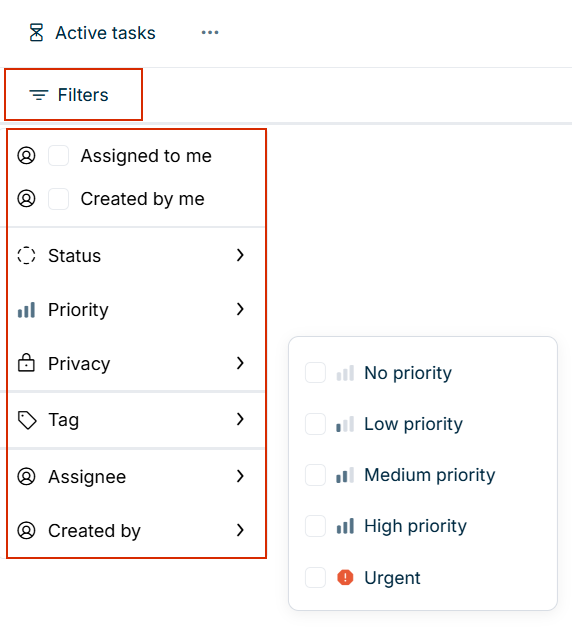
The following filter options are available:
- Assigned to me: Displays only tasks that are assigned to you
- Created by me: Displays only tasks that you have created
- Status: Filter by task status
- Priority: Filter by priority level
- Privacy: Filter by public or private tasks
- Tag: Filter by specific tags
- Assignee: Filter by assigned user
- Created by: Filter by the user who created the task
Creating a Task
To create a task, click the + New task button. The dialog for creating a new task is displayed as follows:
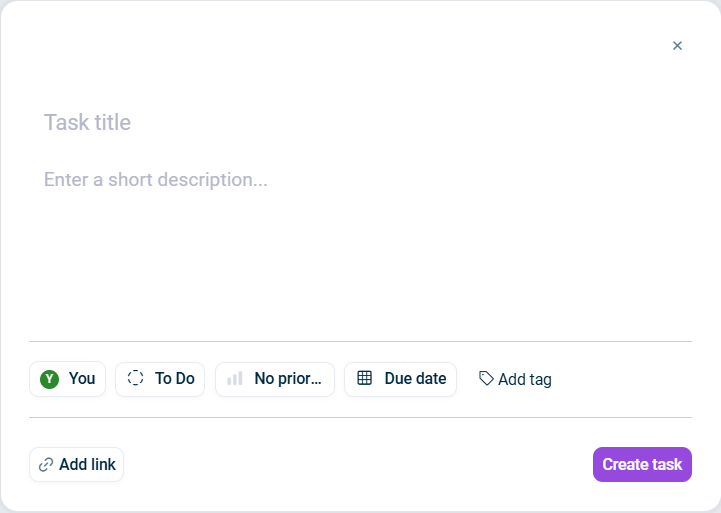
The following options are available:
Option
Description
Task title
Name or brief description of the task (required, maximum 40 characters)
Description
Additional details or context for the task
Assignee
Responsible user for the task. The default assignee is the task creator.
Due date
The due date for the task, which can be selected from a calendar window
Add tag
Tags for categorizing the task. Currently, licensed solutions are available for selection as tags, and multiple tags can be selected.
Private
Toggle to set the task as private or public (default: public)
- Public tasks are visible and editable by all users.
- Private tasks are visible and editable only by the task creator, the assigned user, and platform administrators.
You can also add file attachments and links when creating a task by switching to the File attachments or Links tab. For details on adding and managing attachments and links, see Attachments.
Click Create task to save the task. The task will be displayed on the dashboard, and the assignee will receive an e-mail notification.
Managing a Task
To manage a task, click the desired task on the dashboard. The task details page will be displayed as follows, for example:
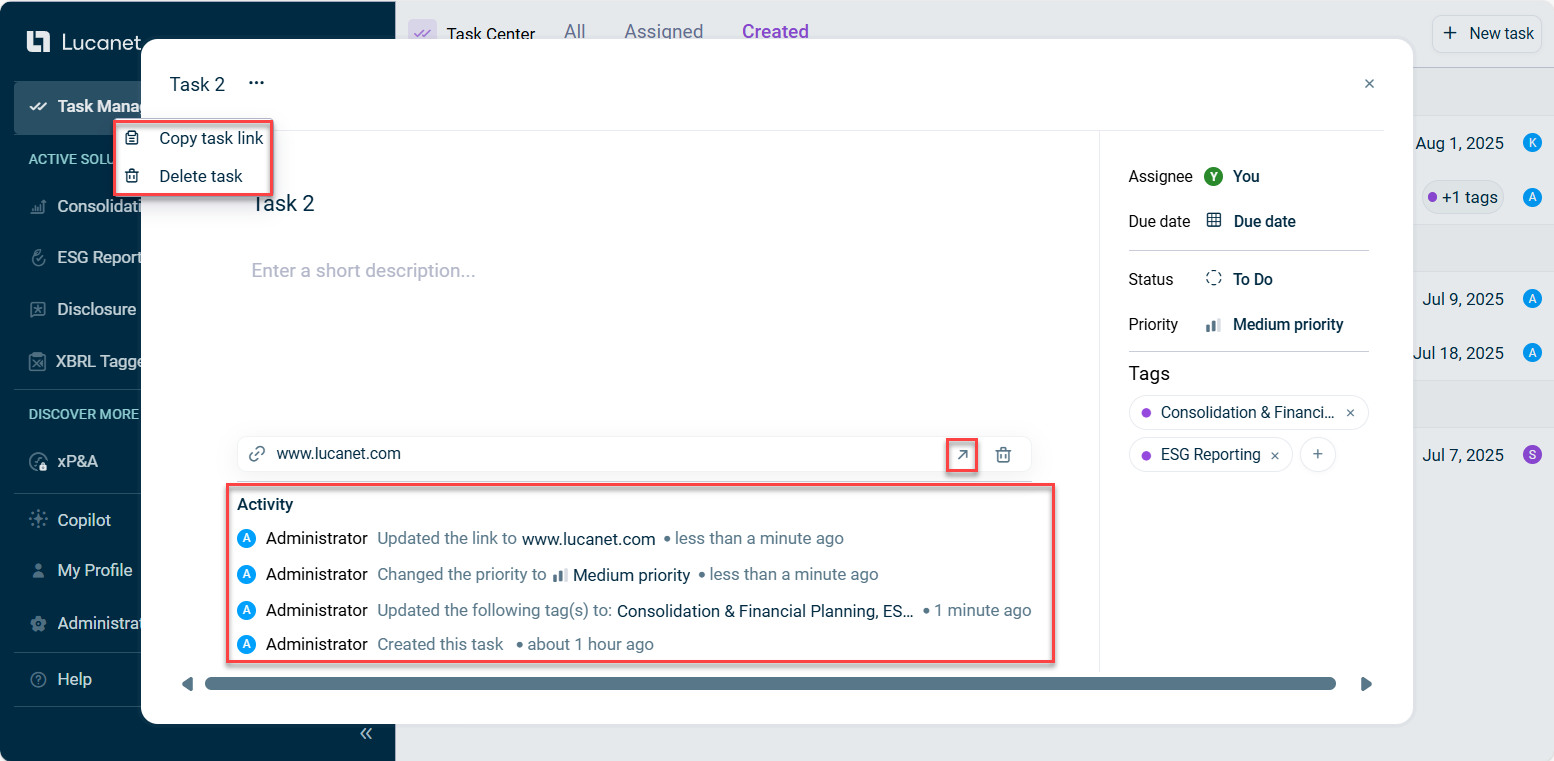
The following options are available on the task details page:
Option
Description
Edit task
Click the relevant area within the task details to edit the task. Editing works in the same way as when creating a task.
When a task is edited, the reporter and assignee may be notified based on who made the change and their individual notification preferences configured in the Notifications section (see Configuring Notification Preferences).
View task activity
The Activity section provides a complete history of the task, including all actions performed, changes made, related users, timestamps, and other relevant task events.
Copy task link
Use the Copy task link option in the context menu of the  icon next to the task identifier to copy the task link to your clipboard.
Delete task
Use the Delete task option in the context menu of the icon next to the task identifier to delete the task.
Only the task creator and platform administrators can delete tasks.
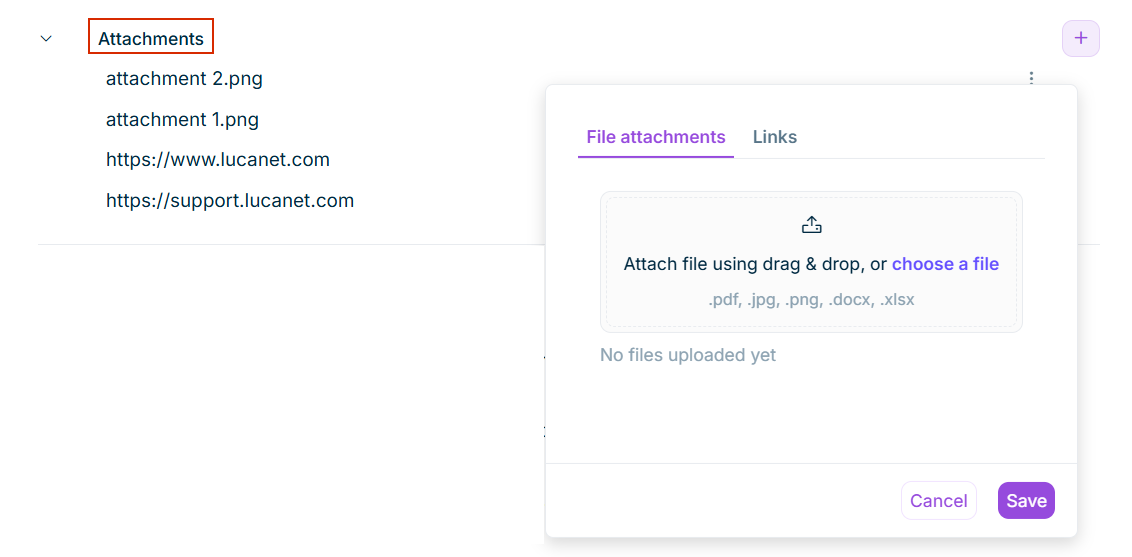
Attachments
File Attachments
You can attach files to tasks to provide additional context or documentation. Files can be added when creating a new task (via the File attachments tab) or added later on the task details page.
You can upload up to 10 files per upload session. Supported file formats: .pdf, .jpg, .png, .docx, .xlsx.
To add file attachments to an existing task:
Select the File attachments tab.
Drag and drop files into the designated area, or click choose a file to select files from your device.
Click Save.
Click the icon next to the file and select Download or Remove to download or remove file attachments.
Links
You can add multiple URL links to tasks to reference external resources or related content. Links can be added when creating a new task (via the Links tab) or added later on the task details page.
To add links to an existing task:
Click the + button in the Attachments area.
Select the Links tab.
Enter the URL.
Click Add link or press Enter to save the link. If necessary, add more links.
Click Save to save the link(s).
To manage links:
Click the icon next to a link and select one of the following options:
- Open: Opens the link in a new browser tab
- Edit: Allows you to modify the URL
- Remove: Deletes the link from the task