
Functions in the Tree View
Last updated on 2026-04-22
Overview
This article gives an overview of the general functions that are available in Consolidation & Financial Planning to change the tree view.
This article contains the following sections:
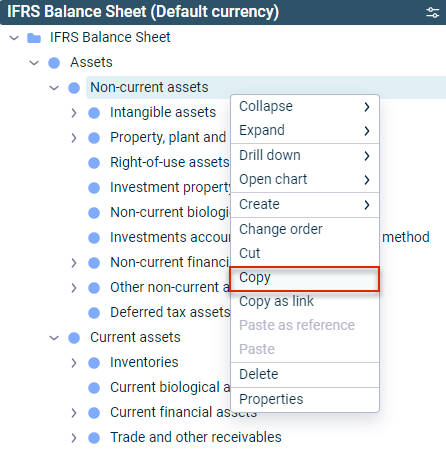
Creating, Copying, Cutting, Pasting, and Deleting Elements
The functions used to create, copy, cut, paste, and delete elements are available in the tree view for certain elements.
For this purpose, navigate to the desired element in the respective tree view, open the context menu and choose the desired function.
(In the tree view of a view, click the three dots icon  and choose the desired function.)
Changing the Order of Elements
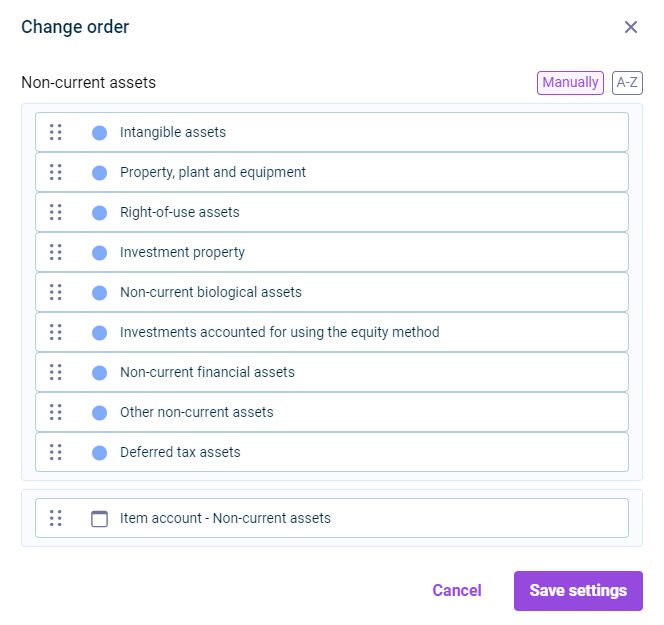
In Consolidation & Financial Planning, you can change the order of elements in the tree view using the context menu command Change order. You can sort elements alphabetically in the Change order dialog, or use drag-and-drop to sort them manually.
Copying the OID
The Copy OID context menu command can be used to copy the OID of an element to the clipboard and then paste it, for example, in MS Word or MS Excel documents.
Viewing Element Properties
You can use the Properties context menu command to display the respective element properties and edit them, for example accounts and items can be configured (see Elements in Ledgers and Schedules).