
Click Create. You can now configure the newly created validation rule (see the following section).
Creating and Configuring Validation Rules
Last updated on 2026-04-21
Overview
Validation rules help ensure data accuracy and consistency during data collection.
Validation rules can validate relationships:
- Within a single form template (intra-form) – Validate relationships between elements in the same form, such as ensuring that assets = liabilities + equity in a balance sheet
- Between multiple form templates (inter-form) – Validate relationships across different forms, such as ensuring consistency between the balance sheet and P&L statement
Validation rules are applied at the individual reporting entity level during data collection.
This article contains the following sections:
Creating Validation Rules
To create a validation rule:
Navigate to Data Collection | Validation rules.
Click Create validation rule in the top right. The Create Validation Rule dialog is displayed.
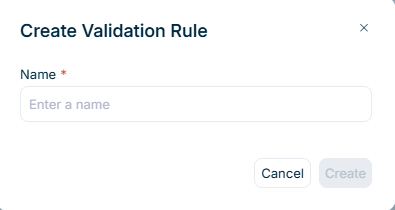 'Create Validation Rule' dialog
Enter a unique Name for your validation rule.
Configuring Validation Rules
After creating a validation rule as described in the previous section, the validation rule detail view opens. You can now configure the validation rule options described below.
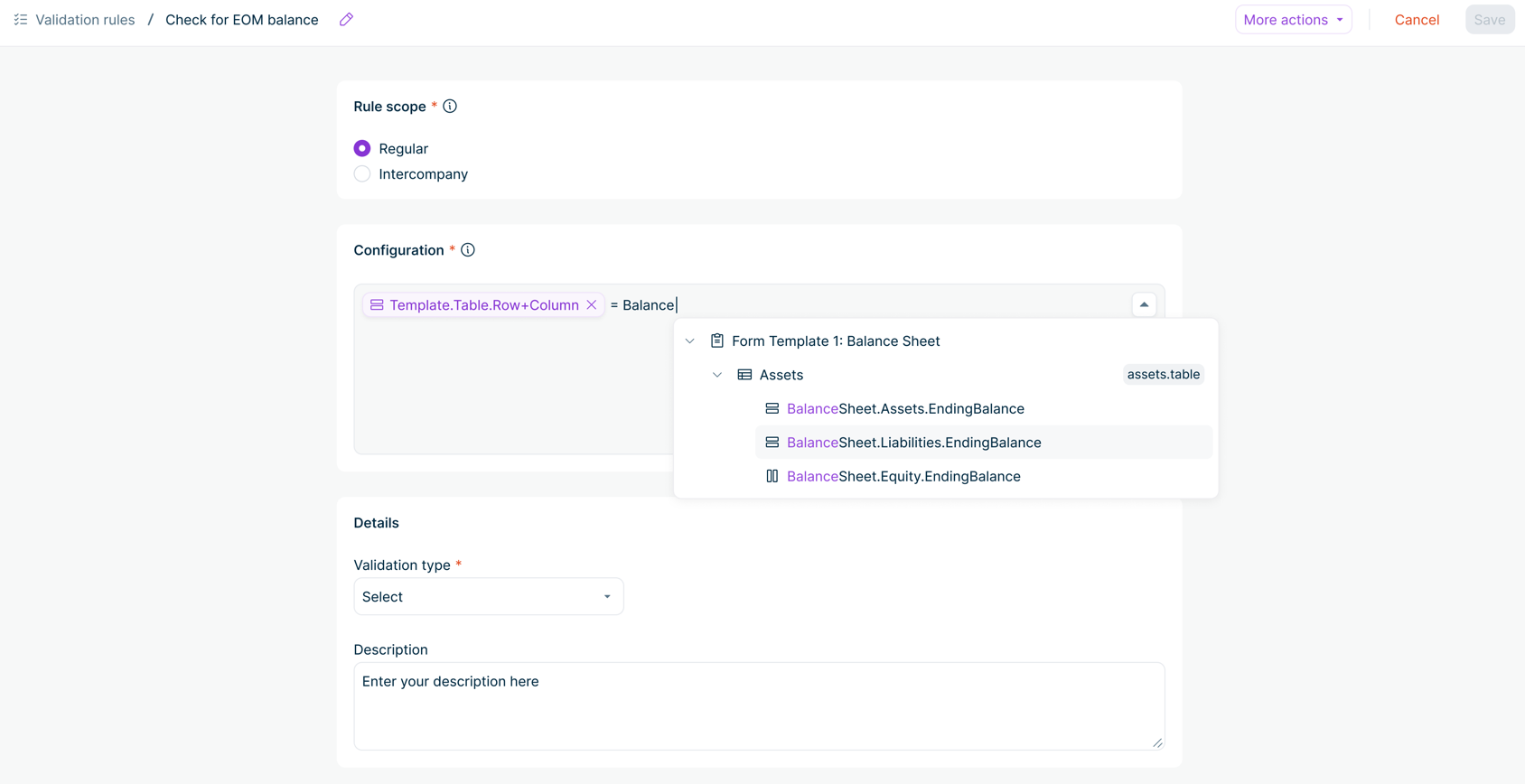 Detail view of a regular validation rule
Option
Description
Configuration
Text area for building the validation rule by combining elements and operators. The system provides autocomplete with available elements grouped by form template. Elements are referenced using their business names (e.g., BalanceSheet.Assets.EndingBalance).
Supported operators include:
- Comparison operators (=, !=, >, <, >=, <=)
- Arithmetic operators (+, -, *, /)
Validation type
Defines the behavior when the validation fails. The following options are available:
- Blocking: Data collectors cannot submit their data if the validation fails.
- Warning: Shows a warning but allows data collectors to continue and submit their data.
Description
Optional text field to explain the purpose of the validation rule. Helps other administrators understand the business logic behind the rule.
Once you have finished configuring the validation rule, it must be published before it can be applied to data collection processes. For more information, see Publishing a Validation Rule.
Managing Validation Rules
The validation rules list displays all configured rules with the following information:
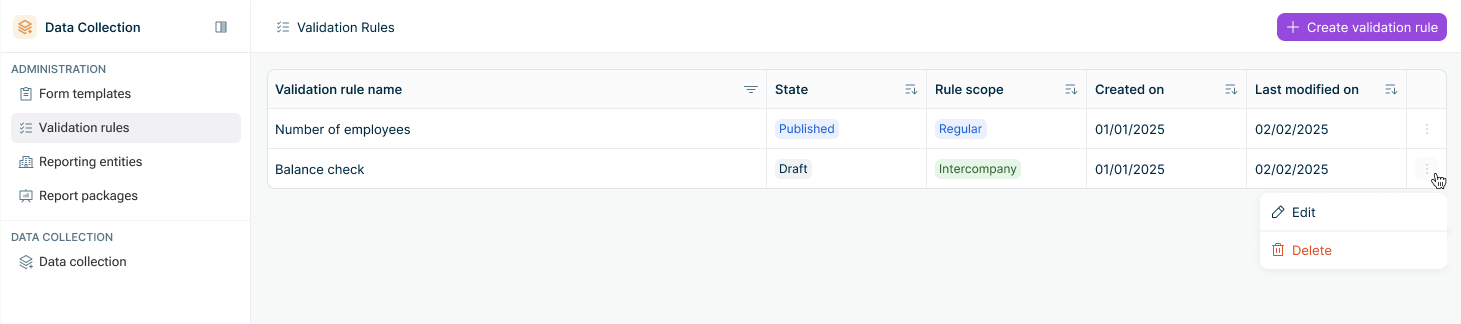 Validation rules list
Column
Description
Validation rule name
Name of the validation rule
State
Current state of the validation rule:
- Draft
- Published
Rule scope
Scope of the rule:
- Regular
Created on
Creation date
Last modified on
Date of the most recent modification
Editing a Validation Rule
To edit an existing validation rule, click the three-dot menu at the end of the row and select Edit.
Publishing a Validation Rule
When first created, a validation rule is automatically in Draft state. While in this state, it can undergo any number of modifications. Once its configuration is finalized, the validation rule must be Published before it can be applied to ongoing or future data collection processes.
To publish a validation rule, click Publish in the top right of the validation rule detail view.
A published validation rule can only be edited if it is not actively being executed against ongoing data collection processes. Editing a published validation rule automatically brings it back to Draft state.
Deleting a Validation Rule
To delete a validation rule, click the three-dot menu at the end of the row and select Delete. In the confirmation dialog, click Yes, delete.
Validation rules that apply to forms linked to ongoing data collection processes cannot be deleted.