
Importing Data from Consolidation & Financial Planning
Last updated on 2026-04-22
Overview
You can import aggregated financial data from the Consolidation & Financial Planning (CFP) directly into Data Collection forms. Unlike data import from MS Excel, a data import from CFP requires no manual mapping — the system matches data to form rows and columns automatically using OIDs. An Administrator configures the Period Value Type for each column in the form template, and Collectors execute the import with a single click.
This article contains the following sections:
Prerequisites
Before executing a data import from CFP:
- The form must have status In Progress.
- You must be assigned as a Collector for the reporting entity, or you must be an Administrator.
- The form must contain at least one CFP-based pivot table with at least one editable Currency column.
- An Administrator must have configured the Period Value Type for each Currency column in the form template.
Tables with Local Account drill down enabled are excluded from CFP import. If the form contains CFP-based tables but none are available for import, the Consolidation & Financial Planning option is disabled.
Executing the Data Import from CFP
The system fetches data from CFP, matches it to form rows and columns via OID, and populates the cells automatically.
To run a CFP import:
Navigate to Data Collection | Data collection.
Open the form you want to import data into.
Click More actions | Import Data in the top right. The Import Data dialog is displayed:
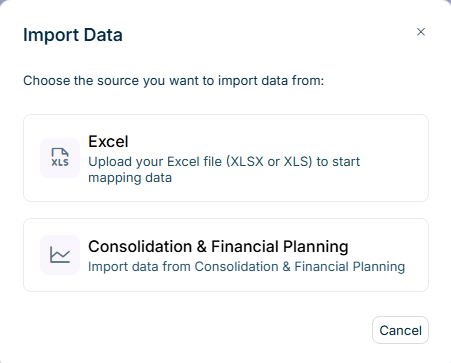 'Import Data' dialog
Select Consolidation & Financial Planning.
If the form already contains collected data, a Confirm Import dialog appears. Click Confirm to overwrite existing values, or Cancel to cancel the import.
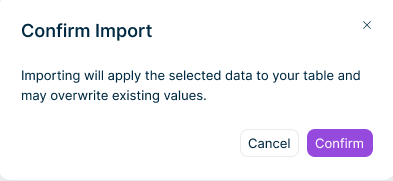 'Confirm Import' dialog
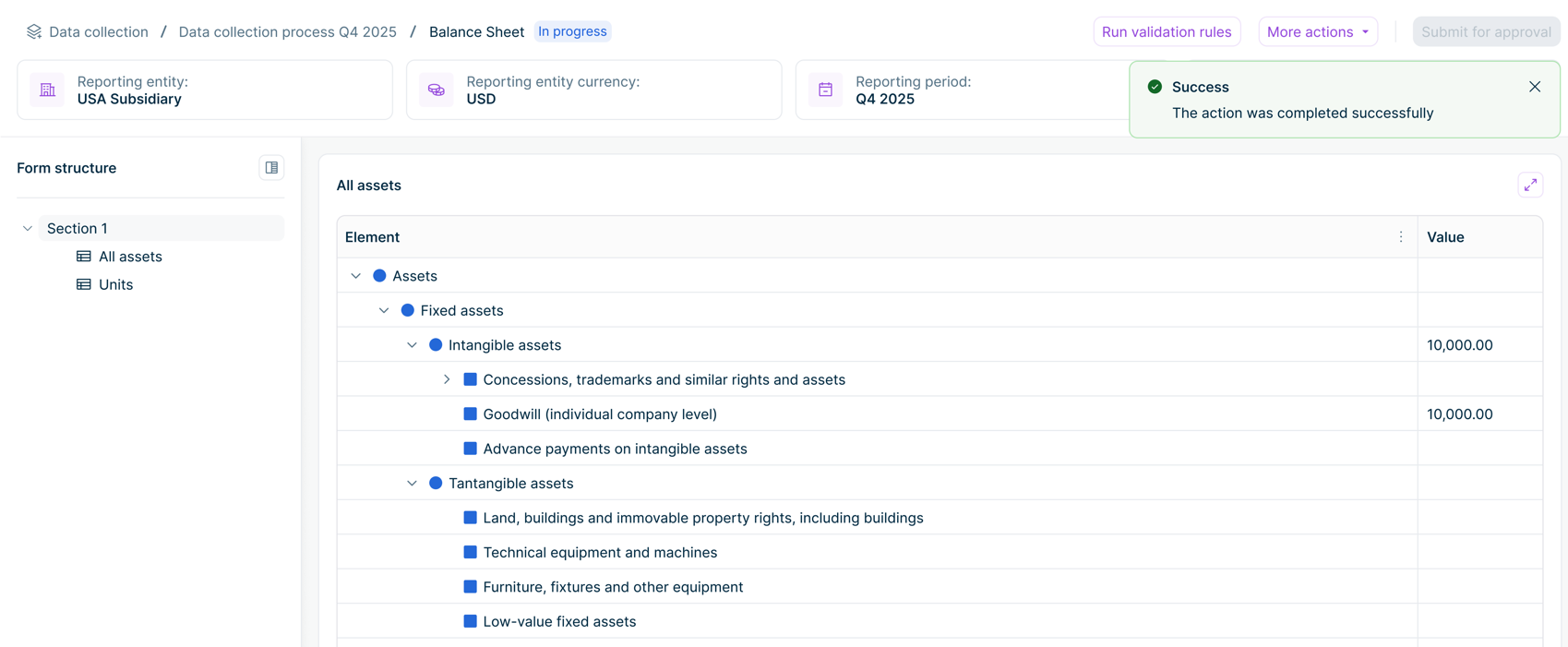 Successful import
Additional notes:
- Manual editing and additional imports are disabled for all users while the import is in progress.
- After a successful import, the form is displayed in editing mode. The form now includes the imported data as well. Superordinate rows and total columns are recalculated automatically.
- Imported values cannot be automatically undone. To restore previous data or correct imported values, edit the affected cells manually after the import.
Additional Information
During the data import, the system processes all applicable CFP-based tables in the form in a single operation, using the following principles:
- Row matching — CFP data is matched to form rows automatically via OID. Only lowest-level values are imported; superordinate and total rows are recalculated.
- Column matching — Each column receives CFP data based on its configured Period Value Type. Columns with Period Value Type set to N/A are skipped. Total columns are recalculated automatically.
- Data filtering — The system filters CFP data by the form's reporting entity, period, period type, and currency. Only data with the data level Actual and the adjustment level Import Data is imported.
- Precision — Imported values are rounded to match the decimal places configured for the target column.