
Importing Periods
Last updated on 2025-07-16
Overview
Importing periods offers the possibility to import master data and transaction data from another Income Taxes period, either in part or completely.
This article contains the following sections:
Prerequisites
To import a period, you need authorization for Master Data: Period Import – Execute. You will then find the workspace under Master Data | Periods | Period Import.
Importing Periods
To import a period:
- In the Period Import workspace, select the .gpt file to be read and, if necessary, enter the password for the file.
- Click Read file to import the export file and analyze the data.
- Then configure the period import in the Import parameters area (see subheading Configuring Period Import).
- Click Start import.
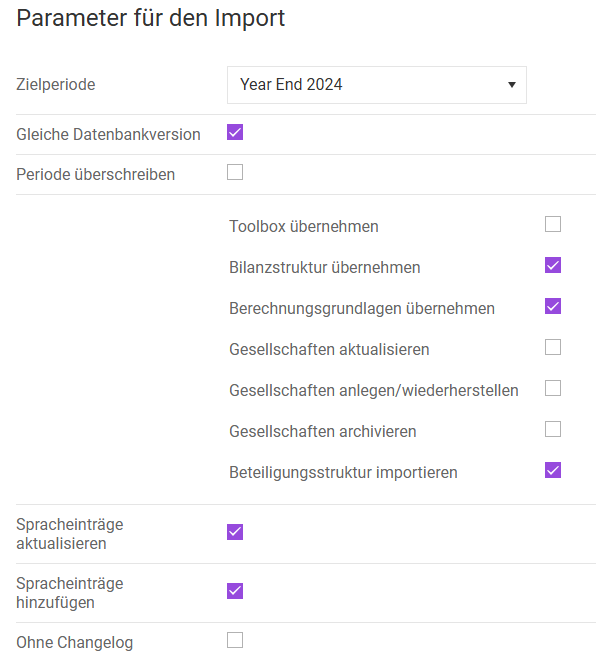
Configuring Period Import
Configure the period import as follows:
Option
Description
Target period
Period into which data is to be imported
Same database version
- Activate if the database version in the export file matches the database version in the import system.
- Deactivate to perform the import if the versions of Income Taxes differ. Under certain circumstances, if the Income Taxes versions differ significantly from each other, this may result in error messages during the import.
Overwrite period
- Activate if a complete period is available in the export file and the target period should be completely overwritten. The following then applies:
- All subsequent check boxes (apart from the language entries and the change log) can no longer be activated afterwards.
- All positions in the export file will be transferred into the B/S comparison. All other positions will be deleted.
- If the export file was generated with master data and transaction data, all values of the B/S comparison will also be transferred over. Otherwise, all values will be set to 0.00.
- Deactivate to enable all subsequent check boxes. Additionally, all active countries and reporting dimensions will be loaded from the import file and processed as follows:
- If the data already exists as active data in the target system, it will not be overwritten by the import. The target system has priority in this respect.
- If the respective data is not available in the target system, the countries/reporting dimensions will be created anew.
- Once the respective data is archived in the target system, it is activated and updated.
The newly created or reactivated data is listed in the log file.
Take over toolbox
- Activate if Toolbox has been configured in the target system and the data is to be copied to the target period.
- Deactivate if the data should not be copied to the target period.
Take over balance sheet structure
- Activate to delete the balance sheet structure present in the target system and completely overwrite it with the import. This concerns the master data of the balance sheet as well as the values in the B/S comparison.
- Deactivate to overwrite only the values in the B/S comparison. The master data will not be adjusted. Balance sheet positions for which an import is performed will be reset to 0.00 in the target system before the import (row-by-row import).
- This check box can only be activated if no position mapping was used when the period data was exported. If position mapping was used, this check box is deactivated.
- In the final step of the import, all B/S comparisons for which values have been imported are calculated and saved to ensure a consistent state of the balance sheet data.
Take over calculation basis
- This check box is activated by default. The fields Calculation base and Active patches are taken from the export file.
- Deactivate the check box if necessary to prevent the fields Calculation base and Active patches from being transferred over from the export.
Update units
- Activate to load all active companies from the export. If these companies are also active in the target system, the companies will be updated.
- Deactivate if existing companies in the target system should not be updated. The log file at the end of the import will indicate which companies were not updated.
Create/Restore units
- Activate if all active companies are to be loaded from the export. If these companies are not present in the target system, the units will be created anew. If these companies are archived in the target system, they will be reactivated and updated.
- Deactivate to skip active companies that do not exist or are archived in the target system during the import. The log file at the end of the import will indicate which companies were not created or restored.
Archive Units
- Activate to load any existing archived companies, if available. If these companies are active in the target system, they will be archived there.
Note: Companies that are active in the target system but not present in the export file will also be archived. - Deactivate to avoid loading any existing archived data. The log file at the end of the import provides information about which archived companies from the export file were not considered during the import.
Import shareholding structure
- Activate to import the group and tax group structures contained in the export file. For this purpose, the relationships originating from the companies to be imported are first deleted in the target period. The relationships to be imported are then created anew.
If a connected company does not exist in the target system, this is documented in the log file.
In addition, it is determined whether a cyclic relation would arise. If this is the case, the respective relation will not be imported and this will be documented in the log file. - Deactivate to not import the group and tax group structures included in the export file. The information on the unit superiors from the master data and basis data, as well as on type of tax payer and tax payers of groups, will not be updated even if it exists in the export file.
Update language entries
- Activate to update language entries (database table TDICTIONARY). No entries will be deleted. Existing entries will receive new values according to the import file. No entries will be inserted.
- Deactivate to neither delete, update, nor add entries.
Add language entries
- Activate to add language entries that do not yet exist (database table TDICTIONARY). No entries will be deleted, and existing entries will not be updated.
- Deactivate to neither delete, update, nor add entries.
Without Changelog
- Activate to prevent the import activities from being included in the change log. This can make the import run a bit faster.
- Deactivate to log all master data changes pertaining to the import in the change log.
- This check box is only visible if the change log is activated (flag USE_CHANGELOG=1).
Notes
- Language entries are stored once for all periods. Therefore, during a period Import, no language entries are deleted as a matter of principle in order to avoid any impact on other periods. Users can choose whether entries should be inserted or updated (for all periods) during a period import.
- Under certain circumstances, the import may take a longer time.
- During the import, there is the possibility to cancel it. If an import is canceled, it cannot be guaranteed that the target period is in a valid state, so the target period will remain technically locked. It is then no longer possible to edit the period (see the subheading Locking Mechanisms).
- If errors occur during an import that do not allow for further imports, the process will be canceled.
- You can continue working in other periods in Income Taxes during the import process. Logging out is also possible. The import will continue in the background. You can log in again at a later date and, depending on the progress of the import, the current status bar or the result page will be shown.
Additional Actions
After the import, you have the following options:
- Open the log file, e.g. with Excel.
- Access the log entries in the log file PERIODENTRANSFER. You can download this file in the Administration area.
- Conduct a new import by clicking the Start new import button. The current status of the executed import will be reset.
Locking Mechanisms
To ensure that the data reflects a consistent status after the import, an import can only be started if the following is ensured at the time:
- No user is accessing the data of the target period: As soon as a user opens a workspace, a lock entry is created in the system. When a period import is started, the system checks whether a lock entry exists for the period in question.
- No other period export or import is executed in parallel: To ensure the second condition, a lock is set on the period currently in use during the execution of the period transfer. In the context of period imports, this is the target period. On the one hand, this restriction prevents any further period export or import from being carried out. On the other, users cannot make changes in a period locked by the transfer.
After successful completion of the period transfer, the lock note for the period is automatically reset.
If the import is canceled or an error occurs, the lock flag remains activated. In this case, it cannot be ensured that the data at hand is in a consistent state. The lock flag cannot be reset via the Income Taxes interface. Facing this situation, you can do the following:
- You can perform a new import in this period and activate the parameter Overwrite period.
- You can archive the period and perform the import in another period.
- You can get in touch with Lucanet Support to have the period unlocked.