
Import Suite
Last updated on 2026-04-09
Overview
You can configure and start the import of data in the Import Suite workspace. You can choose an interface that has already been configured and adjust the start and end date if required.
Three interfaces are available:
- Interface to Lucanet Consolidation & Financial Planning (CFP)
- REST interface
- Interface to the Tax Balance solution
This article contains the following sections:
Navigation
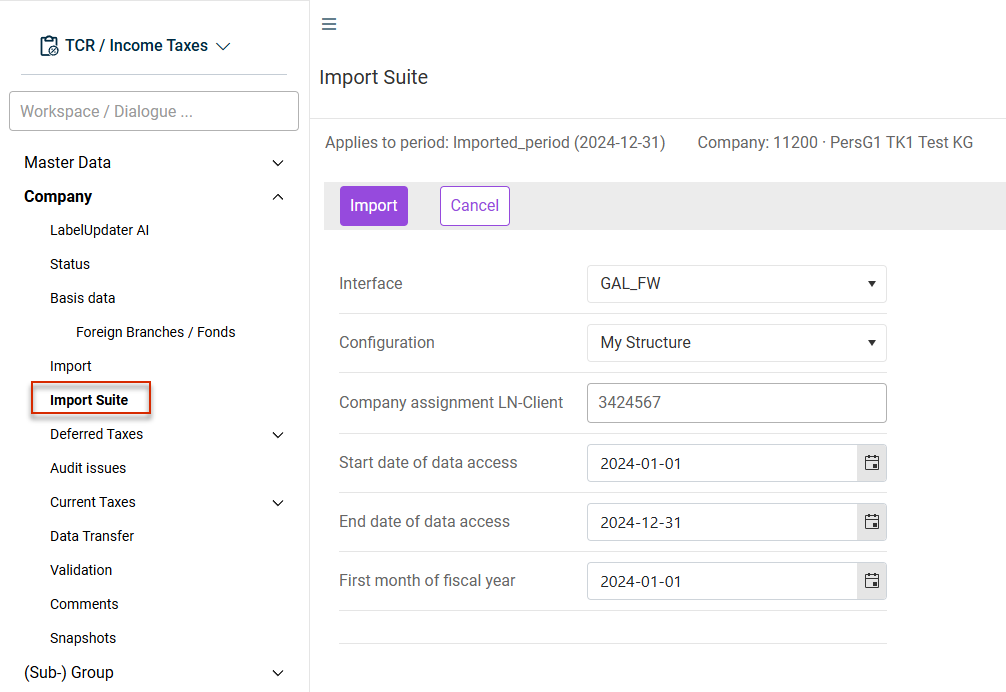
The Import Suite workspace is opened under Company | Import Suite.
The Import Suite workspace is displayed, for example, as follows:
Standard Options
The following two options must be specified for all interface types:
Option
Description
Interface
Select the desired interface. The interfaces in the drop-down list correspond to the interfaces defined in the master data under Structure.
Configuration
Desired configuration of the selected interface. The sources created in the Tax Data Hub of the suitable type are available.
This means that, if you have created a structure for a CFP interface, all sources with the interface to CFP type in the Tax Data Hub are displayed in the Configuration drop-down list.
Additional Options
Lucanet Interface
The Lucanet interface connects Income Taxes with Lucanet CFP (Consolidation & Financial Planning) to allow balance sheet data and P&L values to be imported into Income Taxes.
Before you can use the interface to Lucanet CFP, certain prerequisites must be met:
- You must have certain rights in Lucanet to run the new interface.
- You must set up an interface connection in Tax Data Hub and configure the Lucanet database connection parameters.
- You must configure the interface settings in the master data of Income Taxes (the Master Data | Interfaces | Structure workspace).
- To execute the import interface, Income Taxes must know the correct OID for the corresponding reporting unit in Lucanet CFP. You must add the OID to the master data for companies in the Company assignment LN-Client field.
You can find detailed instructions under Creating and Configuring a Lucanet CFP Interface.
Once you have chosen a Lucanet interface under Interface, you must configure the following additional options:
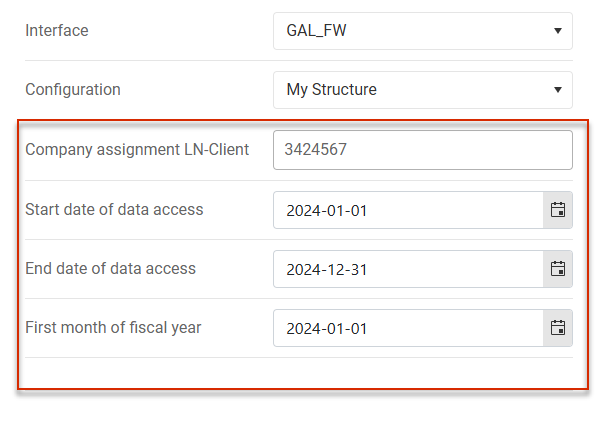
Option
Description
Company assignment LN-Client
OID of the reporting unit. The OID is automatically taken from the master data for Companies.
Start date/End date of data access
The suggested end date corresponds to the last day of the selected period, while the start date is generally January 1 of the relevant calendar year.
First month of fiscal year
Here you can specify a month for the fiscal year that differs from the start date.
Rest (Push)
Once you select REST (Push) under Interface, you must configure the following additional options:
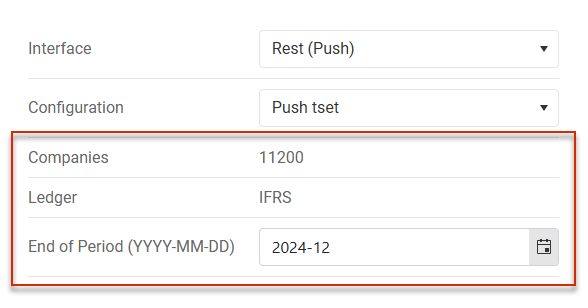
The REST (Push) interface is connected to the REST interface in Tax Data Hub. The REST import interface allows external systems, financial and tax data (balance sheet and P&L values) to be transferred via a REST interface into the Tax Data Hub module. The transferred data serve as the starting point for further processing in downstream modules, such as Income Taxes.
Option
Description
Companies
Displays the companies into which values are imported.
Ledger
The following options are available:
- IFRS: IFRS ledger
- HGB: HGB ledger
- TAX: Tax ledger
Multiple entries must be separated by commas, e.g. IFRS,HGB,TAX.
End of Period (YYYY-MM-DD)
End date of the import period
Tax Balance
Once you select Tax Balance under Interface, you must configure the following additional options:
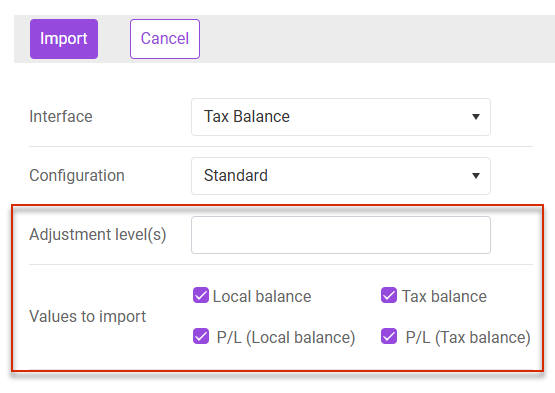
Option
Description
Adjustment level(s)
Specify the adjustment level(s) from which values are to be imported.
Values to import
Activate the check boxes for the balance sheet or P&L from which values are to be imported.
Executing an Import
Once you have configured all options, you can start the import. After a successful import, the Import protocol button is displayed. Click Import protocol to view comprehensive details, including information on items that were not imported.
Saving the Import
After the import process, the uploaded values are listed row by row in the lower table area of the Import Suite workspace.
A successful data import is indicated by a green check mark. An error message is displayed for each affected row if the import was not successful.
The Save and Import protocol buttons are displayed after a successful import process:
- To view comprehensive details, including information on items that were not imported, click Import protocol.
- To transfer the imported values to Income Taxes, click Save.
The import process must be completed by clicking Save. Otherwise, the imported values will not be transferred to Income Taxes.