
B/S Comparison
Last updated on 2025-12-17
Overview
Besides the Loss carried forward workspace, the B/S Comparison workspace is the central workspace for determining deferred taxes.
The B/S Comparison consists of several tabs. The structure of the balance sheet corresponds to the structure stored in the master data for the selected period. The structure of the tabs in the B/S Comparison is identical.
This article contains the following sections:
Navigation
The B/S Comparison folder is displayed under Company | Deferred Taxes | B/S Comparison. The Local GAAP - Tax Balance workspace is displayed as follows, for example:
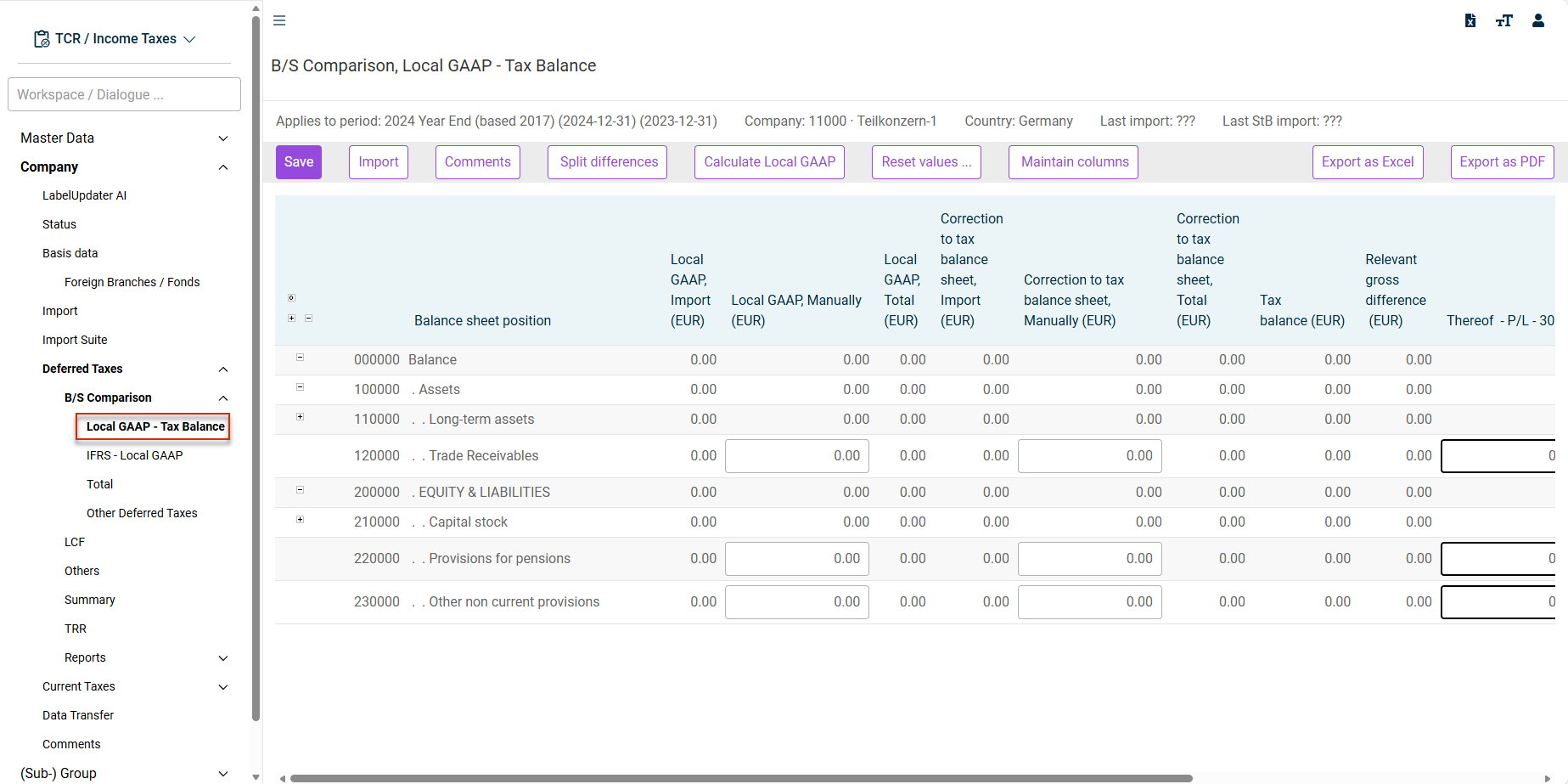
Workspaces in the 'B/S Comparison' Workspace
The following workspaces are available in the B/S Comparison folder:
For companies configured as partnerships in the master data and assigned to the German tax law, the Supplementary tax balance sheet workspace is additionally displayed.
For companies not assigned to German tax law in the master data (foreign companies), the Additional tax workspace can be additionally activated in the Companies master data workspace.
The workspaces are described in detail in the following sections:
The following columns are displayed in the Local GAAP - Tax Balance workspace:
- Local GAAP: representation of the local balance sheet (for German companies: balance sheet in accordance with commercial law).
- Tax balance (EUR): shows the result from the Local balance and Correction to tax balance sheet columns. Tax balance values always result from the two preceding columns and cannot be entered directly.
- Correction to tax balance sheet: contains, in the case of German companies, the deviations in accordance with Section 60 (2) EStDV.
- Import: shows the balance sheet values imported via the interface – these values cannot be edited.
- Manually: column for manual entries by the user. This allows, for example, reclassifications or adjustments to the imported values.
The use of the Manually column must be activated in the master data in the Company workspace for each company.
This setting is activated by default and the balance sheet comparison can be edited manually.
- Total: Calculates the totals of the previous columns, which are relevant for determining the balance sheet differences (Relevant gross difference column).
- Relevant gross difference: The Relevant gross difference column is calculated automatically and shows the differences between the local balance (or local balance sheet) and the tax balance. These differences must be assigned to the corresponding Thereof columns in the next step and serve as the basis for calculating the deferred taxes.
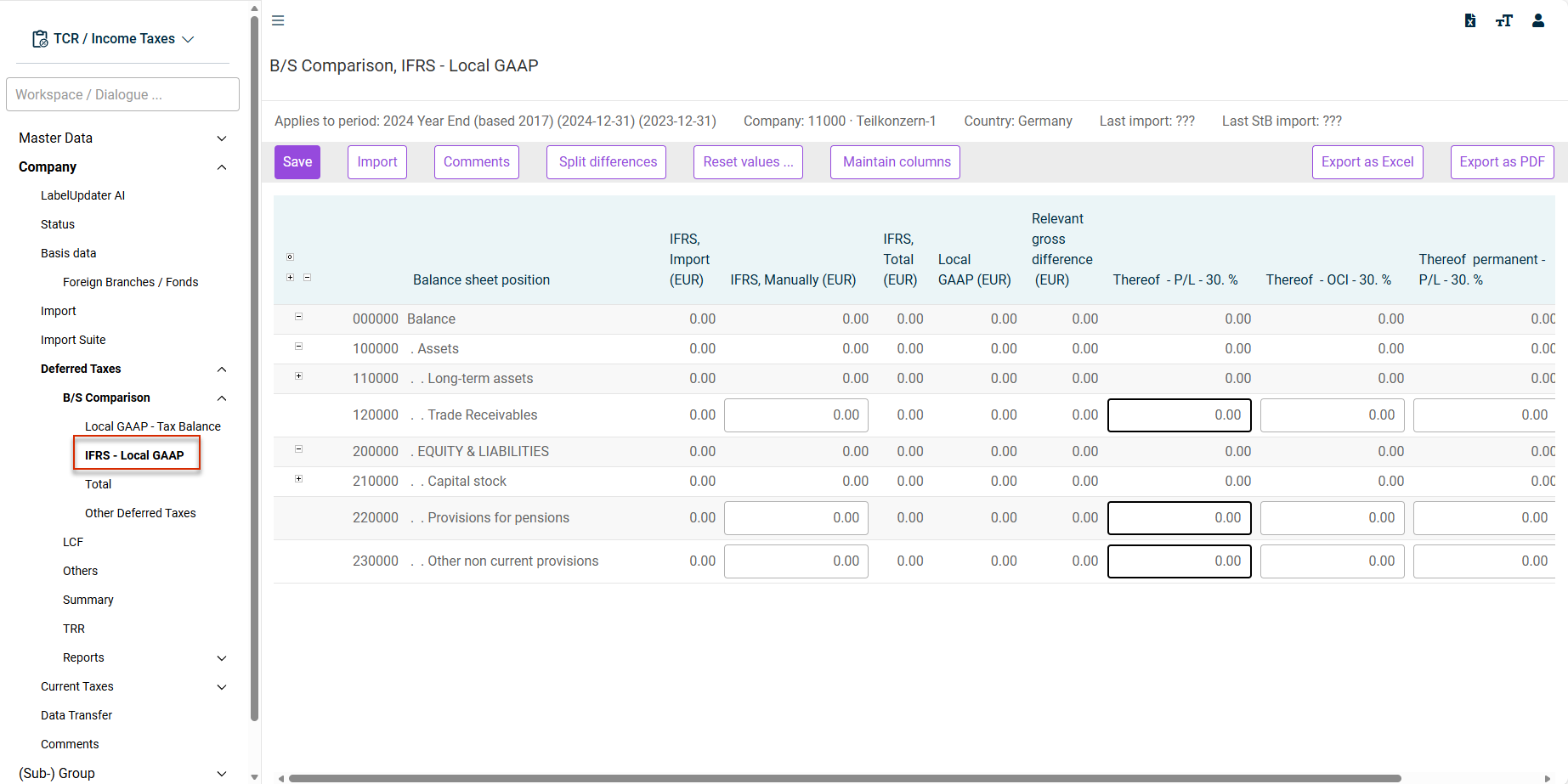
The following columns are displayed in the IFRS - Local GAAP workspace:
- Local GAAP: Taken from the Local GAAP - Tax Balance workspace.
- IFRS: The IFRS balance sheet is represented here.
- Import: Shows the balance sheet values imported via the interface – These values cannot be edited.
- Manually: column for manual entries by the user. This allows, for example, reclassifications or adjustments to the imported values.
The use of the Manually column must be activated in the Company master data dialog for each company.
This setting is activated by default and the balance sheet comparison can be edited manually.
- Total: Calculates the totals of the previous columns, which are relevant for determining the balance sheet differences (Relevant gross difference column).
- Relevant gross difference: The Relevant gross difference column is calculated automatically and shows the differences between the Local GAAP (or local balance sheet) and the tax balance. These differences must be assigned to the corresponding Thereof columns in the next step and serve as the basis for calculating the deferred taxes.
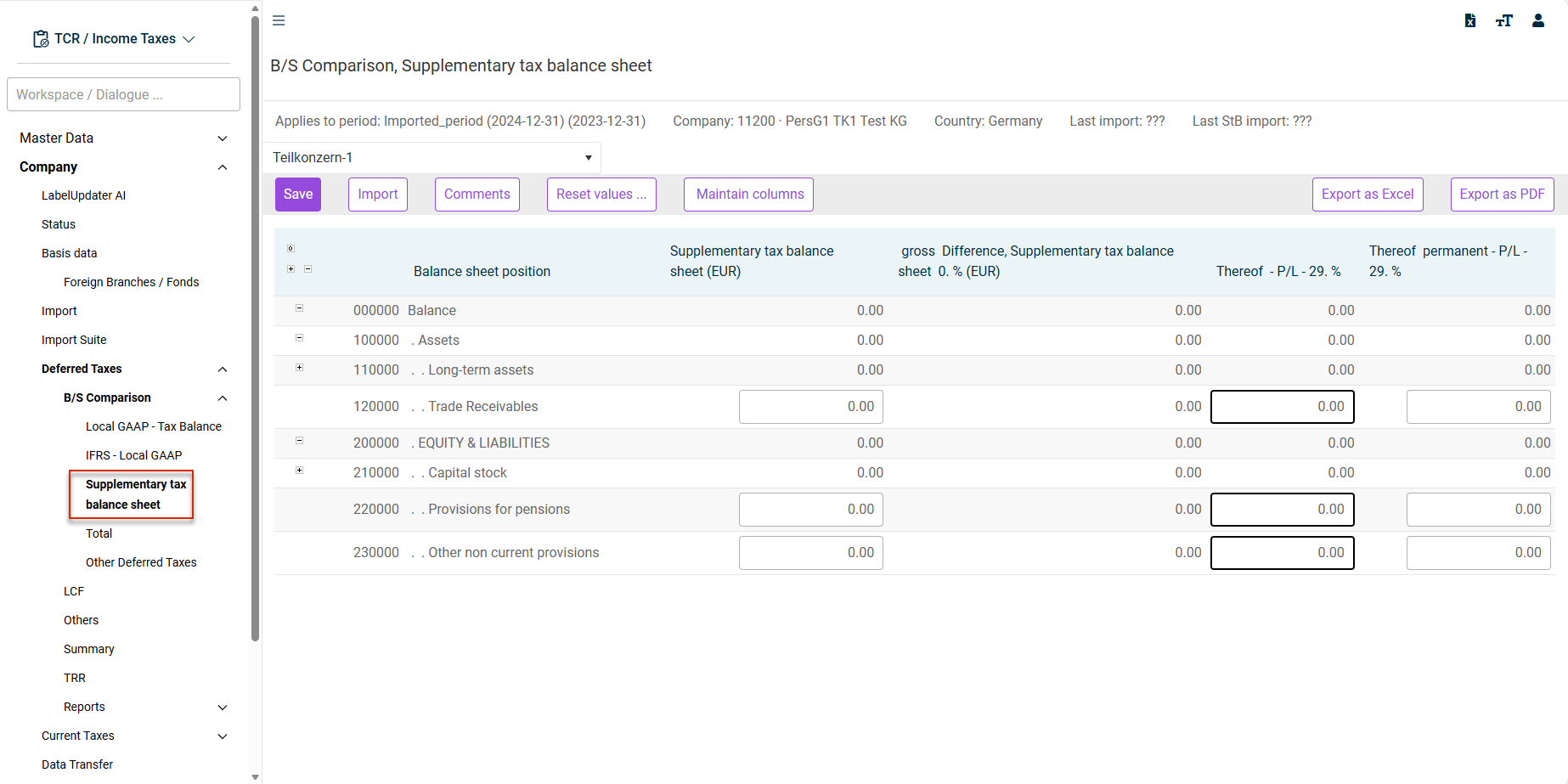
The supplementary tax balance sheet is maintained for each partner or shareholder. The shareholders are managed in the master data under Company and displayed in the selection list.
You can enter the tax balance sheet value corrections in the Supplementary tax balance sheet column. The Gross difference, Supplementary tax balance sheet column is calculated automatically.
These differences must be assigned to the corresponding Thereof columns in the next step and serve as the basis for calculating the deferred taxes.
Only temporary and permanent P/L effects are available for the Thereof columns. An allocation to OCI is not possible.
The Additional Tax workspace is available only for companies to which German tax law does not apply. The display of the workspace also depends on whether the display is activated in the Additional Tax field in the company master data.
The purpose of the Additional Tax workspace is to take into account deviating assessment bases for a second type of income tax.
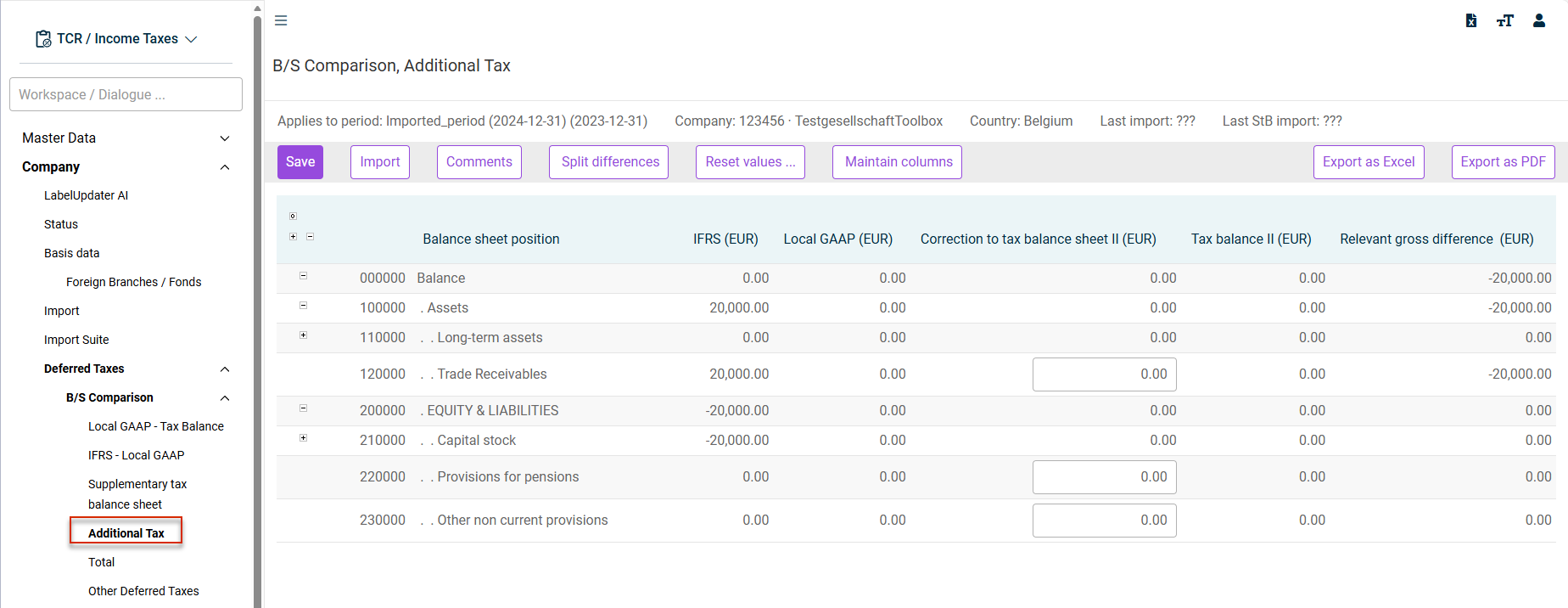 B/S Comparision - 'Additional Tax'
The Correction to tax balance sheet II column can be edited by the user. All other balance sheet columns are linked to the corresponding workspaces (e. g. the IFRS balance sheet to the IFRS - Local GAAP workspace).
Using the workspace also requires that columns are created for the purpose of dividing the differences by means of the Maintain columns function. The balance sheet differences are determined between the Correction to tax balance sheet II and IFRS balance columns.
Using the Additional Tax workspace must be activated in the Company master data workspace for each company.
You can select Additional Tax under Application parameter - Tax calculation. The following options are available here:
- No additional Tax (default)
- Based on Tax base
- Based on Local GAAP
The Total workspace provides an overall view of all assets and liabilities across the IFRS balance sheet, Local GAAP, and tax balance. The balance sheets are taken from the individual workspaces and cannot be edited here. The Relevant gross difference column is based on the comparison between the IFRS balance and the tax balance (tax balance value minus IFRS balance value).
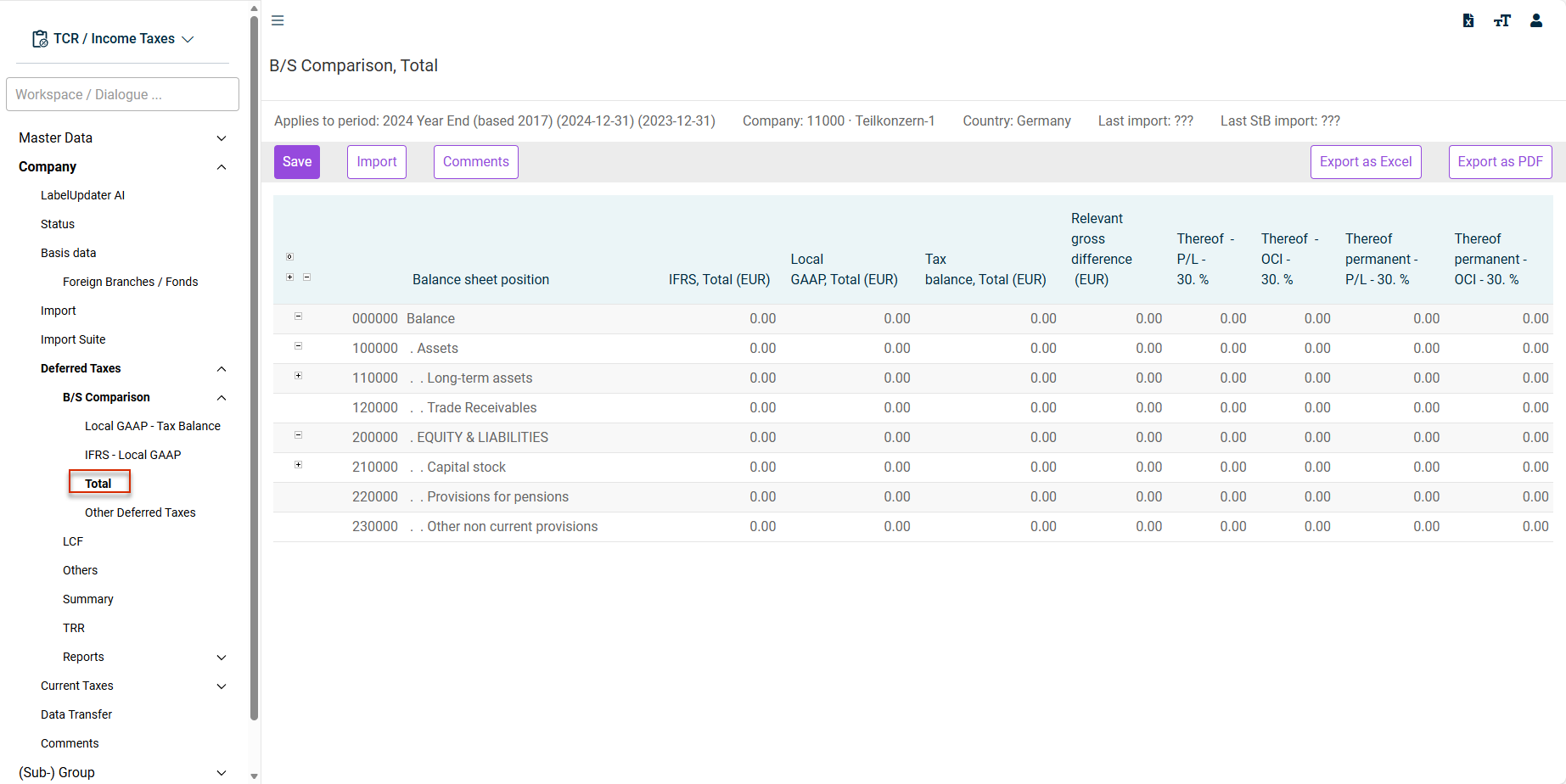
The values in the Total workspace are linked to the following workspaces:
- Local GAAP - Tax Balance
- IFRS - Local GAAP
The following workspaces of the balance sheet comparison are not included in Total. However, they are used for the calculation of deferred taxes and displayed in the Summary workspace:
- Supplementary tax balance sheet
- Additional tax
- Other Deferred Taxes
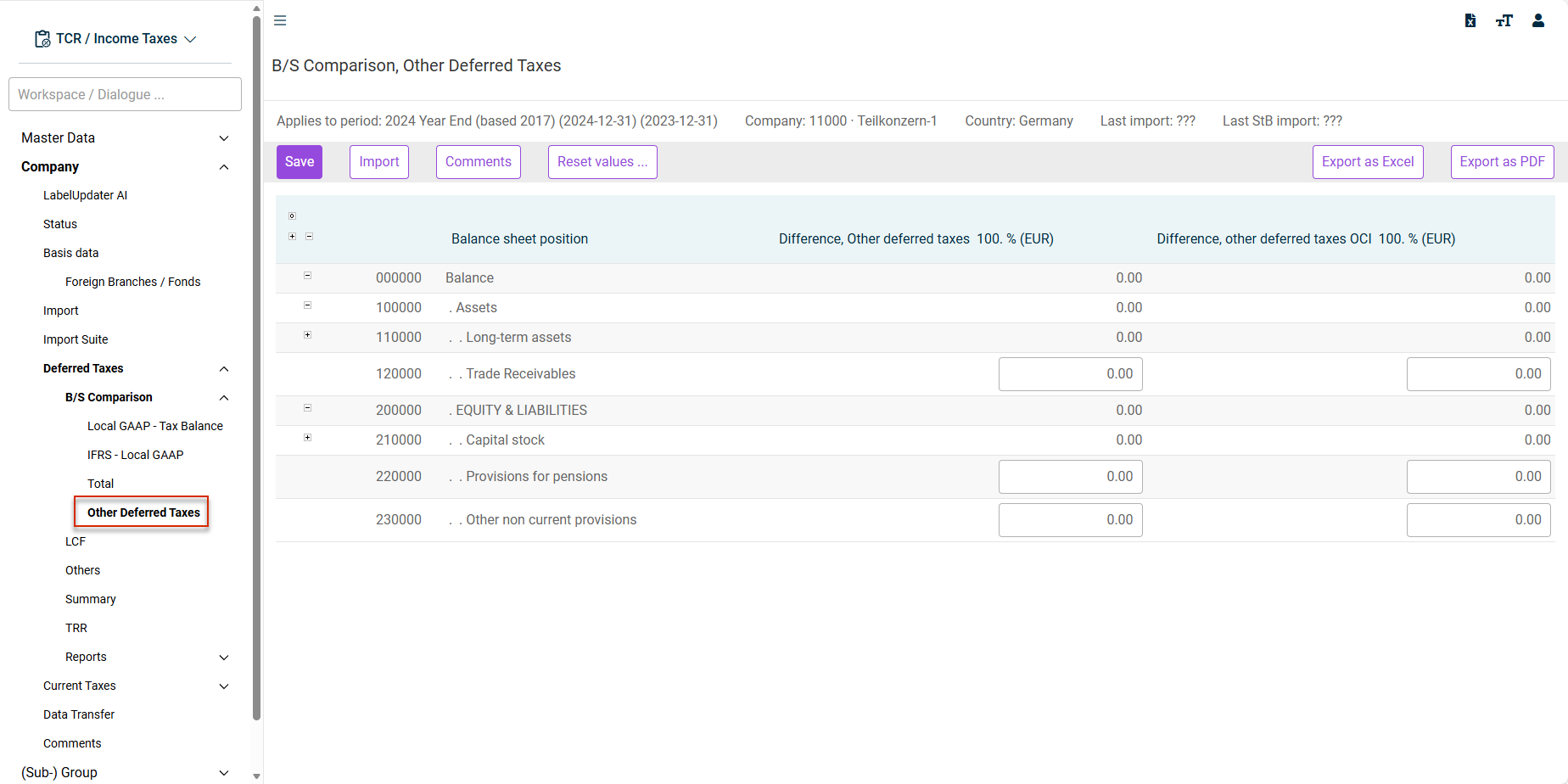
The Other Deferred Taxes workspace works without balance sheet differences.
The deferred taxes to be entered can be entered either in the affecting P&L or affecting OCI column. The classification of deferred taxes with regard to maturity is based on the settings in the CoA Group master data workspace.
Options in the B/S Comparison Workspaces
The following table describes the functions in the B/S Comparison workspaces. Note that some functions are not available in all workspaces.
Option
Description
Save
All inputs must be saved after entry. This applies also if the values are only imported and no manual adjustments are made.
Import
Opens the workspace for importing values into the balance sheet comparison and, if necessary, into the detailed tax workspaces.
Comments
Comments can be added here to specific balance sheet positions, and Excel files uploaded and their values imported.
Split differences
The Split differences function is available in the Local GAAP - Tax Balance and IFRS - Local GAAP workspaces.
The Split differences function depends on the settings made in the CoA Group master data workspace for dividing the calculated balance sheet differences.
Whether any balance sheet differences that occur at the selected balance sheet position are temporary or permanent is predefined for automation in the master data. Furthermore, it must be defined whether the value movement is to be treated through profit or loss (P/L) or through OCI.
The Split differences function uses this information for automatic allocation of the balance sheet differences to the thereof columns:
- P/L differences (calculation of deferred taxes, through profit or loss)
- OCI differences (calculation of deferred taxes, through OCI)
- Permanent P/L differences (no calculation of deferred taxes, TRR effect)
- Permanent OCI differences (no calculation of deferred taxes)
The thereof columns preset based on the master data are displayed with a black border for each balance sheet position. This allows the user to identify the individual target columns before executing the function. Manual adjustment is possible at any time afterwards.
Manual entry or reallocation of the differences is possible at any time. This allows special to be processed first by manual input and then the Split differences function used to automatically split the remaining differences.
Calculate Local GAAP
The Calculate Local GAAP function is available in the Local GAAP - Tax Balance workspace.
This function copies the IFRS balance sheet completely into the Local GAAP in the Local GAAP - Tax Balance workspace.
Caution: Any existing local GAAP values are overwritten! It is not possible to restore the overwritten values.
In addition, no gross differences may be allocated to the thereof columns on the IFRS - Local GAAP tab - otherwise the copy process will not be initiated.
Reset values
The Reset values function is available in all subordinate workspaces of the B/S Comparison folder except in the Total workspace.
Allows the contents of selected columns to be reset to the value zero.
Caution: It is not possible to restore the reset data.
Maintain columns
After clicking Maintain columns, the Tax Rate Maintenance dialog is displayed.
The Maintain columns function is used, among other things, to display national specifics in the calculation of deferred taxes. In some countries, certain balance sheet differences must be assessed with a different tax rate – for example if capital gains from real estate are subject to a special tax rate. Maintain columns can be used to specifically take such different tax effects into account.
For more information, see CoA Group.
Expand/collapse balance sheet positions
Balance sheet positions can be expanded and collapsed either selectively (per position) or completely (for the entire balance sheet tree).
Export as Excel/Export as PDF
Exports the balance sheet comparison to MS Excel or to a PDF document.

Show/hide all cells without values
Hides or shows all rows in the balance sheet structure that do not contain any values and are not total positions. This is helpful for large balance sheet structures if only the balance sheet positions with values are to be displayed.
Signs of Balance Sheet Values
The balance sheet comparison follows SAP logic with regard to signs. Therefore, all assets must be entered with a positive sign. Liabilities are entered with a negative sign.
Validations in the 'B/S Comparison' workspace
A number of validations are implemented in the B/S Comparison. Error messages are displayed in the event of any discrepancies. It is not possible to close the Deferred Taxes milestone if validation errors exist.
The validation rules are carried out for each workspace, i. e. for all subordinate workspaces in which data can be entered (with exception of the Total workspace). The following messages can be displayed:
- The balance sheet has not been saved.
The balance sheet is saved, as throughout income taxes, by clicking the Save button. - The balance sheet is not balanced.
An unbalanced balance sheet (total of assets not equal to total of liabilities) leads to an error message. Furthermore, an exclamation mark is displayed in the top row of the balance sheet comparison.
The values in the top row of the balance sheet must equal zero (corresponds to a balanced balance sheet). An exception to this is the Relevant gross difference column. Values other than zero can also be displayed here in the top balance sheet row without resulting in a validation error.
- Allocation of difference incomplete
Caculated balance sheet differences must be allocated to the various thereof columns. The Allocation of difference incomplete validation rule checks this requirement. The row with the relevant balance sheet position is highlighted in red in the event of unallocated differences.
Technical Notes on B/S Comparison
In principle, four scenarios that lead to temporary differences or deferred taxes are conceivable:
Asset side of the balance sheet:
- IFRS value > Tax value [taxable temporary difference or deferred tax liability]
- IFRS value < Tax value [deductible temporary difference or deferred tax asset]
Liability side of the balance sheet:
- IFRS value < Tax value [taxable temporary difference or deferred tax liability]
- IFRS value > Tax value [deductible temporary difference or deferred tax asset]
Values on the asset side are entered with a positive sign in Income Taxes. Values on the liability side of the balance sheet have a negative sign. Based on the Relevant gross difference column, this results in the following scenarios:
Balance sheet side
Sign of the 'Relevant gross difference' column
Assets
[-] deferred tax liability [DTL]
Assets
[+] deferred tax asset [DTA]
Equity and liabilities
[-] deferred tax liability [DTL]
Equity and liabilities
[+] deferred tax asset [DTA]
A positive sign in the Relevant gross difference column results in deferred tax assets, a negative sign in deferred tax liabilities.