
Batch Import and Automation
Last updated on 2026-03-10
Overview
In the Import workspace, data can be imported into Income Taxes. With the batch import, it is possible to trigger the import for multiple companies simultaneously.
In addition to the actual import, further automations can be triggered in the course of the batch import. The use of robotics is an additional feature that must be paid for.
This article contains the following sections:
Navigation
A mass import is performed in the Import workspace in the (Sub-)Group area. The Import workspace is opened under (Sub-)Group | Import.
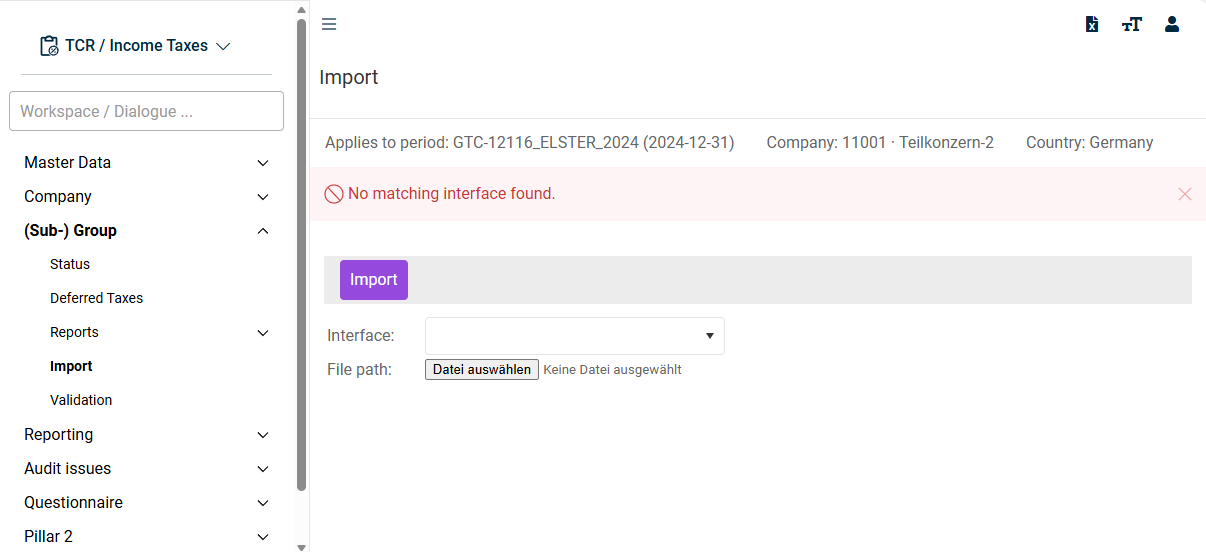
The Import workspace is displayed as follows, for example:
Options
The following options are available in the Import workspace:
Option
Description
Import
Starts the import.
Interface
Select the desired interface. The interfaces in the drop-down list correspond to the interfaces defined in the master data under Interfaces | Structure.
File path
Click Choose File to choose a file whose data should be imported.
Configuring Batch Import
To be able to use mass import in the (sub-)group area, you must first create the interface structure. Interface structures are edited in the master data under Structures. For a description of the standard options in the Structures work area, see the chapter Structures.
Configuring the Automation
To use mass import, you must configure the options in the Automation section of the Structures master data workspace:
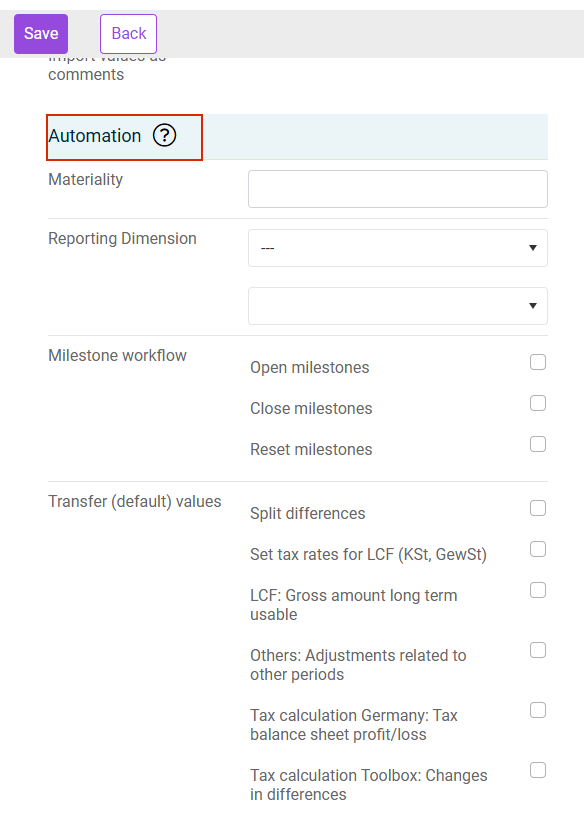
The automation options are only available once automation has been activated. These are additional functions that are subject to a fee. If you wish to use these functions, please contact your Lucanet consultant.
Attribute
Description
Materiality
Materialities to be imported. Only companies whose materiality matches the materiality defined here are considered (see Example configuration).
Reporting Dimension
Reporting dimensions to be considered during import. The import is only carried out for companies to which the reporting dimension selected here is assigned.
Milestone-Workflow
- Open Milestone: Open milestones for import
- Close Milestone: Set milestones to status finished after successful import, if possible.
- Reset Milestone: Set milestones to status in process for import.
Transfer (default) values
Depending on which checkbox you activate in this area, the corresponding default values are applied or the differences are automatically distributed in the Balance Sheet Comparison workspace:
- Split differences: In the master data, it is predefined for automation purposes whether any balance sheet differences that may occur for the selected balance sheet item are temporary or permanent. In addition, it must be defined whether the value movement should be treated as affecting net income (P&L) or not affecting net income (OCI). The Split Differences function uses this information to automatically allocate the balance sheet differences to the respective columns.
For more information on Split Differences, see Balance Sheet Comparison. - Set tax rates for LCF (KSt, GewSt)
Note: KSt, GewSt = Corporate Income Tax, Trade Tax
If no tax rates are provided, the default value (= value from the master data) is applied. - Loss carryforward: Gross amount long-time usable
- Other: Deferred taxes related to other periods
- Tax calculation Germany: Tax balance sheet profit/loss
- Tax calculation toolbox: Change in differences
Data settings
In the Data settings section of the Structures workspace, it is specified in which rows and columns the information and values required by the import are located (see Structures).
Performing Batch Import
The batch import is performed in the Import workspace in the (Sub-)Group area. To do so, select the previously configured interface.
Click Import to start import, no further confirmation or saving is necessary.
After the import has been performed, a detailed import log – analogous to the company import – is displayed. An initial overview of the status of the respective companies is displayed in advance.
Example configuration
The following example explains the Materiality options.
The milestone Current Taxes has been set to finished for the two companies SAA and SAB, as they have the materiality A and B respectively, which according to the configuration should be considered during import and adjustment of the milestone status.
Closing the milestones is only possible if the workspaces B/S Comparison, TRR, and Current Taxes contain valid data. In addition, the LCF (Loss Carry Forward) workspace must not contain any values, as the automation does not take effect for this workspace.
The company SAC, which has the materiality C, was not considered during the import, therefore no values were imported and the milestone status was not changed either. This happens due to the configuration of the interface from a), in which it was specified that the import and milestone status changes are only limited to companies with materialities A and B.