
Comments
Last updated on 2026-04-28
Overview
Comments in Income Taxes are additional explanations of individual rows, workspaces, or forms. Comments can contain text or file attachments. Furthermore, in many cases it is optionally possible to transfer data to the tax calculation using the Comments function.
This article contains the following sections:
Navigation
The Comments workspace is opened under Company | Comments.
The Comments workspace is displayed, for example, as follows:
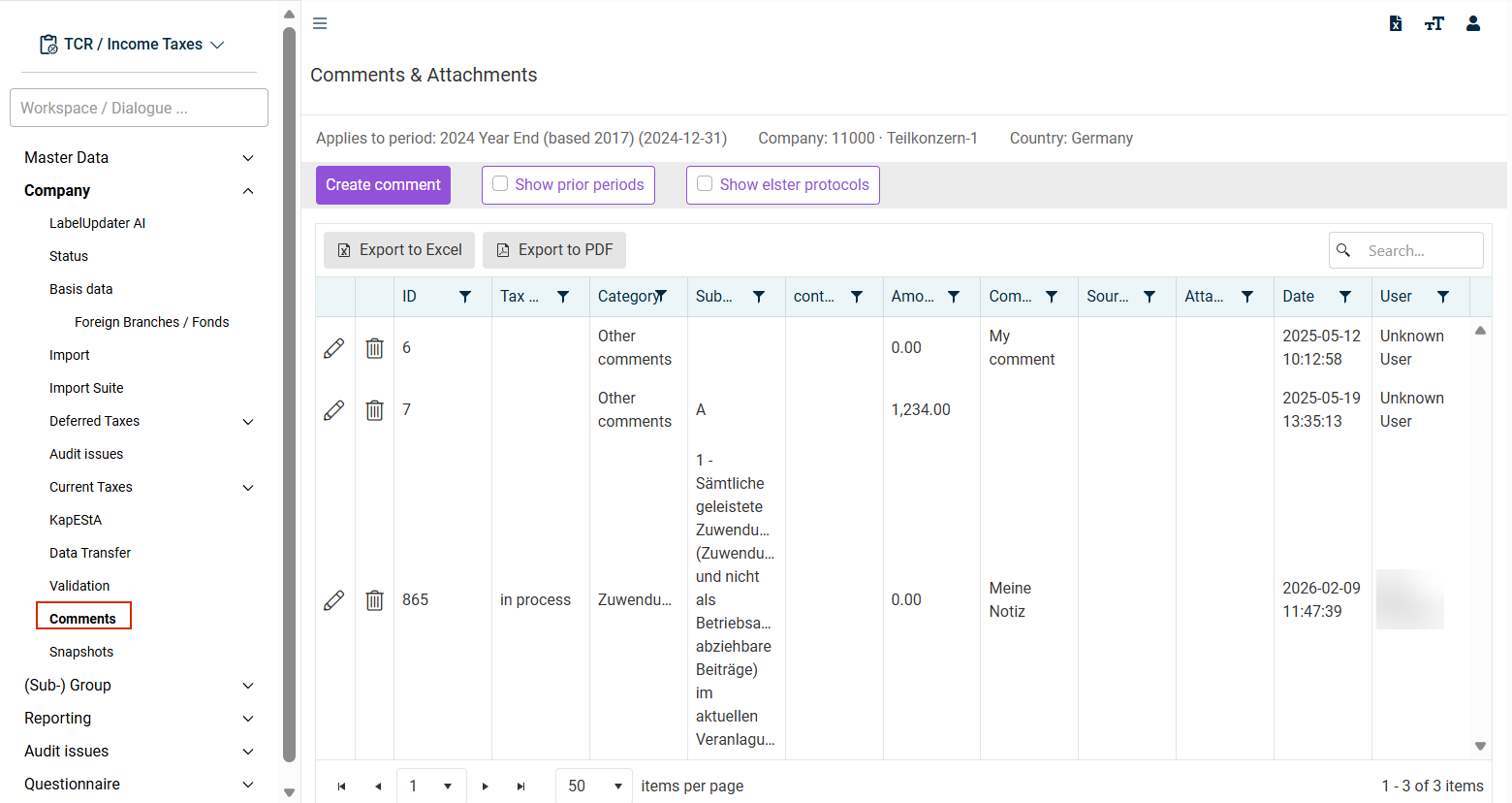
For quicker administration, comments can be edited also directly in the relevant areas.
When working with a specific form, you will find the Comments button directly on the form. You can view all form-related comments, create new comments, and administer existing comments there. The same functionality is available also in workspaces.
New comments must be created always in the workspace or form that contains the target field for the data transfer.
After creating a comment, a comment icon appears next to the target field. The information stored in the comment is displayed by clicking the icon. Once a comment has been created, it is displayed in the central Company | Comments workspace, where it can be administered there.
Options
The following options are available in the Comments workspace:
Option
Description
Create comment
Opens a dialog in which a new comment can be created (see section Creating Comments).
Show prior periods
With Show prior periods, you can also display comments from previous periods in the context of the current company. Comments from other periods can only be viewed, not edited.
Show elster protocols
With Show elster protocols, all file attachments generated as part of the electronic submission are also displayed. These types of comments can be deleted only if they do not need to be retained for compliance reasons. If you still attempt to delete such a file attachment, you will receive a corresponding error message.
Creating comments
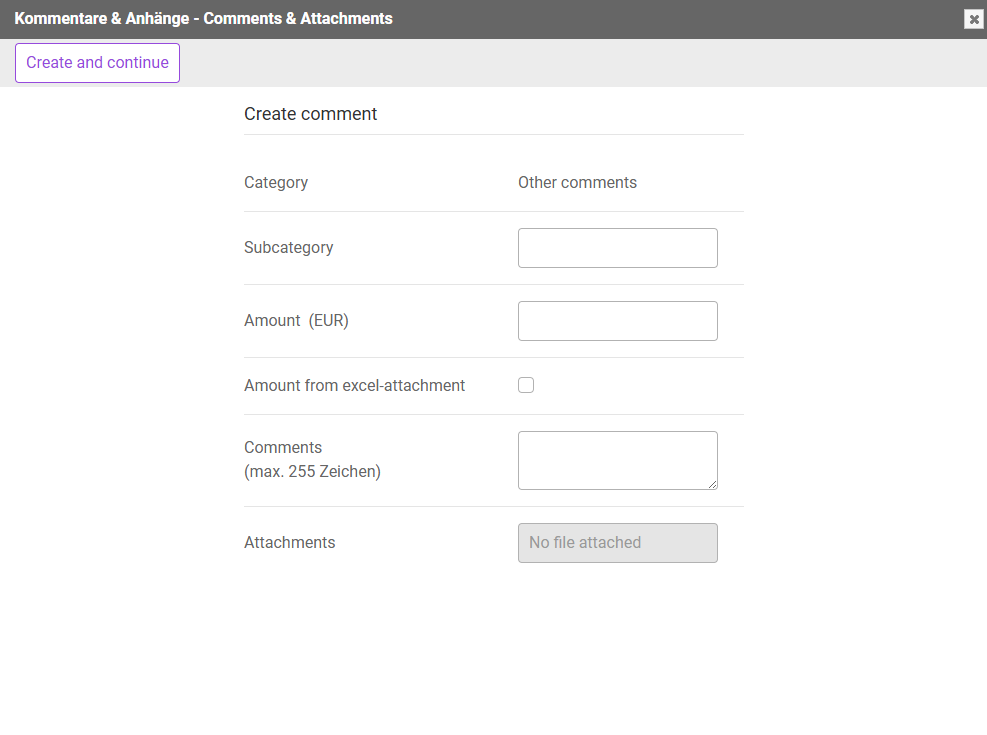 'Comments and attachments' dialog
When creating a comment, file attachments (e. g. a PDF file) can also be stored in addition to specifying an amount and a free-text field for remarks. The individual fields are described in the following table:
Property
Description
Category
The current workspace is entered here automatically. Other comments is displayed here if the record is created in the Comments workspace.
Subcategory
The relevant row from the current workspace is chosen here.
This property is a free text field in the Comments workspace.
Context/column
The assignment is made here if a workspace consists of several columns (e.g. partners, sectors).
Amount
Optionally, an amount can be entered that is to be explained with this comment.
Amount from excel-attachment
The value is to be determined from the stored Excel file and imported if this selection field is activated. For details, see below.
Comments
A brief explanation (maximum 255 characters) can be entered here.
Attachments
In some cases, the documentation may be in a separate document. Click the gray-shaded field to upload a file.
To upload a value from the document into Income Taxes, you must upload an Excel file.
Otherwise, the allowed file types will be specified by the Income Taxes administration.
Get Data
The amount is transferred directly to the tax calculation row if this field is activated.
The Get Data check box is visible only if a comment is created in a workspace or form that also contains a target field.
Take over all data
You can find the Take over all data button in the Kommentare und Anhänge (Comments and Attachments) dialog of the respective workspace or form. This button allows you to transfer all available comment data at once to the workspace or form currently open.