
Allocation (Trade Tax Allocation and Corporate Income Tax Allocation)
Last updated on 2026-05-15
Overview
This section describes the trade tax allocation and corporate income tax allocation.
This article contains the following sections:
Allocation Modes
The trade tax allocation and corporate income tax allocation can be used in different modes, depending on the respective customer-specific configuration:
Decomposition
Modes
Trade Tax Allocation
- Allocation based on the payroll (standard case)
- Allocation with several allocation scales
- Allocation with several allocation scales and upper-level allocation
In the latter two cases, the allocation details are defined by the tax group parent.
Corporate Income Tax Allocation
- Allocation based on the payroll (standard case)
- Allocation with several segmentation scales
In the latter case, the allocation details are defined by the tax group parent.
Navigation
You can access the Decomposition functional area under Company | Current Taxes | Decomposition. The Decomposition functional area contains up to three forms, depending on the chosen period and company.
The Local Tax Segmentation form is displayed, for example, as follows:
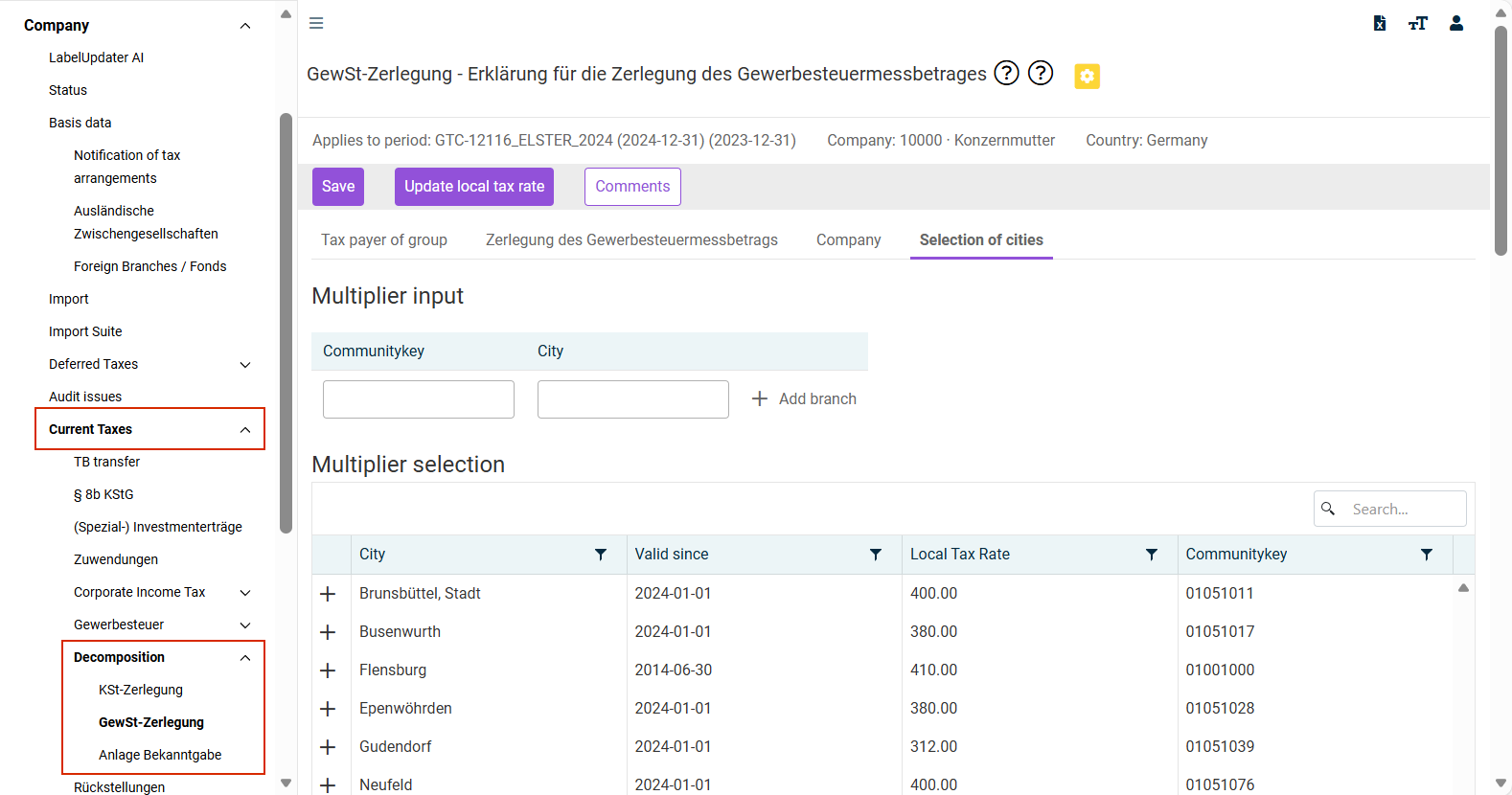
Forms in the 'Decomposition' Functional Area
The following forms are available for the Decomposition functional area:
Option
Description
KSt-Zerlegung (Corporate Income Tax Allocation)
If the corporate income tax amounts to at least an absolute value, i. e. a positive or negative amount of € 500,000, the corporate tax must be allocated.
You can enter the branches and the allocation scale in the KSt-Zerlegung workspace. Data already entered in the Local Tax Segmentation workspace can be included in the corporate income tax allocation. For investments in partnership companies, data may need to be supplemented.
The entered data are transmitted to the tax office in the Erklärung für die Zerlegung der Körperschaftsteuer (Declaration for the Allocation of Corporate Income Tax) together with a Branch attachment for each affected municipality and, if necessary, the Beteiligung (Investment) attachment.
Local Tax Segmentation
If a commercial enterprise has branches in several municipalities, the trade tax is levied proportionally according to the tax assessment amount in each municipality. This amount must be divided among the affected municipalities. You can enter the branches and the allocation scale in the Local Tax Segmentation workspace.
The entered data are transmitted to the tax office for each affected municipality in the Erklärung für die Zerlegung des Gewerbesteuermessbetrags (Declaration for the Allocation of the Trade Tax Assessment Amount) together with a Branch attachment.
Anlage Bekanntgabe (Notification Attachment)
The Anlage Bekanntgabe form can be used to give consent to the digital receipt of the notice of trade tax allocation.
Note: This option should be selected only if the enterprise meets the technical requirements for receiving tax assessment notices electronically. A business account must be set up for this purpose. If the delivery is made to a tax consultant, they too must be technically able to receive digital deliveries.
Detailed information on this topic and the business account can be found, for example, on the web site of the Hessian Ministry of Finance at Der digitale Gewerbesteuerbescheid für Unternehmen und Steuerberatende | digitaler Gewerbesteuerbescheid (The Digital Trade Tax Assessment Notice for Enterprises and Tax Consultants | Digital Trade Tax Assessment Notice).
Tabs on the Local Tax Segmentation and KSt-Zerlegung Forms
The tabs
are included in both forms and are described in the following sections.
'Tax payer of group' Tab
The Tax payer of group tab displays an overview of the entries of all tax group members. By default, the display is aggregated by municipalities and sorted by values in descending order. When using several allocation scales, the values are aggregated according to the allocation defined by the tax group parent. Alternatively, the display can also be aggregated by companies.
'Selection of cities’ Tab
- Choose one of the municipalities present in the Income Taxes database together with its master data in the Multiplier selection area by clicking +.
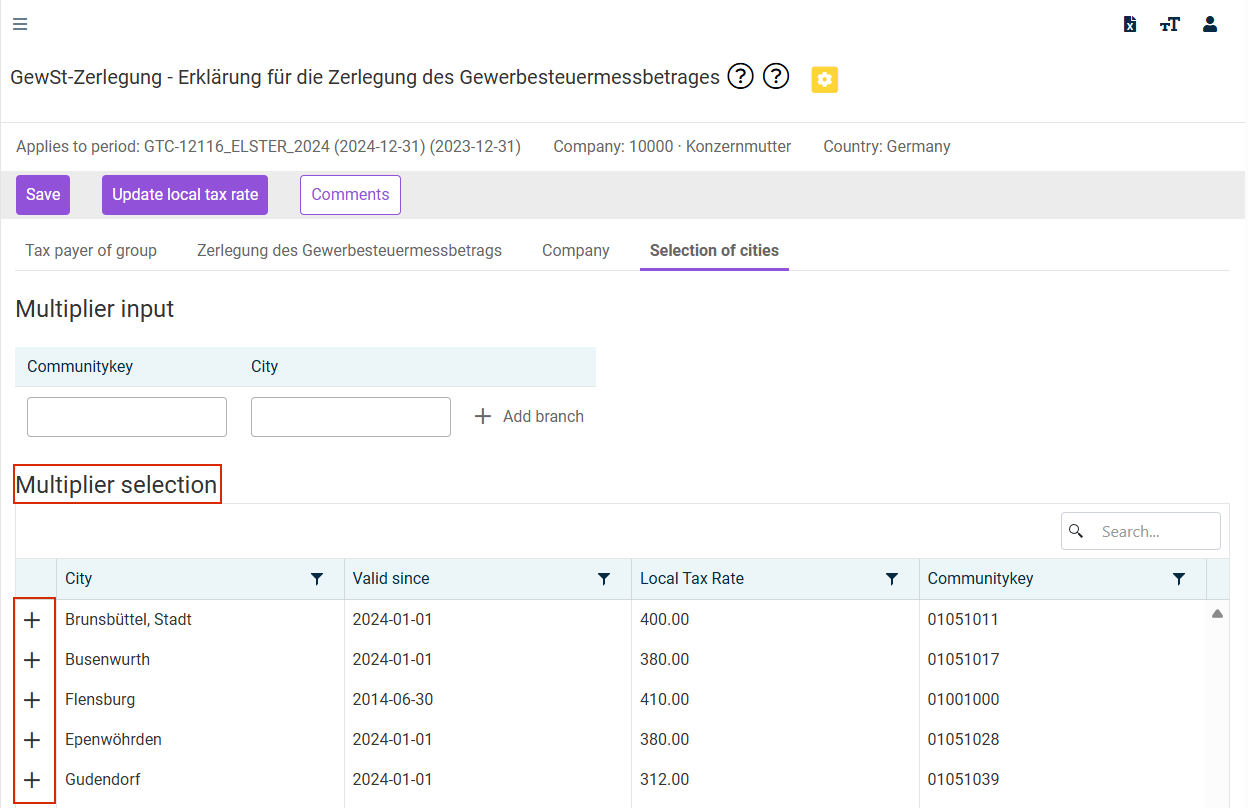 Compiling municipalities using the list
 - If a municipality is missing, you can add a municipality together with its community key in the Multiplier input area.
- The list of all municipalities compiled for the current company is then displayed in the upper area of the Selection of cities tab:
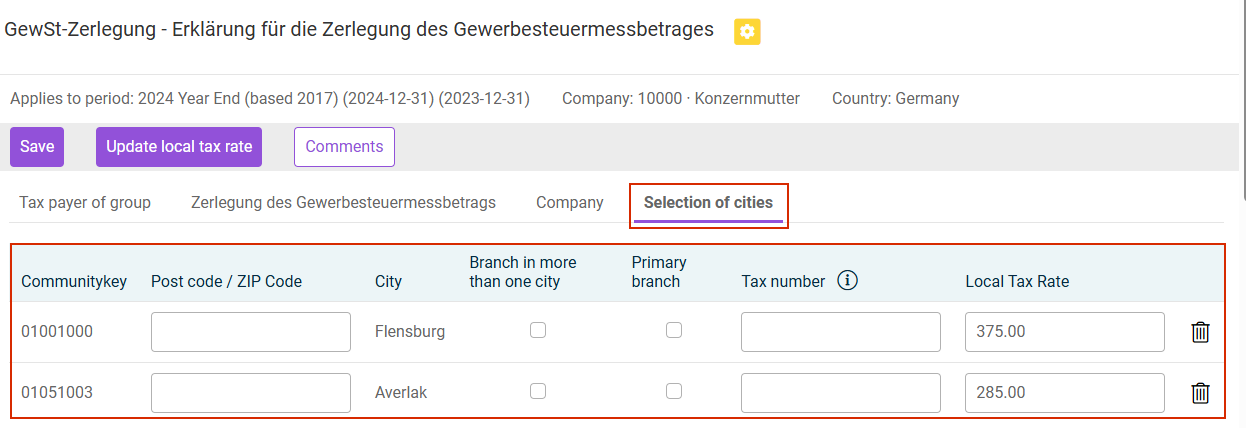 List of all municipalities compiled for the current company
 - If necessary, add the post code, tax number, and local tax rate details.
- If necessary, mark a municipality as the location of the management.
The post code, tax number, local tax rate, and management details are required for the Elster transmission.
'Company’ Tab
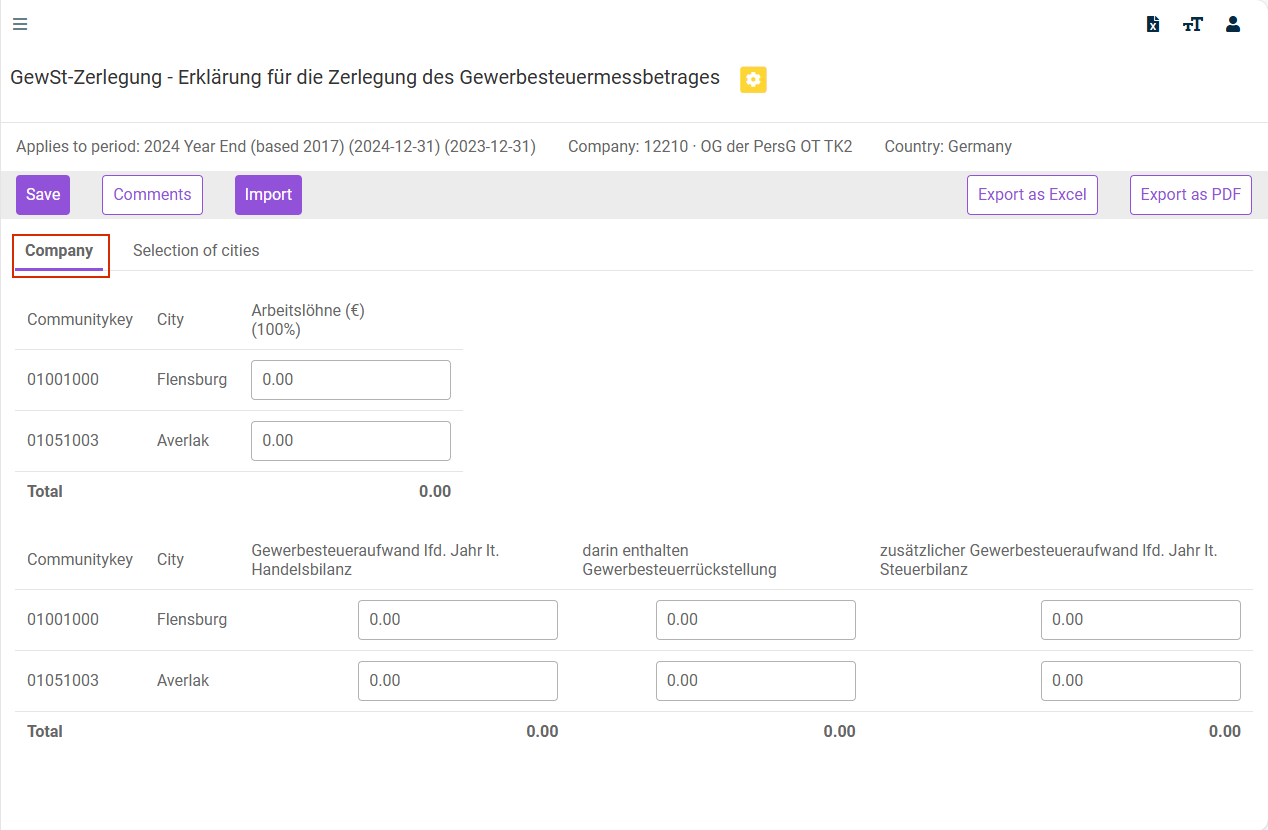
The Company tab is not displayed if the company is a tax group member or an interim tax group parent.
Cities from GewStZ
The Cities from GewStZ function is additionally available on the Company tab on the KSt-Zerlegung form.
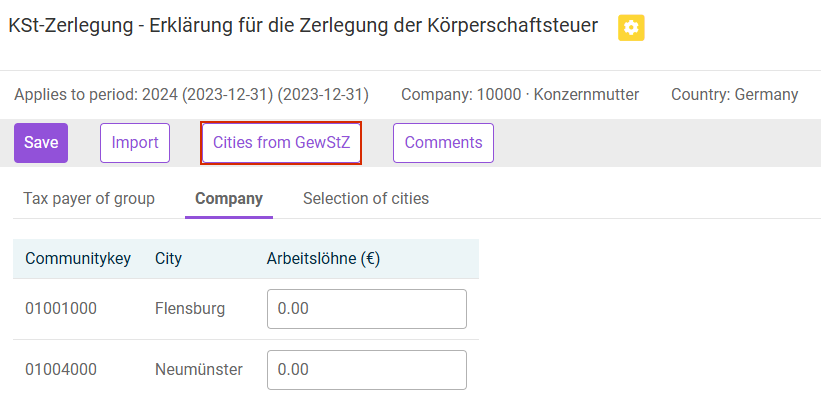
Cities from GewStZ is used to transfer all municipalities and the corresponding values (e. g. payroll, etc.) from the trade tax allocation. Municipalities that have already been set up in the corporate income tax allocation are not deleted, but, if necessary, are overwritten with the current data from the trade tax allocation.
'Zerlegung des Gewerbesteuermessbetrages' (Allocation of Trade Tax Assessment Amount) Tab
The Zerlegung des Gewerbesteuermessbetrages tab is also displayed on the Local Tax Allocation form.
The allocation of the local tax assessment amount is required whenever an enterprise has branches in several municipalities. The uniformly determined trade tax assessment amount must then be allocated to the various municipalities to allow each municipality to levy its share of the local tax.
Importing Data
As an alternative to manual entry, the data of a company can be imported also via the flexible interface. The tax group parent can import the data for several companies across the tax group. A CSV file can be uploaded here, provided the interface structures have been pre-defined in the Master Data area.
Please note:
- Numbers in the CSV file to be imported must be displayed without thousands separators.
- A period must be used as the decimal symbol in the CSV file to be imported.
To import a CSV file:
- Click Import on the Company tab.
- Specify the CSV file to be imported in the subsequent dialog.
- The data for a company are updated or newly created according to the import file (see Import Results in the following for further information).
Import Results
A data import generates the following results:
- Any existing entries for a municipality at a company are deleted if no corresponding data are present in the import file.
- The import can be performed also if no municipalities have yet been assigned to the company. In this case, the existing municipalities in the import file are stored for this company and provided with the values from the import file.
- Data for a company can be added iteratively. Assuming two interface structures have been defined:
- The first interface structure contains the company code, the information on the municipality, and the values of the first allocation scale.
- The second interface structure contains the company code, the community key, and the values of the second allocation scale and the upper-level allocation.
If an interface structure has been defined in this way, the values can be imported sequentially by means of two files. They are merged on the Income Taxes side. It should be noted that both files include the same company code and community key. In this case, the value 0 may need to be imported to ensure this prerequisite is fulfilled.