
Creating and Configuring a Position Mapping
Last updated on 2026-05-13
Overview
Item (or account) IDs often vary between different IT systems. It is therefore necessary to create an assignment for these item IDs (mapping) before the import process.
In the Position Mapping workspace, you can define how source items you import from a source system are to be mapped to the target fields when using an interface structure of type Import. Multiple mapping files can be created for each interface and period here.
This article describes how to create and configure item mappings. First, a mapping is created and an editable Excel file is stored for the mapping. This Excel file is then downloaded, the item assignment made in the Excel file, and the Excel file uploaded again.
This article contains the following sections:
Navigation
The Position Mapping workspace is displayed, for example, as follows:
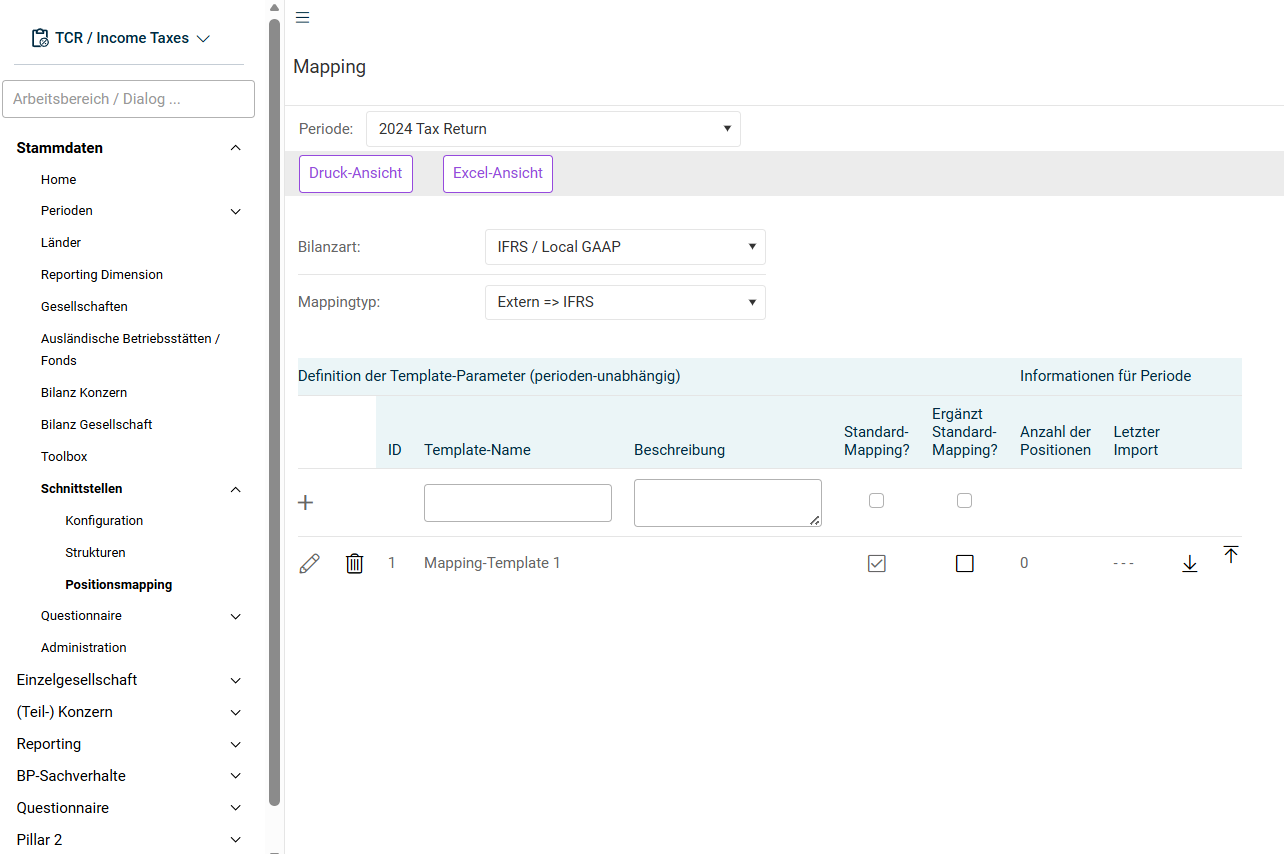
Creating a Mapping
To create a new mapping:
- Choose the period for which you want to create the mapping.
- Choose the balance type for which you want to create the mapping.
- Choose the desired mapping type.
The mapping type defines from which target and into which source data are to be transferred and assigned by means of the mapping. - Enter the name for the mapping under Name of template.
- You can optionally enter a description for the mapping.
- Specify what type of mapping this is. Choose one of the following options:
- Default mapping: The mapping is defined as group-wide mapping.
- Ergänzung zum Standard-Mapping (Supplement to default mapping): The mapping supplements the group-wide mapping. Items from the default mapping can also be overwritten with this mapping. For this mapping to be used additionally (= as a supplement) to the default mapping for the import process, it must be explicitly assigned to the company in the company master data.
- Alternatives Mapping (Alternative mapping): Activate neither of the two options if the mapping is to be defined as an alternative mapping. An alternative mapping is used whenever a company should not use the group-wide mapping, for example because it is supplied from a different source system with a different chart of items. If this alternative mapping is assigned to a company, this company will use only this alternative mapping for the import process.
- Click the + icon to the left of the mapping name to create the mapping and generate a mapping file in the form of an Excel file.
Configuring the Mapping File
After you have created the mapping and the mapping file has been generated in Excel format, you can configure the item assignment in the Excel file. Proceed as follows:
- Click the download arrow to download the mapping file.
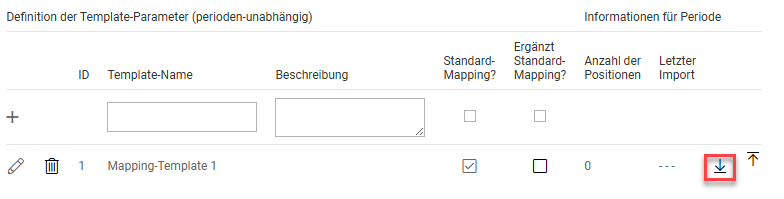
Downloading the mapping file - Open the mapping file from your download directory and first store the version number in row 5.
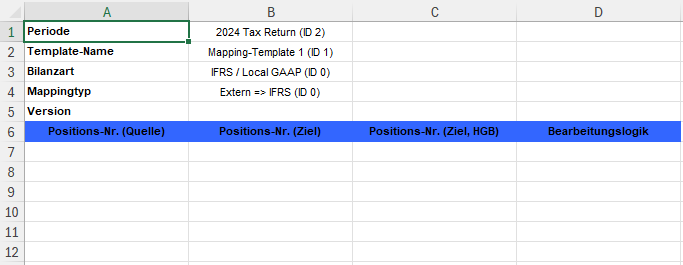
Structure of a mapping file - Store the mapping by entering the corresponding items in the columns of the XLS file:
- Item no. in the source
- Account ID (Destination, IFRS)
- (Destination, Local Gaap)
- Optionally, a processing logic can be stored, such as negating the values mapped to this item.
- Upload the mapping file using the upload arrow.
If uploading the mapping was successful, you will receive a corresponding message.