Creating and Configuring Interface Structures
Last updated on 2026-05-13
Overview
You can use interface structures to define the format of files imported into Income Taxes.
This article describes how to create and configure interface structures.
This article contains the following sections:
Creating an Interface Structure
To create a new interface structure:
- In the Structure workspace, click Create:
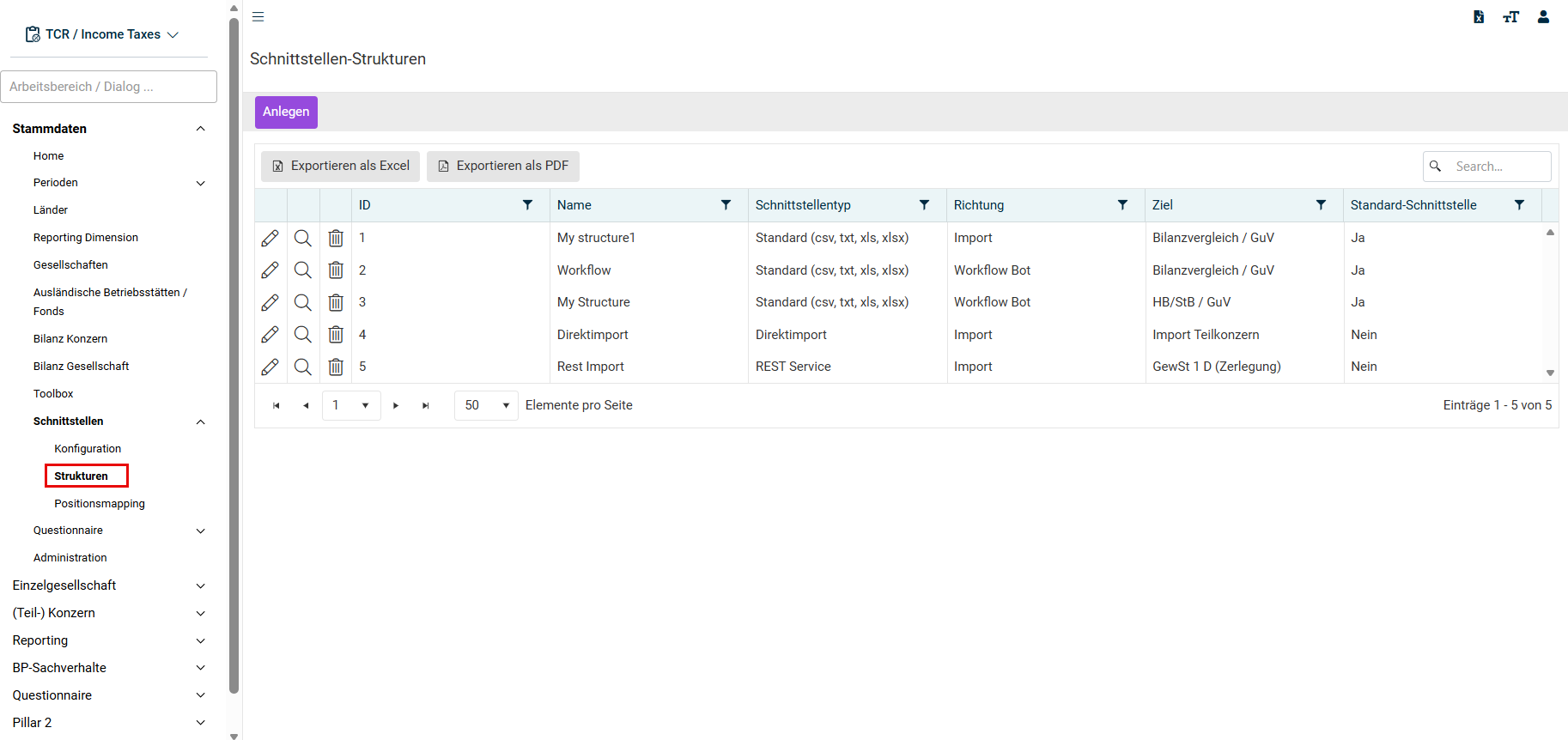
Creating a Structure - Configure the interface structure (see following subheading).
- Click Save.
Configuring an Interface Structure
Configure an interface structure as follows.
(Areas marked with an asterisk * are displayed by default for all interface types.)
The ID area is displayed as follows:
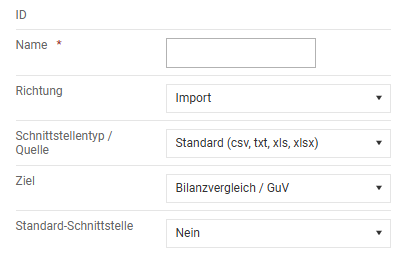
Specify the following:
Option
Description
Name
Name of the structure
Direction
Defines whether the structure is for a data import or an export.
Furthermore, the Workflow bot option can be used. For more information about the Workflow Bot, see Workflow Bot.
Interface Type / Source
Defines the type of interface and the source of the import or export. The following interface types / sources are available for selection:
For an Export
- Standard (csv, txt, xls)
- Questionnaire
- Custom Report
For an Import
- Standard (csv, txt, xls)
- Questionnaire
- SAP RFC for data exchange with SAP systems
- Direct import
- SAP RFC (flexibel) for data exchange with SAP systems
- Rest Service
The interface type chosen here depends on which details need to be configured for a structure in the following sections.
Destination
Selection of the area within Income Taxes into which the data are to be imported or from which the data are to be exported.
Source connection
Selection of the connection created under Administration | Connection parameters.
The type must always match (REST connection for a REST structure etc.)
This field is visible only if you have chosen SAP RFC or SAP RFC (flexible) as interface type.
Default Interface
Selection of whether it is a default interface.
If an interface structure is defined as a default interface, it is always displayed in the import dialog.
If the data for companies are to be imported from different interfaces, an interface structure that has not been defined as a default interface can be explicitly assigned to the company (in the company's master data).
Whether and with which fields the General Settings area is displayed depends on what you have selected as Interface type/source under ID.
For the interface type Standard (csv, txt, xls), the General Settings area is displayed, for example, as follows:
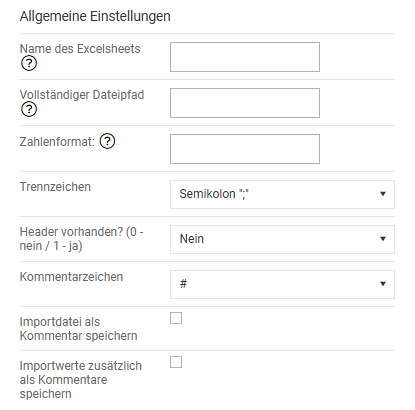
Specify the following:
Option
Description
Name of Excelsheet
Name of the Excel worksheet to be imported/exported.
Absolute file path
Path of the file to be imported/exported
The following placeholders can be used when specifying the path:
{YYYY} last year
{MM} last month
{DD} last day
{year} current year
{month} current month
{day} current day
{min} current minute
{sec} current second
{PERIODID} period ID
{UNITID} company ID
{USERID} user ID
{USERNAME} user name
{BUKRS} reporting entity of the company
{BUKRS1} 1. reporting entity of the company
{PATH_FILESERVER} path to the file server from system parameters
Example: For a period with end of period 2018-12-31, the path specification "C:\temp\import_{MM}{DD}.txt" is interpreted in the GTC as "C:\temp\import_1231.txt".
Number Format (optional)
The desired number format (including decimal places, without sign) as a number > 1000.
Examples: 1 000.0 or 1234,56 or 1.234,56
Excel files (.XLS/.XLSX) provide the values with a period (.) as decimal separator and a preceding minus sign.
Delimiter
The delimiter used in the file
Header available?
Specifies whether the file contains a header row.
Select Yes = 1 and No = 0
Description symbol
Symbol used for comments
Save Importfile as comment
Specifies whether the import file should be saved as a comment in each imported row or in the dialog.
Import values as comments
Specifies whether the import value should be created as a comment in each imported row or in the dialog.
An automation is executed if the target is a sub-group, a calculation interface is present, or the import is triggered via a web service.
Whether and with which fields the Automation area is displayed depends on what you have selected as Interface type / source under ID.
For the interface type Standard (csv, txt, xls), the Automation area is displayed, for example, as follows:
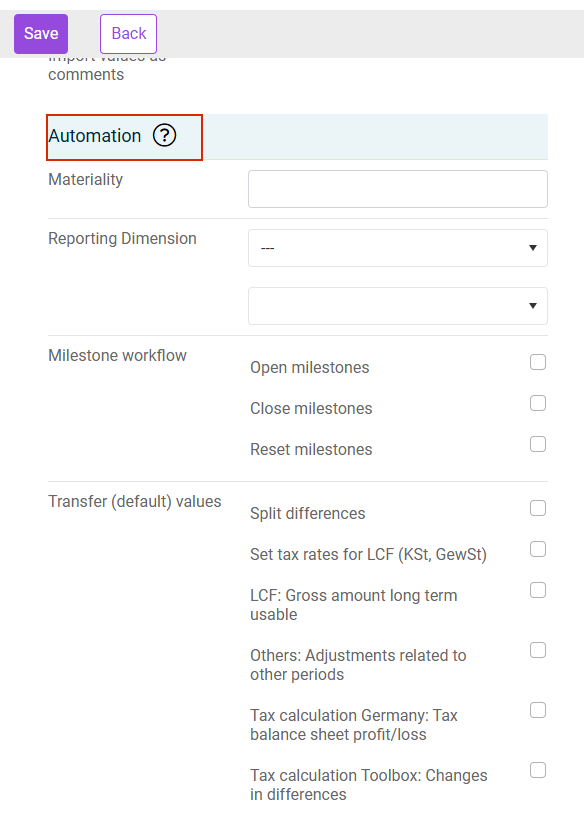
Attribute
Description
Materiality
Materiality levels to be imported. Only those companies whose materiality matches the materiality defined here are included.
Reporting Dimension
Reporting dimensions to be taken into account for the import. The import is performed only for companies to which the reporting dimension chosen here is assigned.
Milestone workflow
- Open milestones: Open milestones for the import.
- Close milestones: Set milestones to the status finished after a successful import, if possible.
- Reset milestones: Set milestones for the import to the status in process.
Transfer (default) values
Depending on which check box you activate in this area, the corresponding proposed values will be adopted or the differences in the B/S Comparison workspace will be distributed automatically:
- Split differences
- Set tax rates for LCF (KSt, GewSt)
If no tax rates are provided, the proposed value (= value from the master data) will be adopted. - LCF: Gross amount long term usable
- Others: Adjustments related to other periods
- Tax calculation Germany: Tax balance sheet profit/loss
- Tax calculation Toolbox: Changes in differences
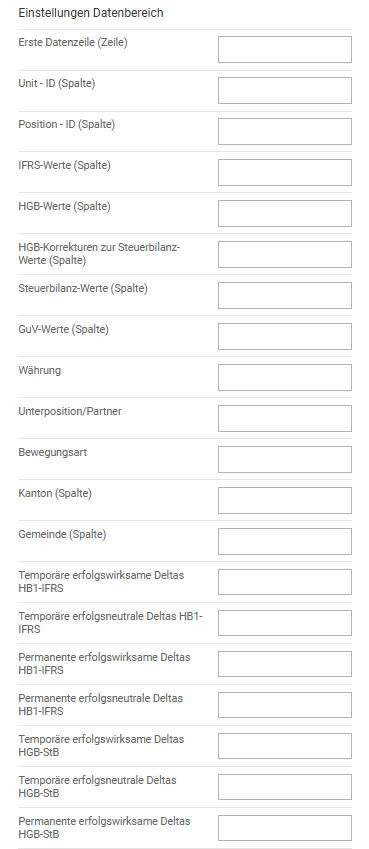
In the Data settings area, specify the rows and columns of the export or import files that contain the corresponding values.
Whether and with which fields the Data settings area is displayed depends on what you have selected as Interface type / source under ID.
For the interface type Standard (csv, txt, xls), the Data settings area is displayed, for example, as follows:
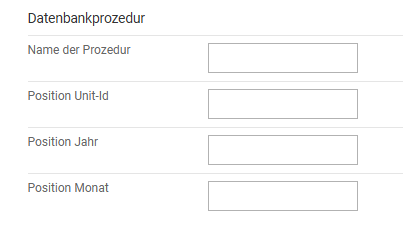
The area is only displayed if you have selected Direct import as the Interface type/Source under ID. It is not relevant for configuring interfaces on the Lucanet CFO Solution Platform.
The area is displayed as follows:
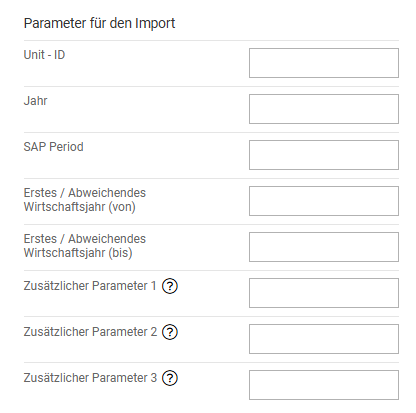
In the Parameters for the Import area, specify the import parameters.
This area is displayed only if you have chosen the type SAP RFC (flexible) as Interface type / source under ID.
The area is displayed as follows:
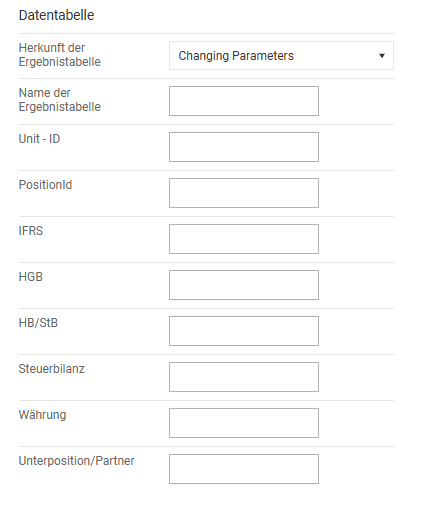
The data table transmitted from SAP can be defined in the Data table area.
This area is displayed only if you have chosen the type SAP RFC (flexible) as Interface type / source under ID and it is not relevant for the configuration of interfaces on the CFO Solution Platform.
The area is displayed as follows:
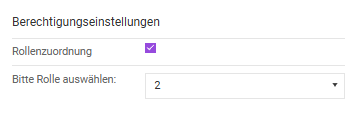
In the Authorization settings area, specify whether the use of this structure for an import or export is to be restricted to specific roles.
If so, activate the Role assignment option and choose the desired role.
The Mapping settings and Mapping selection areas are displayed as follows:
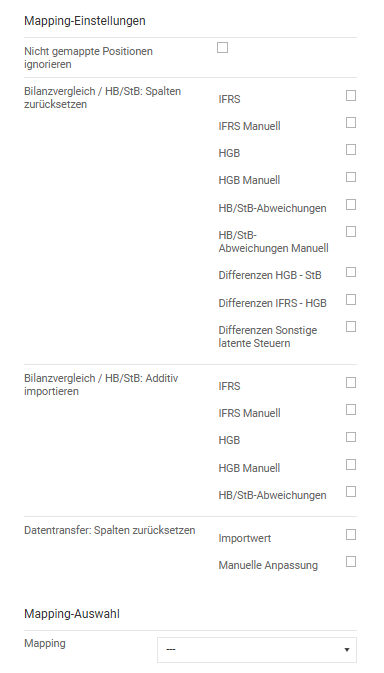
Specify the following:
Option
Description
Ignore non-mapped positions
Defines whether items for which no mapping has been defined are to be excluded from the export/import.
Balancesheet / HB/StB: Reset columns
Selection of whether and which columns are reset during an import
Balancesheet / HB/StB: Additive import
Selection of whether and into which columns data are imported additively, e. g. during multiple imports
Data transfer: Reset columns
Selection of whether and which columns are reset when transferring data.
Mapping selection
Mapping to be used for the import/export.
This mapping is always used for this interface and the mappings from the company area are ignored.
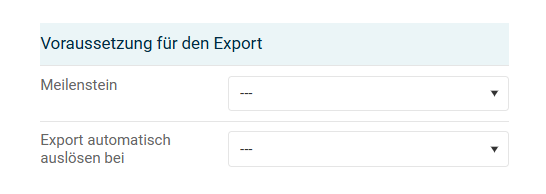
The Precondition for export area is displayed only if you choose the direction Export under ID and Custom Report as the interface type.
Specify the preconditions for the automated creation of an export in this area:
- Milestone: defines which milestone state must be present for an automated export to be created
- Trigger export automatically upon: defines for which state change of a milestone, an automated export is to be created