
Snapshots
Last updated on 2026-04-16
Overview
Snapshots are copies of the current tax calculation, i.e. current and deferred taxes including the results. Snapshots are used to freeze different editing states for an individual company within a period to retrieve them later – i.e. to view or restore them. This function allows you, for example, to run simulation calculations or submit tax returns or capital gains tax returns electronically.
All existing snapshots can be viewed if you have the Transaction Data CT - Read permission. For all other functions (create, edit, delete), the Snapshots - Edit permission is also required.
The data states of the following workspaces are saved:
- Master data of the period
- Master data of the company
- Current Taxes (incl. form dialogs, TB transfer and decompositions)
- Electronic Transmission/Validation; Data Transmission and Fast Entry
- B/S Comparison
- Balance sheet items if necessary
- Local balance if necessary
- OBD if necessary
- Loss carried forward
- Other
- TRR
This article contains the following sections:
Navigation
The Snapshots workspace is opened under Company | Snapshots.
The Snapshots workspace is displayed, for example, as follows:
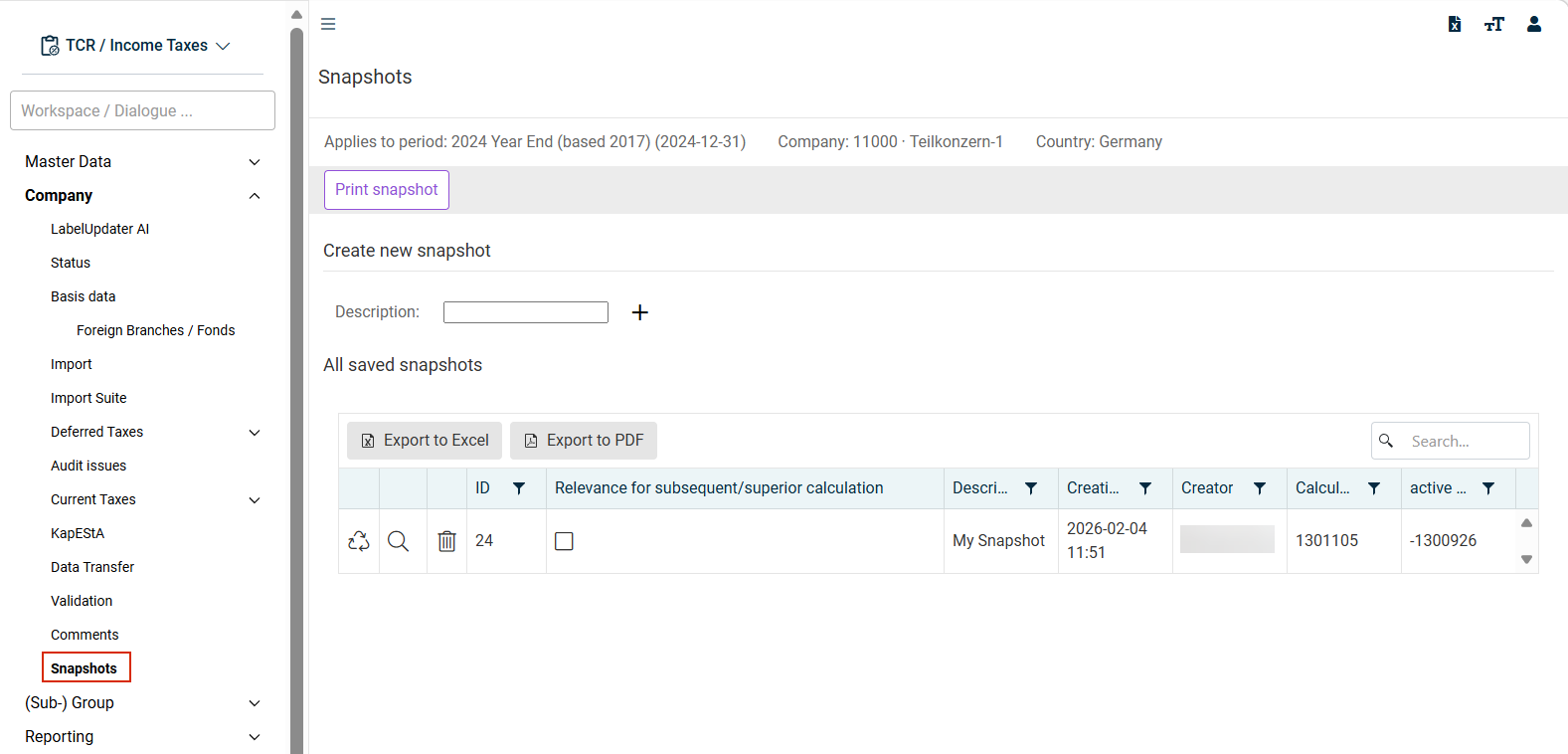
Creating a Snapshot
To create a snapshot:
- Navigate to the Snapshots workspace.
- Enter a description for the new snapshot.
- Click + to create a new snapshot.
- A new snapshot is created with the current data from the workspaces listed in the Overview and displayed in the All saved snapshots table. Each snapshot is automatically assigned a unique ID by the system.
Deleting a Snapshot
A snapshot is deleted by clicking the trash can icon  in the All saved snapshots table.
A deleted snapshot cannot be restored!
Viewing or Printing a Snapshot
To view the content of a snapshot or print a snapshot:
- In the All saved snapshots table, click the
 icon next to the desired snapshot, or click Print snapshot.
 - Choose the workspaces to be viewed or printed from the next dialog.
- Click Print.
- The chosen workspaces are displayed with all data on a new tab in your browser.
Restoring a Snapshot
You can restore a snapshot at any time and, in this way, import the editing state of the chosen snapshot into the current tax calculation.
Restoring a snapshot is only possible when the Current Taxes and Deferred Taxes milestones are open, i.e. still in progress.
By restoring a snapshot, you overwrite the original data of the tax calculation with the data from this snapshot. We recommend saving the tax calculation with an additional snapshot before this step.
To restore a snapshot:
- In the All saved snapshots table, click the
 icon in the row of the desired snapshot.
 - Click Restore in the next dialog if you are sure that the editing state of the chosen snapshot is to be restored.
- The editing state of the chosen snapshot is restored.
Indicating a Snapshot as Relevant for Calculation
Relevance for subsequent/superior calculation
In the Relevance for subsequent/superior calculation column, you can mark a snapshot to be used for calculations for other companies (e.g. the data of the tax group member at the tax group parent).
The prerequisite for activating or deactivating the check box in the Relevance for subsequent/superior calculation column is that the current taxes of the company milestone is still open (not in finished or checked status). For this action too, an additional confirmation message appears before the data are accepted at the tax group parent.
Electronic Transmission
The relevance for subsequent/superior calculation is evaluated also if tax returns or capital gains tax returns are submitted electronically. For example, when a tax group member sends information to its tax group parent, the master data are retrieved from the snapshot if the tax group parent has activated the Relevance for subsequent/superior calculation check box for a snapshot.
Relevance for Other Periods
In the Relevance for other periods column, users can mark a snapshot to be used for calculations in other periods of the same company (e.g. a specific data state from the tax return for the previous year).
The selection is available for periods with the form set for 2018 or later. The prerequisite for changing the check box in the Relevance for other periods column is that the current taxes milestone of the company is still open, i.e. not in finished or checked status.