
Status of Milestones
Last updated on 2026-05-15
Overview
The process in the Company area is based on a milestone concept. This systematizes the individual activities, such as determining the actual and deferred taxes. In addition, a review process and a four-eyes principle are ensured. Milestones are tracked for each company and period.
By default, there are three milestones: Current Taxes, Deferred Taxes, and Tax rate reconciliation. The number of milestones can be extended beyond the default ones. For example, the workflow can be supplemented by the Validation step, which is then managed as a separate milestone in the Status workspace.
This article contains the following sections:
Navigation
The Status workspace is opened under Company | Status.
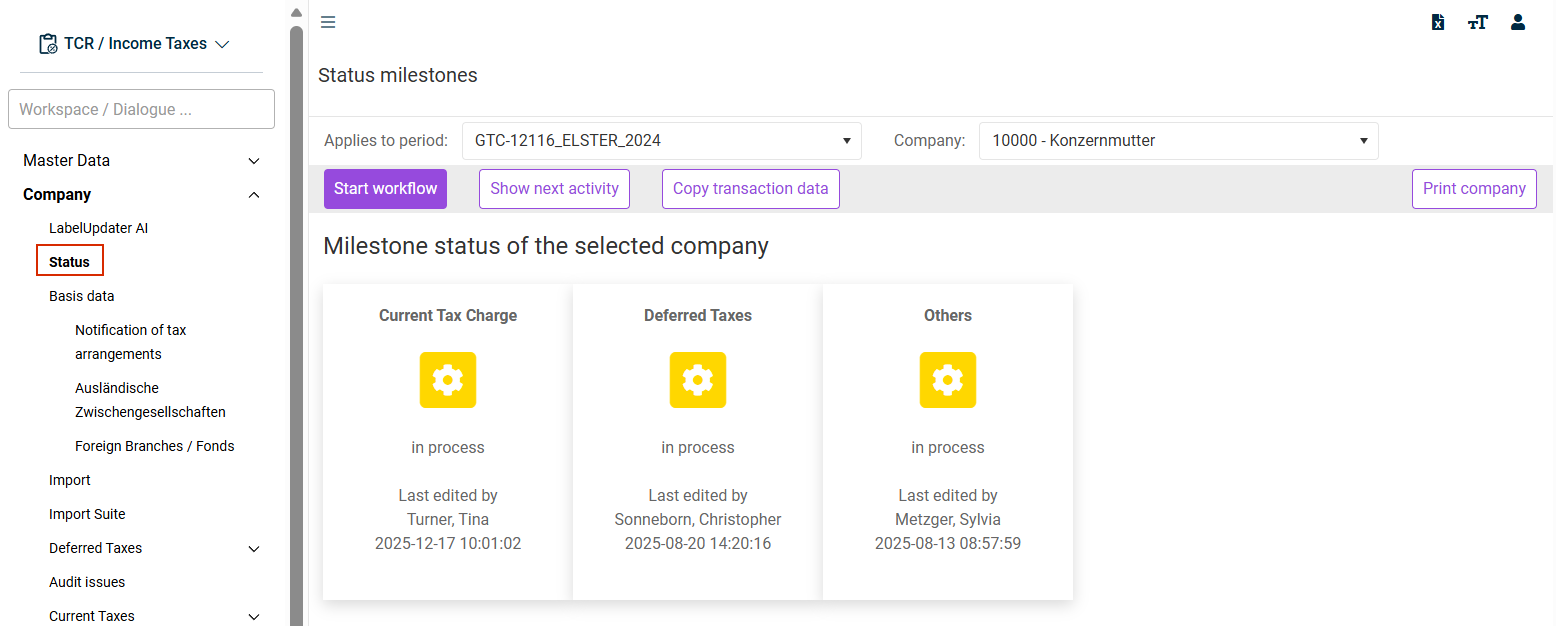
The Status workspace is displayed, for example, as follows:
Milestone Editors
The user who last edited the milestone of the corresponding activity area and when it was edited are displayed under each milestone. This information can be evaluated for all companies in the (Sub-)Group area.
Status of Milestones
A milestone may have various statuses. The initial status of milestones is Not started. The editing process for the respective company is started and the status of all milestones is switched to In process by clicking one of the milestones.
The following statuses are possible for milestones:
Status
Description
not started
Initial status (e.g. after creating a new period) – Workspaces cannot be opened or edited.
The status of all milestones is changed to in process by clicking one of the milestones.
in process
Workspaces can be edited.
This also indicates that the workspaces assigned to this activity area have either not yet been saved or validation errors have been found.
data ok
The workspaces have been saved and the validation processes have not returned any errors (a possible validation error is, for example, an unbalanced balance sheet). It is still possible to edit the workspaces.
The status may also be switched back to in process if inputs cause validation errors.
Finished
The Finished status is reached when the user clicks a milestone with the data ok status. This indicates, for example, that the Deferred Taxes activity area is complete. At the same time, the corresponding workspaces can no longer be edited. The workspaces are displayed only in read-only view.
The milestone status (and the corresponding option to edit data again) can be reset or unlocked only with the appropriate permissions in the (Sub-) Group | Status workspace.
For more information on the subject of roles and permissions, see Roles.
Checked
The Checked milestone status is used to ensure the four-eye principle. The status is reached when the user clicks a milestone with the Finished status.
This status can be reached only by a user with the appropriate permissions. The system also ensures that the Finished status and Checked status cannot be set by the same user.
For the process flow in Income Taxes, it is sufficient for the milestones to have assumed the Finished status.
The milestone status can be reset or unlocked only with the appropriate permissions in the (Sub-) Group | Status workspace.
For more information on the subject of roles and permissions, see Roles.
Activities for Reaching Milestones
The steps to the next milestone level can be displayed for each milestone. To do so, click the Show next activity button:

Once the displayed steps have been carried out and the inputs have been saved, the milestone status changes from in process to data ok.
The milestone can be closed by clicking the milestone icon. The status changes to Finished. This confirms that the data entered for this activity area are complete and correct. The milestone can be reset only centrally (see Resetting Milestones).
Dependencies Between Milestones
Some milestones reach the data ok status only if, in addition to a plausible state of the data (i.e. all validations are successful), logical predecessor milestones also reach the Finished status.
Status
Condition for 'data ok' status / special features
Current Taxes
- Data have been saved in the workspaces under Current Taxes.
Special features for tax group parents / interim tax group parents and partners:
The Current Taxes milestone of the direct tax group members / partnership companies is set to Finished.
The TB transfer workspace has been saved at the level of the tax group parent / partner.
Deferred taxes
The workspace(s) under B/S Comparison have been saved and the validations are successful (assets = liabilities; all balance sheet differences have been allocated).
The Loss carried forward workspace is saved (including Rollforward LCF).
The Other Deferred Taxes workspace is saved.
If necessary, the OBD workspace is saved.
Special features for tax group parents / intermediate group parents and partners:
The Latente Steuern der direkten Organgesellschaften (Deferred taxes of the direct tax group members) milestone is set to Finished.
Applies only if submission of deferred taxes is activated for the tax group member in the master data under Companies.
Tax rate reconciliation
- The Current Taxes milestone is set to Finished.
- The Deferred Taxes milestone is set to Finished.
- The Tax Rate Reconciliation workspace is saved and no validation difference occurs.
Dependent Units
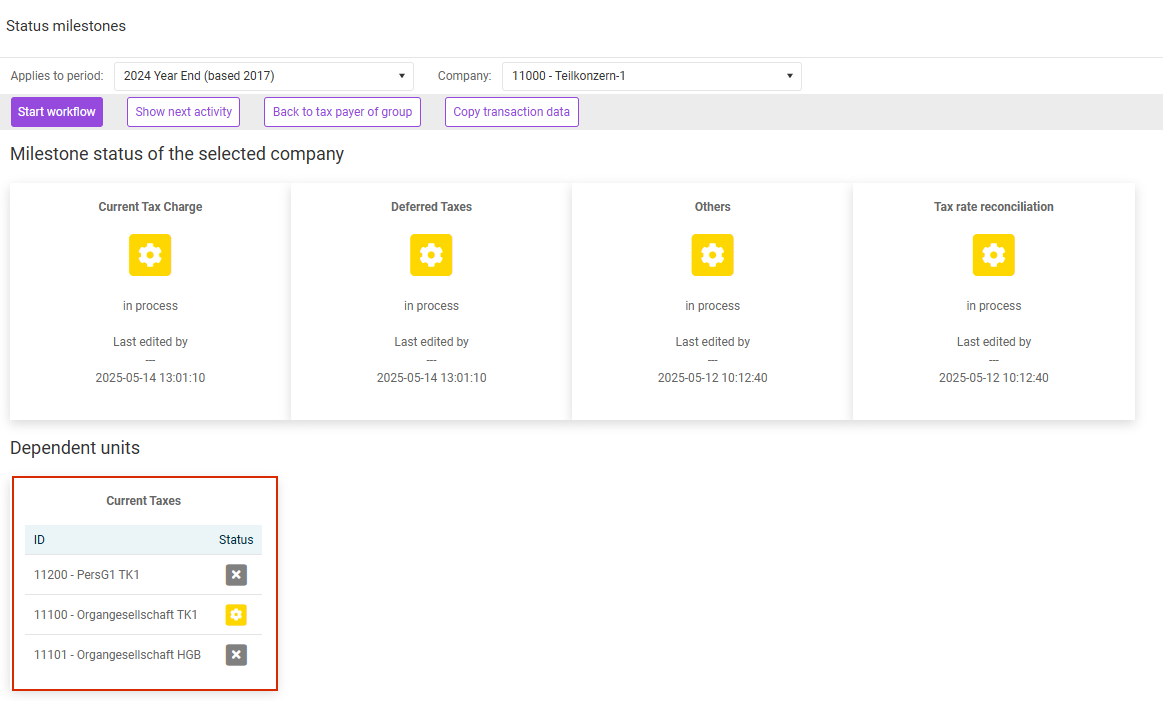
To make it easy to trace dependencies on other companies, these companies are displayed under Dependent units. This allows you to quickly identify, for example, why you cannot set a milestone to Finished. You can quickly identify companies that have not been edited completely:
Copying Transaction Data
You can copy the transaction data of the company if the target period is not locked and the milestones of the company are open.
To copy the transaction data:
- Navigate to Status under Company.
Click Copy transaction data:
 Copying transaction data of a company
- In the following dialog, choose the transaction data to be transferred from another period for this company. Only source periods in which the currently selected company is also stored as an active company are available for selection. In addition, the company must have at least started the calculation in the source period.
- Start the copying process. The number of copied records is displayed (per chosen row) in the third column after the copying process.
The following points must be observed when copying transaction data:
- A currency conversion is performed if the company used a different currency in the source period.
- Data cleansing is performed if the source and target periods do not use the same form set and/or the same calculation bases/patches. The number of cleansed data items is shown in brackets with an asterisk after the copy.
- An internal field mapping is maintained in Income Taxes. If the item of fields changes across assessment periods, these fields can usually still be copied as a consequence.
- If fields no longer exist in the target period, these fields will not be copied from the source period.
- If allocation data are to be copied, the allocation keys must first be maintained in the target period.
- It is possible to transfer data from a more recent assessment period to the 2017 and 2018 assessment periods (backward copy). Individual values may not be able to be transferred. In any case, the transferred data must be reviewed afterwards.
- Issues from the § 8b KStG workspace that were transferred from subordinate partnership companies are not included in the transaction data copy. Please update the issues instead by saving the TB transfer workspace.
After the copying process has been completed, the affected workspaces are automatically saved once. Due to the data flows, this may also affect workspaces into which data were not copied directly. The saving process is documented in the milestones. The status of individual milestones may change to data ok as a result of the saving process.
Printing Company
A dialog, in which you can choose the workspaces to be printed, is displayed by clicking Print company:
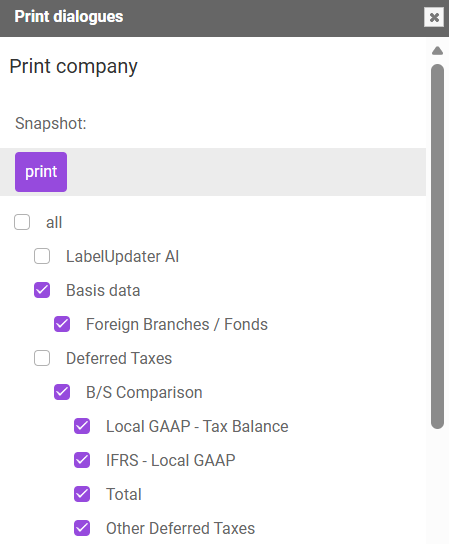
The print is output on a new tab of the web browser. This view can then be saved in PDF format or printed, for example. Please observe that the print function of the browser is used and Income Taxes has only a limited influence on the layout.
Workflow Bot Function
The Workflow Bot function is started with Start workflow and is an innovative function designed to help enterprises improve their efficiency in financial reporting and focus on their core competencies. The Start workflow button is available in the Status workspace if the materiality of the company is suitable for the configured workflow bot and the processing of the company has started.
You can find further details on the workflow bot in the article Workflow Bot.