
Status (Sub-)Group
Last updated on 2026-03-23
Overview
In the (Sub-)Group functional area, the data of the individual companies are aggregated. Except for the Status workspace, all other workspaces are only accessible for companies with the activated master data attribute (Sub-)Group.
The Status workspace shows the milestone status of the selected companies in Income Taxes. This view can be customized individually using selection criteria.
This article contains the following sections:
Navigation
The Status workspace is opened under (Sub-) Group | Status.
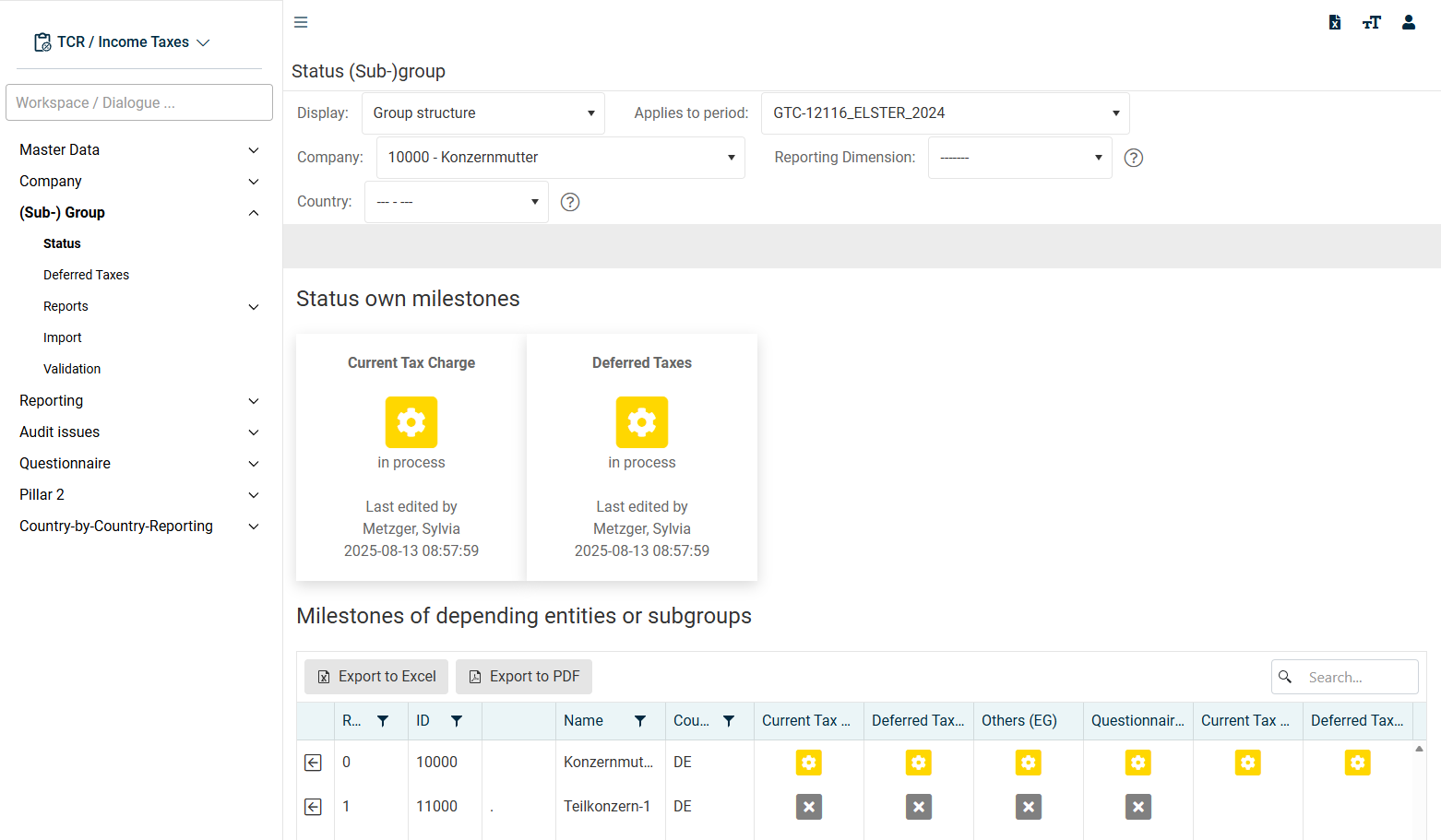
The Status workspace is displayed under (Sub-) Group for example as follows:
Configuring Display
In the upper area of the Status workspace, multiple drop-down lists can be used to select for which entity the status should be displayed:
Option
Description
Display
List: Display of all individual companies created in the master data (Companies workspace).
Group structure: Display of the group structure.
Tax group structure: Display of the tax group structure.
The display according to group or tax group structure depends on the respective stored structure and the selected company.
Applies to period
Period for which the status should be displayed.
Company
Selection of the desired company for which the status should be displayed.
The choice of company is significant in that only the status of the subordinate individual companies is displayed at any given time. This makes it possible to view both the entire group and individual sub-groups.
Reporting Dimension
Reporting dimension for which the status should be displayed.
Country
Country for which the status should be displayed.
Resetting Milestones
Only in the Status workspace at (Sub-)Group level can closed milestones (i.e. those that have at least the finished status) be reset. Reopening already closed milestones may be necessary, for example, if entries already recorded need to be changed subsequently.
To reset a milestone:
- Click on the milestone that should be reset.
- Answer the following confirmation message with OK.
- The selected milestone will be reset.
A milestone with the checked status (blue) is first reset to the finished status (green). Another click on this milestone causes it to be reset to the in process status (yellow).
Milestones can be reset selectively for individual companies. Only for tax group members and partnership companies (i. e. dependent companies) can the Current Taxes milestone not be reset if the status of the parent companies is already finished. The following error message is displayed:
Modification of milestone failed. Check milestones of parent units (tax group, shares).
When resetting milestones, there is also a dependency based on the group structure. Each company must be assigned to a group or subgroup within the group structure. If this is not the case, the following error message is displayed when resetting:
Modification of milestone failed. No (sub-)group defined. Please check the master data.
Activities to Achieve Milestones in the '(Sub-)Group' Area
The milestones of the respective parent company (or a sub-group entity created as a dummy company) are administered in the (Sub-) Group workspace. The individual status values are displayed in the upper area of the Status workspace.
Generally, the respective milestones of the subordinate company must have reached the finished status. Only then can the sub-group also raise the milestone status accordingly. Resetting milestones follows the same procedure as for individual companies and is displayed in separate columns in the status overview.
Current Taxes Milestone
For the Current Taxes milestone (if the above-mentioned condition regarding the individual companies is met), a click on the milestone is sufficient. No further sub-workspaces in the (Sub-) Group workspace need to be processed.
Deferred Taxes Milestone
For the Deferred Taxes milestone to reach the data ok status, the workspace of the same name in the (Sub-) Group area must be saved. Subsequently, the milestone status can be raised to finished with a click.
Tax Rate Reconciliation Milestone
For the Tax rate reconciliation milestone the TRR workspace must be saved (data ok status). Subsequently, the milestone status can be raised to finished with a click.